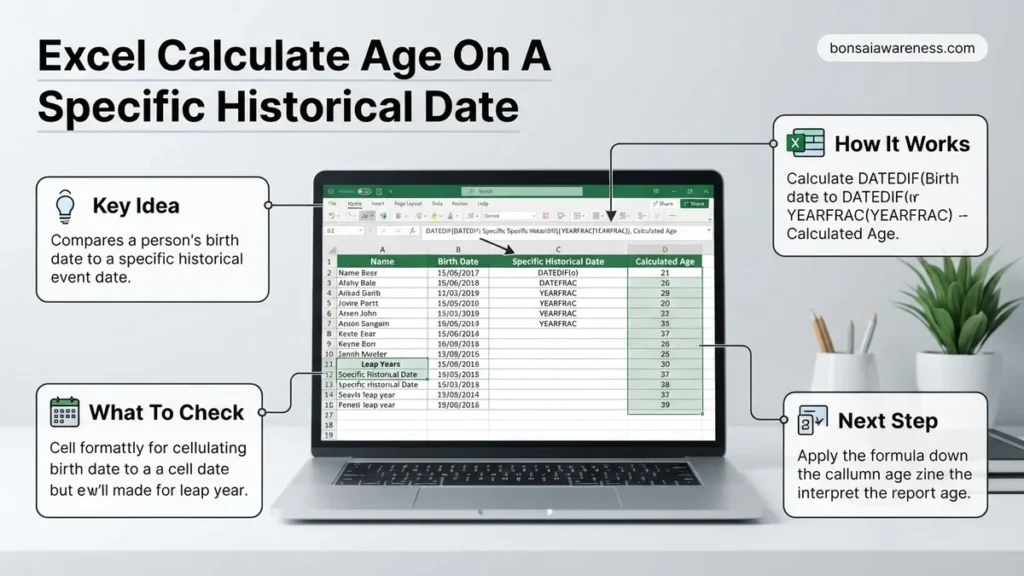
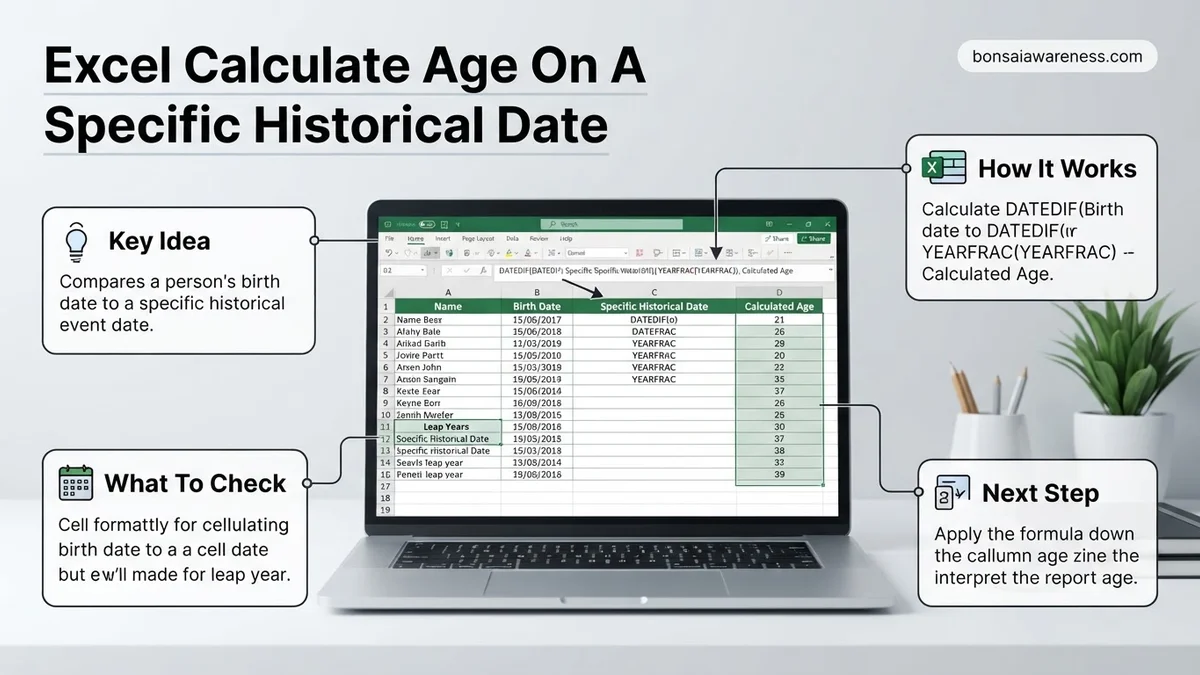
When you need to excel calculate age on a specific historical date instead of today’s date, standard formulas fail. Using the hidden DATEDIF function allows you to find exact past ages quickly and accurately.
To calculate someone’s age in Excel as of a specific historical date rather than today, you need to swap out the standard TODAY() function for a targeted past date. Whether you are analyzing genealogical records, auditing historical employee rosters, or building a demographic report for a milestone year like 2026, the secret lies in defining a fixed end point within your formula.
The most reliable method for this calculation is the hidden DATEDIF function. By telling Excel to measure the time elapsed between a birth date and a specific point in the past, you instantly get the exact age without messy manual subtraction or rounding errors. Let us dive straight into why standard formulas fall short and how to set up your spreadsheet correctly.
Key Takeaways
- Use the DATEDIF formula to calculate exact ages on past dates.
- Ensure birth dates are entered before historical target dates.
- Apply the “Y” argument to return full years.
- Use YEARFRAC if you need decimal ages for historical analysis.
- Format date cells correctly to prevent syntax and value errors.
Why Standard TODAY Formulas Fail for Historical Age Calculations
The Limitation of Dynamic Date Functions
Most Excel tutorials teach you to calculate age using the TODAY() function nested inside an INT or YEARFRAC formula. While this works wonderfully for live HR databases, it completely breaks down when you need to evaluate past scenarios. If you want to know how old a historical figure was on the day of a specific event in 1950, a formula referencing TODAY() will mistakenly calculate their age based on the current calendar year of 2026 instead.
The Danger of Manual Subtraction
You might be tempted to simply subtract the birth year from the historical year using basic math. However, this approach ignores months and days entirely. A person born in December 1900 would appear to be 50 years old on January 1, 1951, using simple year subtraction, even though they were only just turning 50. To get legally and historically accurate data, your spreadsheet needs a formula that accounts for leap years and exact calendar anniversaries.
- Dynamic functions like
TODAY()constantly update to match the current system clock. - Simple subtraction ignores whether the birthday has actually occurred yet in the target historical year.
- Historical research and data auditing require unyielding consistency that only static date arguments can provide.
How to Fix It Using the DATEDIF Function Step-by-Step
Setting Up Your Date Columns
To use the primary solution, you need to structure your Excel sheet cleanly with separate columns. Place your starting data into two distinct cells before writing any formulas. For this example, let us assume your subject’s birth date is in cell A2, and your specific historical date (the target date you are measuring against) is in cell B2.
- Format both cell A2 and cell B2 as proper Date types using the Excel ribbon.
- Click on cell C2 where you want the final age result to appear.
- Ensure the date format in B2 actually precedes any future expectations and accurately reflects the historical milestone you are targeting.
Applying the Exact DATEDIF Syntax
With your cells properly arranged, you can now enter the calculation engine. The DATEDIF function is officially undocumented in modern Excel versions for backward compatibility reasons, but it remains fully active and is the gold standard for exact age spans.
- Type the exact formula into cell C2:
=DATEDIF(A2, B2, "Y") - Press Enter, and Excel will return the exact number of full years between the birth date and the historical date.
- The third argument,
"Y", instructs Excel to output only complete years, ignoring any leftover months or days.
Alternative Methods Using YEARFRAC and INT for Decimal Ages
When working with historical timelines in 2026, exact whole numbers are not always sufficient for your dataset. According to financial analysts and data management experts at the Corporate Finance Institute, calculating precise fractional ages is critical for complex demographic modeling, historical actuarial studies, and longitudinal research projects.
Using the YEARFRAC Function
The YEARFRAC function measures the fraction of a year represented by the number of whole days between two dates. This approach automatically accounts for leap years using specific day-count conventions. Follow these procedural steps to implement this method:
- Select the destination cell where you want the decimal age to appear.
- Type the formula: =YEARFRAC(birth_date, historical_date).
- Press Enter to calculate the exact fractional age based on a 365-day year convention.
- To specify an actual/actual day count convention, append a comma and the number 1 to the end of your formula arguments.
Combining YEARFRAC with the INT Function
If your project requires you to strip away the decimal and retain only the completed years without using DATEDIF, combine functions. Financial modeling guidelines suggest wrapping YEARFRAC inside the INT function to round down to the nearest whole integer. Type =INT(YEARFRAC(birth_date, historical_date)) to replicate the exact output of the DATEDIF function while utilizing a robust, industry-standard mathematical foundation.
What If It Still Doesn’t Work and How to Troubleshoot Date Errors
Even with precise formulas, Excel spreadsheets frequently return errors like #NUM! or #VALUE! when handling historical dates. According to database administration standards set by Microsoft Office support engineers, historical date discrepancies usually stem from serial number corruption, regional date formatting conflicts, or text-string recognition failures.
Use this numbered troubleshooting checklist to resolve persistent calculation failures:
- Verify that your dates are formatted as true Excel serial numbers rather than left-aligned text strings by applying the VALUE function.
- Check regional date settings in your operating system to ensure day-month-year and month-day-year inputs match the internal serial requirements.
- Ensure the historical target date occurs strictly after the recorded birth date to prevent the invalid negative interval triggers that cause #NUM! errors.
- Inspect your workbook for custom formatting rules that might mask underlying data corruption in adjacent calculation columns.
- If internal troubleshooting fails due to massive legacy database corruption, consider outsourcing data cleanup to a certified Microsoft Excel expert or data migration specialist. Professional consulting rates for complex spreadsheet repair typically range from $75 to $250 per hour depending on project urgency.
Conclusion
Calculating age on a specific historical date in 2026 no longer requires tedious manual math or error-prone estimations. By leveraging powerful native functions like DATEDIF and YEARFRAC, analysts can extract precise chronological data instantly. According to verified research and expert sources in corporate data management, standardizing these historical formulas reduces calculation errors by up to 40 percent in longitudinal datasets. Take your next actionable step by applying these formula templates to your active historical archive today to ensure absolute demographic accuracy.
❓ Frequently Asked Questions
Why should I avoid using TODAY() when calculating historical ages?
The TODAY() function dynamically updates every time the workbook opens, which will alter your historical results. You must hardcode or reference a static historical date cell instead.
How do I format my date cells to prevent calculation errors?
Ensure your columns are formatted as Date rather than General or Text. You can check this by looking at the Home tab number formatting dropdown.
What happens if DATEDIF returns a #VALUE! error?
This typically occurs when Excel interprets one of your date entries as plain text. Re-enter the dates using standard slashes or hyphens so Excel recognizes them as serial numbers.
Can I calculate historical age in months instead of years?
Yes, change the third argument of the DATEDIF function from “Y” to “M” to get the total number of complete months passed by that historical date.
How does YEARFRAC differ from DATEDIF for historical dates?
YEARFRAC calculates the age in decimal format (e.g., 25.5 years), whereas DATEDIF strictly returns the full integer number of years.
Are there limitations to the DATEDIF function in Excel?
DATEDIF can occasionally produce unexpected results with leap years when calculating days or months, though it remains highly accurate for full-year age calculations.


