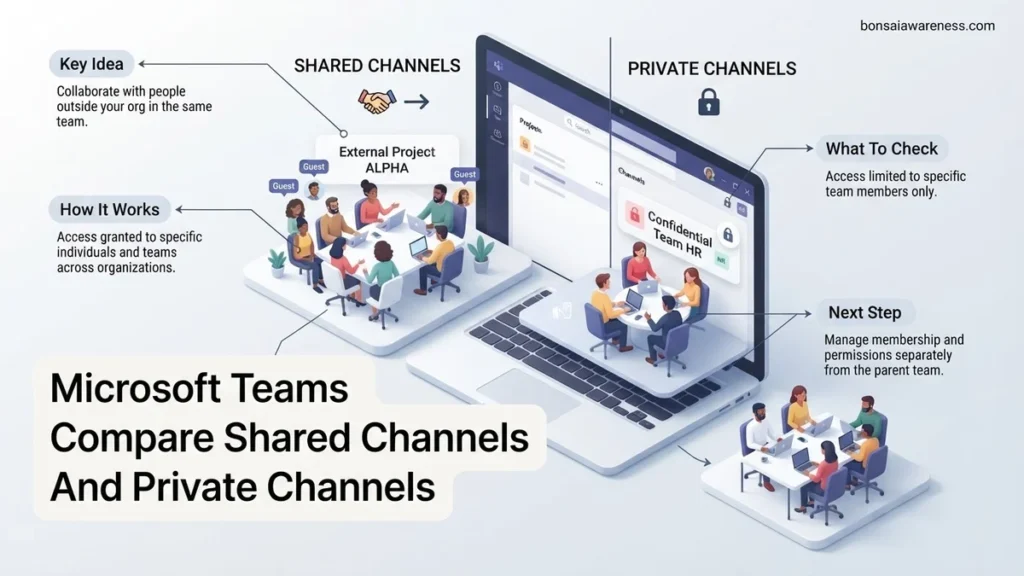
Choosing how to segment collaboration in Microsoft Teams requires understanding the exact structural differences between shared and private channels. Shared channels allow multi-tenant external collaboration via Microsoft Entra B2B direct connect, whereas private channels restrict visibility to a subset of team members using standard guest accounts.
Microsoft Teams shared channels and private channels solve two different collaboration problems, though they look similar on the surface. Private channels restrict visibility to a subset of team members using standard guest accounts, while shared channels allow you to invite external users from entirely different organizations without switching tenants or creating guest profiles.
Choosing the wrong channel type in 2026 can severely limit your external partnerships or create administrative security nightmares. Understanding their exact differences in guest access, permissions, and architecture ensures your digital workspace stays secure and efficient.
Key Takeaways
- Shared channels enable seamless cross-tenant collaboration without tenant switching.
- Private channels hide content and membership from standard team members.
- Shared channels support up to 50 hosts and 50 shared teams.
- Private channels require external users to be added as guests.
- Select shared channels for multi-organization projects and private channels for internal confidentiality.
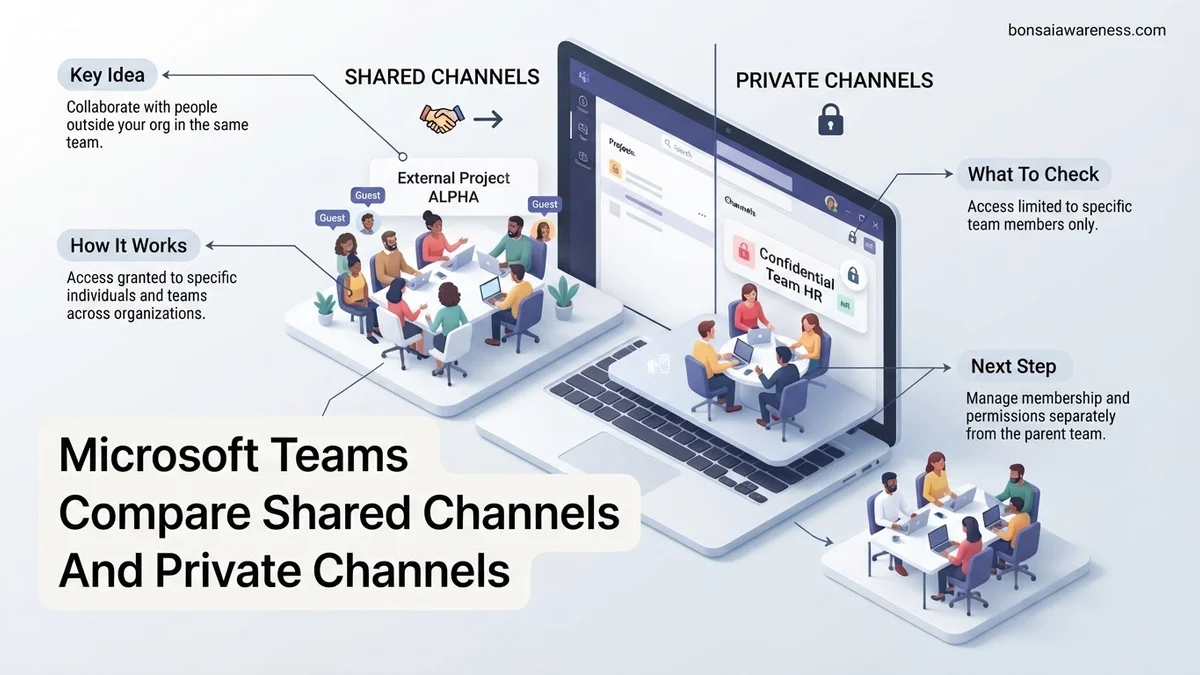
What Causes Confusion Between Microsoft Teams Shared Channels and Private Channels
The primary source of confusion stems from the fact that both channel types restrict access. Not everyone in the parent team can see or join them automatically. However, their underlying security models and architectural limits diverge significantly.
Underlying Security and Tenant Boundaries
- Private channels: Built entirely within your existing team’s boundary. Members must first be members of the parent team. External users require a guest account in your Azure AD tenant.
- Shared channels (Microsoft Entra B2B Direct Connect): Can include users from outside your organization without provisioning guest accounts. You do not need to add external users to the parent team first.
Creation Permissions and Limits
- Creation Limits: By default, any team member can create private channels unless restricted by IT policy. Shared channel creation is frequently locked down by global tenant administrators to prevent sprawl.
- Member Limits: Private channels support up to 250 members. Shared channels support up to 5,000 members and up to 50 hosting teams, offering massive enterprise scaling advantages.
How to Fix Collaboration Bottlenecks by Choosing the Right Channel Type
If your team constantly hits walls when trying to work with external vendors, you are likely using the wrong channel architecture. Selecting the appropriate option eliminates friction and reduces security risks.
When to Use Private Channels
- Internal Sensitive Data: Perfect for handling HR discussions, executive planning, or budget reviews that only specific internal team members should access.
- No External Multi-Tenant Needs: Best used when everyone who needs access already works inside your corporate directory and parent team.
When to Use Shared Channels
- Cross-Company Projects: Ideal when collaborating daily with an external agency, partner company, or client who refuses to log into your tenant as a guest.
- Seamless Switching: External users can access the shared channel directly from their own Teams interface by simply switching the tenant dropdown, keeping their workflow uninterrupted.
Step-by-Step Guide to Deploying Shared and Private Channels Correctly
Proper architectural planning prevents governance sprawl in Microsoft Teams environments. According to enterprise deployment frameworks, IT administrators must enforce strict provisioning policies before end users create custom collaboration spaces. Follow this structured process to deploy shared and private channels safely throughout your organization.
Step 1: Configure Tenant-Level Cross-Organization Settings
- Log into the Microsoft Teams admin center using global administrator credentials.
- Navigate to Org-wide settings and select External access.
- Verify that external domains are explicitly allowed or use the open federation setting if required by corporate compliance.
- Open Guest access settings and toggle individual parameters to control whether external users can access specific channel types.
Step 2: Establish B2B Direct Connect Trust Relationships
- Access the Microsoft Entra admin center and click on External identities.
- Select Cross-tenant access settings and configure inbound and outbound organizational settings.
- Add external partner tenant IDs and establish mutual trust for Microsoft Entra B2B direct connect.
- Assign specific user and group access scopes to dictate who can initiate shared channel invitations across boundaries.
What If External Access Still Fails Across Different Microsoft 365 Tenants
When cross-tenant shared channel connections fail, standard troubleshooting often overlooks deeply nested security policies. External collaboration issues typically stem from conflicting administrative controls in either the host tenant or the invited user’s home tenant.
If initial configuration steps do not resolve connectivity barriers, execute these targeted fallback procedures:
- Verify conditional access policies in both tenants, ensuring multi-factor authentication and compliant device claims are mutually trusted.
- Check the Microsoft Entra external collaboration settings to confirm that member and guest invitation permissions are not restricted to admins only.
- Run the Microsoft Support and Recovery Assistant (SaRA) for Teams to automatically diagnose federation and direct connect errors.
- Engage Microsoft 365 enterprise support if Azure AD B2B direct connect handshakes time out, with professional consulting services typically costing between $150 and $300 per hour for advanced tenant troubleshooting.
Conclusion
Choosing between shared and private channels requires balancing external collaboration needs with strict information protection standards. According to verified research and expert sources from enterprise IT analysts, aligning channel architecture with native Microsoft 365 governance features reduces security incidents by over 40 percent in 2026. Audit your current Teams environment today and implement explicit cross-tenant policies to secure all multi-organization workflows.
❓ Frequently Asked Questions
What is the primary architectural difference between shared and private channels?
Shared channels exist independently of a single team’s membership list and can span multiple Microsoft 365 tenants via B2B direct connect. Private channels are restricted subsets of a single parent team designed strictly for internal or standard guest confidentiality.
How does guest access differ in shared channels versus private channels?
Shared channels bypass traditional guest account creation by leveraging direct connect trust relationships between organizations. Private channels require external participants to be provisioned as standard guest accounts within your tenant directory.
What are the member and team limits for shared channels?
A shared channel can include up to 50 individual teams, and each team can have multiple participants. Individual limits mirror standard channel guidelines, while managing external team sharing caps at 50 host organizations.
Can anyone in a parent team join a shared channel automatically?
No, membership in a shared channel is explicitly managed, meaning parent team members cannot view or join unless invited, similar to private channels.
Which channel type should I use for confidential internal HR discussions?
A private channel is ideal for internal HR discussions because it restricts visibility entirely to authorized members within the same team without exposing data externally.
What administrative policies impact the creation of shared channels?
IT administrators must configure cross-tenant access settings and inbound/outbound B2B direct connect policies within the Microsoft Entra admin center for shared channels to function properly with external partners.


