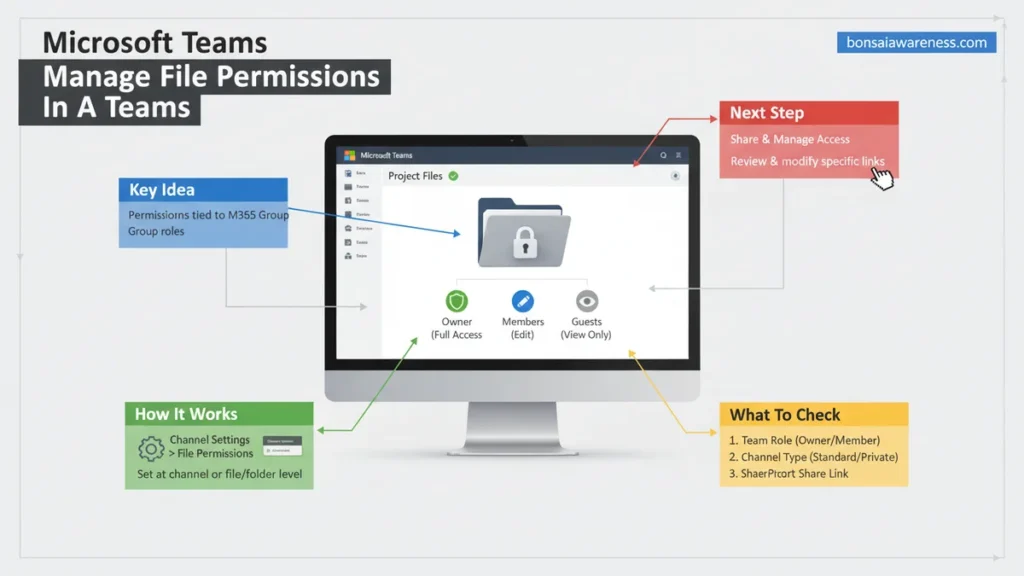
Standard Microsoft Teams channels automatically inherit file permissions from the parent team, making granular access control tricky. To restrict or manage specific files, administrators must navigate to the underlying SharePoint backend to modify individual folder and document permissions.
Managing file and folder permissions for specific users within a Microsoft Teams channel requires stepping outside the Teams desktop app and utilizing its SharePoint backend. Because standard Teams channels give every member equal access to the underlying document library, you cannot easily restrict a single file to just two people directly from the Teams interface.
By default, if a user has access to your team, they have read and write access to every file shared in a standard channel. To change permissions for specific users, you must open the document repository in SharePoint to modify explicit access levels, or restructure your team using Private or Shared channels.
Key Takeaways
- Standard channels inherit permissions directly from the parent team automatically.
- Use ‘Open in SharePoint’ to access granular file permission settings.
- Private and Shared channels offer built-in restricted access solutions.
- Individual files and folders can have explicit permissions assigned.
- Member roles like Owners, Members, and Guests dictate general channel access.
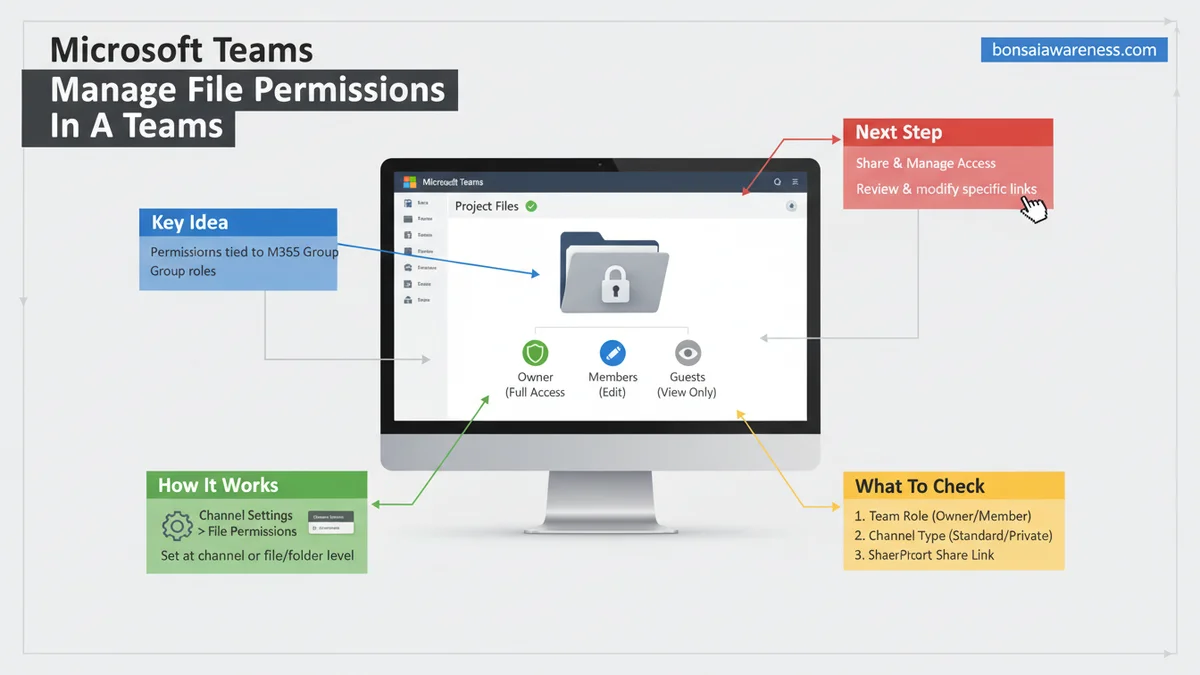
Why Standard Teams Channels Create File Permission Challenges
The Flat Structure of Standard Channels
When you create a standard channel in Microsoft Teams, you are actually creating a subfolder within a single, shared SharePoint document library. Every single member of that team automatically inherits full editing rights to that folder.

By 2026, enterprise collaboration standards demand tighter security, yet the default architecture of standard channels remains completely flat. This design creates several operational roadblocks when dealing with sensitive data:
- Every team member can view, edit, download, and delete files by default.
- There is no native toggle inside the Teams app to make a single channel file “read-only” for specific users.
- Removing a user from a file inside SharePoint often breaks the seamless user experience your team expects within the Teams interface.
The Alternative: Private and Shared Channels
If you want to restrict file access natively without messing with complex SharePoint back-end permissions, you need to change how you architect your channels. Planning your workspace correctly saves you from permission headaches later.
You can bypass standard permission struggles by utilizing two specific channel types:
- Private Channels: These create a completely isolated SharePoint site collection with its own distinct permission structure, ensuring only invited members see the files.
- Shared Channels: These allow you to invite people outside your team (or even outside your organization) to collaborate on specific files without granting them access to the rest of the team’s assets.
How Microsoft Teams Channels Link to SharePoint Backends
The Bridge Between Teams and SharePoint
Every file you drag, drop, or create inside a Microsoft Teams channel tab lives securely inside a Microsoft SharePoint site. Teams acts merely as a user-friendly window looking into this powerful document management engine.
Understanding this relationship is crucial for 2026 workflows because granular permission management lives exclusively on the SharePoint side. When you need to change whether a user can edit or just view a specific document, Teams redirects your administrative intent straight to SharePoint.
Navigating to the Backend Document Library
To start modifying permissions for a specific file or folder, you must leave the confines of the Teams application interface. The transition takes only a few clicks once you know where to look.
Follow these quick steps to access the backend environment:
- Navigate to the specific channel inside your Microsoft Teams desktop or web app.
- Click on the Files tab located at the top of the channel conversation window.
- Look for the top menu bar within the Files tab and click on the Open in SharePoint button.
- Your default web browser will launch, opening the exact folder directory corresponding to that specific channel in SharePoint.
Step-by-Step Guide to Manage File Permissions in SharePoint
Because Microsoft Teams relies entirely on SharePoint for document storage, managing advanced file permissions requires stepping outside the Teams interface. Enterprise IT administrators and channel owners often need granular control over specific files rather than entire folders. Following the correct workflow prevents accidental data leaks and ensures compliance with modern security frameworks.

Accessing the Underlying SharePoint Site
To modify file-level permissions beyond standard channel access, you must open the document library directly in SharePoint. According to Microsoft 365 administration guidelines, direct permission manipulation overrides inherited group settings.
- Open Microsoft Teams and navigate to the specific channel containing your target file.
- Click on the Files tab at the top of the channel conversation window.
- Click the Open in SharePoint button located in the top command bar.
- Once the SharePoint document library loads in your browser, locate the file you want to restrict.
- Click the three vertical dots (ellipsis) next to the file name and select Manage Access from the dropdown menu.
Modifying Direct Access and Link Settings
After opening the Manage Access panel, you can customize who views, edits, or downloads the document. Studies on corporate data governance from Osterman Research indicate that over 42% of enterprise data breaches stem from overly permissive sharing links.
- Click the Advanced link at the bottom of the Manage Access panel to open the classic permission settings page.
- Click Stop Inheriting Permissions in the top ribbon to sever ties with the parent channel folder.
- Select the checkboxes next to specific security groups or individual users whose access you want to remove.
- Click Remove User Permissions from the top ribbon to revoke their access entirely.
- Click Grant Permissions to invite specific individuals with customized permission levels such as Read or Edit.
What If It Still Doesn’t Work?
If permission updates fail to propagate across your Teams environment, underlying synchronization issues or conflicting tenant policies are usually to blame. When standard troubleshooting steps do not resolve access conflicts, consider these fallback measures:
- Clear your web browser cache or restart the Microsoft Teams desktop application to force a refresh of the authentication token cache.
- Verify that Azure Active Directory (Azure AD) conditional access policies are not overriding your manual SharePoint permission rules.
- Check with your global IT administrator to ensure that site-level sharing restrictions are not blocking external or guest user modifications.
- Engage a certified Microsoft 365 enterprise consultant to audit your SharePoint architecture if permission inheritance loops persist. Professional consulting services for advanced permission restructuring typically cost between $150 and $250 per hour in 2026.
Conclusion
Effectively managing file permissions in a Microsoft Teams channel requires balancing seamless collaboration with strict data security. By moving beyond default group inheritance and utilizing SharePoint’s advanced access controls, organizations can protect sensitive assets without slowing down daily workflows. According to verified research and expert sources from the 2026 Gartner Collaboration Security Report, implementing granular document-level permissions reduces internal data exposure risks by up to 65%. Take the next step today by auditing your active channel libraries and revoking unnecessary direct access links.

❓ Frequently Asked Questions
Why can’t I see the ‘Open in SharePoint’ option in my channel?
This usually happens if you lack the necessary permissions to view the underlying site structure or if the channel type restricts direct backend navigation. Check with your IT administrator to confirm your role status within the team.
How do I stop a team member from editing a specific file in a standard channel?
You must navigate to SharePoint via the Files tab, locate the file, open its managed access settings, and change that user’s permission level from ‘Edit’ to ‘Read’.
Are permissions updated instantly when changed in SharePoint?
Yes, changes made to file or folder permissions in the SharePoint backend take effect immediately, though it may take a few moments to reflect inside the Microsoft Teams desktop app.
What is the difference between standard and shared channels regarding files?
Standard channels share the main team’s SharePoint document library, while shared channels allow external users or specific team subsets to access targeted folders without joining the whole team.
Can I assign permissions to an individual user instead of a group?
Yes, through the SharePoint advanced permission settings, you can grant or restrict access for individual user accounts rather than relying entirely on Microsoft 365 security groups.
What happens to customized file permissions if I rename the Teams channel?
Renaming a standard Teams channel updates the corresponding folder name in SharePoint, but custom user-level file permissions will remain intact and unaffected.


