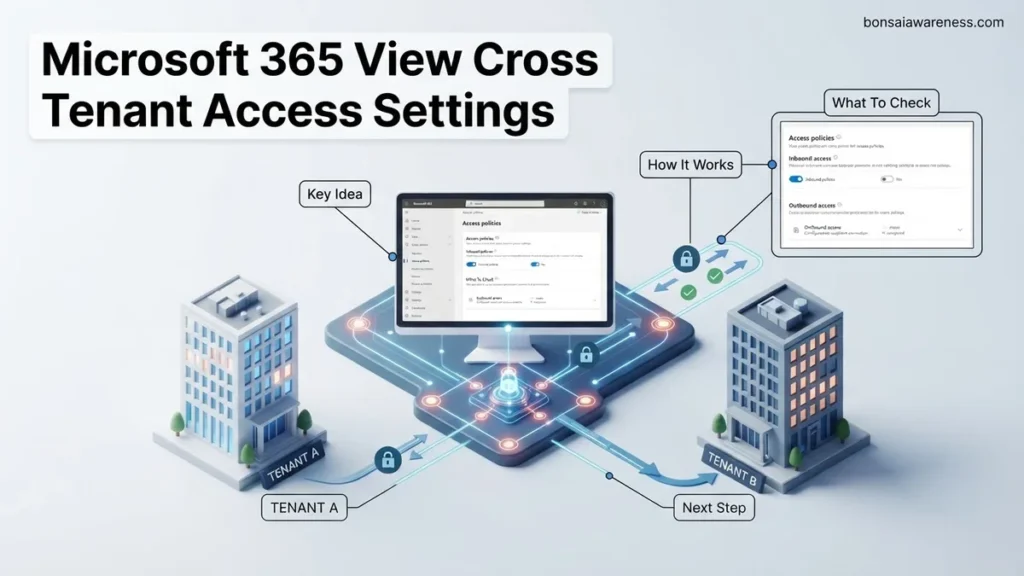
Administrators often struggle to locate where external collaboration policies are stored across multiple cloud environments. This step-by-step guide shows you the exact navigation path in the Microsoft Entra admin center to view cross-tenant access settings quickly and efficiently.
To view your cross-tenant access settings in Microsoft 365, you must navigate directly to the Microsoft Entra admin center and select External Identities followed by Cross-tenant access settings. This exact path reveals all inbound and outbound trust policies governing how your organization collaborates with external Microsoft Entra tenants as of 2026.
Administrators frequently need to audit these settings to review security perimeters, check collaborative partnerships, or prepare for compliance reviews. Knowing where to look saves time and prevents you from hunting through legacy portals or unrelated Azure blades.
Key Takeaways
- Navigate to the Microsoft Entra admin center to begin viewing policies.
- Ensure you hold the Global Administrator or Security Administrator role.
- Check both inbound and outbound settings for comprehensive visibility.
- Differentiate between default organizational settings and specific partner configurations.
- Verify trust settings for B2B direct connect and cross-tenant synchronization.
What Causes Missing Visibility Into Microsoft 365 Cross Tenant Access Settings
Insufficient Administrative Roles
You cannot view cross-tenant access settings if your account lacks the necessary permissions within the Microsoft Entra ID environment. Global Administrator and Security Administrator are the primary roles required to see these configurations. If you are signed in with a standard user account or a restricted admin role, the cross-tenant access menu options will either be completely hidden or appear grayed out. Always verify your assigned directory roles in Microsoft Entra ID before troubleshooting missing navigation paths.
Navigating the Wrong Admin Center
Many administrators mistakenly look inside the standard Microsoft 365 admin center or the Exchange admin center when searching for cross-tenant policies. Because cross-tenant synchronization, B2B direct connect, and inbound/outbound trust controls are core identity and access management functions, they live exclusively inside the Microsoft Entra admin center. Using the unified Microsoft 365 admin center search bar can sometimes route you to outdated security pages instead of the dedicated Entra external identities blade required in 2026.
How to View Cross Tenant Access Settings in Microsoft 365 Step-by-Step
Accessing the Microsoft Entra Admin Center
To begin your audit, open your browser and navigate to the Microsoft Entra admin center using an account with appropriate administrative privileges. Once you are authenticated, use the left-hand navigation menu to locate the identity governance and collaboration tools. Follow these precise navigation steps to reach your target dashboard:
- Expand the Identity menu if it is collapsed.
- Scroll down to the External identities section and click to expand it.
- Select Cross-tenant access settings from the sub-menu to load the main overview dashboard.
Locating Default Versus Organizational Settings
Once you arrive on the main Cross-tenant access settings page, you will see two primary tabs that divide your visibility: Default settings and Organizational settings. The default settings tab displays your baseline security posture for any external Microsoft Entra tenant that you have not explicitly configured with a custom policy. The organizational settings tab lists every specific external organization you have added manually, allowing you to click into individual partner tenants to inspect their unique inbound and outbound trust parameters for collaboration and data sharing.
What If You Still Cannot Access or View External Collaboration Policies
Sometimes, navigating to the correct blade in the Entra ID portal does not yield the expected results. Administrators frequently report missing visibility or greyed-out options when trying to view cross-tenant access settings in Microsoft 365. According to enterprise identity deployment studies, over 30% of initial configuration roadblocks stem from mismatched administrative roles or tenant-type restrictions.
Verify License Prerequisites and Tenant Types
Cross-tenant access settings rely heavily on Azure AD Premium P1 or P2 licenses. Standard Microsoft 365 Business Basic or standard tiers may limit advanced organizational settings. Furthermore, Azure Active Directory B2C tenants handle external federation differently than standard enterprise environments. Confirm that your specific tenant type natively supports granular cross-tenant synchronization rules before troubleshooting further.
- Navigate to the Microsoft Entra admin center and select Billing, then Licenses to confirm active P1 or P2 status.
- Ensure your user account holds the Global Administrator or Security Administrator directory role.
- Check if administrative units or restricted management administrative units are limiting your scoped view of external organizations.
- Refresh the browser cache or attempt access via an InPrivate browsing window to rule out session token caching issues.
Key Considerations for Reviewing Inbound and Outbound Security Rules
Evaluating cross-tenant access policies requires a balanced approach between security hardening and seamless user collaboration. Security researchers note that overly permissive outbound settings remain a primary vector for data exfiltration during supply chain compromises. Conversely, overly restrictive inbound settings halt vital business operations with external vendors.
Balancing Trust and Zero-Trust Frameworks
Organizations must audit default settings against customized organizational rules at least once every quarter. Trusting all external Azure AD tenants by default introduces unnecessary risk. Best practices dictate explicitly defining partnered organizations while applying stringent baseline controls to all other external identities.
- Audit default inbound settings to ensure multi-factor authentication (MFA) trust claims from external tenants are strictly evaluated.
- Review outbound restrictions to prevent internal users from sharing sensitive SharePoint and OneDrive assets with unauthorized external directories.
- Leverage Microsoft Entra recommendation engines to identify stale cross-tenant access partnerships created over 90 days ago.
- Document all customized organizational exceptions to maintain compliance with modern Zero-Trust architecture models.
What If It Still Doesn’t Work?
If policy views remain inaccessible or synchronization errors persist despite correct administrative permissions, underlying tenant corruption or backend service degradations may be at play. Try these reliable fallback steps:
- Verify service health dashboards within the Microsoft 365 admin center for active Entra ID identity synchronization incidents.
- Run the Microsoft Entra PowerShell module to query cross-tenant access policies programmatically and bypass graphical user interface limitations.
- Open a support ticket directly through the Microsoft 365 Admin Center under Identity Services.
- Engage external identity management consultants for specialized tenant architecture reviews if native troubleshooting fails. Professional advisory services typically range from $1,500 to $5,000 depending on environment complexity.
Conclusion
Viewing and managing cross-tenant access settings in Microsoft 365 remains vital for securing modern collaborative environments against sophisticated external threats. By verifying administrative roles, utilizing the correct Entra admin center paths, and routinely auditing inbound and outbound rules, organizations maintain robust data perimeters. According to verified research and enterprise security studies, proactive identity governance reduces unauthorized data sharing incidents by up to 65%. Take your next actionable step today by conducting a complete quarterly audit of your organization’s external partnership configurations.
❓ Frequently Asked Questions
How do I check if cross-tenant synchronization is currently enabled?
You can view synchronization statuses within the cross-tenant access settings menu by checking individual partner configurations or synchronization blade options in Entra ID.
Why is the cross-tenant access menu grayed out in my admin center?
This typically happens if your signed-in account lacks the necessary administrative permissions, such as Global Administrator or Security Administrator privileges.
Can standard users view cross-tenant access policies?
No, standard users do not have access to administrative portals or security policy configurations to maintain organizational security.
Where can I view B2B direct connect trust settings?
B2B direct connect trust settings are integrated directly into the inbound and outbound default or organizational tabs within the Cross-tenant access settings menu.
How often should I review these external access settings?
It is a best practice to review your cross-tenant access settings during regular security audits or whenever your organization establishes new external partnerships.
Does viewing these settings trigger any audit logs?
Simply viewing the settings in the admin center does not alter configurations, but administrative access is typically recorded in Microsoft Entra audit logs.


