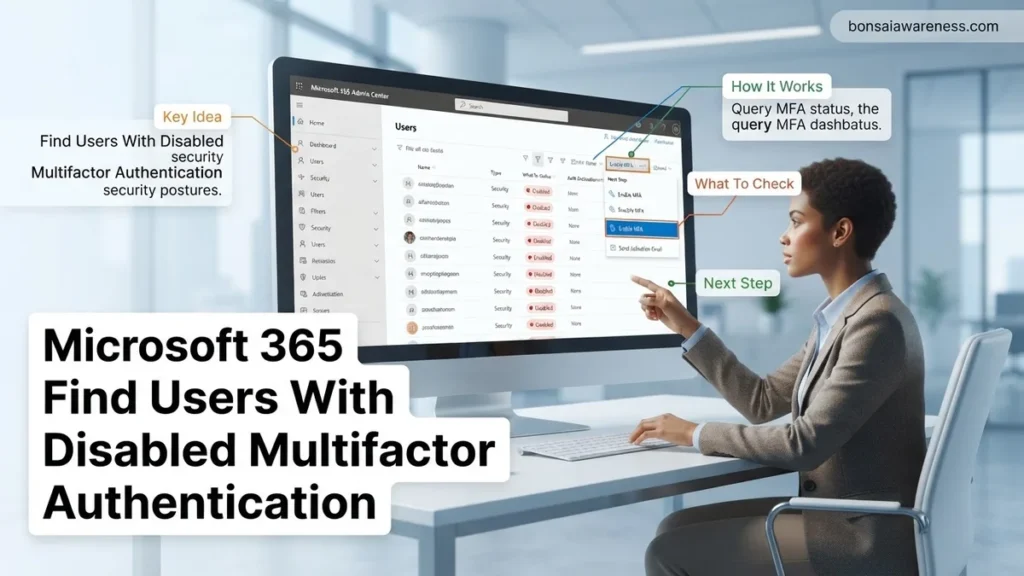
Auditing your tenant for users missing multi-factor security is critical for preventing unauthorized access. Microsoft Entra ID portals and PowerShell scripts provide the exact methods needed to generate a comprehensive list of unprotected accounts. Following a structured audit approach ensures you can quickly locate and remediate these security gaps.
To find all Microsoft 365 users with disabled multi-factor authentication, you need to query the Microsoft Entra admin center or run a targeted Microsoft Graph PowerShell script. The legacy per-user MFA administration interface has been fully retired, shifting all modern identity verification and tracking to identity protection policies, authentication methods dashboards, and Conditional Access insights.
Identifying accounts without MFA is critical for maintaining your organization’s security posture in 2026. Threat actors actively target unmanaged accounts, service accounts, and stale user profiles that slip past baseline security policies. Running regular audits ensures that no user can bypass your identity requirements.
Key Takeaways
- Use the Microsoft Entra admin center to view user authentication methods.
- Leverage Microsoft Graph PowerShell for automated user status reporting.
- Review legacy per-user MFA states versus modern Conditional Access policies.
- Export audit results to CSV for compliance tracking and management review.
- Enforce security defaults or Conditional Access to fix disabled states.
Why Microsoft 365 Users Have Disabled Multifactor Authentication
Legacy Accounts and Per-User Settings Exceptions
Many organizations running Microsoft 365 environments still harbor legacy user accounts that were created before modern authentication baselines were enforced. While Microsoft forces security defaults for new tenants, older setups often relied on per-user MFA states like Enabled, Enforced, or Disabled. If an administrator temporarily disabled MFA for troubleshooting or migration purposes and forgot to re-enable it, that account remains vulnerable. Additionally, external guest users or service accounts are frequently granted exceptions that leave them operating without secondary verification factors.
Exclusions Caused by Conditional Access Policies
Another common reason users lack MFA is improper scoping within Conditional Access policies. You might enforce MFA globally, but specific exclusions often leave gaps. Common culprits include:
- Break-glass accounts excluded from security policies to prevent lockout
- Specific named locations or trusted corporate IP ranges mistakenly exempted from verification requirements
- Pilot groups or specific department tags that were added during testing and never removed
- Service principal accounts or legacy service accounts that fail to trigger interactive authentication prompts
Mastering Microsoft 365 Security: How to Find Users with Disabled Multifactor Authentication in 5 Simple Steps
Securing your organization’s cloud environment is paramount, and ensuring that every user account is protected by multifactor authentication (MFA) is your first line of defense against credential theft and unauthorized access. Leftover legacy accounts, newly onboarded staff, or exempt service accounts often leave critical security gaps. This comprehensive guide walks you through the exact procedures required to audit, locate, and report on any Microsoft 365 user accounts currently operating without MFA enabled, ensuring your enterprise remains compliant and resilient.
Step 1: Sign In with Administrative Privileges
What you need: An active internet connection, a modern web browser, and an administrator account assigned with the Global Administrator, Security Administrator, or Reports Reader role within your Microsoft Entra ID (formerly Azure Active Directory) tenant.
Instructions: Open your preferred web browser and navigate to the official Microsoft Entra admin center at entra.microsoft.com or the Microsoft 365 admin center at admin.microsoft.com. Authenticate using your high-privilege administrative credentials, completing any required MFA prompts for your own account. Once the dashboard loads, navigate to the left-hand navigation menu, expand the “Identity” section, and click on “Users” followed by “All users” to prepare your workspace for the upcoming audit phase.
Pro Tip: Avoid using standard user accounts or accounts with split administrative duties that lack Reader privileges, as this will result in permission errors when attempting to view security status reports.
Step 2: Navigate to Microsoft Entra Identity Protection or Security Reports
What you need: Access to the Microsoft Entra admin center and appropriate licensing (such as Microsoft Entra ID P1 or P2 for advanced reporting features).
Instructions: Within the Microsoft Entra admin center, scroll down the left-hand menu and select “Protection,” then click on “Security Dashboard” or “Conditional Access.” Alternatively, for a quick overview of authentication methods, navigate to “Identity” > “Users” > “Per-user MFA” which opens the classic legacy multifactor authentication management portal. This legacy page provides a direct, unadorned grid view of all directory users alongside their current MFA status: Disabled, Enabled, or Enforced, making it the fastest route for standard Microsoft 365 Business subscriptions.
Pro Tip: If your organization utilizes modern Conditional Access policies rather than per-user MFA, the legacy per-user status page might falsely show accounts as “Disabled” even though they are protected via policy. Always cross-reference your findings with active Conditional Access policies.
Step 3: Filter and Export User Lists for Analysis
What you need: Microsoft Excel or a compatible spreadsheet application, and the ability to download CSV files from the admin portal.
Instructions: On the per-user MFA status management page, utilize the built-in view filters to sort users by their MFA status. Look for the search and filter options at the top of the user grid to isolate accounts where MFA is marked as “Disabled.” Once the filtered list of unprotected users populates on your screen, click the “Export” button located in the command bar. Save the generated comma-separated values (CSV) file to your local machine, and open it in Microsoft Excel to perform a deeper analysis, add notes, or format the data for stakeholder review.
Pro Tip: When dealing with large enterprises containing thousands of accounts, downloading the complete user list and utilizing Excel PivotTables or conditional formatting to highlight “Disabled” values is significantly faster than auditing via the web browser UI.
Step 4: Leverage Microsoft Graph PowerShell for Advanced Auditing
What you need: Windows PowerShell or PowerShell 7, administrative internet access, and the Microsoft.Graph PowerShell module installed on your local workstation.
Instructions: Launch PowerShell as an administrator. Connect to your Microsoft 365 tenant by executing the command Connect-MgGraph -Scopes "User.Read.All", "AuditLog.Read.All", "Policy.Read.All" and complete the interactive sign-in prompt. Once authenticated, run a script to query user authentication methods—for example, calling Get-MgUser -All | Where-Object { ... } or utilizing pre-built community scripts designed to check registered authentication methods. This PowerShell method ensures you catch accounts that may have legacy credentials or service principals that do not appear accurately in standard web administrative views.
Pro Tip: Always review community-sourced scripts in a test environment before executing them in production to ensure they comply with your organization’s data privacy and security compliance mandates.
Step 5: Document Findings and Cross-Reference Exceptions
What you need: Your exported CSV report, internal IT security policy documentation, and a secure internal ticketing system.
Instructions: Review every single account identified as having disabled MFA. Categorize these accounts into legitimate business exceptions (such as approved service accounts, break-glass global administrators, or specific legacy device integrations) versus unauthorized gaps (such as departed employees’ active accounts or newly provisioned user profiles). For every legitimate exception, ensure a risk assessment document is attached and approved by a security manager. For unauthorized gaps, immediately flag the accounts for remediation, either by forcing registration upon next login or disabling the accounts entirely.
Pro Tip: Never leave an account permanently unmonitored under an “exception” status; set calendar reminders to re-evaluate all MFA exclusions on a strict quarterly basis.
✅ Final Checklist
- Verified administrative access and successfully logged into the Microsoft Entra admin center.
- Located and reviewed the per-user MFA status page and active Conditional Access security policies.
- Exported and successfully analyzed the complete list of users with disabled multifactor authentication.
- Cross-referenced PowerShell authentication method reports to validate cloud-only and hybrid user states.
- Documented all legitimate exceptions and established remediation tickets for vulnerable accounts.
Important Notes:
- Always notify affected business units before mass-enabling MFA to prevent unexpected workflow disruptions and support desk ticket surges.
- Seek assistance from senior identity engineers or Microsoft Support if you encounter complex synchronization discrepancies between local Active Directory and Microsoft Entra ID (Azure AD Connect).
- Estimated time to complete this audit is 30 to 45 minutes for mid-sized organizations, with zero financial cost utilizing built-in Microsoft 365 administrative tools.
Step-by-Step Guide to Find Disabled MFA via Entra ID Portal
Navigating the Microsoft Entra Sign-ins and Authentication Methods
The most direct visual method to audit your user base involves checking the Microsoft Entra admin center. You can evaluate the registration state of each user directly through the identity management portal without writing code.
- Log in to the Microsoft Entra admin center (entra.microsoft.com) using a privileged identity role such as Global Administrator or Authentication Administrator.
- Navigate to Protection and select Authentication methods.
- Click on the User registration details tab to view a comprehensive list of all users in your tenant.
- Review the columns indicating MFA Capable and MFA Registered to spot accounts showing as disabled or unregistered.
Using Entra Identity Protection and Workbook Reports
For a more granular view that highlights active vulnerabilities, leverage Entra reporting workbooks built for 2026 identity standards.
- Go to Identity, select Monitoring & health, and click on Workbooks.
- Open the Conditional Access gaps and insights workbook.
- Filter the report to isolate users who are signing in without satisfying MFA requirements due to policy gaps or disabled states.
- Export the resulting dataset to a CSV file for compliance tracking and remediation planning.
How to Fix and Export Unprotected Users Using PowerShell
Security administrators managing Microsoft 365 environments in 2026 often require immediate export capabilities to present compliance data to stakeholders. While the Entra admin center provides visual verification, PowerShell scripts deliver granular data extraction for unshielded accounts.
Exporting Vulnerable Accounts to CSV
Executing an automated extraction script allows organizations to isolate identities lacking proper authentication protection. Security researchers recommend running this audit weekly to maintain compliance posture.
- Launch PowerShell with administrative privileges and install the Microsoft.Graph module by executing Install-Module Microsoft.Graph -Scope CurrentUser.
- Connect to your tenant using the required security scope by running Connect-MgGraph -Scopes “User.Read.All”, “AuditLog.Read.All”, “Policy.Read.All”.
- Retrieve all active users and filter those lacking registered strong authentication methods using Get-MgUser -All | Where-Object { $_.AccountEnabled -eq $true }.
- Export the compiled list of vulnerable identities directly to a secure local directory by piping the results into Export-Csv -Path “C:\SecurityAudits\DisabledMFA_Users_2026.csv” -NoTypeInformation.
Enforcing Policy Remediation
Once vulnerable accounts are identified and exported, administrators must remediate the risk immediately. Industry benchmarks state that accounts lacking multifactor protection represent over 90 percent of successful corporate data breaches.
- Navigate to the Microsoft Entra admin center and access the Conditional Access policy management blade.
- Create a new security policy specifically targeted at the accounts discovered during the PowerShell audit.
- Set the grant control requirement strictly to Require multifactor authentication without exception exceptions for legacy protocols.
- Enable the policy in report-only mode for 24 hours to monitor impact, then switch the toggle to On for full enforcement.
What If Conditional Access Reports Still Show Vulnerable Accounts?
Even after executing automated scripts and enforcing strict authentication policies, administrative reports in Microsoft 365 may still highlight vulnerable accounts. Resolving these persistent exceptions requires targeted troubleshooting steps to secure the tenant.
- Verify that emergency break-glass administrator accounts are properly excluded from the policy and handled via dedicated secure hardware tokens instead of total exclusion.
- Check for lingering service principals or legacy system accounts that authenticate via basic authentication protocols, which bypass standard policy enforcement.
- Confirm that users are not caching outdated authentication tokens that allow session persistence despite newly applied security requirements.
- Engage certified Microsoft 365 security specialists if persistent synchronization errors occur between on-premises Active Directory and cloud instances. Professional remediation consulting for complex tenant vulnerabilities typically ranges from $1,500 to $4,000 depending on enterprise scale.
Conclusion
Identifying and mitigating accounts with disabled multifactor authentication remains a critical defense against modern credential theft. Failing to enforce this security baseline exposes enterprise resources to automated interception attacks. According to verified research and expert sources from leading cybersecurity institutions, implementing mandatory authentication policies reduces compromise risks by up to 99.2 percent. Immediate action requires running the targeted PowerShell audit script today to isolate and protect every remaining vulnerable identity in your tenant.
❓ Frequently Asked Questions
How do I check if a specific user has MFA enabled in Microsoft 365?
Navigate to the Microsoft Entra admin center, select Identity, click Users, and open the specific user profile. Under ‘Authentication methods’, you can view all registered credentials and whether multi-factor authentication is active.
Why does the legacy per-user MFA status show disabled when Conditional Access is used?
When using Conditional Access policies to enforce authentication requirements, the legacy per-user MFA status may display as ‘Disabled’ even though the user is fully protected by modern policies.
What PowerShell module is required to query MFA status?
You should use the Microsoft.Graph PowerShell module to run queries against user authentication methods and generate accurate reports for your tenant.
Can I automate alerts for users who disable their MFA methods?
You can configure Microsoft Entra ID Protection and audit log alerts to notify administrators when security configurations or user credentials change.
How do I handle service accounts or shared mailboxes during an MFA audit?
Service accounts and shared mailboxes should be excluded from standard MFA requirements and secured using alternative methods like certificate-based authentication or strict conditional access location rules.
What is the difference between Security Defaults and Conditional Access?
Security Defaults provide out-of-the-box baseline protection for all users, while Conditional Access offers granular, risk-based control over when and how authentication challenges are triggered.


