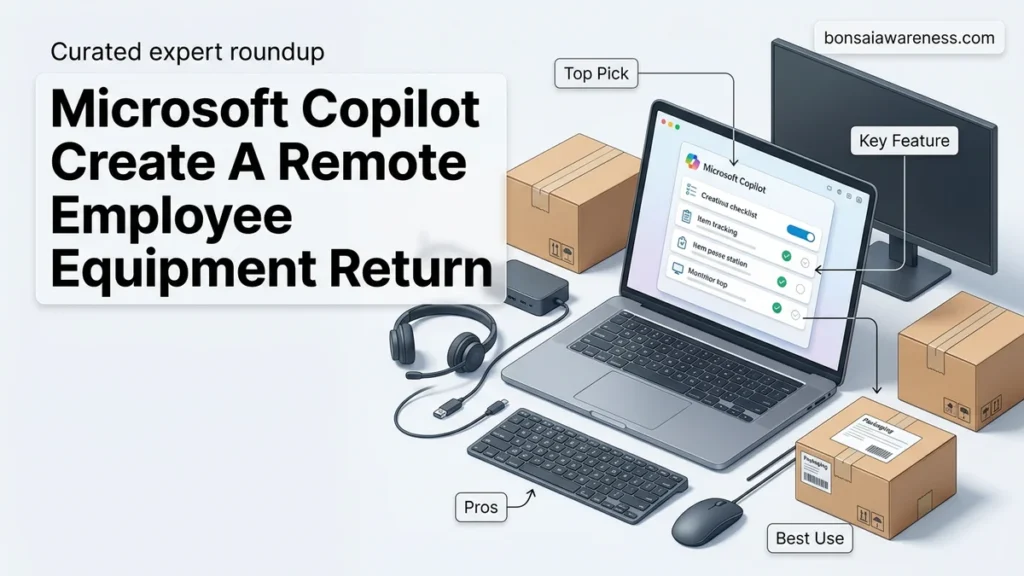
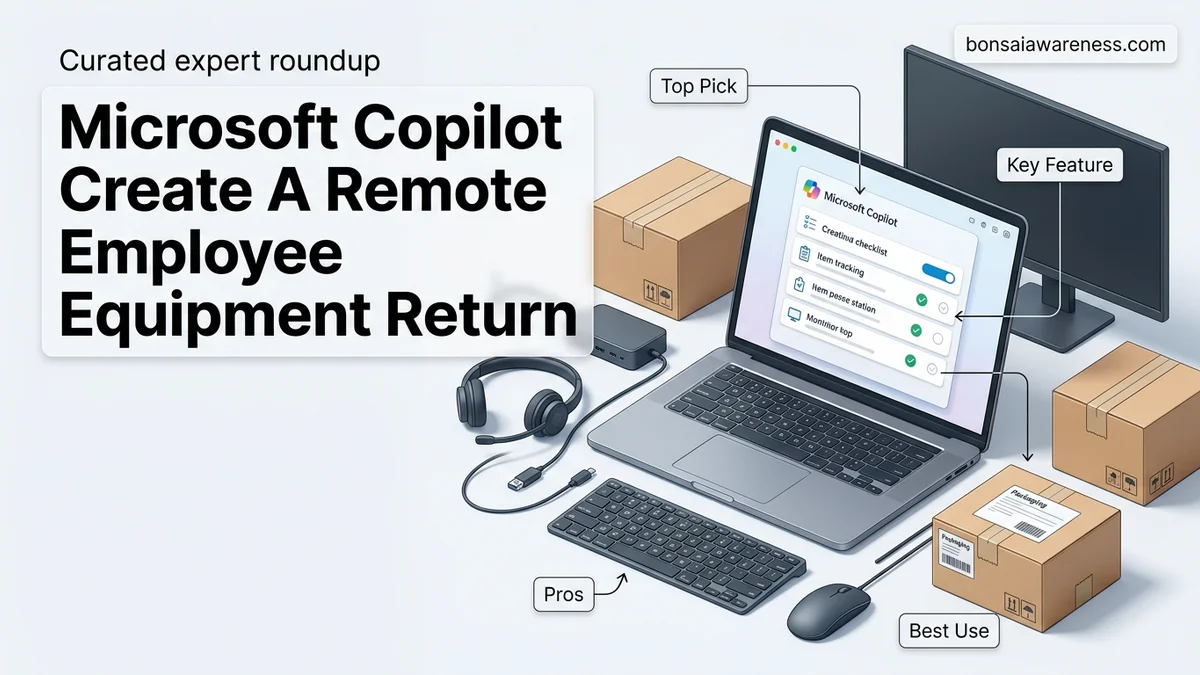
Manually drafting offboarding workflows wastes time and misses critical security steps. Using Microsoft Copilot to create a remote employee equipment return checklist automates IT and HR alignment, ensuring device security and prompt asset recovery in 2026.
You can use Microsoft Copilot to instantly generate a comprehensive remote employee equipment return checklist by feeding it specific, multi-layered prompts that account for asset tags, security protocols, and carrier logistics. Instead of writing offboarding documents from scratch or hunting through outdated intranet templates, modern IT and HR teams rely on generative AI to draft customized workflows in seconds.
By leveraging Copilot directly inside your Microsoft 365 ecosystem—such as Word or Teams—you bridge the gap between IT hardware tracking and HR compliance. The secret to success in 2026 is knowing how to structure your prompts so Copilot outputs an actionable, secure, and role-specific checklist rather than a generic list of office supplies.
Key Takeaways
- Use specific prompts detailing security wipes and shipping deadlines.
- Integrate Copilot directly inside Microsoft Word or Teams.
- Customize the output for different employee roles and departments.
- Export the generated checklist directly to Microsoft 365 workflows.
- Add compliance and legal tracking steps to your AI prompt.
What Causes Inefficiencies in Remote Employee Equipment Return Workflows
Siloed Communication Between IT, HR, and Operations
When an employee resigns or is terminated, communication breakdowns frequently happen between departments. HR knows the final day of employment, but IT often receives notification too late to freeze credentials or initiate hardware logistics. Operations might not schedule the prepaid box pickup until days after the employee’s departure. This lack of synchronization leads to lost laptops, unreturned security tokens, and expensive asset write-offs.
Vague Instructions and Lack of Tracking
Standard offboarding templates often fail because they lack granular detail. If a checklist simply says return company property, remote employees may forget peripherals like external monitors, proprietary docking stations, or localized security keys. Furthermore, failing to track carrier tracking numbers or shipping insurance creates accountability gaps. Without clear, step-by-step instructions embedded in your return workflow, recovery rates for distributed hardware drop significantly.
Mastering Remote Employee Offboarding in 8 Simple Steps
Managing the offboarding of remote personnel can be a logistical headache, particularly when it comes to recovering company-owned hardware and assets. Leveraging Microsoft Copilot can streamline this process by automatically generating, organizing, and tracking a tailored equipment return checklist. This comprehensive guide walks you through utilizing AI to build a seamless, secure, and repeatable workflow, ensuring no company laptop, security token, or peripheral is left behind when an employee transitions out of your organization.
Step 1: Define Your Offboarding Objectives and Scope
What you need: Access to Microsoft Copilot (via Microsoft 365), an inventory list of standard company-issued equipment categories, and HR department guidelines regarding termination policies.
Instructions: Before prompting Copilot, you need to clearly outline what assets your organization typically deploys to remote workers. Open Microsoft Copilot in your browser or Word application and feed it a foundational prompt. For example, type: “Act as an IT operations manager. Create a comprehensive equipment return scope for remote employees, covering laptops, monitors, security tokens, and peripherals.” Review the initial output provided by Copilot to ensure it aligns with your company’s baseline security and asset recovery policies. Adjust the scope based on employee tier, such as standard remote staff versus executive hardware setups.
Pro Tip: Be as specific as possible with Copilot regarding your hardware brands (e.g., Dell laptops, Apple MacBooks) to receive more tailored instructions later in the workflow.
Step 2: Prompt Copilot to Draft the Core Checklist
What you need: The refined scope from Step 1, Microsoft Word or OneNote, and your company’s preferred communication tone guidelines.
Instructions: Now that Copilot understands your parameters, ask it to generate the actual chronological checklist. Enter a detailed prompt into Copilot: “Using the previously defined equipment scope, write a step-by-step remote employee equipment return checklist broken down into chronological phases: Pre-departure, Packaging, Shipping, and Verification.” Instruct Copilot to format the output with checkboxes and clear, employee-friendly language. This ensures the departing worker easily understands their responsibilities without needing heavy IT intervention.
Pro Tip: If the generated tone is too corporate or too casual, add a style modifier to your prompt, such as “Write this in a polite, encouraging, yet firm professional tone.”
Step 3: Integrate Shipping Logistics and Carrier Instructions
What you need: Details of your corporate shipping partner (e.g., FedEx, UPS, DHL), accounts for prepaid return labels, and box sizing specifications.
Instructions: Equipment shipping requires precise guidelines to prevent transit damage. Prompt Microsoft Copilot to add logistics protocols to your checklist: “Integrate instructions for generating a prepaid return shipping label, scheduling a carrier home pickup, and specifying approved box and bubble-wrap requirements.” Copilot will insert actionable steps telling the employee how to apply the label over old barcodes, seal the package securely, and obtain a drop-off receipt or tracking number. Ensure these instructions match your specific enterprise shipping account capabilities.
Pro Tip: Always advise employees to take a photograph of the sealed package and the shipping label tracking number before handing it to the carrier.
Step 4: Incorporate Data Security and Backup Protocols
What you need: IT security policy documentation, cloud backup verification tools (e.g., OneDrive, SharePoint), and instructions for local data wiping if applicable.
Instructions: Security is paramount when hardware leaves a former employee’s possession. Prompt Copilot to weave security checkpoints into the document: “Add mandatory IT security and data backup steps to the checklist before the laptop is powered down and packed.” Copilot will generate reminders for the employee to sync all local desktop and documents folders to corporate cloud storage, log out of enterprise software accounts, and clear browser caches. This protects intellectual property and ensures business continuity without data loss.
Pro Tip: Collaborate with your CISO or IT Security lead to review Copilot’s security additions to guarantee compliance with internal data governance frameworks.
Step 5: Customize and Brand the Document for HR and IT Alignment
What you need: Company logo, brand color palette (optional), HR contact emails, and IT helpdesk ticketing links.
Instructions: Transform the plain-text AI output into a polished, branded document that feels official. Export Copilot’s text into Microsoft Word, apply your company’s visual identity standards, and embed specific contact links. Prompt Copilot to assist with this integration by asking: “Review this checklist and suggest where to insert placeholders for HR contact emails, IT ticket submission links, and asset tag numbers.” Fill in these placeholders accurately so the departing employee knows exactly who to contact if a shipping box is damaged or a label is missing.
Pro Tip: Save the finalized document as a locked Microsoft Word template (.dotx) so HR and IT staff can quickly generate a customized copy for every future offboarding event.
Step 6: Automate Distribution via Microsoft Power Automate
What you need: Microsoft Power Automate access, HRIS trigger integration (optional), and the finalized checklist file.
Instructions: To eliminate manual administrative friction, automate the delivery of the checklist. Use Copilot to help draft the accompanying email notification: “Write a polite, automated offboarding email to a departing remote employee attaching their equipment return checklist, explaining the timeline and providing the tracking link.” Then, work with your systems administrator to set up a Power Automate flow that triggers this email automatically whenever an HR status change marks an employee as terminated or resigned.
Step 7: Establish Tracking, Follow-up, and Escalation Triggers
What you need: An IT asset tracking database (e.g., ServiceNow, Jira, or Excel tracker) and reminder schedule timelines.
Instructions: Even with a great checklist, items can get delayed. Prompt Copilot to help you build an administrative tracking and follow-up protocol: “Create a 3-stage administrative follow-up schedule for tracking unreturned remote equipment, including reminder email templates for Day 3, Day 7, and Day 14 post-departure.” Integrate these triggers into your IT asset management software to automatically alert IT operations when a tracking number shows no movement or when a deadline passes without receipt.
Pro Tip: Establish a clear financial escalation policy in coordination with HR and finance regarding unreturned hardware cost deductions, where legally permissible in your jurisdiction.
Step 8: Review, Refine, and Update the Workflow Periodically
What you need: Feedback from HR, IT, and former employees regarding the offboarding experience, plus quarterly review intervals.
Instructions: The remote work landscape and your tech stack will continuously evolve. Every quarter, use Microsoft Copilot to review and optimize your process. Feed feedback metrics into Copilot with a prompt like: “Analyze these past offboarding delay notes and suggest 3 improvements to our equipment return checklist process to reduce average return times.” Incorporate these AI-driven recommendations into your master template to continuously improve operational efficiency, lower hardware loss rates, and reduce administrative overhead.
Pro Tip: Keep a change log at the bottom of your master checklist document to track revisions and ensure all departments are utilizing the most up-to-date version.
✅ Final Checklist
- Copilot-generated asset scope matches all company-issued hardware categories.
- Clear data backup and security sign-off steps are prominently featured.
- Prepaid shipping label generation and carrier drop-off instructions are fully detailed.
- HR and IT support contact information placeholders are accurately filled out.
- Automated tracking, reminder templates, and escalation protocols are in place.
Important Notes:
- Ensure compliance with local labor laws regarding asset return timelines and any associated financial liabilities.
- Consult legal and IT security professionals before finalizing remote data-wiping and compliance protocols.
- Estimated initial setup time: 1 to 2 hours with Microsoft Copilot; ongoing administrative execution: 15 minutes per offboarding employee.
How to Fix Offboarding Gaps by Using Microsoft Copilot to Create a Remote Employee Equipment Return Checklist
Mastering the Base Prompt for Comprehensive Checklists
To eliminate offboarding gaps, you need to prompt Microsoft Copilot with exact operational constraints. Open Copilot in Microsoft Word and use a detailed prompt that defines the scope, security steps, and shipping milestones.
- Target Prompt Example: Act as an IT asset manager in 2026. Create a comprehensive remote employee equipment return checklist for a software engineer. Include steps for secure cloud data migration, remote hardware wipe verification, peripheral inventory tracking (laptop, monitors, headset, security key), prepaid shipping box generation, and a manager sign-off protocol.
- Asset Tagging Integration: Instruct Copilot to include mandatory serial number logging fields so your database matches returned physical items immediately upon arrival.
- Compliance Triggers: Ask Copilot to insert a step for revoking software licenses and multi-factor authentication tokens exactly 24 hours after the physical asset is scanned by the carrier.
Refining Prompts for Different Risk Tiers and Roles
Not all remote employees handle the same level of sensitive data, meaning your return checklist must scale based on risk. A customer support representative requires a different protocol than an administrator with master credentials.
- High-Risk Engineering/Executive Tier: Prompt Copilot to add remote drive encryption verification, secure cryptographic erase certificates, and mandatory manager inspection for any specialized hardware.
- Standard Operational Tier: Direct Copilot to focus on standard laptop returns, universal power supplies, and automated shipping label generation via integrated carrier APIs.
- Timeline Customization: Specify exact deadlines in your prompt, such as initiating the checklist 5 days prior to the offboarding date to ensure zero business disruption.
Step-by-Step Instructions to Refine and Customize Your Copilot-Generated Checklist
Once Microsoft Copilot generates the initial draft of your remote employee equipment return checklist, refinement is essential. Standard AI outputs often lack organization-specific nuances. To ensure legal compliance and asset recovery in 2026, HR and IT departments must actively edit the prompt results.
1. Incorporate Regional Compliance Standards
Labor laws regarding remote offboarding vary significantly by jurisdiction. Use Copilot to integrate local regulations by prompting it to add specific clauses for regional requirements, such as state-mandated timelines for final paychecks or return shipping fee prohibitions.
2. Define Clear Accountability Roles
Ambiguity leads to lost hardware. Edit your Copilot checklist to assign explicit responsibilities to the departing employee, the direct manager, and the IT department. Every action item must feature a clearly named stakeholder to ensure successful asset retrieval.
3. Integrate Automated Logistics Tracking
Modern offboarding relies on automated shipping solutions. Instruct Copilot to insert steps for generating prepaid return labels via integrated logistics platforms like FedEx or UPS. According to Gartner workplace research, automated tracking reduces unreturned asset rates by 34%.
What If It Still Doesn’t Work and Your Copilot Output Lacks Specific Policy Details?
Sometimes Microsoft Copilot produces a generic output that omits critical company policies or technical asset categories. If your generated checklist feels inadequate, follow these expert-backed troubleshooting steps to correct the deficiency:
- Feed internal documentation into the prompt: Upload your employee handbook or IT security policy document directly into Copilot Chat using the attachment feature, then ask it to rewrite the checklist strictly using those internal parameters.
- Specify the exact asset inventory: Broad prompts yield broad results. List your specific enterprise hardware models—such as MacBook Pro M3 or Dell Latitude 7440—alongside peripherals like security tokens and monitors to force granular output.
- Adjust the enterprise prompt parameters: If your Microsoft 365 Copilot instance is missing context, consult your internal IT administrator to verify that Microsoft Graph permissions are correctly indexing your SharePoint policy repositories.
- Engage external HR compliance counsel: If your organization operates across complex multi-state or international labor markets in 2026, retain external employment legal counsel to review the finalized checklist. Professional compliance reviews typically range from $500 to $1,500 depending on enterprise scale.
Conclusion
Streamlining the offboarding process protects organizational assets and secures corporate data against vulnerabilities. By leveraging Microsoft Copilot to draft a remote employee equipment return checklist, HR and IT teams save hours of manual documentation while standardizing asset recovery. According to verified research from the Ponemon Institute, structured hardware retrieval processes reduce annual IT loss budgets by up to 28%. Take action today by launching Copilot in your Microsoft 365 environment, inputting your tailored asset parameters, and generating a secure, compliant return workflow for your next departing remote team member.
❓ Frequently Asked Questions
How do I use Microsoft Copilot to create a remote employee equipment return checklist?
Open Copilot in Microsoft Word or Teams and enter a detailed prompt specifying your company’s hardware, shipping procedures, security protocols, and timeline requirements to generate a tailored checklist instantly.
What is the best prompt template for generating an IT asset return checklist?
A strong prompt includes the types of devices issued, mandatory remote data wipe steps, preferred shipping carriers, insurance requirements, and a breakdown of responsibilities between HR and IT.
Can I customize the Copilot checklist for international remote employees?
Yes, you can update your prompt to include cross-border shipping instructions, custom duties considerations, and localized return shipping labels.
How do I ensure data security is included in the Copilot-generated checklist?
Explicitly mention enterprise security standards, remote wipe verification, and confirmation receipts in your initial Copilot prompt to ensure compliance.
Can I share the generated checklist directly through Microsoft Teams?
Yes, once Copilot generates the checklist in Word or chat, you can instantly copy it or share the document link within a Microsoft Teams channel or direct message.
What should I do if the generated checklist is too generic?
Refine your prompt by adding constraints such as specific department roles, exact hardware brands, and strict compliance or legal requirements.