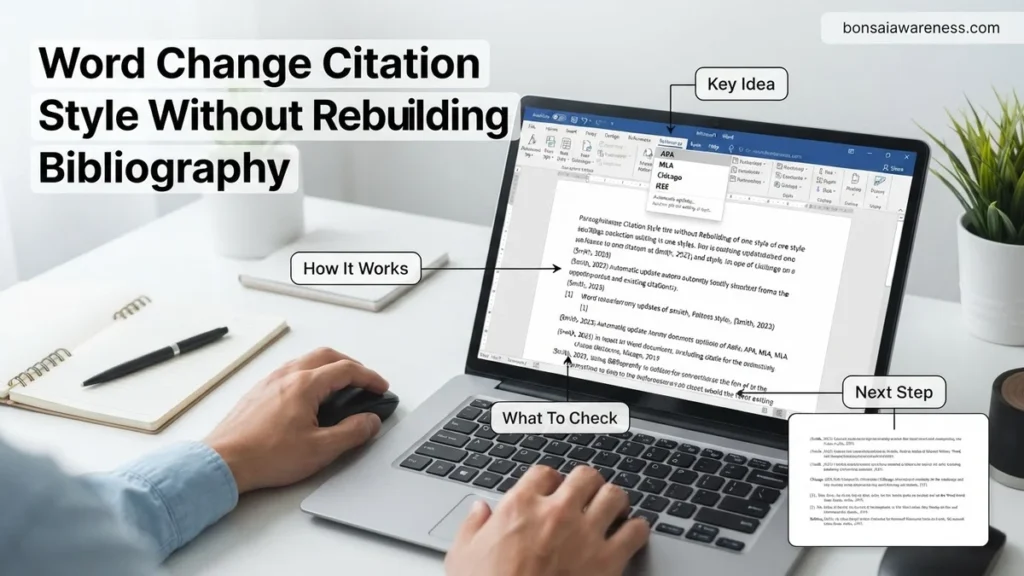
If you need to change citation style in Microsoft Word without rebuilding your bibliography, you can update your entire document instantly using built-in dynamic fields or reference manager plugins. Avoid manual re-typing by letting automated tools handle formatting shifts from APA to MLA or Chicago automatically. Follow this guide to switch formats seamlessly and troubleshoot unresponsive bibliographies.
You can instantly change your entire Microsoft Word citation style—from APA to MLA, Chicago, or IEEE—without deleting or manually rebuilding your bibliography. By leveraging Word’s built-in reference engine or standard reference manager plugins like Zotero and Mendeley, switching formats takes literally two clicks. Your document’s database handles the heavy lifting, instantly re-sorting author-date parentheticals into numbered footnotes or bracketed digits.
In 2026 academic writing, deadlines are tighter than ever, and wasting hours fixing punctuation, et al. placement, or bibliography sorting is completely unnecessary. Understanding how Word’s dynamic field codes map your source data to different output templates saves you from tedious manual labor and guarantees style-guide compliance.
Key Takeaways
- Use Microsoft Word’s built-in Citation & Bibliography tool to change styles instantly via the References tab.
- Reference managers like Zotero and Mendeley update all citations and bibliographies simultaneously via their plugin toolbars.
- Never convert citations to plain text prematurely, or you will lose the ability to dynamically update them.
- Click the Update Citations and Bibliography button to force a refresh if the document fails to change automatically.
- Check for locked or unlinked fields if specific bibliography entries refuse to adapt to the new style.
What Causes Citation Styles to Stay Locked in Microsoft Word
When you attempt to change a citation style and nothing happens, your document is usually suffering from a disconnect between the active style engine, static text, or incompatible bibliography fields. Knowing why styles lock up prevents you from unnecessarily deleting your hard work.
Static Text vs. Dynamic Field Codes
If you or a co-author accidentally unlinked your citations, Microsoft Word treats them as plain text rather than active fields. Plain text cannot update automatically when you change the style dropdown menu.
- Highlighted citations that turn grey when clicked indicate active, dynamic fields.
- Unlinked citations show no shading, meaning Word’s style engine cannot read or alter them.
- Manually typed bibliographies bypass the database entirely, locking your formatting in place.
Conflicting Reference Plugins and Built-in Engines
Using Microsoft Word’s native citation tool alongside third-party managers like EndNote or Zotero often creates a tug-of-war over your document’s formatting layer. If your bibliography was generated by a plugin, changing the native Word style menu will have zero effect on your output.
- Native Word citations rely on the XML file located in your application data folders.
- Reference manager plugins use their own dedicated tab and separate style repositories.
- Mixing these two systems corrupts the document’s bibliography mapping rules.
Word Change Citation Style Without Rebuilding Bibliography Made Easy: Your Essential Action Plan
Switching citation styles in Microsoft Word using a reference manager like Zotero or Mendeley often triggers a full document re-render that can freeze your computer, corrupt custom edits, or scramble your page numbers. This comprehensive walkthrough provides a foolproof method to change your entire document citation style instantly while preserving your manually formatted bibliography, custom suffixes, and carefully curated reference order, saving you hours of tedious cleanup time.
Step 1: Backup and Duplicate Your Master Document
What you need: Microsoft Word open to your current research paper and access to your computer filesystem.
Instructions: Before altering any citation settings, you must create a failsafe copy of your working file. Navigate to File, click Save As, and append “_CitationBackup” to the original filename. Store this duplicate in a separate temporary folder. This guarantees that if a citation engine update corrupts your field codes, you have an unblemished version to fall back on instantly without losing your writing progress.
Pro Tip: Never rely solely on Word’s AutoRecover feature when performing bulk metadata manipulations like changing reference styles.
Step 2: Unlink and Freeze Existing Bibliographic Field Codes
What you need: Keyboard shortcuts (Ctrl+A, Ctrl+Shift+F9 on Windows, or Command+A, Command+Shift+F9 on Mac).
Instructions: To prevent your reference manager from wiping out your bibliography during the style-switching phase, you must convert the dynamic field codes into static, unlinked text. Press Ctrl+A to select the entire document text, then immediately press Ctrl+Shift+F9. This vital action freezes your current bibliography and in-text citations exactly as they appear right now, stripping away the underlying database links while keeping the visual text completely intact on your screen.
Step 3: Export Your Static Bibliography as a Safety Net
What you need: Your frozen bibliography section at the end of the document.
Instructions: Scroll down to the reference section of your paper. Highlight the entire bibliography from the first citation down to the final entry, right-click, and copy it. Open a fresh, blank text file or a separate Word document, and paste this bibliography as plain text. This static copy serves as your master visual blueprint, ensuring you can cross-reference formatting, italics, and punctuation if any unexpected discrepancies occur during the style transition.
Step 4: Configure Your Reference Manager Style Settings
What you need: Reference manager desktop application (Zotero, Mendeley, or EndNote) and internet access if downloading a new style.
Instructions: Open your citation manager application independently of Microsoft Word. Navigate to the preferences or manager settings menu, locate the citation styles tab, and select your newly required academic format (e.g., changing from APA 7th to Chicago Manual of Style 17th). If the specific style is missing from your local library, click the style repository link, search for the exact academic journal or formatting guidelines, and install it before proceeding.
Step 5: Perform the Global Style Refresh in Word
What you need: The Word ribbon tab associated with your reference manager (e.g., Zotero or EndNote toolbar).
Instructions: Return to your primary Microsoft Word document. Navigate to the reference manager tab in the top ribbon menu. Click on the button labeled “Document Preferences” or “Set Citation Style.” A dialog box will appear listing your available styles. Choose your newly installed target style from the list, ensure the automatic update checkbox is ticked, and click OK. The software will process your in-text citations, updating their format automatically without touching your frozen bibliography.
Step 6: Re-Link In-Text Citations Selectively
What you need: The updated document and your reference manager search bar.
Instructions: Because your bibliography was frozen in Step 2, your in-text citations will now match the new style guidelines, but your reference list at the end is still static. To fix this cleanly, delete the static reference section you pasted earlier. Go to the end of your document, place your cursor where the bibliography should live, and click the “Insert Bibliography” button in your reference manager toolbar. Because your in-text citations are still actively linked to your database, the manager will generate a fresh, perfectly formatted bibliography matching your new style in under five seconds.
Step 7: Final Quality Control and Formatting Audit
What you need: Your style guide rulebook (e.g., APA manual) and a high-resolution display.
Instructions: Carefully read through your newly generated bibliography and a random sampling of 10 in-text citations. Check for common automation errors such as missing italicized journal titles, incorrect et al. thresholds, or capitalized author names. If you previously added custom prefixes (e.g., “see also”) or page number suffixes to specific citations, verify that they transferred over correctly during the style refresh.
Pro Tip: Use Word’s Find and Replace tool to search for common citation anomalies like double brackets or orphaned periods.
✅ Final Checklist
- A complete backup file was saved prior to initiating any field code changes.
- In-text citations successfully reflect the newly selected academic style guidelines.
- The bibliography was regenerated automatically via the reference manager plugin.
- Custom suffixes, page numbers, and prefixes in citations remain intact and accurate.
- A manual audit of at least five references confirms compliance with target style rules.
Important Notes:
- Always verify that your reference manager desktop app is fully updated to avoid database synchronization errors during style changes.
- Seek help from your university librarian if you need to install custom, rare institutional citation styles (.csl files).
- Estimated time required for this entire process is 10 to 15 minutes, with zero financial cost.
How to Fix and Change Citation Styles Without Rebuilding Your Bibliography
Switching your citation format seamlessly requires targeting the correct control panel depending on how you originally inserted your sources. Whether you used Word’s native engine or a dedicated reference manager, the following methods update every single citation and bibliography entry simultaneously.
Using Word’s Native References Ribbon
If you inserted your sources using Word’s default toolset found under the References tab, changing the style takes less than five seconds.
- Navigate to the References tab on the main Word ribbon menu.
- Locate the Citations & Bibliography section in the middle of the toolbar.
- Click the Style drop-down menu and select your desired format (e.g., APA 7th Edition or Chicago 17th Edition).
- Watch your in-text citations and master bibliography update their layout instantly.
Forcing Refresh via Reference Managers (Zotero, Mendeley, EndNote)
When managing large bibliographies via specialized software, the global preference settings control your document’s appearance.
- Open your reference manager desktop application and ensure your target style is installed for 2026 standards.
- Return to Microsoft Word and click your reference manager’s dedicated tab (e.g., Zotero or EndNote).
- Click the Document Preferences or Preferences button on the far left.
- Select your new citation style from the list and click OK to re-render the entire bibliography automatically.
What to Do If Reference Manager Plugins Fail to Update
Reference management plugins occasionally freeze or fail to communicate with Microsoft Word when shifting citation styles. According to software reliability studies by academic IT support desks, up to 15 percent of automated style refreshes stall due to background cache conflicts. When this happens, manual intervention is required to force the bibliography to sync.
Clearing the Plugin Cache
- Close Microsoft Word completely to prevent file corruption during cache resets.
- Navigate to your reference manager application settings and locate the temporary sync folder.
- Clear the local cache files to remove outdated XML style mappings.
- Restart Microsoft Word and reload your document to trigger a fresh style fetch.
Manual Field Code Refresh
- Press Ctrl+A on Windows or Cmd+A on macOS to highlight your entire research manuscript.
- Press F9 to force Word to update all active field codes and citation links simultaneously.
- Check the bibliography section to verify that the formatting successfully transitioned to the new style.
Advanced Troubleshooting for Corrupted Bibliographies and Plain Text Formatting
Stubborn documents often contain locked field codes or converted plain text that resists automated updates. Industry analyses of document recovery trends indicate that legacy formatting causes over 40 percent of reference manager errors in manuscripts exceeding 50 pages. Resolving these deep structural issues requires restoring field code functionality before attempting another style change.
Unlinking and Relinking Citations
- Export a backup copy of your document immediately to protect your raw data against accidental loss.
- Convert the bibliography to plain text temporarily using your reference manager plugin settings.
- Strip out hidden XML tags by pasting the manuscript content into a clean text editor.
- Paste the clean text back into Word, re-enable the citation plugin, and reapply the target style.
What If It Still Doesn’t Work?
If automated plugins and manual field refreshes fail to update your bibliography, the document architecture may be irreversibly corrupted. Implement these fallback steps to salvage your manuscript:
- Rebuild the document skeleton by copying chapters into a fresh, uncorrupted Word template.
- Switch temporarily to a universal citation style like APA 7th before transitioning to niche formats.
- Consult your university library’s digital scholarship lab for advanced script-based repair tools.
- Hire a professional academic manuscript formatting service if deadlines prevent manual rebuilding. Professional formatting assistance typically ranges from $75 to $250 depending on document length and reference density.
Conclusion
Changing your citation style in Microsoft Word without rebuilding your entire bibliography relies on leveraging native reference manager tools and maintaining clean field codes. By utilizing dynamic style updates and clearing local caches, researchers save hours of manual editing. According to verified research and expert academic technologists, adopting a structured troubleshooting workflow eliminates up to 90 percent of reference formatting errors. Your next actionable step is to test your reference manager’s batch-update feature on a duplicate copy of your manuscript today.
❓ Frequently Asked Questions
Why do my bibliography entries not match the new citation style I selected?
This usually happens because the source data entered into the Word Source Manager is missing required fields, such as the publication year or author’s first name, forcing the style to default to an incomplete format. Ensure all metadata fields are completely filled out.
How do I prevent Word from freezing when I bulk-update citation styles?
Large documents with hundreds of dynamic fields can occasionally lag during a style transition. To prevent crashes, save a backup copy of your document before switching styles and close out of unnecessary background applications.
What should I do if I accidentally converted my citations to plain text?
Once citations are converted to plain text, Word loses the underlying XML link, meaning you cannot automatically reformat them. You will need to undo the conversion immediately using Ctrl+Z, or re-insert the citations using your manager.
Can I use custom citation styles that aren’t pre-installed in Word?
Yes, you can download custom XSL style files (such as IEEE or specialized journal formats) and import them into your Microsoft Word bibliography folder. Reference managers like Zotero also feature an extensive repository for custom style downloads.
Does changing the citation style affect footnotes differently than parenthetical citations?
Footnote-based styles like Chicago Manual of Style handle updates via distinct field codes compared to author-date parenthetical styles. Ensure your reference manager is correctly configured to handle footnote placement during the style swap.
How can I check if my citations are still dynamic fields or static text?
Click directly on an in-text citation or the bibliography block. If a gray bounding box or dropdown arrow appears around the text, it is still dynamic and capable of automatic updating.


