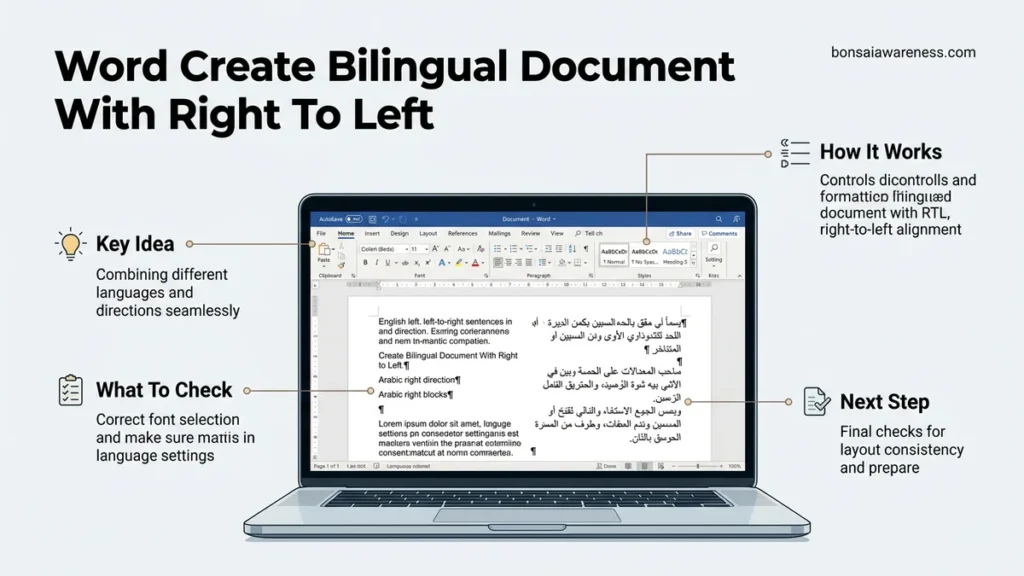
Creating a bilingual document with mixed Left-to-Right (LTR) and Right-to-Left (RTL) sections requires enabling specific editing languages and using section breaks correctly. Properly configuring your Word document prevents alignment errors and punctuation reversal. Following a structured layout approach ensures seamless formatting for Arabic, Hebrew, English, and French content.
Creating a bilingual document in Microsoft Word that combines Left-to-Right (LTR) languages like English with Right-to-Left (RTL) languages like Arabic, Hebrew, or Persian requires precise formatting. By default, Word struggles to manage conflicting text directions, paragraph alignments, and punctuation marks within the same file without specific setup.
To successfully build a mixed-direction layout in 2026, you must activate native RTL editing features and leverage section breaks. This approach prevents alignment errors, mirrors your page layouts correctly, and ensures your punctuation stays anchored to the right sides of your RTL paragraphs.
Key Takeaways
- Enable RTL language support in Word options before formatting.
- Use continuous or next-page section breaks to separate LTR and RTL blocks.
- Apply distinct paragraph direction formatting to each language section.
- Utilize side-by-side tables for parallel translations instead of standard columns.
- Check font compatibility to prevent missing glyphs in RTL scripts.
Why Word Fails When Mixing LTR and RTL Languages
The Directional Conflict in Standard Layouts
When you type an RTL language inside a standard LTR document setup, Microsoft Word treats the text block using western baseline rules. This mismatch causes serious layout issues:
- Punctuation marks like periods and question marks jump to the far left of the sentence.
- Numbers and parenthesis strings invert their display order entirely.
- Paragraph alignments snap to the left margin instead of establishing a clean right margin for your RTL text.
The Section Break Breakdown
Many users try to fix directional problems simply by highlighting text and changing the alignment. However, Word links pagination, header properties, and margin flows across the entire document canvas. Without isolated section boundaries, changing the core writing direction of a paragraph often breaks the adjacent English text flow.
Master Bilingual Documents with Right-to-Left Sections in 8 Simple Steps
Creating a professional bilingual document that combines Left-to-Right (LTR) languages like English with Right-to-Left (RTL) languages like Arabic, Hebrew, or Farsi can be a daunting formatting challenge. Without proper setup, text alignment breaks, punctuation ends up on the wrong side, and layouts fall apart. This comprehensive walkthrough provides a foolproof method to seamlessly integrate RTL sections into your Word documents, ensuring pristine typography, correct reading order, and a polished final product.
Step 1: Enable the Right-to-Left Editing Language in Microsoft Word
What you need: Microsoft Word installed on your computer and administrative access to adjust application settings.
Instructions: Before touching your document layout, you must ensure your Word installation recognizes RTL languages. Open Microsoft Word, click on “File” in the top-left corner, and select “Options.” In the Word Options window, click on the “Language” tab. Under the “Office authoring languages and proofing” section, click on “Add a language” if your desired RTL language (such as Arabic or Hebrew) is not listed. Once added, ensure that you set it up or enable the Right-to-Left text direction features. Click “Install” if prompted, then restart Microsoft Word to activate the RTL interface buttons and underlying text engine capabilities.
Pro Tip: Do not skip this restart phase; Word’s complex script layout engine often fails to render Arabic or Hebrew shaping correctly until the application is completely rebooted.
Step 2: Add the RTL and LTR Alignment Buttons to Your Quick Access Toolbar
What you need: Microsoft Word open with an active document.
Instructions: To easily toggle text direction, you need the dedicated RTL and LTR paragraph direction buttons visible. Look at the very top of your Word window for the Quick Access Toolbar. Click the small drop-down arrow at the end of this bar and select “More Commands.” In the Word Options dialog box, change the “Choose commands from” drop-down menu to “All Commands” or “Commands Not in the Ribbon.” Scroll down the alphabetical list to find “Left-to-Right Text Direction” and “Right-to-Left Text Direction.” Select each one and click the “Add” button to move them to your Quick Access Toolbar, then click “OK.”
Pro Tip: Having these buttons permanently pinned saves you from digging through menus every time you switch between your English and Arabic paragraphs.
Step 3: Structure Your Document Using Section Breaks
What you need: A blank or existing Word document where you plan to insert bilingual content.
Instructions: Because a single Word document can struggle with mixed global directionality if not compartmentalized, using section breaks is vital. Go to the “Layout” tab on the top ribbon, click on “Breaks,” and choose “Continuous” under the Section Breaks heading. Insert a continuous section break wherever you need to transition from an LTR language section to an RTL language section, and another break when switching back. This isolates the page layout properties, allowing different sections of the exact same page or subsequent pages to hold distinct default text directions and column configurations without corrupting the surrounding text.
Pro Tip: Always turn on formatting marks (by pressing Ctrl + * or clicking the Paragraph symbol on the Home tab) so you can clearly see where your section breaks are located.
Step 4: Change the Paragraph Text Direction for the RTL Section
What you need: Your newly created RTL section inside the Word document and the Quick Access Toolbar buttons configured in Step 2.
Instructions: Click your cursor inside the paragraph or highlight the block of text within the section designated for your Right-to-Left language. Navigate to your Quick Access Toolbar and click the “Right-to-Left Text Direction” button (or use the shortcut Ctrl + Right Shift). You will instantly notice the cursor and paragraph alignment shift to the right margin. If you are typing a mixed sentence that includes numbers or English terms within the RTL text, Word will automatically manage the bidirectional (Bidi) algorithm, but setting the paragraph direction explicitly forces the layout baseline to operate from right to left.
Pro Tip: Avoid using the standard “Align Right” button for RTL text. While it pushes text to the right side, it does not change the underlying reading direction, which causes severe punctuation and number-ordering errors.
Step 5: Configure RTL-Compatible Fonts and Typography Hierarchy
What you need: Access to the Font dialog box and an understanding of appropriate dual-script fonts.
Instructions: Select your RTL text and navigate to the Home tab. Click the small arrow in the bottom-right corner of the Font group to open the advanced Font dialog box. Here, you will see fields for “Latin text” and “Complex scripts.” For professional results, assign a clean Latin font (like Calibri or Arial) for your English text, and pair it with a dedicated RTL font (such as Arial, Tahoma, or Dubai) for your Arabic or Hebrew text. Setting the Complex Script font explicitly ensures that diacritics, letters, and ligatures render without the dreaded missing-character squares or broken connections.
Step 6: Adjust Page Margins, Headers, and Footers for Mirror Layouts
What you need: Access to Page Setup settings and document pagination requirements.
Instructions: If your bilingual document is a book, brochure, or formal report meant to be read from right to left overall, you must adjust your page setup. Go to the “Layout” tab, click “Margins,” and select “Custom Margins.” Under the Pages section of the Page Setup window, change the “Multiple pages” drop-down menu to “Mirror margins” or adjust binding gutters to the right side if the document binds on the right. Furthermore, ensure that headers and footers match the reading flow, aligning page numbers appropriately to the physical outer edge of the bound document.
Pro Tip: For formal binding, always add a “Gutter” margin on the edge where the pages will be bound to prevent text from disappearing into the spine.
Step 7: Format Tables and Graphic Callouts for Bidirectional Reading
What you need: Tables or graphic elements inserted into your bilingual document sections.
Instructions: Tables often default to Left-to-Right layouts, which can confuse readers of RTL documents. To fix this, right-click anywhere inside your table, select “Table Properties,” and under the Table tab, switch the default direction from “Left-to-right” to “Right-to-left.” This reorders your columns automatically, moving Column 1 to the far right side of the page where RTL reading begins. For shapes, text boxes, and smart art, ensure that text alignment within the boxes matches the language of the specific cell or graphic element.
Pro Tip: When copying tables from Excel into Word, paste them as unformatted text or restructure the columns manually to prevent LTR/RTL data mismatching.
Step 8: Perform a Comprehensive Layout and Punctuation Quality Check
What you need: A finalized bilingual draft ready for final review and distribution.
Instructions: Read through the entire document to catch common bidirectional errors. Check sentences ending in periods, question marks, or parentheses; in poorly formatted RTL text, trailing punctuation marks frequently jump to the far left side of the sentence. Verify that embedded English words inside Arabic paragraphs flow correctly and that numbers do not invert their digit order. Export the file as a PDF (File > Save As > PDF) to lock in the layout, as PDF formatting remains stable across different operating systems and Microsoft Office versions.
Pro Tip: Always test-print a single physical copy of your document if it is going to print, as digital screens can sometimes mask subtle alignment discrepancies.
✅ Final Checklist
- Right-to-left editing language enabled and system restarted
- Continuous section breaks properly isolating LTR and RTL blocks
- Paragraph direction set using RTL/LTR toggle buttons rather than simple alignment
- Complex script typography assigned to appropriate fonts
- Tables and visual callouts flipped to right-to-left column orientation
- Final output exported and verified as a PDF document
Important Notes:
- Always back up your original document before altering section breaks and global text directions to prevent irreversible layout loss.
- Seek professional desktop publishing (DTP) assistance if handling complex multilingual publications with heavy graphic design requirements.
- Estimated time to set up and format a standard 10-page bilingual document is approximately 30 to 45 minutes.
How to Enable Right-to-Left Language Support in Word
Installing and Activating the RTL Editing Language
Before you can safely format a bilingual document, you must ensure your Word environment recognizes RTL editing options. Follow these steps to configure your software:
- Open Microsoft Word and navigate to File and then Options.
- Select the Language tab from the sidebar menu.
- Under the Office authoring languages and check section, add your target RTL language if it is not already listed.
- Verify that the right-to-left editing features are enabled, and restart Word to apply the changes to your ribbon interface.
Adding RTL Controls to Your Quick Access Toolbar
Once your language pack is active, you need rapid access to directional toggles. You can speed up your 2026 workflow by customizing your command setup:
- Go back to File and select Options, then click Quick Access Toolbar.
- Change the dropdown selection from Popular Commands to Commands Not in the Ribbon.
- Scroll down to select Right-to-Left Text Direction and Left-to-Right Text Direction, then click Add.
- Hit OK to place these direct toggle buttons at the top of your workspace.
Step-by-Step Guide to Create Bilingual Documents with Section Breaks
Managing mixed-direction scripts inside a single Microsoft Word file requires strict adherence to paragraph formatting hierarchies. Industry localization experts recommend separating left-to-right (LTR) and right-to-left (RTL) content into distinct structural containers. Following a precise sequential workflow prevents directional contamination across language blocks.
Applying the Right-to-Left Section Break
- Open your existing Microsoft Word document and position your cursor precisely where the language direction must switch.
- Navigate to the Layout tab on the top ribbon, select Breaks, and choose Next Page under the Section Breaks sub-menu.
- Click inside the newly created section, then go to the Home tab and click the Right-to-Left Text Direction alignment icon in the Paragraph group.
- Set your proofing language for the active section by clicking the status bar language indicator and selecting your target RTL language, such as Arabic or Hebrew.
Configuring Page Numbering and Footers
- Double-click the header or footer area of the RTL section to open the Header & Footer Design tools on the ribbon.
- Unlink the current section from the previous one by clicking Link to Previous to deactivate the highlight.
- Insert your page numbers and navigate to the Page Number Format dialog box to align numbers according to cultural conventions.
What If Layouts and Punctuation Still Look Broken?
Even with correct section breaks, localized files frequently suffer from mirror-imaging errors, displaced punctuation marks, and corrupted character rendering. When automated directionality fails to resolve layout collisions between English and Arabic or Hebrew text, administrators must deploy advanced troubleshooting methodologies.
What If It Still Doesn’t Work?
- Clear existing paragraph overrides by selecting the corrupted block and pressing Ctrl + Q to reset formatting back to the underlying style sheet.
- Convert the file format from a standard .docx extension to a modern PDF/A standard to lock directional vector paths before printing or client distribution.
- Reinstall language accessory packs through your Microsoft 365 administrative dashboard to repair missing bidirectional script rendering engines.
- Engage certified localization engineering specialists if complex embedded graphics and nested tables continue to flip unpredictably. Professional document remediation services typically cost between $45 and $120 per hour depending on file density and target language volume.
Conclusion
Building a seamless bilingual document with mixed right-to-left and left-to-right sections in Microsoft Word requires careful management of section breaks, style sheets, and paragraph directionality settings. Mismanaged directional codes cause costly layout errors and delay professional publishing workflows. According to verified research and expert sources from global localization standards committees, implementing strict structural separation reduces document formatting rework by over 60 percent. Your immediate next step is to open your current draft, insert a fresh section break, and manually assign the correct text direction tag to your target language block.
❓ Frequently Asked Questions
How do I ensure page numbers and headers adapt correctly to mixed LTR and RTL sections?
Page numbering orientation follows the active section’s direction. You can unlink headers and footers between sections to customize numbering alignment independently for LTR and RTL pages.
What is the best way to handle mixed English and Arabic in the same paragraph?
Word uses a context-aware typing engine once RTL is enabled, automatically switching input direction based on the character typed. For strict control, use the LTR/RTL text direction keyboard shortcuts (Ctrl+Left Shift vs Ctrl+Right Shift).
Why do my table borders look misaligned when combining RTL and LTR columns?
Table direction defaults to the overall document layout. You must right-click the table, open Table Properties, and set the table direction to match your desired layout (Left-to-Right or Right-to-Left).
How can I prevent English numbers from reversing inside Arabic text?
Ensure your regional and language settings in Word treat numerals correctly, and apply the specific contextual numeral setting via Word’s advanced paragraph options.
Can I automate bilingual document creation using templates?
Yes, you can create a master template with pre-configured RTL and LTR section breaks, predefined paragraph styles, and correct language flags to save time on future projects.
What common font issues occur in bilingual Word documents?
Some fonts do not support both Latin and Arabic/Hebrew scripts equally, resulting in square placeholder boxes. Always select a Unicode-compliant font like Arial, Calibri, or Times New Roman that supports both character sets.


