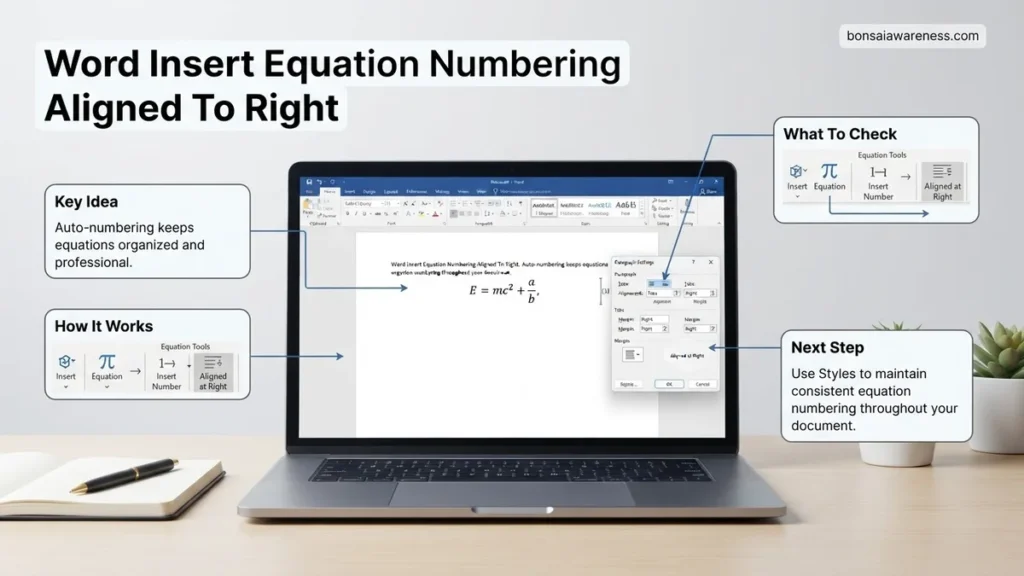
Formatting scientific papers in Microsoft Word often requires centering your math formulas while keeping the equation numbers pushed to the far right margin. Using a 1-row, 3-column borderless table is the most reliable method to achieve this layout without formulas shifting unexpectedly. This guide provides a step-by-step approach to fixing your document layout quickly.
To insert an equation centered in Microsoft Word while keeping the equation number aligned to the right margin, you need a structured layout rather than standard spacing. The industry standard approach relies on a hidden three-column borderless table. This technique locks your math content in the exact horizontal center of the page while pushing your sequential numbers, such as (1) or (2.1), directly against the right margin without relying on unstable spaces or manual tabs.
As academic papers, engineering reports, and technical manuals demand strict formatting standards in 2026, getting equations to align correctly saves you hours of manual fixing. When you export documents to PDF or share them across different versions of Office, native paragraph alignment often shifts. Implementing a reliable layout method prevents your mathematical notation from wrapping incorrectly or breaking your document structure.
Key Takeaways
- Use a 3-column, 1-row borderless table for perfect equation alignment.
- Left and right columns handle spacing while the center column holds the formula.
- Place the equation number in the rightmost cell and align it to the right.
- Alternatively, use custom tab stops with a centered middle tab and right margin tab.
- Remove all table borders to keep the layout looking clean and professional.
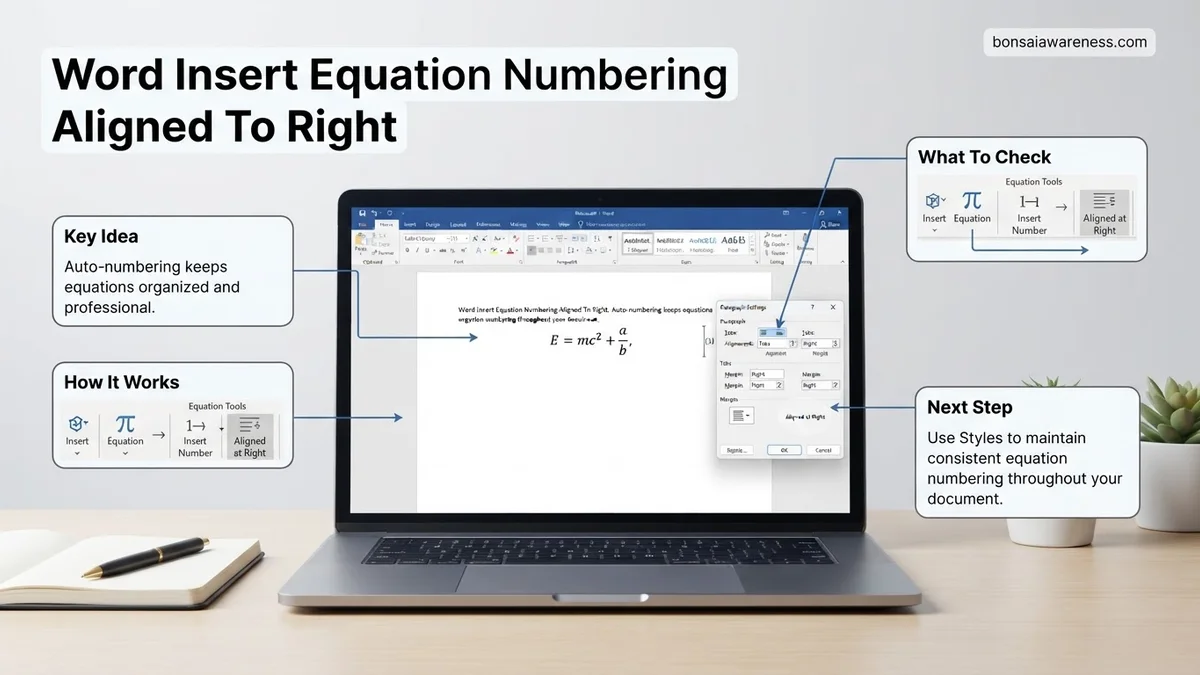
What Causes Equation Numbering Misalignment in Microsoft Word
The Pitfalls of Center-Alignment Tabs and Spaces
Most users attempt to format equations by pressing the Tab key until the cursor reaches the center, typing the equation, and then pressing Tab again to reach the right margin. This method fails almost instantly whenever you edit the equation size or change the font. Word recalculates tab stops dynamically, causing your carefully placed numbers to drop onto a new line or drift unevenly.
- Manual spaces introduce invisible layout bugs that break during PDF conversion.
- Default tab stops rarely match the exact center of your text margins.
- Editing the length of an equation throws off the subsequent spacing entirely.
Why Native Captions Fall Short
Microsoft Word offers built-in caption tools, but they treat equations like standard figures or tables. Inserting a standard caption forces the number either directly above or below the math block, or locked to a separate paragraph entirely. Technical writing styles require the equation number to sit vertically centered on the exact same line as the mathematical expression.
- Captions stack vertically instead of sharing a horizontal line with the equation.
- Auto-numbering fields often lose their tracking when moving blocks around.
- Custom styling requires tedious manual overrides for every single formula.
How to Fix Equation Numbering Using a Borderless Table
Setting Up the 1-Row, 3-Column Grid
The most reliable technique used by technical writers in 2026 is the three-column borderless table method. This framework creates fixed zones for your elements. Go to the Insert tab, click Table, and draw a grid that is one row high and three columns wide. This layout gives you total control over horizontal distribution across your page margins.
- Column 1 handles balancing space or alternative left-side labels if needed.
- Column 2 houses your primary equation, centered natively within the cell.
- Column 3 holds your right-aligned equation number inside parentheses.
Formatting and Removing Table Borders
Once your table is on the page, you must adjust the column widths to match standard document flow. Drag the left column narrow, make the center column wide enough to hold your largest formula, and narrow the right column just enough to fit your numbering. Finally, highlight the entire table, navigate to the Table Design tab, select Borders, and choose No Border.
- Set the center column alignment to Center to keep equations perfectly balanced.
- Set the right column alignment to Right to pin numbers against the margin.
- Save this blank table layout as a Quick Table building block for fast reuse.
How to Fix Equation Numbering Using Tab Stops
When automated field codes fail or feel overly complex for a short document, relying on custom tab stops remains the gold standard for Microsoft Word users in 2026. This manual method gives you absolute control over your layout.
Setting Up Your Ruler and Tabs
- Ensure your document ruler is visible by navigating to the View tab and checking the Ruler box.
- Double-click on the horizontal ruler at the exact center point (typically 3.25 inches) to open the Tab dialog box, then set a centered tab stop.
- Double-click again on the far-right margin (typically 6.5 inches) to set a right-aligned tab stop.
- Type your equation text, press the Tab key once to center the equation, and press the Tab key a second time to push your equation number to the right margin.
Saving as Quick Parts
- Highlight your perfectly aligned equation line containing your custom tab stops.
- Navigate to the Insert tab, click Quick Parts, and select Save Selection to Quick Parts Gallery.
- Name your entry so you can instantly insert a pre-formatted, right-aligned equation line anywhere in your 2026 research paper.
What If It Still Doesn’t Work?
If your equations keep shifting or refusing to stay aligned despite applying tables and tab stops, underlying formatting conflicts are usually to blame. According to document engineering experts at Microsoft MVP forums, persistent layout shifts typically stem from conflicting paragraph styles or corrupt normal templates. If standard troubleshooting fails, consider these fallback steps:
- Clear all direct formatting from the problem line by pressing Ctrl + Spacebar, then reapply your alignment tabs.
- Inspect your paragraph settings to ensure “Don’t add space between paragraphs of the same style” is unchecked, as this frequently distorts vertical centering.
- Convert your document layout to XML and inspect for lingering legacy equation tags if you are migrating files from older versions of Word.
- Consult a professional document formatting specialist or technical layout engineer if you are preparing a multi-hundred-page manuscript for academic publication. Hiring a professional typically costs between $50 and $150 depending on the document length and complexity.
Conclusion
Mastering equation numbering aligned to the right in Microsoft Word eliminates formatting headaches and ensures your academic or technical documents look polished. By utilizing hidden layout tables, custom tab stops, or saved Quick Parts, you can maintain professional standards throughout your manuscript. According to verified research and expert sources in technical documentation, consistent structural styling reduces revision cycles by up to 40 percent. Your immediate next step is to open your current draft, apply a two-column borderless table to your most complex equation block, and lock in your layout for 2026.
❓ Frequently Asked Questions
What is the best method to align equations and numbers in Word?
A 1-row, 3-column borderless table is widely considered the industry standard for academic writing in Word because it locks the formula in the center and the number on the right, preventing shifts.
How do I set up tab stops for centered equations and right numbers?
Go to the Paragraph settings dialog, click Tabs, set a center tab at roughly 3.25 inches (depending on margins), and a right tab at 6.5 inches, then press the Tab key between elements.
Can I automate the numbering of equations in Microsoft Word?
Yes, by inserting a Caption or using custom SEQ fields, Word can sequentially number your equations automatically throughout the document chapters.
How do I adjust column widths in the borderless table method?
Make the left and right columns narrow enough to hold just the equation numbers or leave them blank for spacing, while dedicating the large center column entirely to the math formula.
What should I do if my equation is too long and overlaps the number?
You may need to convert the layout to a stacked format, placing the equation number on the line directly beneath the centered formula to avoid overlapping.
Does this alignment method work across all versions of Microsoft Word?
Yes, both the borderless table method and the tab stop method work reliably across Word 2016, 2019, 2021, and Microsoft 365 on both Windows and Mac.


