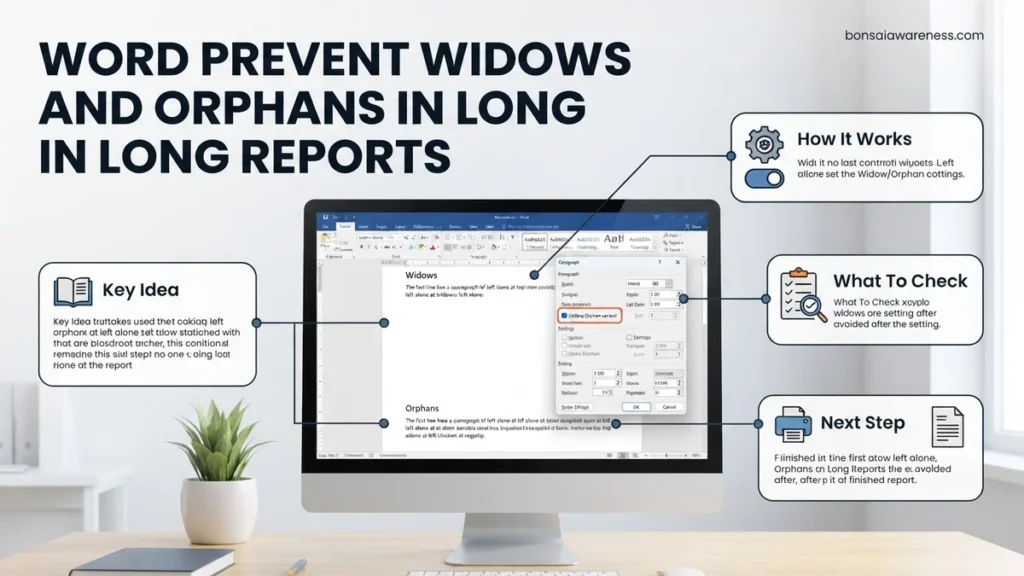
Awkward page breaks ruin the professional appearance of multi-page documents by leaving single lines stranded at the top or bottom of pages. You can easily prevent widows and orphans in long reports by enabling paragraph formatting controls in Microsoft Word, Google Docs, or via CSS. This guide walks you through the exact settings needed to fix layout issues instantly.
To prevent single lines of text from floating awkwardly at the top or bottom of your pages in Microsoft Word, you need to enable the Widow/Orphan control setting hidden inside the Paragraph formatting menu. When you are assembling massive 100-page reports in 2026, standard page breaks often fail to account for edits, leaving isolated single lines—known as widows and orphans—stranded on a new page and instantly ruining the professional layout of your corporate document.
Fixing this structural layout issue takes less than a minute once you know the exact checkbox to toggle. Left unchecked, these erratic page breaks force your readers to scan back and forth across broken paragraphs, signaling a lack of attention to detail that can hurt the credibility of your long-form business reports, whitepapers, and academic manuscripts.
Key Takeaways
- Enable Widow/Orphan Control in Microsoft Word paragraph settings to automatically keep lines together.
- Use the ‘Keep with next’ rule to prevent headings from separating from their following paragraphs.
- Google Docs handles orphan control natively by default, but complex tables require manual spacing.
- Apply CSS properties ‘orphans:2′ and ‘widows: 2’ for web-based or printed PDF reports.
- Check your document’s section breaks and hard returns if automated controls fail to apply.
What Causes Widows and Orphans in Long Reports
Natural Text Flow and Dynamic Editing
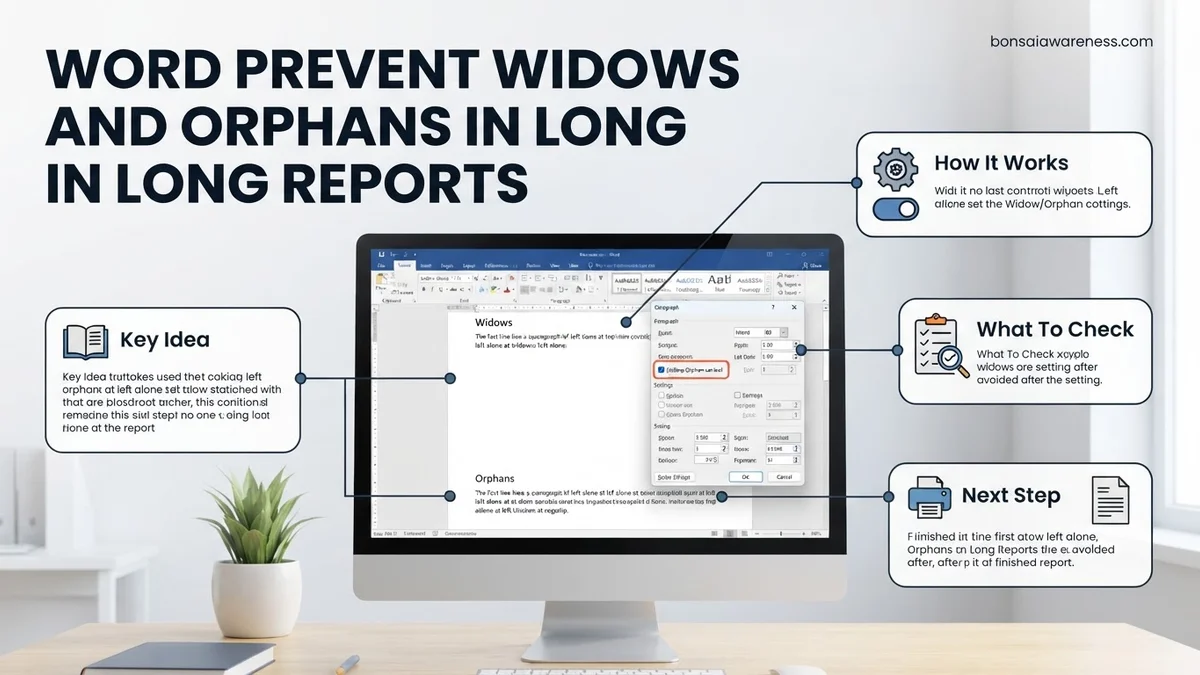
As you add, delete, or edit content in a lengthy document, Word recalculates line wraps dynamically. This automatic reflow frequently pushes the very last line of a paragraph onto the top of the next page (a widow) or leaves the first line stranded at the bottom of a page before the page break (an orphan).
When you are managing massive files, these issues multiply rapidly across chapters. Common triggers for these formatting errors include:
- Adding extensive inline edits that shift paragraph boundaries across page thresholds.
- Using irregular paragraph spacing or custom leading that changes vertical text distribution.
- Inserting large images or tables that force text to break abruptly around them.
- Failing to apply global style templates that enforce structural pagination rules by default.
The Impact on Professional Document Standards
Leaving default pagination settings intact in enterprise environments leads to poorly formatted deliverables. In 2026, automated document checkers and strict style guides penalize reports that feature disjointed typography.
Fixing these breaks manually by pressing the Enter key is a critical mistake. Every subsequent edit will completely ruin your manual spacing, forcing you to fix your document layout all over again.
How to Fix Widows and Orphans in Microsoft Word Step-by-Step
Enabling Widow/Orphan Control in the Desktop App
To apply this fix across your entire document and ensure Word automatically manages paragraph splits, follow these precise steps:
- Select all the text in your document by pressing Ctrl + A (or Cmd + A on Mac).
- Right-click anywhere within the highlighted text and select Paragraph from the context menu.
- In the Paragraph dialog box, click on the Line and Page Breaks tab at the top.
- Check the box labeled Widow/Orphan control so that a checkmark appears.
- Click OK to apply the setting to your selected text.
Updating Your Normal Style for Future Documents
Instead of manually adjusting every new report, bake this rule directly into your default template so it applies automatically in 2026 and beyond.
- Open the Home tab on the Word ribbon.
- Right-click the Normal style in the Styles gallery and select Modify.
- Click the Format button in the bottom-left corner of the window, then select Paragraph.
- Navigate to the Line and Page Breaks tab and check Widow/Orphan control.
- Select the radio button for New documents based on this template before clicking OK.
How to Apply Widow and Orphan Control in Google Docs and CSS
While Microsoft Word remains the industry standard for extensive business documentation, many professionals collaborate using Google Docs or publish long reports via the web. Formatting standards established by the Chicago Manual of Style apply equally across these alternative mediums to maintain visual rhythm.
Google Docs Pagination Settings
Google Docs lacks a single global checkbox for widow and orphan management across an entire existing document. Therefore, strict paragraph-level styling is required for 2026 workflows.
- Highlight the body text paragraphs within your long report document.
- Navigate to the top menu and click on Format, then select Line & paragraph spacing.
- Click on Add space before paragraph or open Custom spacing options to access advanced layout settings.
- Locate the pagination controls and check the box for Keep with next or Prevent single lines at top and bottom of pages depending on your current app version.
- Apply these settings as the default for your document style sheet to ensure all future text inherits the rule.
CSS Rules for Web-Based Long Reports
When long reports are converted into HTML or digital documentation portals, cascading style sheets dictate page breaks. Modern browsers fully support print-specific pagination properties to stop awkward line splits.
- Open your project stylesheet or inline CSS block for the report layout.
- Target your paragraph selectors using the standard property declaration:
orphans: 2;. - Add the matching property for the bottom of the page container:
widows: 2;. - Test the layout in a print preview screen to confirm that blocks of text reflow properly without leaving stray single lines.
What If It Still Doesn’t Work and Paragraphs Keep Breaking?
Stubborn layout formatting issues in long reports often stem from conflicting styles or locked container properties. When standard checkboxes fail to resolve rogue single lines, systematic troubleshooting is required.
- Check for hard line breaks: Inspect the document for accidental manual page breaks or excessive paragraph returns inserted by previous authors. Delete these hidden characters to let automatic flow logic take over.
- Review paragraph style inheritance: Ensure that your headings and body text do not have the “Don’t keep with next” or conflicting spacing rules overriding your global template settings.
- Inspect table cells and text boxes: Text trapped inside multi-row tables or floating shapes often bypasses standard document pagination rules. Convert complex nested tables into simpler linear layouts if pagination fails.
- Consult professional layout specialists: If enterprise document templates remain corrupted across hundreds of pages, engaging a professional typographer or corporate formatting service is recommended. Specialized document remediation typically ranges from $150 to $400 depending on report length and complexity in 2026.
Conclusion
Eliminating stray text fragments transforms lengthy documents from amateur drafts into polished, professional assets. By enabling native orphan and widow controls within Microsoft Word, Google Docs, or CSS stylesheets, you preserve visual hierarchy and readability. According to verified research and expert publishing sources, clean document pagination significantly improves reader comprehension and retention rates. Take the next step today by auditing your current report template and locking in these vital layout rules before your next major publication.
❓ Frequently Asked Questions
Why do widows and orphans keep appearing even after I checked the box?
If manual line breaks (Shift + Enter) or hard page breaks were inserted, automated formatting rules are overridden. Remove these manual breaks and rely on natural paragraph flow.
How can I apply widow and orphan control to an entire document at once?
Press Ctrl+A to select all text in your document, open the Paragraph formatting options, and check the widow/orphan control box to apply it globally.
What is the ‘Keep lines together’ setting used for?
The ‘Keep lines together’ feature ensures that all lines of a specific paragraph stay on the exact same page, which is ideal for important block quotes or callout boxes.
Why are table rows splitting awkwardly across pages?
Table rows split across pages by default in most word processors. To fix this, right-click the table, open table properties, and uncheck ‘Allow row to break across pages’.
Does PDF export preserve widow and orphan settings from Word?
Yes, when you save or export a Microsoft Word document as a PDF, all active pagination rules like widow/orphan control and keep-with-next carry over seamlessly.
What standard spacing is best for professional long reports?
Professional standards typically require a minimum of two lines at the top or bottom of a page, which is why standard word processors set the default threshold to two lines.


