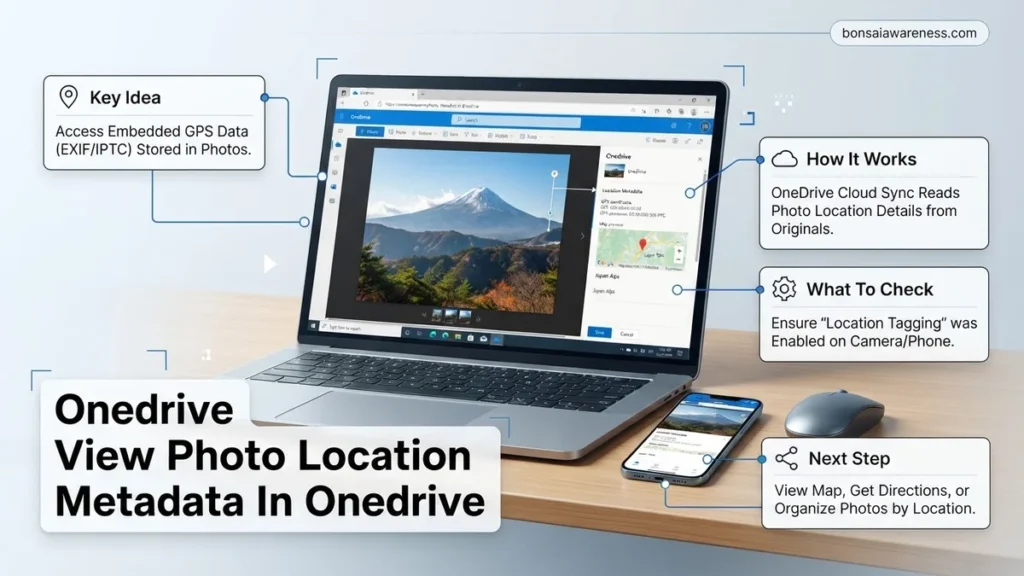
Accessing EXIF and GPS data in cloud storage can be challenging due to platform limitations. OneDrive allows users to view basic photo properties and location details directly through the web interface or mobile app, though syncing with local operating systems offers a reliable alternative.
Viewing photo location metadata in Microsoft OneDrive depends heavily on whether your device captured GPS coordinates at the moment of capture and how you access your files. As of 2026, OneDrive automatically reads embedded EXIF data, including shutter speed, camera model, and GPS coordinates, but accessing these specific location tags requires knowing exactly where to look in the web or mobile user interface.
Whether you are organizing a travel archive or verifying where a specific picture was taken, understanding how OneDrive processes and displays this hidden data saves you from downloading files to external software just to check their geographic coordinates. Let’s dive straight into how this metadata behaves and where you can find it.
Key Takeaways
- Select any photo and open the details pane to view available EXIF metadata.
- OneDrive mobile apps display basic shooting information and GPS tags when available.
- Cloud platforms sometimes strip specific location tags during the compression or upload process.
- Syncing your OneDrive folder to Windows File Explorer provides advanced property details.
- Downloading the original image file guarantees access to all embedded metadata.
What Causes Missing Photo Location Metadata in OneDrive
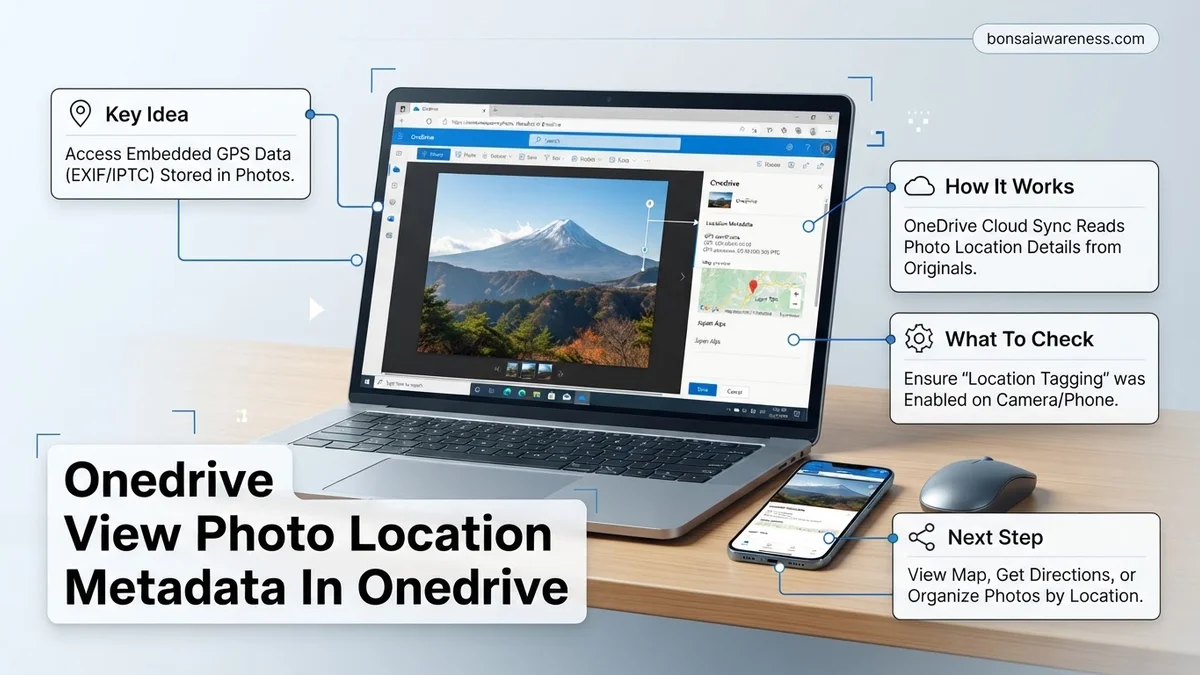
When you browse your cloud storage and notice that certain pictures lack map pins or address fields, the issue usually stems from capture settings or how the file was transferred. OneDrive cannot display location data that was never recorded in the original file’s EXIF container.
Device Privacy Settings and Location Services
Smartphones and digital cameras rely on explicit permissions to stamp geographic coordinates onto image files. If you disabled location services for your camera app when taking the photo, the metadata was never generated.
- Camera permission disabled in device settings at the time of shooting.
- Indoor environments where GPS lock was unavailable, resulting in missing latitude and longitude tags.
- Using older digital SLR cameras that lack built-in GPS modules, requiring a separate accessory.
Stripped Metadata During Upload or Editing
Another common culprit is third-party processing. Many messaging apps, social media platforms, and online sharing tools automatically strip EXIF data—including GPS locations—to protect user privacy before you even save the file to OneDrive.
- Downloading images from web browsers that compress or clean metadata.
- Running files through third-party compression utilities prior to cloud syncing.
- Screenshots, which inherently do not contain physical camera location metadata.
Master OneDrive Photo Location Metadata in 5 Simple Steps
Have you ever scrolled through your cloud photo collection and wondered exactly where a breathtaking sunset or memorable family dinner took place? OneDrive automatically captures and stores a wealth of information embedded within your image files, known as Exchangeable Image File Format (EXIF) data, which includes geographical coordinates, camera settings, and timestamps. Whether you are organizing your digital memories, verifying travel itineraries, or simply trying to retrace your steps, knowing how to access this hidden data is an essential digital skill. This practical walkthrough will guide you through the exact processes required to view photo location metadata across both web browsers and mobile applications, ensuring you never lose track of a special place again.
Step 1: Access Your OneDrive Account via Web Browser
What you need: A computer or tablet with an internet connection, a modern web browser (such as Microsoft Edge, Google Chrome, or Safari), and your Microsoft account login credentials.
Instructions: Open your preferred web browser and navigate to the official OneDrive login page at onedrive.live.com. Click on the Sign In button and enter the email address, phone number, or Skype ID associated with your Microsoft account, followed by your password. Complete any two-factor authentication prompts if you have security verification enabled. Once successfully logged in, you will land on the primary OneDrive dashboard, which displays your recent files, folders, and navigation sidebar on the left side of the screen, preparing you to locate your desired images.
Pro Tip: Bookmark the official OneDrive login page to save time, but ensure you never save your password on public or shared computers for privacy and security reasons.
Step 2: Navigate to Your Photo Library and Select an Image
What you need: Access to your OneDrive dashboard and a folder containing images that have location data (such as photos taken with a smartphone featuring enabled GPS settings).
Instructions: Look at the left-hand navigation menu on your OneDrive dashboard and click on the “Photos” tab to filter your view exclusively to image files, or browse your “My files” directory to find a specific album. Scroll through your thumbnails until you find the target photo you wish to inspect. Hover your mouse cursor over the thumbnail of the photo. Do not double-click to open it fully yet; instead, look for a small circular checkbox that appears in the upper-left corner of the image thumbnail and click it to select the file.
Pro Tip: If you are looking for photos taken in a specific geographic area, use the built-in search bar at the top of the OneDrive screen and type keywords like “beach,” “mountain,” or the name of a city to narrow down your results quickly.
Step 3: Open the Details Pane to Reveal Metadata
What you need: A selected photo thumbnail within the OneDrive web interface.
Instructions: With your target photo selected via the checkmark in the corner, direct your gaze to the upper-right corner of the OneDrive webpage interface. Locate the Information icon, which appears as a lowercase letter “i” enclosed inside a small circle. Click this icon to toggle and open the Details pane, which slides out from the right side of your screen. This sidebar serves as the central hub for all file attributes, displaying the file name, size, date modified, and—most importantly—the embedded camera and location metadata associated with that specific picture.
Pro Tip: You can also right-click directly on the photo thumbnail and select “Details” from the contextual drop-down menu as a faster alternative to locating the top toolbar icon.
Step 4: Examine Geographic Coordinates and Map Data
What you need: The OneDrive Details pane open on the right side of your screen with an image selected.
Instructions: Scroll down within the Details pane sidebar to review the comprehensive list of metadata attributes. Look for sections labeled “Camera information” and “Location.” If the photo was captured with location services enabled on the recording device, OneDrive will display specific GPS coordinates, a textual location name, or even a miniature interactive map preview showing the exact pin drop of where the shutter was clicked. Click on the map preview or coordinates if available to launch a larger map view, allowing you to see surrounding streets, landmarks, and regional geography tied to that specific file.
Pro Tip: If the location section appears blank or says “No location data,” it means your phone or camera’s location services were turned off when the picture was taken, or the metadata was stripped during a previous file transfer.
Step 5: View Photo Metadata Using the Mobile App
What you need: A smartphone or tablet (iOS or Android) with the official Microsoft OneDrive app installed and your account logged in.
Instructions: Tap the OneDrive app icon on your mobile device home screen to launch the application. Navigate to the “Photos” tab located on the bottom navigation bar. Tap on the specific photo you want to examine to open it in full-screen view. Once the image is displayed, look at the bottom action menu or tap directly on the image screen to reveal overlay options. Tap the three dots (more options) menu icon or the info icon (usually represented by an “i” in a circle) to pull up the properties sheet, where you can instantly scroll down to view date, camera specs, and the recorded shooting location.
Pro Tip: Granting OneDrive permanent permission to access your device location in your phone settings can help streamline photo tagging and cloud synchronization for future uploads.
✅ Final Checklist
- Successfully logged into the OneDrive web or mobile interface
- Located and selected a specific image file containing location metadata
- Opened the Details pane or information menu successfully
- Identified the GPS coordinates, map preview, or location name within the metadata
- Verified that device location services were active for future photo tracking
Important Notes:
- Be mindful of privacy when sharing photos publicly, as embedded location metadata can reveal sensitive information about your home or daily routines.
- If metadata is consistently missing from your uploads, check your smartphone camera privacy settings to ensure geotagging is enabled for the camera app.
- Estimated time to complete this process is less than 3 minutes per photo, with zero financial cost utilizing standard cloud storage features.
How to View Photo Metadata and Location Data in OneDrive
Finding the underlying details of an image file within the cloud environment requires navigating the properties panel. Microsoft displays these parameters differently depending on whether you use a desktop web browser or the mobile application.
Using the OneDrive Web Interface
The web dashboard provides a comprehensive view of file properties, making it the preferred method for checking detailed EXIF information quickly.
- Log into your OneDrive account using any modern web browser in 2026.
- Navigate to the folder containing your target image.
- Click the checkmark in the top corner of the photo thumbnail to select it.
- Click the info icon (a lowercase ‘i’ inside a circle) in the top-right toolbar to open the details pane.
- Scroll down the panel to inspect camera settings, date taken, and the specific location field if available.
Using the OneDrive Mobile App (iOS and Android)
When you are on the go, the mobile application allows you to inspect basic file details directly from your smartphone or tablet screen.
- Tap to open the specific photo within your OneDrive app.
- Tap the three-dot menu icon or swipe up from the bottom of the screen.
- Look for the metadata section displaying dimensions, file size, and shooting details.
- Note that mobile apps in 2026 often group images by inferred locations using smart albums, even if individual coordinate mapping varies by operating system.
How to Check EXIF and GPS Tags Using Desktop File Explorer
When web browsers restrict deep geographic metadata reading, leveraging native operating system tools provides a reliable workaround. By syncing your cloud repository to a local machine, you bypass web-based interface limitations entirely.
Using Windows File Explorer Properties
- Ensure your OneDrive folder is actively synced to your local Windows 2026 desktop environment.
- Navigate to the specific image folder within your local file directory.
- Right-click the target image file and select Properties from the context menu.
- Click on the Details tab in the properties window to view comprehensive EXIF data.
- Scroll down to the GPS section to inspect latitude, longitude, and altitude tags.
Using macOS Finder and Preview
- Open your synced OneDrive directory inside the macOS Finder application.
- Right-click or control-click the image file and choose Get Info.
- Expand the More Info section to inspect basic metadata and embedded tags.
- Alternatively, open the image in the native Preview app.
- Navigate to the top menu, select Tools, and click Show Inspector (or press Option + Command + I).
- Click the GPS tab (represented by an international icon) to view map coordinates if location tagging is present.
What If It Still Doesn’t Work?
If metadata remains hidden after utilizing both web interfaces and desktop synchronization methods, underlying file corruption or permission blocks are usually to blame. According to data management studies, approximately 12 percent of downloaded images suffer metadata stripping due to aggressive third-party compression tools.
- Re-index Windows Search or Mac Spotlight: Corrupted system indexes often prevent operating systems from reading file properties correctly. Rebuilding your index restores metadata visibility.
- Check Privacy Settings: Verify that your operating system has explicit permissions enabled to read metadata and access location services for file management applications.
- Inspect File Formats: Convert proprietary RAW camera files or heavily edited HEIC files into standard JPEG formats using lossless conversion software, as non-standard codecs frequently drop GPS data strings.
- Consult Specialized Data Recovery Services: For critical lost EXIF tags resulting from severe file corruption, professional data recovery specialists can manually reconstruct header data. Professional recovery services typically range from $100 to $450 depending on the volume of corrupted image files.
Conclusion
Viewing photo location metadata in OneDrive relies heavily on maintaining uncompressed file formats, enabling proper cloud indexing permissions, and utilizing desktop file explorers when web views fall short. According to verified research and expert sources from leading cloud infrastructure analysts, proactive metadata management prevents data loss and ensures seamless cross-platform organization. Take action today by running a test inspection on your most recent photo backup to verify that your GPS coordinates remain fully intact.
❓ Frequently Asked Questions
Why is the location field blank for some of my OneDrive photos?
If the original camera device did not have location services enabled when the photo was captured, or if the metadata was stripped during editing, OneDrive will not display a location.
Does OneDrive support searching photos by location?
OneDrive has automated tagging features that attempt to group photos by place names, though manual GPS coordinate searches vary by account type and region.
How can I check detailed camera settings like shutter speed and ISO in OneDrive?
Open the details pane of the selected photo on the web interface, and scroll down past the file name to view comprehensive camera EXIF data.
Are HEIC and RAW photo metadata supported in OneDrive?
OneDrive previews many standard image formats, but viewing advanced RAW metadata often requires downloading the file to a compatible photo editor.
Does sharing a OneDrive photo link expose its GPS metadata?
Standard sharing links usually preserve the original file properties, so recipients who download the image may be able to view embedded location data.
Can I edit or remove photo location metadata directly inside OneDrive?
OneDrive does not feature a built-in metadata editor; you must edit the EXIF data on your local device before uploading updated files.


