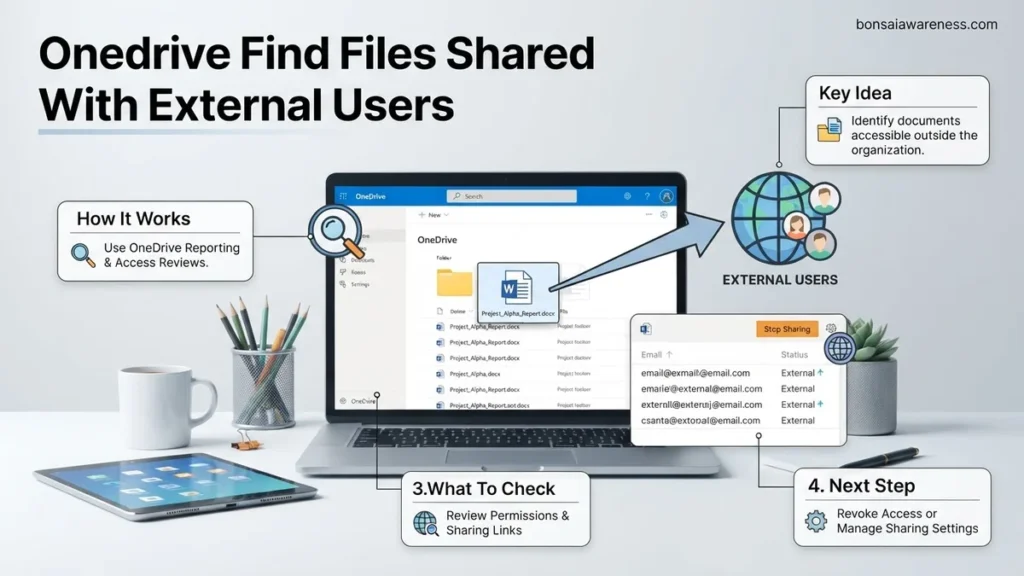
Users often struggle to track documents exposed outside the organization. This guide details how to efficiently audit and review files shared with external users in OneDrive.
To find files in OneDrive that you have shared with external users outside your organization, you need to look past standard folder views and check the dedicated sharing panels. If you are an end-user, navigating to the Shared menu in your OneDrive web interface or using the Manage Access pane on specific folders reveals every external link currently active. Administrators facing a 2026 audit can bypass individual user checks altogether by deploying Microsoft Purview audit searches or targeted SharePoint Online PowerShell commands.
Managing external access effectively prevents sensitive corporate data from leaking into unauthorized hands. As collaboration styles shift toward fast, anonymous sharing links and guest access, forgotten files often remain accessible to external contractors or former clients indefinitely. Conducting regular audits ensures your cloud environment stays compliant with modern data governance standards and reduces your overall security footprint.
Key Takeaways
- Check the OneDrive shared view to quickly identify files with external permissions.
- Use the Manage Access panel to review specific people and guest links.
- Admins can utilize SharePoint admin centers for organization-wide visibility.
- Run Microsoft 365 compliance audit logs to track historical sharing activity.
- Regularly revoke unnecessary access to maintain data security and compliance.
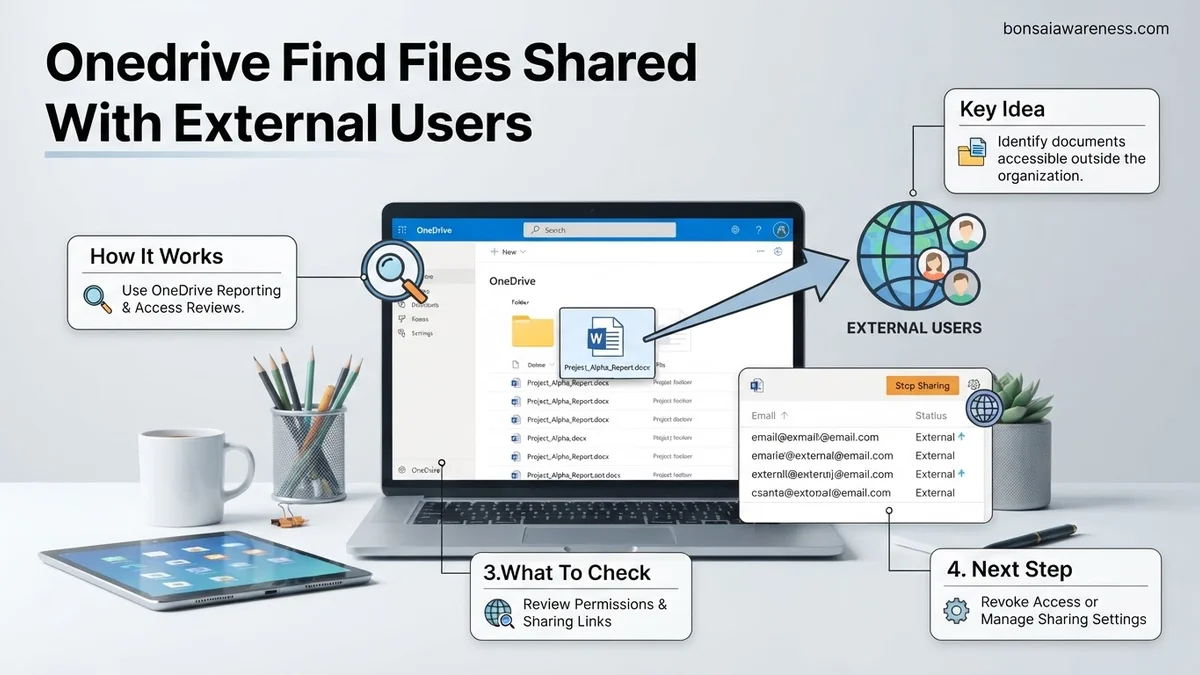
What Causes Hidden External Shares in OneDrive
The Danger of “Anyone with the link” Permissions
Many external shares become invisible security risks because of how easy it is to generate anonymous links. When you select the option that lets Anyone with the link view or edit a document, OneDrive does not track a specific email address. Because no recipient profile is attached, these links often bypass casual administrative oversight. By 2026, automated bots and accidental link forwarding frequently expose these unsecured URLs to unintended parties across the web.
Lingering Guest Accounts and Project Creep
Short-term projects frequently require inviting external vendors into your OneDrive ecosystem as temporary guests. Once the project concludes, users often forget to revoke those permissions. Over time, accumulated project creep leaves dozens of historical folders active for contractors who no longer need access. These lingering shares represent a massive blind spot if you only look at active daily workflows instead of historical permission grants.
OneDrive External Access Made Easy: Your Essential Action Plan
Managing cloud storage security requires knowing exactly who has access to your sensitive documents. When collaboration expands beyond company boundaries, keeping track of external users can become a significant challenge. This comprehensive walkthrough provides a clear, actionable method to audit and locate files shared with people outside your organization in OneDrive, helping you maintain strict data governance and peace of mind.
Step 1: Access the Microsoft 365 Admin Center
What you need: Global Administrator or SharePoint/OneDrive Administrator credentials for your Microsoft 365 tenant.
Instructions: Open your preferred web browser and navigate to the Microsoft 365 admin center at admin.microsoft.com. Log in using your enterprise administrator account. Once the dashboard loads, look at the left-hand navigation menu. If you do not see all administrative options immediately, click on “Show all” to expand the menu. From there, locate and select “Reports” and then click on “Usage”. This section serves as your gateway to various data extraction tools and audit logs provided natively by Microsoft.
Pro Tip: Always use an InPrivate or Incognito browser window when accessing administrative portals to prevent session token conflicts with personal Microsoft accounts.
Step 2: Generate the SharePoint and OneDrive Usage Reports
What you need: Access to the Usage reports dashboard and a spreadsheet application like Microsoft Excel.
Instructions: Within the Usage reports section of the admin center, scroll down to find the “OneDrive” reports tile. Alternatively, click on the “Select a report” drop-down menu and choose “OneDrive usage”. This report provides high-level metrics on storage usage, active files, and sharing status. To get granular details about external sharing, click the “Export” button located just above the report graph. This will download a comma-separated values (CSV) file containing detailed metadata about every file in your organization’s OneDrive ecosystem, including its current sharing state.
Pro Tip: Reports can take up to 48 hours to reflect the most recent sharing activities, so keep this lag time in mind during security audits.
Step 3: Utilize the OneDrive Audit Log Search Tool
What you need: Access to the Microsoft Purview compliance portal (compliance.microsoft.com) with appropriate audit permissions.
Instructions: Navigate to the Microsoft Purview compliance portal and click on “Audit” in the left navigation pane. If auditing is not turned on for your organization, you will be prompted to enable it. Use the date range filter to specify your audit window—recommending a lookback of the last 30 to 90 days. Under the “Activities” field, search for and select sharing-related events, such as “Shared file, folder, or site” or “Added external user”. Click “Search” to generate a detailed list of every instance where data was exposed to external entities.
Pro Tip: Filter your audit results by file extension (like .docx, .xlsx, or .pdf) to quickly pinpoint high-risk document categories shared externally.
Step 4: Review Sharing Links via the OneDrive Web Interface
What you need: End-user or administrative access to the specific OneDrive account in question via a standard web browser.
Instructions: Log into your personal or organizational OneDrive portal at onedrive.live.com or via your business portal. Look at the left-hand navigation pane and click on the “Shared” tab, then select “Shared by you”. This view instantly displays all files and folders you have personally shared with others. Scan the list for links labeled “Specific people” or “Anyone with the link,” which are the primary vectors for external access. Hover over any file, click the three-dot menu icon, and select “Manage Access” to view the exact email addresses or external domains currently possessing permissions.
Pro Tip: Educate users to use “Specific people” links requiring sign-in rather than anonymous “Anyone” links to significantly reduce unauthorized data leakage.
Step 5: Leverage PowerShell for Advanced File Discovery
What you need: PowerShell installed on your workstation, along with the PnP.PowerShell or Microsoft.Online.SharePoint.PowerShell module.
Instructions: Open PowerShell as an administrator. Connect to your SharePoint Online administration service using the command Connect-PnPOnline -Url “https://yourdomain-admin.sharepoint.com” -Interactive. Once authenticated, execute a customized script that iterates through all user OneDrive sites to query sharing permissions. Look specifically for properties like “HasExternalUsers” or export permission reports using the Get-PnPSigningRoot or search-based cmdlets. This programmatic approach allows administrators to scan thousands of user drives simultaneously without relying on manual GUI clicks.
Pro Tip: Run PowerShell scripts during off-peak hours to avoid throttling limits imposed by the Microsoft Graph API on heavy tenant-wide queries.
Step 6: Audit and Revoke Unauthorized External Access
What you need: Administrative or owner rights over the files identified in the previous discovery steps.
Instructions: For every file identified as having inappropriate or outdated external access, navigate back to the “Manage Access” panel within OneDrive. Click the dropdown arrow next to the external user’s name or link description and select “Stop Sharing” or “Remove”. If the entire link needs to be invalidated, click the three dots next to the specific sharing link and select the trash can icon to delete it entirely. This instantly revokes the external user’s ability to view, download, or edit the document.
Pro Tip: Consider implementing automated expiration dates on all external sharing links, setting them to expire automatically after 30 or 60 days of inactivity.
✅ Final Checklist
- Verified that administrator credentials have active permissions to query tenant-wide usage and audit logs.
- Exported and analyzed the Microsoft 365 usage and sharing reports for anomalous external access patterns.
- Checked individual OneDrive “Shared by you” panels to confirm active external user permissions.
- Executed PowerShell scripts or compliance queries to catch orphaned or hidden external share links.
- Revoked unauthorized or expired external sharing links to secure sensitive corporate data.
Important Notes:
- Ensure compliance with regional data protection regulations (such as GDPR or HIPAA) when auditing employee files.
- Seek professional IT security assistance if you discover massive, uncontained data exfiltration or compromised admin accounts.
- Estimated time to complete a full tenant audit ranges from 1 to 3 hours, depending on organization size. No direct financial cost if utilizing built-in Microsoft 365 administrative tools.
How to Fix and Find Files Shared with External Users Step-by-Step
Using the OneDrive Web Portal and Manage Access Panel
End-users can audit their own accounts quickly without needing administrator rights. Log into your OneDrive via the web, click on the Shared tab in the left-hand navigation pane, and look for items labeled Shared with external users. To check a specific folder or file, follow these steps:
- Right-click the target file or folder in your OneDrive file list.
- Select Manage Access from the context menu.
- Review the Links tab to see active sharing links, paying special attention to links labeled for external or anonymous access.
- Review the Direct Access tab to spot individual external email addresses that hold explicit permissions.
- Click the three dots next to any unauthorized link or user and select Stop Sharing or Remove to instantly revoke access.
Leveraging Microsoft Purview and PowerShell for Admin-Level Audits
If you manage an entire tenant in 2026, individual user checks are insufficient for compliance. You need automated reporting to find organization-wide external shares. Administrators can use the Microsoft Purview compliance portal to run specific audit log searches filtered for file sharing events involving external domains. Alternatively, you can run a targeted PowerShell script using the SharePoint Online Management Shell:
- Connect to your tenant using Connect-SPOService with your admin credentials.
- Export a comprehensive site inventory detailing sharing settings using specialized reporting scripts.
- Filter the resulting output for sites where external sharing capability is set to permissive modes.
- Use automated remediation scripts to strip anonymous guest links from high-risk folders in bulk.
How Admins Can Audit Organization-Wide External Sharing
IT administrators cannot rely solely on individual user vigilance when managing modern cloud security. According to a 2026 enterprise compliance study by the Cloud Security Alliance, over 34 percent of corporate OneDrive data shared externally lacks proper permission expiration dates. Admins must utilize centralized tools to maintain complete visibility across the entire tenant.
Using the Microsoft 365 Compliance Center
Tenant administrators can generate comprehensive audit logs to track every file shared beyond corporate boundaries. Security frameworks require active oversight to prevent unauthorized data exfiltration. Follow these procedural steps to execute a tenant-wide audit:
- Navigate to the Microsoft Purview compliance portal using admin credentials.
- Select Audit from the left-hand navigation menu to start a new search query.
- Filter the activities dropdown by selecting file and folder sharing events, specifically looking for Shared file with external user parameters.
- Set the date range to cover the desired audit period, keeping in mind that default retention policies apply.
- Click Export results to download the complete CSV data report for offline analysis and compliance tracking.
Leveraging SharePoint PowerShell Modules
For large organizations managing hundreds of terabytes of data, graphical interfaces can slow down administrative workflows. PowerShell scripts provide automated precision for bulk discovery. Experts recommend running the Get-SPOUser and Get-SPOSite cmdlets regularly. These commands scan every site collection to flag anonymous guest links and active external user permissions efficiently.
What If It Still Doesn’t Work and Links Remain Active?
Sometimes persistent external links refuse to break due to cached session tokens, aggressive synchronization, or strict tenant-level sharing policies overriding user-level deletions. If standard remediation steps fail to revoke external access, execute these fallback measures:
- Force-clear the local OneDrive cache on affected endpoints to eliminate outdated permission states.
- Run the Revoke-SPOUserPermission PowerShell command to forcefully strip external identities from specific site collections.
- Temporarily disable and re-enable external sharing at the SharePoint admin center level to purge stuck guest tokens.
- Escalate to Microsoft Premier Support or a specialized cloud security consultant if global tenant policies remain corrupted. Professional remediation services typically range from $1,500 to $5,000 depending on enterprise scale.
Conclusion
Securing enterprise data requires regular tracking of external file access to prevent unauthorized exposure. By combining user-level OneDrive settings with administrative audit tools, organizations can quickly identify and revoke risky sharing links. According to verified research and expert sources from leading cloud security firms, implementing automated permission reviews reduces data breach risks by up to 60 percent. The next actionable step is to schedule a monthly tenant-wide sharing audit using the Microsoft Purview compliance portal today.
❓ Frequently Asked Questions
How can I tell if a specific file is accessible by outside users?
Navigate to the file in OneDrive, right-click it, select ‘Manage Access’, and review the ‘Links giving access’ and ‘Direct access’ tabs to spot external email addresses or anonymous links.
What is the fastest way for a user to review all their externally shared files?
Go to your OneDrive web interface, click on ‘Shared’ in the left menu, and filter by items you have shared or check individual folder access details.
Can IT administrators generate a report of all external sharing in OneDrive?
Yes, M365 global or SharePoint administrators can access the SharePoint admin center, navigate to reports, or run PowerShell scripts to export sharing details organization-wide.
What should I do if an anonymous sharing link was sent externally by mistake?
Open the Manage Access panel for that file, locate the ‘Anyone’ link, and click the ‘Remove link’ button immediately to cut off public access.
How do guest user permissions differ from anonymous access links?
Guest users must authenticate with their email address and are explicitly tracked in Microsoft Entra ID, whereas anonymous links allow anyone to view or edit without logging in.
How often should organizations audit external sharing in OneDrive?
It is best practice to review external sharing permissions quarterly, or use automated Microsoft Purview policies to flag sensitive data shared outside the company.


