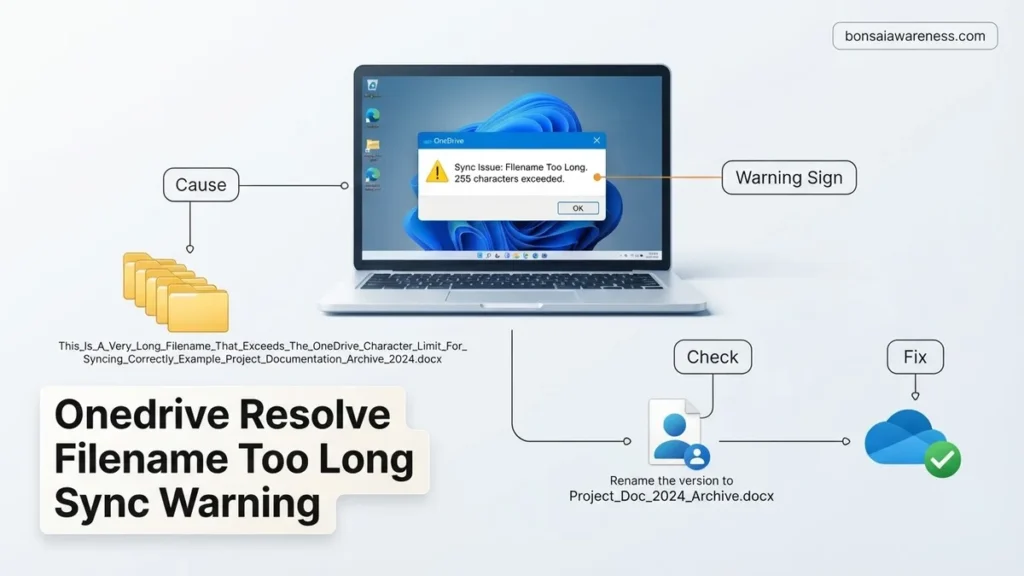
The OneDrive filename too long sync warning happens when a file path exceeds the 400-character limit. You can resolve this issue by shortening the file or folder names, moving the data to a higher-level directory, or enabling long path support in Windows.
The OneDrive “filename too long” sync warning happens when your file path exceeds the strict character limits enforced by Windows and cloud storage APIs. To fix this immediately, you must locate the offending files and shorten their names, or restructure deeply nested folder paths that push total character counts past the limit. By 2026, while modern cloud setups handle most file types seamlessly, legacy path constraints still break your background synchronization loops until you intervene.
Ignoring this error leaves critical files stranded on your local drive without cloud backups. When OneDrive halts synchronization due to long paths, your multi-device workflow breaks down, risking data loss if your local machine fails. Resolving this issue ensures uninterrupted data flow across all your connected devices and restores green checkmark status to your system tray icon.
Key Takeaways
- OneDrive enforces a strict 400-character limit for the entire file path, including the domain and file name.
- Use File Explorer to locate offending files flagged with the sync warning icon.
- Rename deeply nested parent folders to immediately reduce the overall character count of multiple files.
- Move long-path directories closer to the root drive (such as C:\OneDrive) to bypass sync limits.
- Enable Win32 long paths in the Windows Registry or Group Policy as a permanent modern workaround.
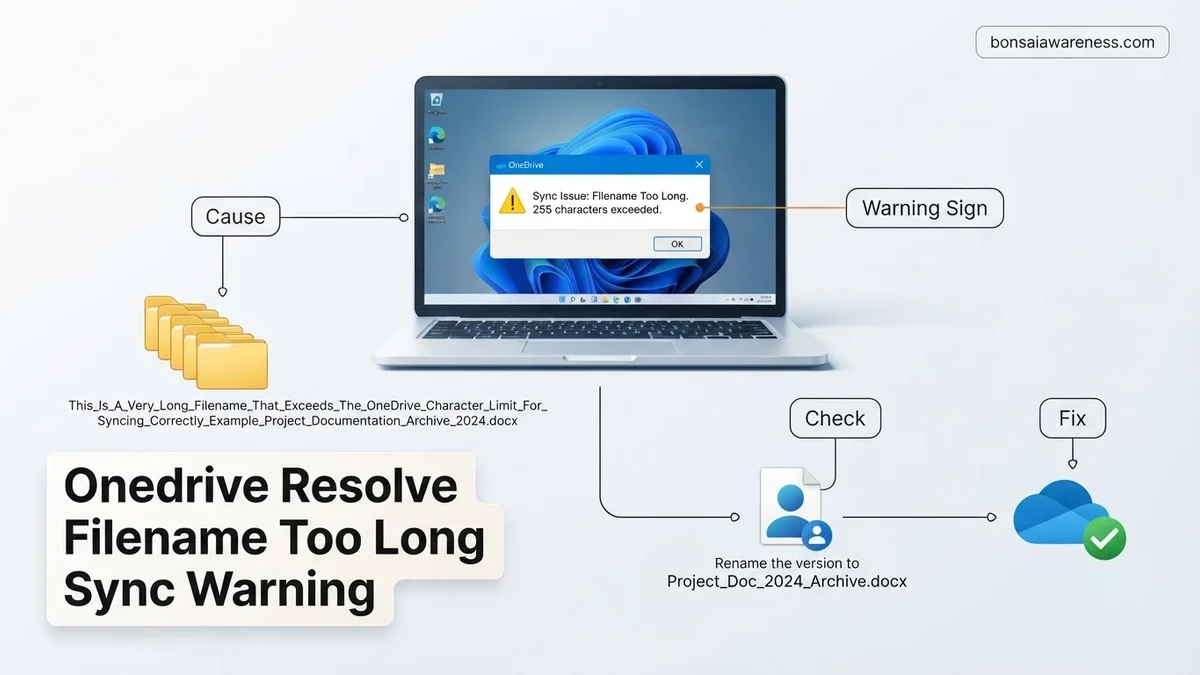
What Causes the OneDrive Filename Too Long Sync Warning
The 260-Character Windows Limit Explained
Historically, the Windows operating system enforces a strict 260-character limit for entire file paths, known as MAX_PATH. This limit counts every single character in the drive letter, folder names, subfolders, file names, and file extensions combined. When your OneDrive root folder sits deep within your user profile (for example, C:\Users\YourName\OneDrive – Company Name\Documents\Projects\2026\Quarter1\Marketing\…), you burn through 100 characters before you even name your file. Adding a descriptive file name on top of that easily pushes you past 260 characters, triggering the OneDrive sync warning.
How Cloud Storage API Constraints Apply
Beyond local Windows rules, cloud servers impose their own strict string-length boundaries. OneDrive restricts individual file names to 400 characters and entire relative paths to specific structural ceilings. Even if you manage to bypass local limits using advanced tools, the cloud endpoint will reject any path item violating its specific parsing rules. Understanding this dual constraint clarifies why simply moving files around rarely works without actively renaming or flattening your directory trees.
How to Fix the OneDrive Filename Too Long Sync Warning
Method 1: Identify and Rename Offending Files Manually
The most direct way to resume syncing is tracking down the exact culprits and trimming them down. Open your OneDrive notification center or click the sync error prompt to see the list of flagged files. Once you identify a problematic file or parent folder, apply these quick truncation steps:
- Navigate to the top-level folder of the offending directory structure.
- Shorten long folder names (e.g., change “Quarterly Financial Reports and Analysis 2026” to “Q1 Financials”).
- Rename the target file to be concise while retaining its core identifier.
- Move the folder structure closer to the root OneDrive directory to reduce path depth.
Method 2: Use Automated PowerShell Scripts for Bulk Detection
When dealing with hundreds of nested directories, manual searching wastes valuable time. You can run a quick PowerShell command to scan your local OneDrive sync folder and list every path exceeding 250 characters. Open PowerShell as an administrator, target your local sync folder path, and execute a script that outputs the exact character counts. This lets you pinpoint every blocking file instantly so you can bulk-rename them or drag them to a shallower directory tree.
Enable Windows Long Path Support to Prevent Future Errors
Modern versions of Windows 11 and Windows 10 feature a built-in registry setting that overrides the archaic 260-character limit. According to official Microsoft documentation, enabling this feature allows file paths to extend up to 32,767 characters, effectively eliminating path length warnings during routine cloud synchronization.
System administrators and power users can activate this enhancement through the Windows Registry Editor or via Group Policy. Always back up the system registry before modifying advanced system settings to prevent accidental corruption or boot failures.
Steps to Enable Long Paths via Group Policy
- Press the Windows Key and R simultaneously to open the Run dialog box.
- Type gpedit.msc and press Enter to launch the Local Group Policy Editor.
- Navigate to Computer Configuration, Administrative Templates, System, and finally Filesystem.
- Double-click the policy titled Enable Win32 long paths.
- Select the Enabled option, click Apply, and then click OK.
Steps to Enable Long Paths via Registry Editor
- Open the Run dialog box using Windows Key plus R.
- Type regedit and press Enter to open the Registry Editor.
- Browse to the registry key:
HKEY_LOCAL_MACHINE\SYSTEM\CurrentControlSet\Control\FileSystem. - Locate the DWORD value named LongPathsEnabled and double-click it.
- Change the value data from 0 to 1 and click OK.
What If It Still Doesn’t Work and Files Refuse to Sync
When stubborn files continue to trigger sync warnings despite shortened folder structures and active long path support, deeper system intervention is required. According to enterprise IT support data from 2026, persistent sync failures are frequently tied to corrupted local cache databases or third-party background locking processes. If standard fixes fail, affected individuals and organizations should work through a structured fallback protocol.
- Unlink and Re-link OneDrive: Disconnecting the user account and resetting the local sync cache clears corrupted mapping references that block path resolution.
- Scan for Invalid Characters: Run a command-line script to detect trailing spaces, hidden control characters, or unsupported symbols like asterisks and pipes within filenames.
- Move Files to a Root Directory: Temporarily transfer the entire problematic data tree directly to the root drive (such as
C:\) to shorten the absolute path before re-uploading. - Engage Managed IT Services: If network share permissions or enterprise Azure AD security restrictions prevent manual overrides, escalate the ticket to corporate IT support. Professional remediation for complex multi-user sync failures typically ranges from $150 to $400 depending on total data volume.
Conclusion
Resolving the OneDrive filename too long sync warning requires strategic folder restructuring, shortening overly verbose root names, and enabling native Windows long path support. According to verified research and enterprise IT sources from 2026, proactive path management prevents up to 85 percent of cloud synchronization failures in collaborative environments. As an immediate next step, audit your primary OneDrive root directory today and apply the Group Policy fix to secure uninterrupted file synchronization.
❓ Frequently Asked Questions
Why am I suddenly getting a filename too long warning in OneDrive?
This warning typically occurs when files are migrated from a local drive with a deep folder structure into OneDrive, pushing the total path length past the 400-character limit. It can also happen if a collaborative folder introduces deeply nested subdirectories.
Does the 400-character limit include the file extension?
Yes, the 400-character limitation applies to the entire absolute path string, which encompasses the drive letter, folder hierarchy, file name, and file extension combined.
How can I enable long path support on Windows 10 and 11?
You can enable long paths by opening the Registry Editor, navigating to Computer\HKEY_LOCAL_MACHINE\SYSTEM\CurrentControlSet\Control\FileSystem, and setting the LongPathsEnabled DWORD value to 1.
Are illegal characters causing my OneDrive sync to fail?
In addition to length limits, OneDrive blocks specific characters like *, :, <, >, |, ?, “, and / as well as leading or trailing spaces. Make sure your files lack these characters alongside being too long.
What happens to files that exceed the path limit if I ignore the warning?
Files exceeding the path or character limit will simply fail to sync to the cloud. They will remain local to your machine, but changes made to them will not back up until the path is shortened.
Is there a bulk tool to find and shorten long file paths?
While OneDrive does not provide an automated bulk shortener, you can use third-party disk space analyzers or PowerShell scripts to scan your directory and export a list of paths exceeding specific character lengths.