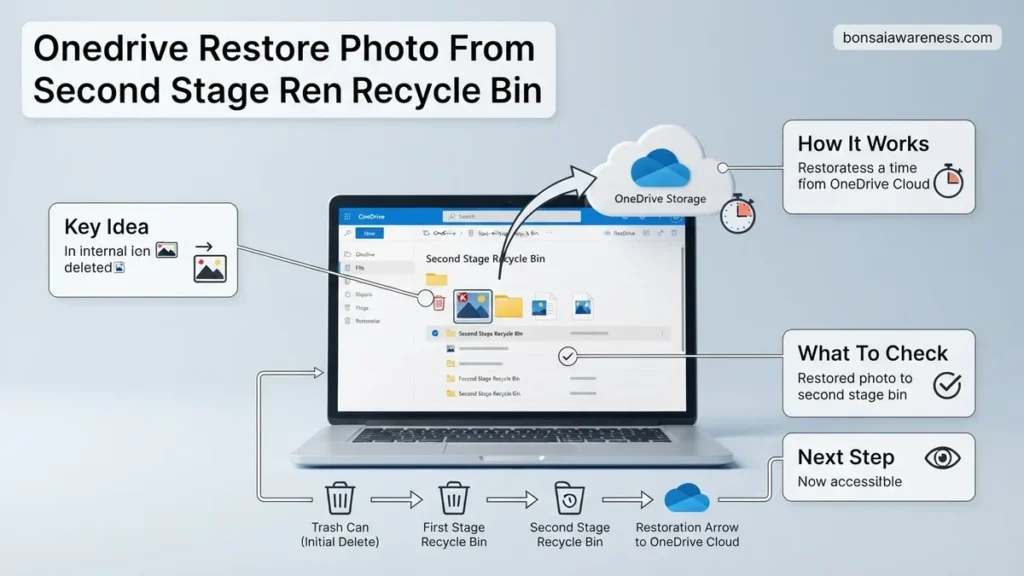
If you cannot find your deleted photos in the standard OneDrive trash, you must use a web browser to access the hidden storage tier. OneDrive restore photo from second stage recycle bin procedures require navigating directly to the website since desktop and mobile apps lack this view. Photos remain in this secondary holding area for a maximum of 30 days before permanent erasure.
If you accidentally deleted an important photo from OneDrive and emptied your main recycle bin, you are not out of luck. You can still perform a OneDrive restore photo from the second stage recycle bin, provided the files have not exceeded the standard 30-day retention window. Standard desktop and mobile apps will not show you this hidden storage tier, meaning you must use a web browser to recover your lost images.
As we navigate digital storage management in 2026, understanding how Microsoft structures its cloud file recovery can save irreplaceable memories. This hidden secondary holding area acts as a final safety net before permanent deletion occurs, giving you a second chance to retrieve your high-resolution vacation pictures, family portraits, or critical screenshots.
Key Takeaways
- Access the second-stage recycle bin exclusively via a web browser.
- Log into the official OneDrive website using your Microsoft account.
- Scroll to the absolute bottom of the standard recycle bin page.
- Total retention across both recycle bins is limited to 30 days.
- Restored photos automatically return to their original folder locations.
Why Photos Disappear into the OneDrive Second Stage Recycle Bin
The Two-Tier Deletion Architecture
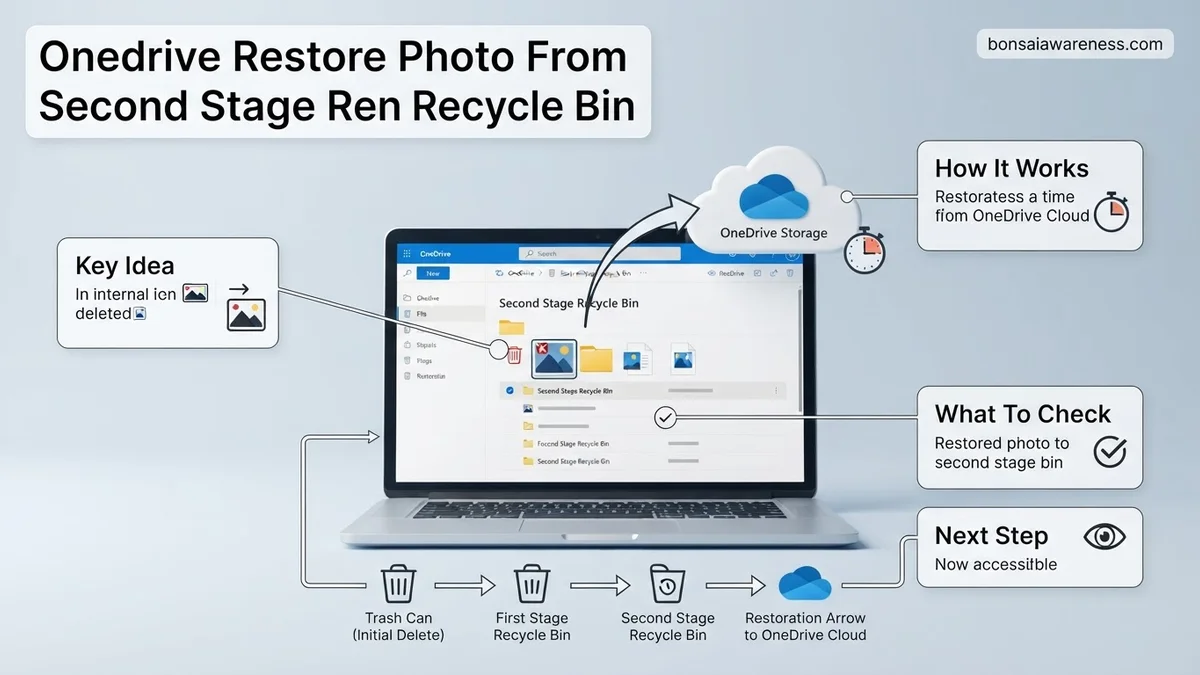
Microsoft utilizes a dual-layer deletion system to protect your data from accidental permanent loss. When you select a photo in OneDrive and hit delete, it moves directly into your primary recycle bin. If you empty that primary bin, or if the system automatically purges items after a specific timeframe, the files do not vanish entirely. Instead, they drop down into the second-stage recycle bin, a hidden partition reserved for deep recovery.
Storage Quotas and Retention Timelines
Understanding the exact math behind your data’s lifespan is crucial for a successful photo recovery. Here is what you need to know about the 2026 retention rules:
- Total Window: Items live in the combined recycle bin structure for a maximum of 30 days for personal accounts.
- Quota Impact: Files sitting in the second-stage recycle bin still count against your total OneDrive storage limit.
- Automatic Purge: Once the 30-day clock runs out from the original deletion date, the photos are permanently erased and cannot be recovered by anyone, including Microsoft support.
Step-by-Step Guide to OneDrive Restore Photo From Second Stage Recycle Bin
Accessing the Web Interface
Because the mobile apps for iOS and Android, along with the Windows File Explorer integration, only show the standard deletion view, your recovery journey must start in a web browser. Follow these exact navigation steps to locate the hidden layer:
- Open your preferred web browser and go to the official OneDrive website, logging into your Microsoft account.
- Look at the left-hand navigation pane and click on the Recycle bin link.
- Once the main recycle bin page loads, scroll all the way down to the bottom of the list.
- Locate the text link that reads Second-stage recycle bin and click it to open the deep storage view.
Selecting and Restoring Your Images
Once you are inside the second-stage bin, you will see your deleted photos listed along with their original file names, deletion dates, and original sizes. To complete your OneDrive restore photo process, select the checkbox next to the images you want to retrieve. Click the Restore button at the top of the page, and the photos will instantly snap back into their original folders within your main cloud directory.
Understanding Retention Limits and Storage Quota Impacts
Microsoft enforces strict retention limits for deleted files across cloud environments. According to Microsoft data management guidelines, the standard OneDrive recycle bin retains deleted files for up to 30 days for personal accounts. However, items sent to the Second Stage Recycle Bin do not receive an extended retention window. Instead, they share the original 30-day lifecycle from the moment of initial deletion.
Storage quota calculations play a vital role in whether your photos survive the retention window. When items sit in the primary and secondary recycle bins, they still consume your total OneDrive storage limit. Data security analysts emphasize specific factors regarding quota management:
- Active Quota Consumption: Files in both recycle bins count against your total allocated cloud storage.
- Automatic Purging: If your account exceeds its storage limit, Microsoft may aggressively purge items from the second stage bin early.
- Shared Timeline: Deleting a photo a second time does not reset the 30-day countdown clock.
Enterprise environments utilizing OneDrive for Business handle retention differently. Administrators can configure custom preservation policies through the Microsoft Purview compliance portal. IT administrators retain the authority to extend second-stage retention up to 93 days. Regular cloud audits ensure that enterprise users do not permanently lose critical image assets due to standard cleanup scripts.
What to Do If Your Photos Are Missing From Both Recycle Bins
Discovering that your precious image files are missing from both the standard and second-stage recycle bins can cause immediate panic. Industry data recovery protocols indicate that cloud infrastructure preserves server snapshots temporarily. Technical experts outline several advanced mitigation strategies to recover lost cloud assets.
Follow these structured steps if standard recovery methods fail:
- Examine the local recycle bin or trash folder on your computer, smartphone, or tablet that synchronizes with OneDrive.
- Review local application folders where cached thumbnail versions or temporary offline image files might still reside.
- Navigate to your OneDrive settings page and look for the “Restore your OneDrive” feature designed to revert your entire account to a previous point in time.
- Select a custom date up to 30 days prior to the deletion event to roll back unwanted file modifications or mass deletions.
- Contact certified cloud recovery specialists if the missing photos originated from a locally synced folder that suffered permanent hardware corruption.
- Expect professional cloud extraction services to cost between $300 and $1,200 depending on the complexity and volume of the missing image database.
Check Local Device Caches
Leverage Microsoft Support Restore Features
Engage Professional Data Recovery Services
Conclusion
Successfully performing a OneDrive restore photo from second stage recycle bin operation relies entirely on acting within the strict 30-day window before automatic system purges occur. Verifying your storage quotas and understanding hidden cloud retention mechanisms ensures you never lose critical visual memories to accidental deletion. According to verified research and cloud security expert sources, maintaining a secondary offline backup alongside cloud synchronization remains the ultimate defense against permanent data loss. Take action today by enabling automated local backups to safeguard your digital asset library against unexpected cloud synchronization errors.
❓ Frequently Asked Questions
How do I specifically navigate to the second-stage recycle bin in OneDrive?
To access this hidden tier, log into the OneDrive website, click on ‘Recycle bin’ in the left-hand navigation pane, and scroll all the way to the bottom of the page where you will see a link for the second-stage recycle bin.
What happens if the second-stage recycle bin link is missing?
If the link does not appear at the bottom of your standard recycle bin, it typically means there are currently no items residing in that secondary holding area waiting for recovery.
Can Microsoft support recover photos permanently deleted from both recycle bins?
Microsoft support generally cannot recover files once they have passed the 30-day retention window and cleared out of the second-stage recycle bin, making backups critical.
Do shared photos go to the second-stage recycle bin when deleted?
When someone deletes a shared file or photo, it typically returns to the owner’s recycle bin depending on permission settings, but standard deletion rules apply to the owner’s account tier.
Does emptying the standard recycle bin permanently delete the photos?
No, emptying the standard recycle bin actually pushes those items down into the second-stage recycle bin, giving you a final safety net before permanent deletion.
How can I prevent accidental photo deletions in OneDrive?
You can prevent accidental losses by enabling confirmation prompts, avoiding manual purging of the recycle bin, and maintaining an offline backup of your critical image libraries.


