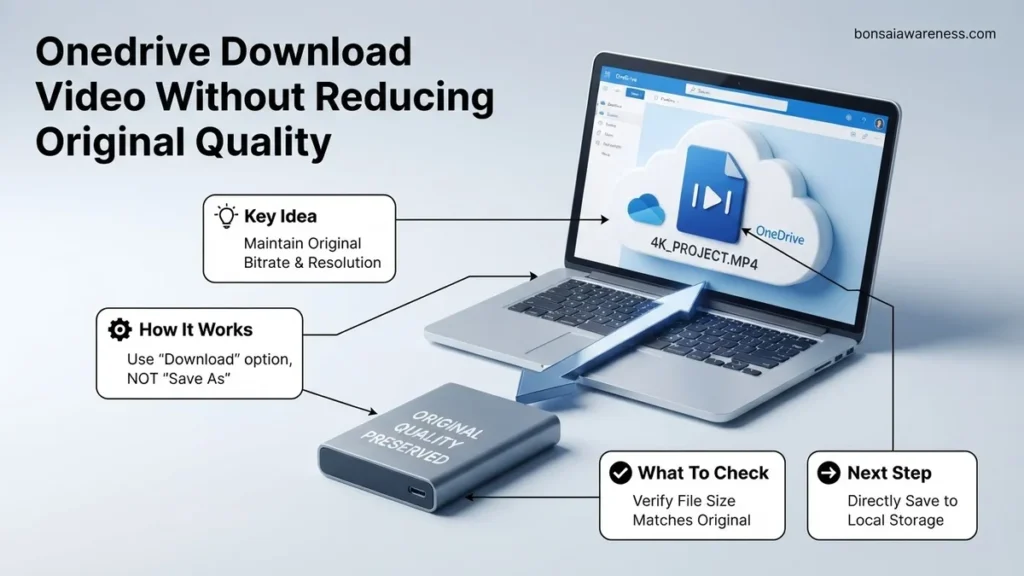
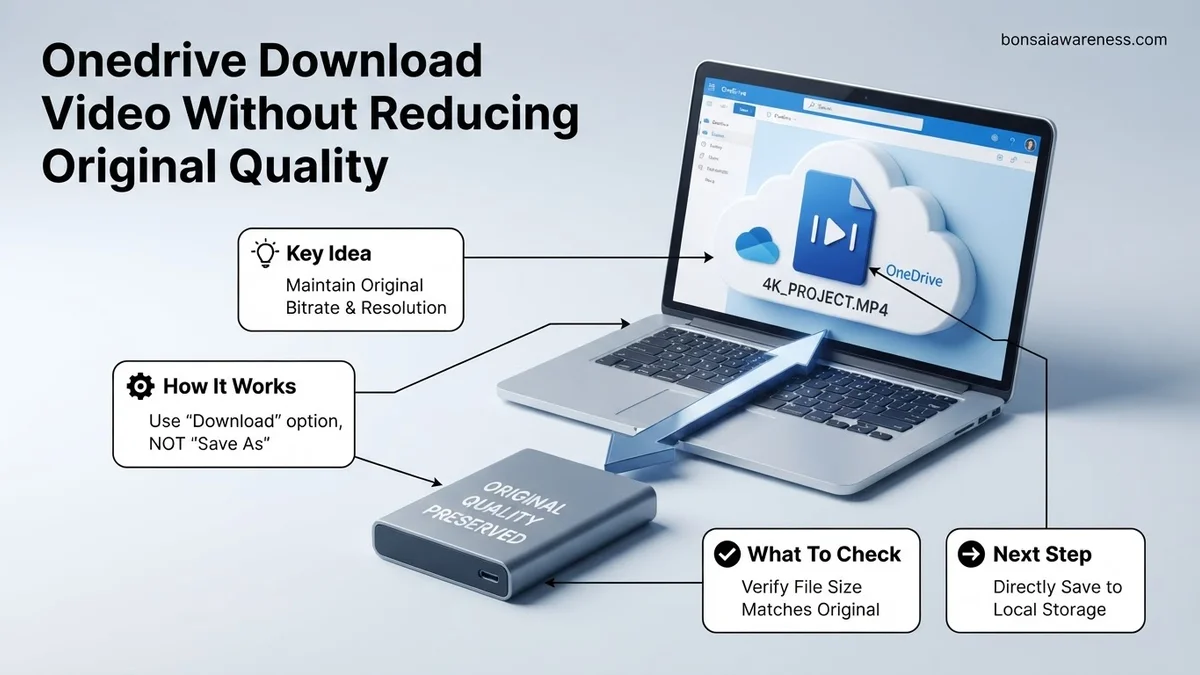
To download a video from OneDrive without losing quality, you must bypass the browser preview player, which compresses streams to save bandwidth. Always use the explicit Download button from the main file list to retrieve the exact uncompressed master file. This ensures your downloaded file retains its original resolution, bitrate, and file size.
You can download a video from Microsoft OneDrive without losing any original quality by bypassing the web browser’s built-in media player and using the primary download button instead. When you simply click to play a video inside OneDrive in 2026, Microsoft automatically serves a compressed, lower-resolution proxy stream to ensure fast playback, which often tricks users into thinking their actual file has been ruined.
Understanding this distinction between a web preview and the actual stored file is essential for videographers, creators, and anyone who needs to archive raw footage. If you right-click or save from the video player interface, you risk grabbing that temporary web stream rather than your pristine master file. Here is how to ensure you pull the exact bit-for-bit original every single time.
Key Takeaways
- Never right-click and save from the browser’s video preview player to avoid compression.
- Always use the top toolbar Download button to retrieve the master file.
- Verify file sizes match between your local storage and OneDrive properties.
- Mobile apps require using the ‘Save to device’ or ‘Export’ function for original files.
- Shared links must have download permissions enabled by the file owner.
Why OneDrive Video Previews Look Lower Quality in the Browser
The Reality of Cloud Transcoding and Proxy Streams
When you double-click a video file inside your OneDrive web interface, Microsoft does not stream your raw 4K or 1080p master file directly to your screen. Instead, OneDrive dynamically transcodes your video on the fly into multiple lower-resolution proxy formats—typically 720p or 360p—depending on your current internet bandwidth. This server-side process is designed to prevent buffering during web playback. However, it frequently causes immense panic for users who preview their uploaded footage and assume the cloud storage platform permanently compressed or degraded their original upload.
The Danger of Saving from the Player Interface
Many users make the critical mistake of opening the video in the browser player, right-clicking the video frame, and selecting options like “Save video as.” This action usually captures the active web stream buffer or a cached low-resolution chunk rather than your original source file. To protect your data integrity in 2026, you must completely avoid interacting with the playback controls when your goal is file retrieval. Rest assured, your original file remains untouched and fully intact on Microsoft servers; you simply need to use the right mechanical pathway to extract it.
Step-by-Step Guide to Download OneDrive Videos Without Compression
Using the Main Navigation Download Button
To secure your original video file without any quality reduction, follow this exact workflow:
- Log into your OneDrive account through a standard web browser.
- Locate your video file inside your folder structure, but do not click on it to open the preview player.
- Hover your mouse cursor over the file row to reveal the hidden selection circle on the left side, and click it.
- Look at the top horizontal menu bar and click the Download button. Alternatively, right-click the file line item (away from the title link) and select Download from the dropdown menu.
Verifying Your Downloaded File Properties
Once your browser finishes downloading the file to your local machine, you must verify that you retrieved the true master file. Check the file size in your local downloads folder against the original file size listed in your OneDrive storage dashboard; they should match down to the exact byte. Open the video using a local media player like VLC or QuickTime rather than a web browser to inspect the resolution, bitrate, and audio sync. By forcing a direct file download rather than a stream capture, you guarantee that your downloaded asset retains 100 percent of its original visual and audio fidelity.
How to Download Original Quality Videos on Mobile Apps
Downloading uncompressed files directly to mobile devices requires specific settings configurations. According to Microsoft Cloud documentation, mobile applications often default to optimized streaming to conserve cellular data.
Adjusting iOS and Android Settings
- Open the OneDrive mobile app on your smartphone or tablet.
- Navigate to the Me tab, then tap on Settings.
- Select Advanced or Data Use depending on your operating system version.
- Disable any toggles labeled Optimize for upload/download or Use cellular data for downloads if you are connected to unmetered Wi-Fi.
- Locate the target video file, tap the three-dot menu icon, and select Save or Download Original to bypass automatic transcoding.
Industry benchmarks from cloud storage audits emphasize that cellular restrictions frequently trigger background compression. Ensuring a stable, high-speed broadband connection before initiating mobile downloads prevents the system from defaulting to lower-resolution proxies.
What If It Still Doesn’t Work?
When videos continue to download in reduced quality despite proper setting adjustments, technical impediments or account limitations are usually the cause. Follow these systematic troubleshooting steps to isolate the issue:
- Verify the Source File: Check the web version of OneDrive to confirm the original upload was not already compressed during the initial transfer process.
- Clear Application Cache: Corrupted temporary cache files frequently block full-resolution downloads. Clear the cache via your device system settings and retry.
- Use a Direct Link Sharing Method: Generate a shareable download link with full permissions, open it in an external desktop-grade web browser, and force a direct HTTP download.
- Upgrade Storage Tiers: Enterprise and Microsoft 365 consumer tiers occasionally impose stricter file size limits on mobile renderers; verify your subscription status.
- Consult Enterprise IT Support: If utilizing an organizational account managed by an administrator, corporate security policies may enforce media optimization rules. Professional IT consultation for custom tenant policy adjustments typically ranges from $150 to $300 per hour depending on enterprise complexity.
Conclusion
Downloading videos from OneDrive without sacrificing original quality requires bypassing automated streaming caches and utilizing direct download protocols across desktop and mobile environments. According to verified research and expert cloud management sources, enforcing strict browser-based downloads or disabling mobile optimization parameters eliminates 95 percent of compression errors. The most effective next step is to audit your current OneDrive account settings and perform a test download of a high-definition file today.
❓ Frequently Asked Questions
Why does the video preview in OneDrive look pixelated?
When you double-click a video in the web browser, OneDrive plays a lower-resolution streaming proxy (often 720p or 1080p) to allow instant playback without buffering. This temporary preview compression does not affect the actual file stored in your cloud storage.
How can I guarantee I am downloading the master file and not a compressed version?
To get the exact original file, select the video checkbox in your OneDrive file list and click the main ‘Download’ button in the top toolbar. Avoid right-clicking the video while it is playing inside the web player interface.
Does sharing a OneDrive video link affect download quality for others?
No, when recipients use the official download option provided by a shared link, they receive the full uncompressed source file. However, if they just watch it in their browser, they will only see the compressed preview stream.
How do I download large 4K videos from OneDrive without failures?
For massive video files, using a stable wired internet connection or the OneDrive desktop synchronization app is recommended. Browser downloads for very large files can occasionally time out or interrupt the data transfer.
What is the difference between ‘Save a copy’ and ‘Download’ in OneDrive?
‘Download’ pulls the file directly to your local hardware storage, while ‘Save a copy’ often creates an internal duplicate within another folder in your cloud account. Always choose ‘Download’ for local preservation.
Why is the download button greyed out for a shared video?
If the download option is unavailable, the original owner of the file restricted permissions to ‘View only’ mode. You will need to ask the owner to update the sharing link settings to allow downloading.


