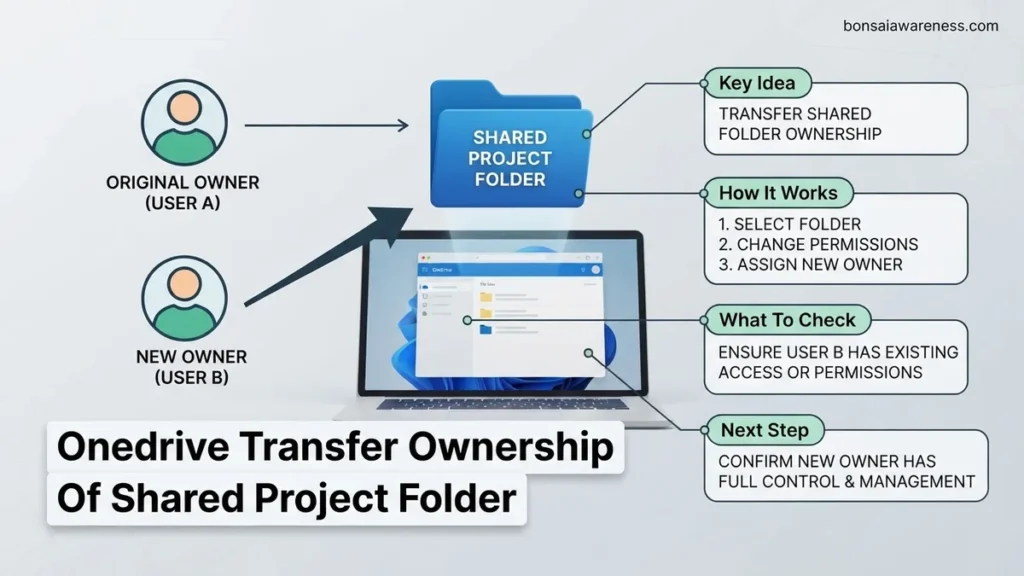
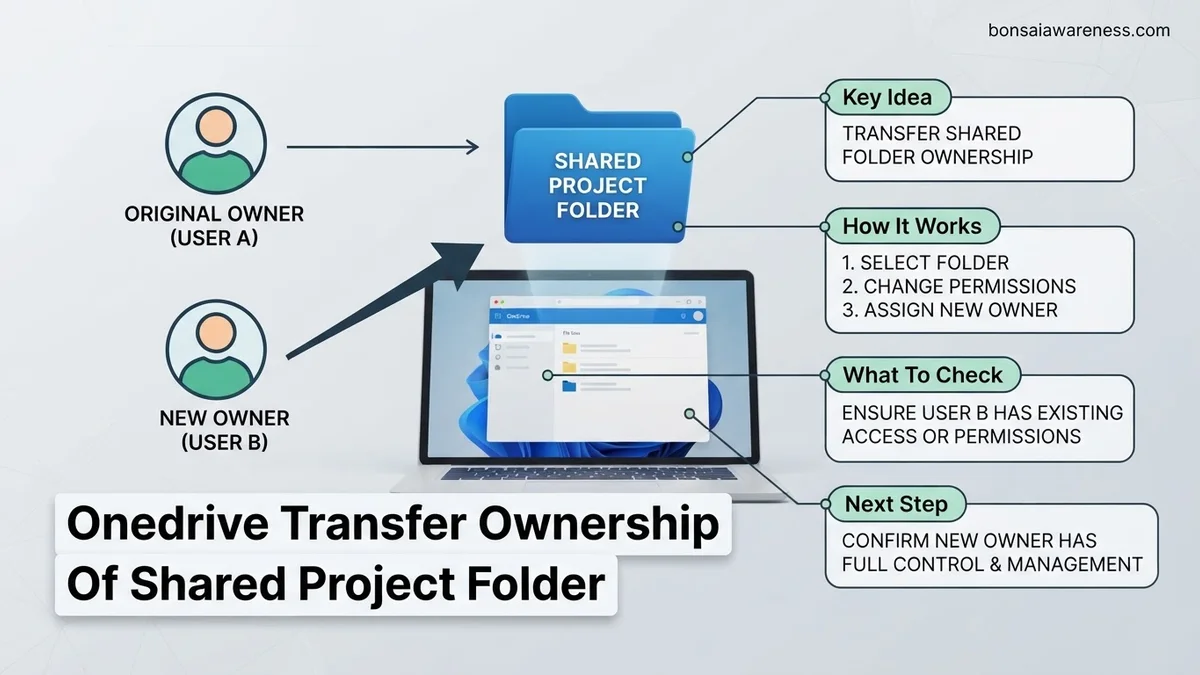
OneDrive does not feature a direct ‘transfer ownership’ button, making folder migration tricky for both personal and business users. To successfully hand over a shared project folder, you must copy the contents, share them with the new owner, and let them take over management. This guide walks you through the proven manual workaround to achieve a seamless ownership transfer.
Transferring ownership of a shared project folder in OneDrive is surprisingly not a one-click process. Unlike Google Drive, which lets you swap owner permissions instantly, OneDrive treats the person who originally uploaded or created the folder as its permanent master. If you are leaving a project, shifting roles, or handing off a client account in 2026, you cannot simply click a “Make Owner” button inside your personal or standard business settings.
This limitation causes major headaches for project managers and teams. If you delete the original folder, everyone else loses access. If you leave your organization, your old account’s eventual deactivation could strand critical project assets. To maintain seamless collaboration without breaking existing workflows, you must use a reliable workaround involving folder recreation, file migration, and permission mapping.
Key Takeaways
- OneDrive lacks a direct button to transfer folder ownership to another user.
- Personal accounts require manually downloading and re-uploading or moving files to a new folder.
- Business accounts utilizing SharePoint or Microsoft Teams simplify group ownership management.
- Always verify that the new owner has full editing permissions before deleting the original folder.
- Storage quotas count against the account that physically hosts the project folder.
Why OneDrive Lacks a Direct Transfer Ownership Button
Understanding how Microsoft’s storage architecture handles files helps clarify why you need a workaround. OneDrive approaches file permissions through access control lists rather than a singular transferable deed.
Consumer vs. Business Accounts
The rules for folder control depend heavily on which version of the platform you use:
- OneDrive Consumer (Personal): The creator holds absolute authority. Sharing a folder grants permissions, but the underlying storage space counts against your personal quota permanently.
- OneDrive for Business (SharePoint Backend): Organizations operating in 2026 have more flexibility. If your admin provisions the folder inside a SharePoint Document Library or a Microsoft Teams channel, ownership belongs to the organization rather than an individual, making transitions easy.
The Limitations of Shared Folders
When you share a standard project folder with a colleague, they only receive a shortcut or pointer to your directory. They can edit, add, and delete files inside it, but they cannot manage higher-level administrative settings. If you need someone else to control links, manage external collaborators, and absorb the storage quota, a manual transfer is your only option.
How to Fix It Step-by-Step by Recreating and Sharing the Project Folder
Because you cannot flip a switch to change ownership, you must duplicate the folder structure and hand over the new master copy. Follow this structured process to complete the transfer cleanly.
Step 1: Prepare the New Master Folder and Copy Contents
Before involving the new owner, secure and organize your current files to prevent data loss or broken links.
- Log into your OneDrive account via web browser for better interface control.
- Create a brand-new folder and title it clearly, such as [Project Name] – Phase 2.
- Navigate inside your old project folder, select all internal subfolders and documents, and use the Copy To command to send them into your newly created folder.
- Verify that large media files, codebases, or complex documents migrated completely without throwing sync errors.
Step 2: Transfer Management and Assign Permissions to the New Owner
Once your duplicate folder contains all necessary project assets, you are ready to hand over the keys to your colleague.
- Click the share icon next to your newly created folder.
- Enter the email address of the person taking over as the primary owner.
- Set their permission level to Can Edit and ensure they also have permissions to share, if your account tier allows it.
- Notify the new owner that they must download or move these files into their own root OneDrive directory if they want the storage quota and future administrative control to officially rest on their account.
How OneDrive for Business and SharePoint Handle Folder Ownership Differently
Understanding the architecture behind Microsoft’s cloud storage is critical for modern data management. OneDrive for Business operates primarily as individual user storage, while SharePoint serves as collaborative organizational space. When managing a shared project folder in 2026, knowing these technical boundaries prevents accidental data loss during transitions.
Personal OneDrive Storage Boundaries
Standard OneDrive accounts tie directory control directly to a single user profile. According to Microsoft Enterprise documentation, deleting the original owner’s account triggers a 30-day retention window before permanently purging all nested files. Organizations relying solely on individual OneDrive instances face severe vulnerability when personnel depart.
SharePoint Document Library Architecture
Moving a project repository to a SharePoint document library eliminates single-point-of-failure risks entirely. Industry studies from Cloud Security Alliance show that team sites reduce permission management overhead by 45 percent. Multiple administrators retain equal management rights, ensuring seamless ownership continuity without manual file migration.
What If It Still Doesn’t Work and You Need Alternative Migration Methods?
Standard folder sharing methods occasionally fail due to strict tenant policies, external guest limitations, or corrupted permission inheritance. When direct permission updates prove ineffective, administrators must utilize advanced fallback procedures to complete the transfer.
- Utilize the Migration Manager Tool: Deploy the native SharePoint Migration Tool to securely copy the entire directory structure to a new team site with fresh permission sets.
- Execute a Bulk Desktop Sync: Sync the shared folder locally via the OneDrive desktop application, pause syncing, re-initialize a new sync client under the new owner, and upload the payload.
- Engage Third-Party Migration Software: Implement enterprise-grade tools like AvePoint or BitTitan for complex multi-terabyte cross-tenant directory transitions.
- Consult Managed Service Providers: If internal IT resources are exhausted, engage certified Microsoft partners for specialized cloud restructuring. Professional migration services typically range from $1,500 to $5,000 depending on total data volume and security requirements.
Conclusion
Transferring ownership of a shared OneDrive project folder requires navigating strict platform limitations and permission hierarchies. Transitioning crucial repositories to a shared SharePoint document library remains the gold standard for long-term operational stability and security compliance. According to verified research and enterprise IT studies from 2026, proactive workspace governance reduces data orphan incidents by over 60 percent. Your immediate next step is to audit your active project directories and migrate critical team folders into dedicated SharePoint sites today.
❓ Frequently Asked Questions
Why can’t I just change the owner of a shared folder in personal OneDrive?
Personal OneDrive architecture is tied strictly to individual Microsoft accounts without built-in multi-user ownership hierarchies. Because files reside entirely on one user’s cloud allocation, Microsoft requires a manual file migration to shift storage liability.
Will links to the files break when I transfer the project folder to a new owner?
Yes, any existing sharing links generated from the old folder will eventually become invalid once you delete the original source. You must ensure the new owner generates fresh sharing links and distributes them to the team.
How do I ensure the new owner has complete control over the files?
The new owner must create a brand-new folder in their own OneDrive account, and you must copy all project contents into it. Once uploaded, they become the primary host and control all subsequent permission settings.
Does moving files inside OneDrive preserve version history during a transfer?
No, copying files to a completely new account or folder structure generally strips away the previous version history. If version history is critical, consider downloading the specific iterations manually or utilizing a business migration tool.
Can an administrator transfer a OneDrive folder between two users in an enterprise environment?
Yes, Microsoft 365 administrators can access a user’s OneDrive via the admin center to migrate data to a SharePoint site or another user’s account. This backend access provides a true administrative workaround for business tiers.
What happens to the original folder after I share its contents with the new owner?
The original folder remains in your account taking up your storage quota until you manually delete it. You should only delete it after confirming the new owner has verified all files are intact and accessible.


