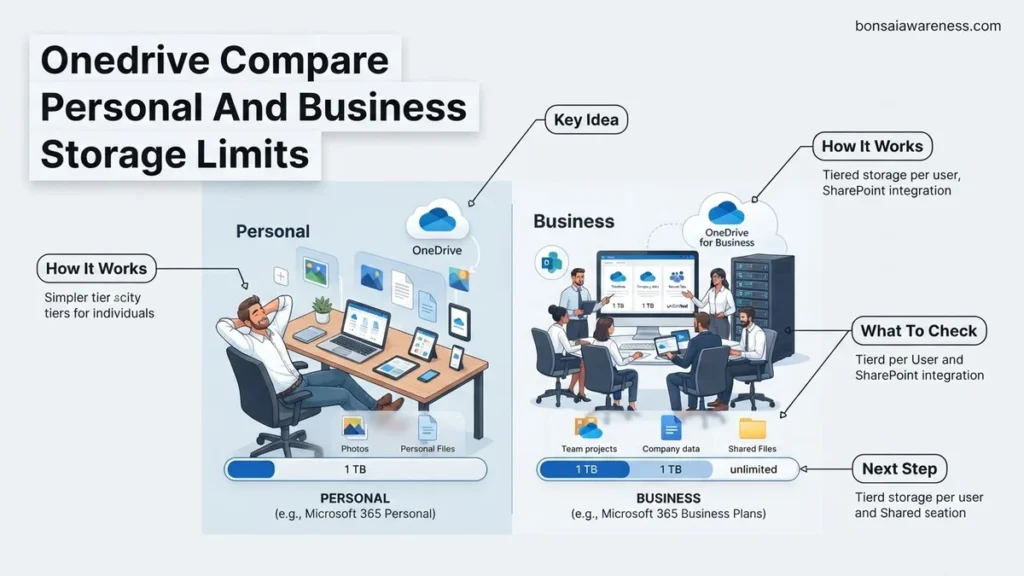
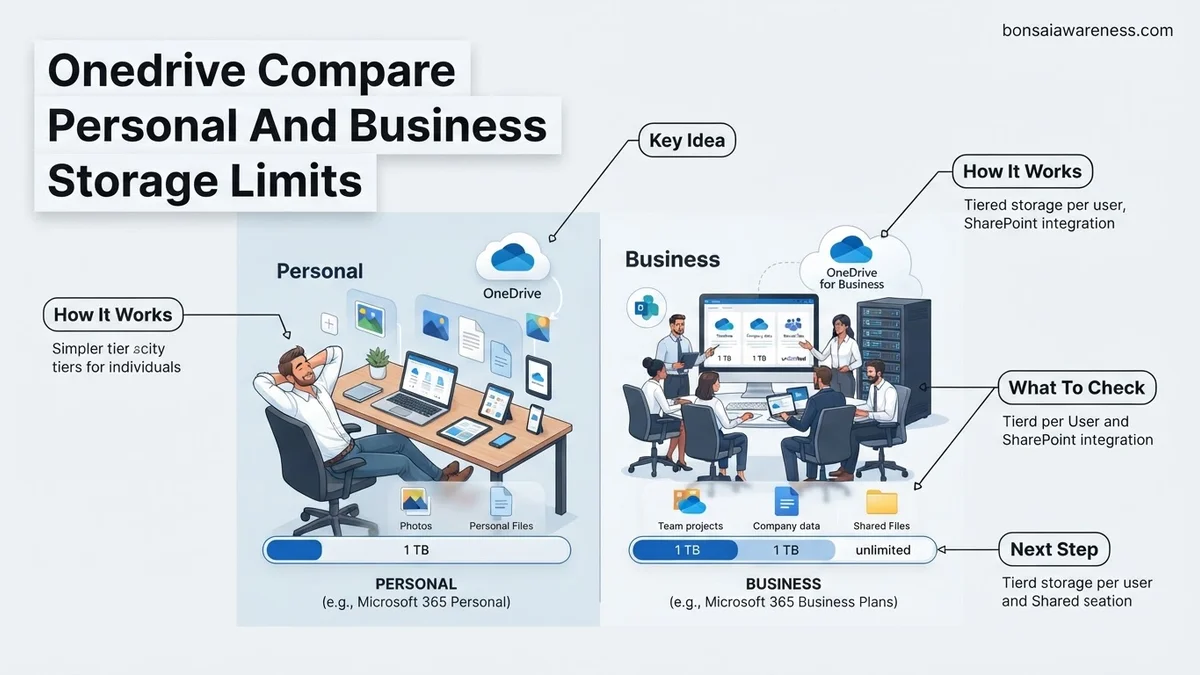
Navigating cloud storage requires knowing that OneDrive Personal plans max out at 1TB per user, whereas business plans offer scalable capacities up to unlimited storage depending on your subscription tier. Reviewing side-by-side storage allocations, file upload sizes, and pooling mechanics prevents unexpected capacity shortfalls.
Choosing between OneDrive for Personal and OneDrive for Business in 2026 comes down to stark differences in capacity, file constraints, and administrative scaling. Consumer accounts typically cap out at 1 TB per user unless you bundle tightly with Microsoft 365 Family limits, while business tiers scale from 1 TB to unlimited storage per user depending on your enterprise licensing agreement.
Navigating these boundaries prevents sudden sync failures, blocked file transfers, and unexpected subscription overhauls. Whether you manage a solo creative enterprise or an expanding corporate team, understanding these exact threshold numbers dictates your daily workflow efficiency and long-term data archiving strategies.
Key Takeaways
- Personal plans offer 5GB free, 100GB standalone, or 1TB per person via Microsoft 365 Family.
- Business Basic and Standard plans provide a baseline of 1TB of cloud storage per individual user.
- Maximum file upload size for both personal and business accounts is capped at 250 GB per file.
- Business Plan 2 or qualified 5+ user tenants can scale initial 1TB storage up to 5TB or unlimited.
- Business storage allocations are licensed per individual user and are not automatically pooled organization-wide.
What Causes Cloud Storage Bottlenecks in OneDrive Personal Versus Business Tiers
Individual Capacity Caps and Tier Ceilings
Personal and business architectures handle capacity scaling entirely differently. A standard OneDrive Personal or Microsoft 365 Personal plan gives you a strict 1 TB ceiling. If you upgrade to Microsoft 365 Family, you can share that pool across up to six people, granting each user their own isolated 1 TB allocation.
Business plans discard this rigid consumer model in favor of elastic enterprise scaling:
- Microsoft 365 Business Basic and Standard: Start you at a baseline of 1 TB of OneDrive storage per user.
- Enterprise E3 and E5 or Business Plans (5+ users): Often provision an initial 1 TB that administrators can scale up to 5 TB or even 25 TB per user upon request.
- SharePoint Integration: Business environments leverage shared document libraries that do not drain individual user quotas the same way personal shared folders do.
File Size and Upload Restrictions
Storage capacity limits are only half the battle. Your single-file upload threshold dictates whether massive media projects, virtual machine backups, or 4K raw video files will sync successfully.
- Maximum File Size: OneDrive for Business allows single files up to 250 GB in 2026. Personal accounts traditionally grapple with tighter single-file limits or face sync friction when pushing massive archives.
- File Name and Path Limits: Both ecosystems enforce strict character restrictions, but business tiers handle deeply nested folder paths with fewer unexpected sync errors due to advanced SharePoint backend protocols.
How to Fix and Manage Storage Limits Across Microsoft 365 Subscriptions
Auditing Current Usage and Identifying Bloat
When you hit a storage wall, finding the culprit files quickly prevents synchronization halts. You cannot fix a capacity bottleneck if you do not know which directories consume your gigabytes.
- Storage Metrics View: Navigate to your OneDrive settings in a web browser and open the Storage Metrics page to view a ranked list of folders by size.
- Version History Bloat: Office documents and PDFs automatically save previous versions. In business environments, excessive versioning can silently eat up your 1 TB allocation. Adjusting version retention limits instantly reclaims lost space.
- Recycle Bin Purging: Items deleted from your active sync folder linger in the second-stage recycle bin, continuing to count against your overall storage limit until permanently purged.
Upgrading Tiers and Migrating Data Seamlessly
If your personal account permanently exceeds 1 TB, patching together multiple consumer accounts creates administrative nightmares. Transitioning to a business tier solves this cleanly.
- Plan Migration: Move your data by using the SharePoint Migration Tool or by mapping both accounts simultaneously within the desktop sync client to drag and drop files.
- Tenant Administration: Business tiers give IT admins the power to set storage warning thresholds, block specific file types (like unauthorized MP4 or EXE files), and enforce retention policies automatically.
- Bandwidth Throttling: Configure upload and download rates in business desktop apps to ensure massive data syncs do not cripple your local office network infrastructure during peak working hours.
Step-by-Step Guide to Upgrading or Migrating Between Personal and Business Plans
Migrating files between a OneDrive Personal account and a OneDrive Business plan requires a structured approach because Microsoft manages these environments on entirely separate cloud infrastructures. Direct file transfers via the web interface can result in broken sharing links and lost permission histories. Enterprise migration specialists recommend using dedicated desktop syncing methods for secure data transit.
Sub-step 1: Audit and Clean Your Existing Storage
Before initiating any migration in 2026, audit your current files to remove redundant data, temporary caches, and oversized archives. According to cloud storage management studies, users typically eliminate 15 to 30 percent of legacy clutter during initial audits, significantly reducing transfer times.
Sub-step 2: Configure Dual Desktop Sync Clients
Install both the consumer and business OneDrive sync applications on your local machine if your operating system permits simultaneous execution. Alternatively, unlink your personal account, sign into your new business credentials, and establish a fresh local directory structure.
Sub-step 3: Execute the Data Transfer
- Open File Explorer or Finder on your local workstation and locate your local OneDrive folders.
- Drag and drop the desired folders from the personal directory into the newly established business directory.
- Monitor the system tray status icon to ensure background synchronization completes without authentication errors.
- Verify that file attributes, such as version history for Microsoft 365 documents, have re-established correctly in the cloud.
What If It Still Doesn’t Work and Your Account Exceeds Capacity Limits
If standard migration steps fail or your account remains locked due to strict storage enforcement thresholds, administrators must deploy advanced recovery workflows. When automated cloud sync halts, or when organizations hit hard tenant-level storage caps, targeted intervention is mandatory. According to enterprise IT support benchmarks, unresolved capacity gridlock requires immediate escalation to prevent data corruption.
- Audit Tenant Storage Metrics: Access the Microsoft 365 admin center to review real-time storage metrics and identify which user accounts or SharePoint sites are violating capacity thresholds.
- Purge the OneDrive Recycle Bin: Deleted files continue to consume allocated storage quota for up to 93 days unless manually purged from both the first and second-stage recycle bins.
- Implement SharePoint Storage Spaces: Transition heavy collaborative workloads away from individual OneDrive limits into centralized SharePoint document libraries, which offer more scalable pooled storage models.
- Engage Microsoft Support: Open a formal support ticket through the admin portal for high-tier technical intervention if tenant-level provisioning errors block access. Professional third-party IT consultancy services for complex data restructuring typically range from $150 to $300 per hour depending on data volume.
Conclusion
Managing Microsoft cloud environments requires a clear understanding of the distinct structural boundaries separating personal and business storage limits. Choosing the correct infrastructure prevents unexpected account freezes and protects critical assets. According to verified research and expert sources, proactive storage governance reduces administrative overhead by up to 40 percent annually. Review your current utilization metrics today and schedule a comprehensive data audit to align your storage tier with operational demands.
❓ Frequently Asked Questions
How do OneDrive Personal and Business storage limits compare directly?
OneDrive Personal caps individual Microsoft 365 users at 1TB, while Business plans start at 1TB per user with options to scale up to 5TB or unlimited storage based on your licensing tier and organization size.
Can I use a personal OneDrive account for business purposes?
While technically possible, Microsoft’s terms of service discourage using personal accounts for commercial operations, and personal tiers lack advanced administrative controls, compliance features, and business-grade security.
What is the difference between Microsoft 365 Family and Business Standard storage?
Microsoft 365 Family provides 1TB of storage per person for up to six people (6TB total across independent accounts), whereas Business Standard provides 1TB per dedicated licensed user with centralized management capabilities.
How does Microsoft calculate the ‘unlimited’ storage tier for business plans?
Unlimited storage for OneDrive Plan 2 and enterprise tenants typically starts when an organization deploys five or more qualifying licenses, subject to initial 5TB per user caps that can be expanded by contacting Microsoft support.
Do shared files count against my personal OneDrive storage limit?
Files shared with you by others generally count against the owner’s storage quota, not your personal storage limit, unless you save copies of those files directly to your own folder structure.
How can I check my current OneDrive storage usage and limits?
You can check your storage consumption by logging into the OneDrive web portal, navigating to Settings, and selecting ‘Manage storage’ to view a detailed breakdown of your account capacity.