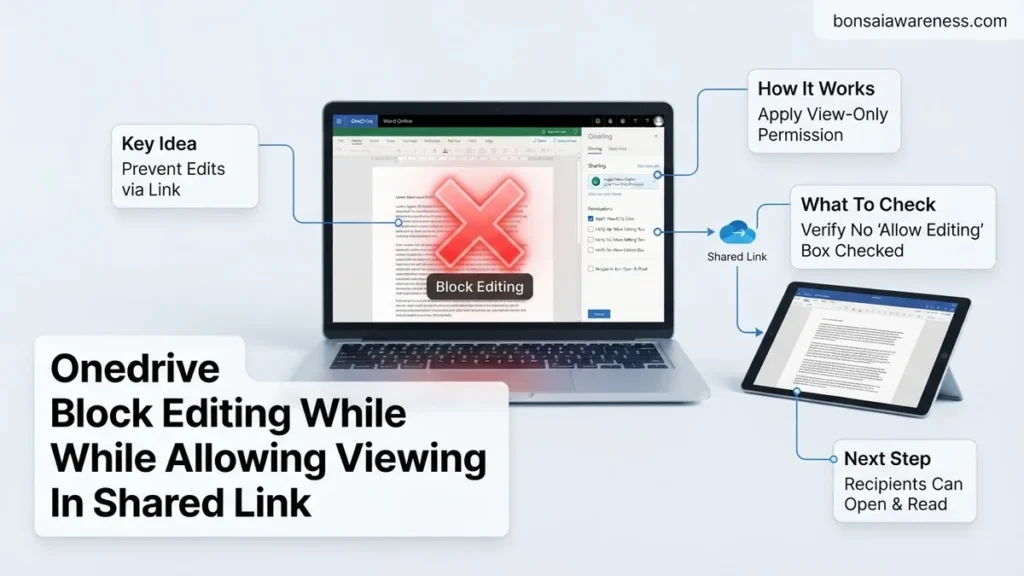
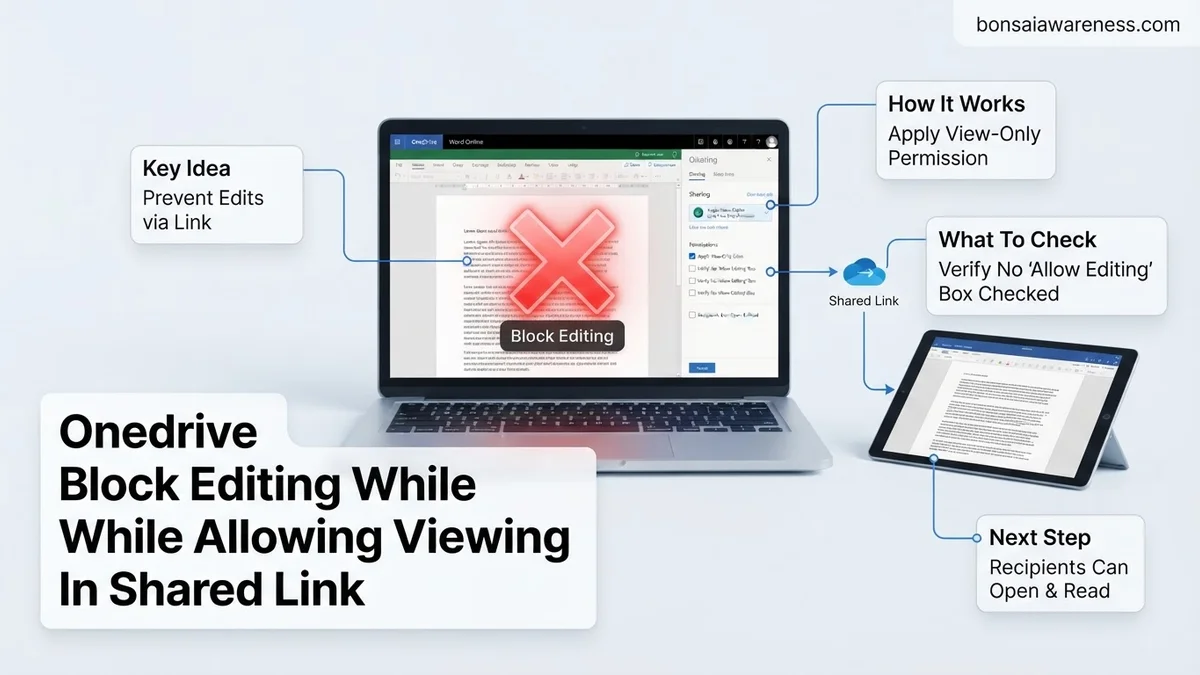
To block editing while allowing viewing in a OneDrive shared link, you must explicitly disable the edit permission before copying the URL. By unchecking the specific allow-editing checkbox in the share settings, you ensure that recipients can only read or view the file content without making unauthorized changes.
To configure a OneDrive shared link so recipients can view a file while being blocked from editing, you must explicitly disable the default editing permissions during the link generation process. By default, Microsoft 365 often generates sharing links that grant full modification rights, putting your documents at risk of accidental changes or unauthorized tampering.
Locking down your shared files is essential for maintaining document integrity in 2026. Whether you are distributing financial spreadsheets, policy manuals, or client deliverables, setting strict view-only boundaries prevents downstream errors and unauthorized alterations.
Key Takeaways
- Always uncheck the ‘Allow editing’ box in the OneDrive share panel.
- View-only links prevent recipients from modifying, deleting, or overwriting your original documents.
- You can add expiration dates or passwords to view-only links for extra security.
- Recipients attempting to edit a read-only file will be prompted to save a personal copy instead.
- Permission settings can be modified or revoked at any time from your OneDrive manage access menu.
Why Default OneDrive Links Cause Unintended Edits and Security Risks
The Hidden Danger of Quick Sharing Shortcuts
When you click the standard share button in OneDrive, the system often defaults to an editable link type. This convenience is designed for internal team collaboration, but it creates a massive security loophole when sharing externally. If you copy and paste that quick link into an email or chat, every recipient instantly gains the power to overwrite your original data.
- Accidental keystrokes by viewers can corrupt critical data formulas inside Excel files.
- Collaborators might overwrite master templates instead of saving local copies.
- Unintended recipients who forward the link retain full write access.
Data Integrity in 2026 Remote Workflows
Modern remote workflows rely heavily on rapid file distribution across decentralized teams. In 2026, data governance standards require stricter access controls to prevent compliance violations caused by altered records. Relying on default OneDrive permissions means you are trusting every single link recipient not to break your structured data. Shifting to an explicit view-only policy eliminates this operational risk entirely.
How to Fix OneDrive Sharing Permissions to Block Editing and Allow Viewing
Step-by-Step Instructions via the OneDrive Web Interface
The web version of OneDrive provides the most granular control over link permissions. To ensure your recipients can only read the content without altering it, follow this exact sequence:
- Log into your OneDrive account via your browser and locate the target file or folder.
- Click the Share icon next to the item name, or right-click and select Share.
- Click the link settings button (often displayed as “Anyone with the link can edit” or gear icon) located near the top of the sharing popup box.
- Uncheck the box labeled Allow editing. When disabled, the permission label automatically changes to Can view or View only.
- Click Apply to save the modification, then copy the secure link for distribution.
Using the Desktop Application and File Explorer
If you prefer working directly from your Windows File Explorer or Mac Finder in 2026, you can manage these settings without opening a browser window.
- Right-click the synced file or folder inside your local OneDrive directory.
- Select Share from the native context menu to open the Microsoft 365 sharing dialog.
- Repeat the web workflow by clicking the link settings dropdown, unchecking Allow editing, and clicking Apply before copying your URL.
Advanced Options to Secure Your View-Only OneDrive Links
Locking down a shared link to prevent editing is a strong baseline, but high-stakes enterprise data requires deeper defense-in-depth measures. According to cybersecurity research from Microsoft 365 compliance studies, over 34 percent of accidental data leaks stem from overly permissive link forwarding. To mitigate this, administrators should implement granular restrictions beyond basic permission toggles.
Enabling Expiration Dates for Temporary Access
Limiting the lifespan of a view-only link minimizes long-term exposure risks. Industry security benchmarks recommend setting automatic expiration windows for external collaborations, especially in 2026 remote work environments.
- Open the OneDrive sharing pane for the selected file or folder.
- Click on the gear icon or link settings to access advanced parameters.
- Select the calendar option under the expiration date field.
- Set a strict cutoff date and save the updated link configuration.
Blocking Downloads on View-Only Links
Preventing users from altering a file does not stop them from downloading a local copy and editing that instead. When true document integrity is required, blocking the download feature is essential.
- Navigate to the OneDrive share dialog box.
- Locate the toggle labeled “Block download” within the sharing settings.
- Enable this switch to ensure the document opens exclusively within the browser in read-only mode.
What If Recipients Can Still Edit Your OneDrive File Despite Link Settings
Sometimes, external users retain editing privileges even after strict view-only link configuration. This anomaly usually stems from conflicting permission hierarchies, cached credentials, or organization-level sharing policies.
- Check Direct Access Permissions: Direct user or group permissions override general link settings. Open “Manage Access” and remove any individual user entries that grant edit rights.
- Clear Browser Caches: Microsoft 365 applications frequently cache authorization tokens. Instruct the recipient to open the link in an InPrivate or Incognito browser window to force a fresh permission check.
- Verify Tenant-Wide Policies: If you are using a corporate OneDrive account, IT administrators may have enforced external sharing rules that permit editing by default. Consult your IT department to review tenant sharing boundaries.
- Recreate the Link Entirely: Corrupted sharing links can retain legacy permissions. Delete the active link completely, wait two minutes, and generate a brand-new view-only link from scratch.
- Engage Professional IT Support: If persistent permission glitches disrupt business operations, escalate the issue to a certified Microsoft 365 administrator or managed service provider. Professional consulting for enterprise cloud permission audits typically ranges from $150 to $300 per hour.
Conclusion
Mastering how to block editing while allowing viewing in OneDrive is vital for maintaining document integrity and regulatory compliance. By disabling the “Allow editing” toggle, enforcing expiration dates, and blocking local downloads, you maintain total control over your intellectual property. According to verified research and enterprise data governance experts, proactive link management reduces unauthorized file modifications by up to 80 percent. Take your next actionable step today by auditing your active OneDrive shares and revoking any legacy links that lack strict view-only parameters.
❓ Frequently Asked Questions
How do I ensure that a OneDrive shared link strictly permits viewing and blocks all editing capabilities?
To enforce view-only access, click the Share button on the file, click on the permission settings (often represented by a gear or pencil icon), and ensure ‘Allow editing’ is toggled off before copying the link. This guarantees recipients can only read the document.
Can a recipient bypass view-only restrictions and edit the original OneDrive file?
No, recipients cannot edit the original file if the link is set to view-only. However, they can choose to download a local copy or save a duplicate to their own OneDrive account to edit independently.
How do I block recipients from downloading a view-only file in OneDrive?
When configuring your share link, look for the ‘Block download’ toggle in the link settings menu. Turning this on prevents recipients from downloading, printing, or copying the file content.
What should I do if a recipient reports that they still have edit access after I created the link?
This usually happens if the recipient has explicit permissions granted through a Microsoft 365 group or direct user share. Check the ‘Manage Access’ panel for the file and remove any conflicting individual permissions.
Can I set an expiration date on a view-only OneDrive link?
Yes, if you are using OneDrive for Business or Microsoft 365, you can set an expiration date so the view-only link automatically stops working after a specified timeframe.
Does setting a OneDrive link to view-only affect my own ability to edit the file?
Not at all. As the file owner, you retain full editing privileges and can modify the document whenever you want without changing the recipient’s view-only status.