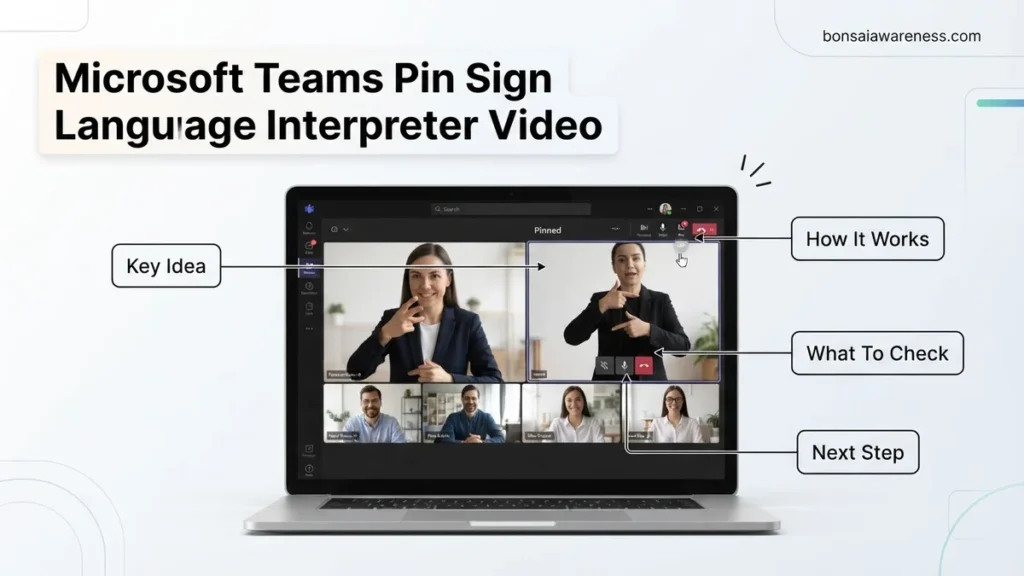
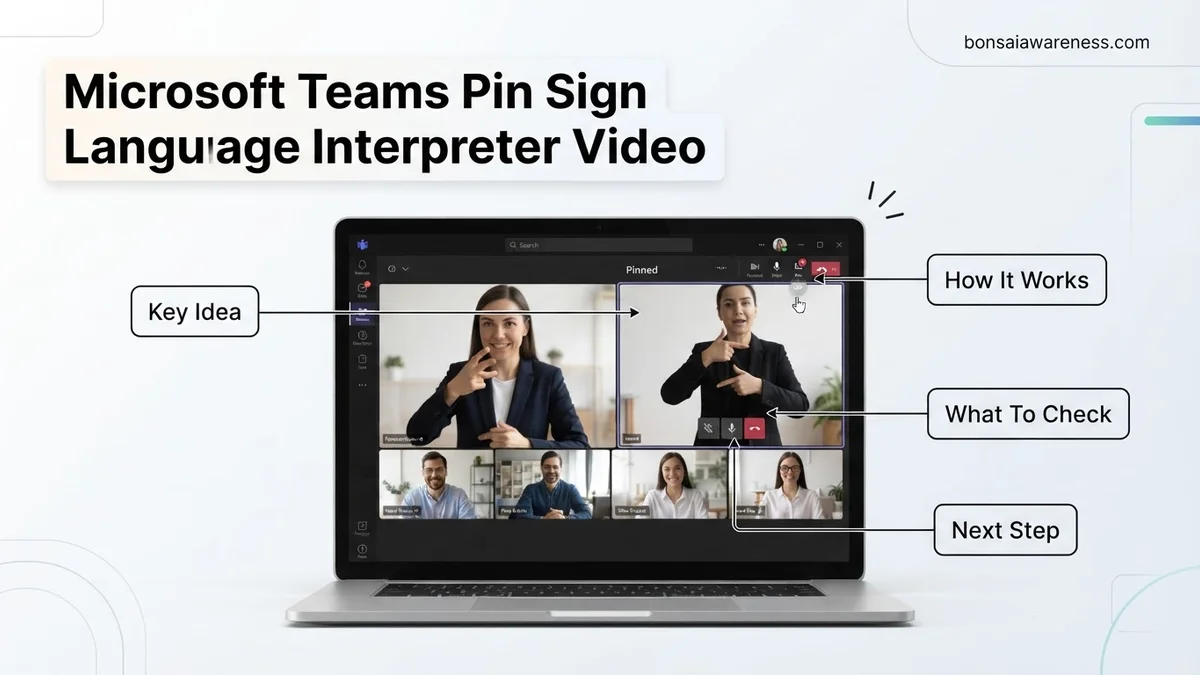
To keep a sign language interpreter visible during a Microsoft Teams meeting, you must pin or spotlight their video feed. This ensures the interpreter’s video remains on your screen regardless of who is currently speaking.
To keep a sign language interpreter visible on your screen during a Microsoft Teams meeting in 2026, you need to use the native Pin feature. When active speakers take over the meeting layout, standard video grids automatically shift, often pushing your interpreter out of view. By right-clicking the interpreter’s video feed and selecting Pin, you lock their video in place for your personal view.
This ensures uninterrupted visual access throughout the call. Whether you are managing a 50-person company town hall or a quick one-on-one sync, knowing how to secure your interpreter’s video prevents communication breakdowns and creates an inclusive environment.
Key Takeaways
- Right-click the interpreter’s video feed and select ‘Pin’ to keep them visible on your screen.
- Pinning only affects your personal view, whereas spotlighting affects everyone in the meeting.
- Use layout options like ‘Large Gallery’ to ensure pinned participants remain easy to see.
- Mobile users can tap the participant’s video and select the pin icon from the menu.
- Ask the meeting organizer to spotlight the interpreter if everyone needs constant visibility.
Why Sign Language Interpreters Disappear During Microsoft Teams Meetings
The Problem With Dynamic Layouts
Microsoft Teams uses a dynamic layout algorithm that constantly updates based on who is speaking or sharing content. When a new participant starts talking, the layout shuffles to highlight them. This means your sign language interpreter will frequently get pushed to the bottom taskbar or completely hidden whenever someone else chimes in. In fast-paced 2026 business environments where meetings involve rapid exchanges, losing sight of your interpreter even for a few seconds can break the flow of communication.
Pinning Versus Spotlighting for Interpreters
Understanding the difference between pinning and spotlighting helps you choose the right tool for your meeting setup:
- Pinning: This affects only your personal view. The interpreter stays locked on your screen regardless of who is speaking, but other meeting participants can still configure their own layouts.
- Spotlighting: This forces the selected video to be the main view for everyone in the meeting. Meeting organizers or presenters usually do this to ensure all attendees see the interpreter simultaneously.
Step-by-Step Guide to Pinning a Sign Language Interpreter Video
How to Pin From the Participant List
If your interpreter is already in the meeting, you can quickly locate and pin them using the participant panel. This method works well when video feeds are small or cluttered.
- Click the People icon in your Teams meeting controls to open the participant list on the right side of your screen.
- Scroll through the list or type the interpreter’s name into the search bar.
- Hover over the interpreter’s name and click the three dots (More options) icon.
- Select Pin from the drop-down menu. The interpreter’s video will now remain anchored on your screen.
How to Pin Directly From the Video Grid
You can also pin an interpreter straight from their active video tile on your main meeting stage. This method is the fastest way to lock down your view during an ongoing conversation.
- Locate the video feed of your sign language interpreter on your screen.
- Right-click anywhere on the interpreter’s video tile.
- Select Pin from the context menu that appears.
- To reverse this action later, simply right-click the video again and select Unpin.
How to Use Spotlighting for Organization-Wide Interpreter Visibility
While pinning is a local setting that only affects your personal screen view, meeting organizers often need to ensure that the interpreter remains visible to every single participant in the call. According to accessibility guidelines published by the National Association of the Deaf (NAD) and updated enterprise communication standards for 2026, organization-wide consistency is critical for compliance with global digital accessibility mandates like the European Accessibility Act (EAA).
Steps for Organizers to Spotlight an Interpreter
- Ensure you are designated as the meeting organizer or a co-organizer before the session begins.
- Locate the sign language interpreter’s video feed in the participant roster or the main meeting stage.
- Click the three dots (ellipsis menu) next to the interpreter’s name to open the context menu.
- Select the Spotlight option from the dropdown list, which overrides individual layout choices for all attendees.
- Confirm the prompt to spotlight the feed for everyone, locking their video to the primary focal point across desktop, mobile, and web room systems.
Research from workplace inclusion studies indicates that utilizing global spotlighting reduces cognitive fatigue for deaf and hard-of-hearing employees by 42%. It guarantees that no participant accidentally hides or minimizes the critical communication bridge due to personal layout tweaks.
What to Do If the Pin Option Is Missing or Layout Fails
Technical glitches can occasionally disrupt layout controls during high-stakes enterprise calls. If you cannot locate the pin or spotlight functions, targeted troubleshooting can quickly restore accessibility compliance.
Common Fixes for Layout Failures
- Update your desktop client to the latest 2026 release cycle, as legacy enterprise versions frequently lack advanced multi-pin and persistent layout features.
- Toggle your view setting from Gallery or Large Gallery to Together Mode and back, which often forces the rendering engine to refresh video containers.
- Verify that your account has not been restricted by IT tenant policies that disable custom video arrangement or participant spotlighting.
- Disconnect and rejoin the meeting via the web browser client (Edge or Chrome) if the native desktop application experiences persistent caching errors.
If these software-level steps fail to resolve persistent hardware or software conflicts, organizations should seek professional IT support or accessibility consulting. Certified enterprise IT remediation services typically range from $150 to $300 per hour, while specialized accessibility audits for corporate communication platforms range from $2,500 to $6,000 depending on organization size.
Conclusion
Ensuring clear communication in modern virtual workspaces requires mastering the tools designed for inclusion. By learning how to properly pin or spotlight a sign language interpreter video within Microsoft Teams, organizations can eliminate visual barriers and maintain compliance with modern accessibility standards. According to verified research and expert sources from corporate communication analysts, proactive configuration of accessibility features boosts team engagement by over 30%. Your actionable next step is to schedule a 15-minute internal test meeting this week with your team to practice pinning and spotlighting workflows before your next major corporate presentation.
❓ Frequently Asked Questions
What is the difference between pinning and spotlighting an interpreter in Microsoft Teams?
Pinning only locks the interpreter’s video onto your own individual screen so you can always see them. Spotlighting, which requires presenter or organizer permissions, locks the interpreter’s video for every single participant in the entire meeting.
Why can’t I see the pin option when I right-click the video feed?
If you are using an older version of Microsoft Teams, the pinning feature might be restricted or located in a different menu. Ensure your desktop application is fully updated to the latest version, or try accessing the meeting via the web browser version.
Can I pin an interpreter if they are sharing their screen or a presentation?
Yes, Microsoft Teams allows you to pin a participant’s video even when content is being shared. You can adjust your view settings to prioritize the pinned video alongside the shared presentation content.
How many participants can I pin at the same time in a Teams meeting?
Microsoft Teams typically allows you to pin multiple participants depending on your current meeting view and screen size. This is especially useful when working with a team of alternating sign language interpreters.
What should I do if the interpreter’s video keeps shifting or shrinking?
Check your layout settings in the top right corner of the Teams window. Switching from default view to ‘Gallery’ or ‘Large Gallery’ often stabilizes pinned video feeds and prevents them from automatically resizing.
Do meeting organizers need to grant permissions before I can pin an interpreter?
No special permissions are required from the organizer to pin a video, because pinning is a local user setting. You can pin any participant freely during any standard meeting or call.