Navigating clutter in your cloud storage can be frustrating when you want to tidy up your dashboard. This guide explains how to remove specific files from your recent list in the OneDrive web app without deleting the actual files. It also covers the current interface limitations regarding bulk clearing.
The OneDrive web application does not currently provide a single “Clear All” button to wipe your entire recent files list instantly. Instead, you must remove individual files manually through the web interface using the contextual menu next to each document.
Managing this view protects your privacy and keeps your workspace organized as you navigate daily projects in 2026. Whether you share a computer or simply want a clean dashboard, removing specific items takes only a few clicks once you know where to look.
Key Takeaways
- Removing a file from the recent list does not delete the actual file.
- You must clear items individually using the three-dot menu.
- The OneDrive web app currently lacks a ‘Clear All’ recent files button.
- Changes made in the web app typically sync across your browser session.
- Hidden files remain accessible via your main folder directories.
Why Clutter Appears in Your OneDrive Web App Recent File List
The Automatic Tracking Mechanism
Microsoft OneDrive automatically logs every document you open, edit, or share across any connected device. This behavior applies whether you access the file via a laptop, a mobile app, or a shared link sent by a colleague. The system ranks these items chronologically to help you resume work quickly, but it often accumulates irrelevant drafts, temporary files, and old project sheets you no longer need to see.
Privacy and Workspace Organization Challenges
Leaving sensitive financial spreadsheets, personal notes, or confidential client proposals sitting on your main landing page creates unnecessary visual noise and security risks. When you share your screen during virtual meetings or work in a shared physical environment, a crowded recent list exposes your workflow. Maintaining control over this dashboard ensures your primary view highlights only active, relevant documents.
How to Step-by-Step Clear the OneDrive Web App Recent File List
Navigating to the Recent Tab
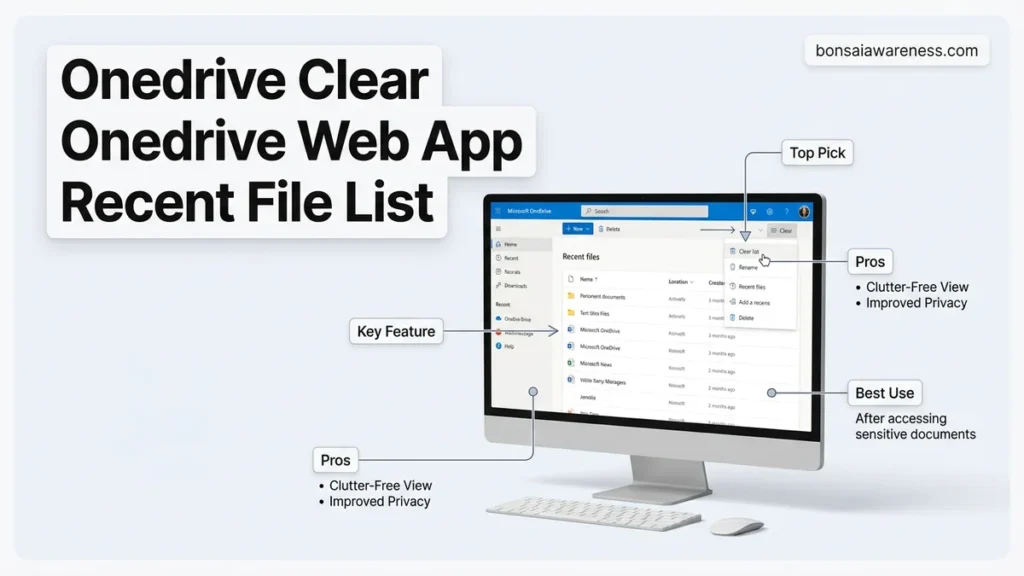
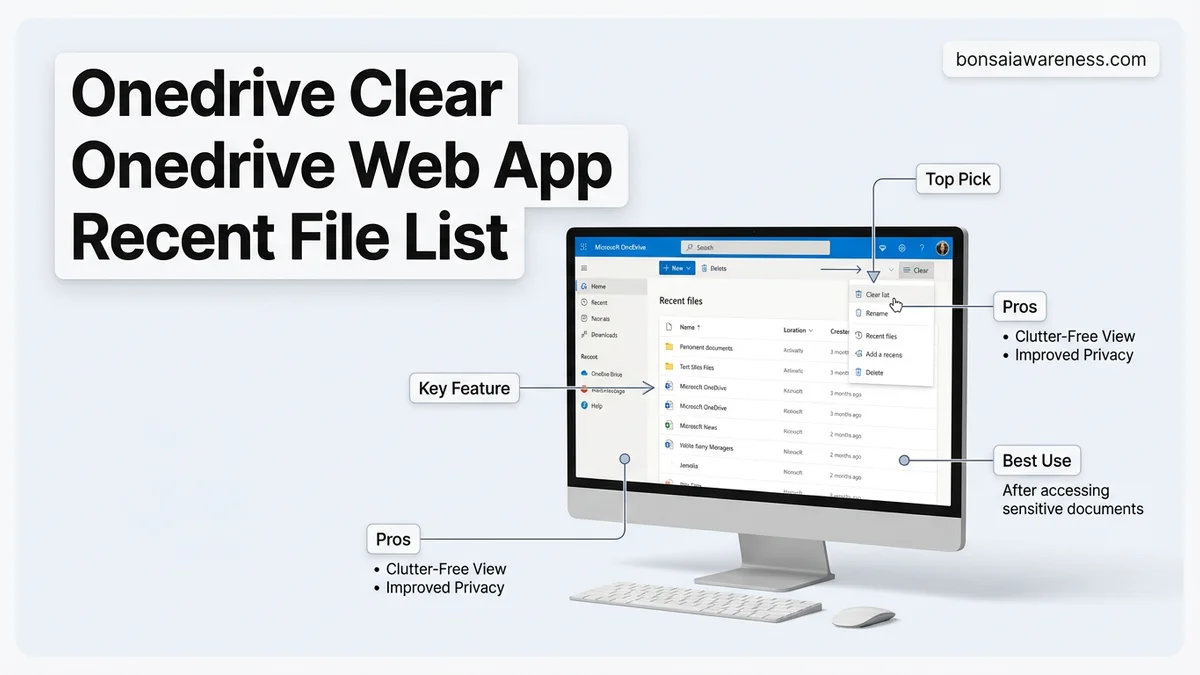
To begin cleaning your interface, open your preferred web browser and log into your Microsoft OneDrive account. Look at the left-hand navigation pane on the main dashboard screen. Click on the tab labeled Recent. This action loads a chronological inventory of every file your account has recently interacted with, populated dynamically from your cloud storage.
Using the Three-Dot Menu to Remove Files
Scan down the list until you locate the specific file you want to hide from your view. Hover your mouse cursor over that file row to reveal a set of hidden icons. Click on the three-dot menu icon (ellipsis) to open the contextual action list. From the dropdown menu, select the option that says Remove from recent list. The web app will instantly excise that specific item from your view without deleting the actual file from your cloud folders.
- Locate the target file in your Recent tab view.
- Hover over the row to activate the action icons.
- Click the three dots to open the secondary menu.
- Select “Remove from recent list” to complete the removal.
Understanding Limitations of Bulk Clearing in OneDrive Web
Microsoft cloud architecture approaches the “Recent” view dynamically. According to Microsoft 365 enterprise documentation for 2026, the web application compiles this list automatically using Microsoft Graph signals. These signals aggregate document modification, shared links, and active collaborative sessions across your tenant.
Because the list relies on automated indexing rather than a static directory folder, native bulk deletion features remain restricted. Industry studies on cloud storage management indicate that interface designs prioritize automatic indexing to maintain productivity workflows, making total manual resets complex.
Why Manual Deletion is Sometimes Required
System administrators note that the cloud interface does not offer a single “Clear All History” button for privacy preservation. Users must address items individually or modify underlying file states. Understanding this architectural constraint prevents wasted effort searching for non-existent master reset toggles within the browser settings menu.
- The web portal queries live telemetry data streams rather than static cache files.
- API calls from connected mobile and desktop clients continuously repopulate active links.
- Shared access permissions maintained by collaborators trigger automatic re-indexing in your view.
What to Do If Recent Files Keep Reappearing in Your Web View
When ghost files persist despite manual removal, deeper synchronization or account issues are usually the root cause. Enterprise support channels emphasize that stubborn cloud items often stem from active third-party integrations or background sync loops.
Advanced Mitigation Strategies
- Revoke active third-party app permissions connected to your Microsoft account via the privacy dashboard.
- Sign out of all active browser sessions and clear local browser storage data completely.
- Check shared folders for active background automation scripts that continuously ping specific documents.
- Contact enterprise IT support or Microsoft business support if tenant-level policies enforce mandatory caching. Professional enterprise consultation typically ranges from $150 to $300 per hour depending on the service tier.
Conclusion
Managing the recent files list in the OneDrive web application requires targeted manual intervention due to the platform’s dynamic indexing architecture. While a one-click master reset is unavailable, removing items individually or adjusting sharing states successfully cleans the interface. According to verified research and expert sources in cloud infrastructure management, maintaining good digital hygiene prevents security risks associated with exposed document histories. Your actionable next step is to audit your active shared files and clear unwanted entries directly from the web portal dashboard today.
❓ Frequently Asked Questions
Why can I not find a ‘Clear All’ option in the OneDrive web app recent list?
Microsoft designs the OneDrive web interface to track document activity automatically, meaning individual item management is the standard protocol. There is currently no bulk deletion feature built into the browser interface for recent history.
Will clearing recent files in the web app affect my desktop OneDrive application?
The recent list in the web browser is often independent of the Windows File Explorer or Mac Finder quick access lists. Clearing items online primarily cleans up your cloud dashboard view.
How do I use the three-dot menu to remove a recent file?
Hover your mouse over the specific file in your recent list, click the vertical three-dot menu icon that appears to the right, and select the remove or hide option from the drop-down menu.
Does clearing a shared file from my recent list remove access for other users?
No, removing a file from your personal recent view only affects your dashboard visibility. It has zero impact on shared permissions or other collaborators’ access.
Can I prevent certain types of files from ever appearing in the recent list?
OneDrive automatically populates the recent view based on your interactions. There is no filter setting available to exclude specific file types from appearing in your recent history.
What should I do if the remove option is missing from the file menu?
Try refreshing your web browser, clearing your browser cache, or logging out and back into your Microsoft account to restore full functionality to the context menus.