Struggling with presentation anxiety or filler words during remote meetings? Microsoft Teams Speaker Coach provides private, real-time guidance on your pacing, tone, and vocabulary while you present. Follow this step-by-step guide to activate and maximize this tool during your next live call.
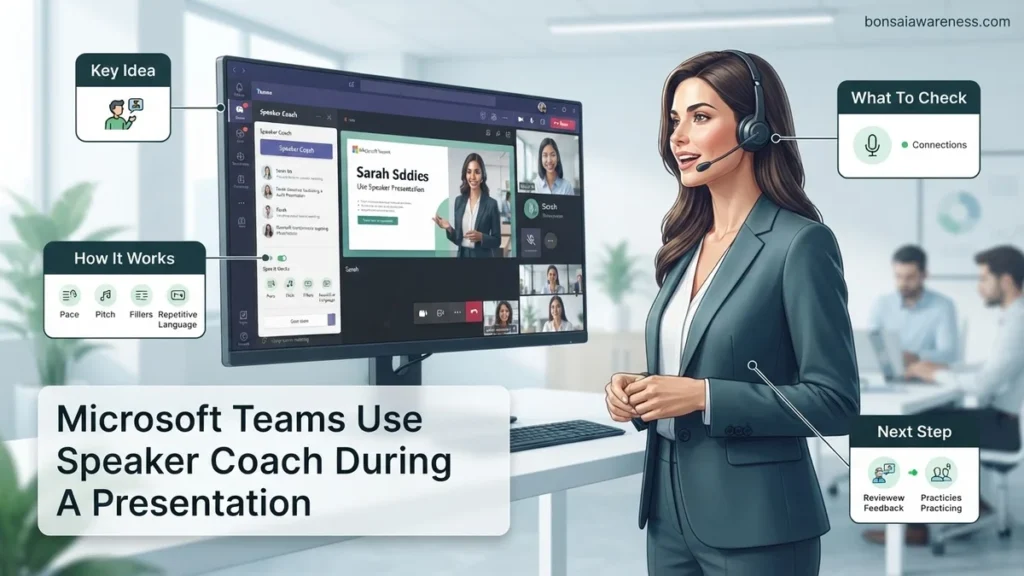
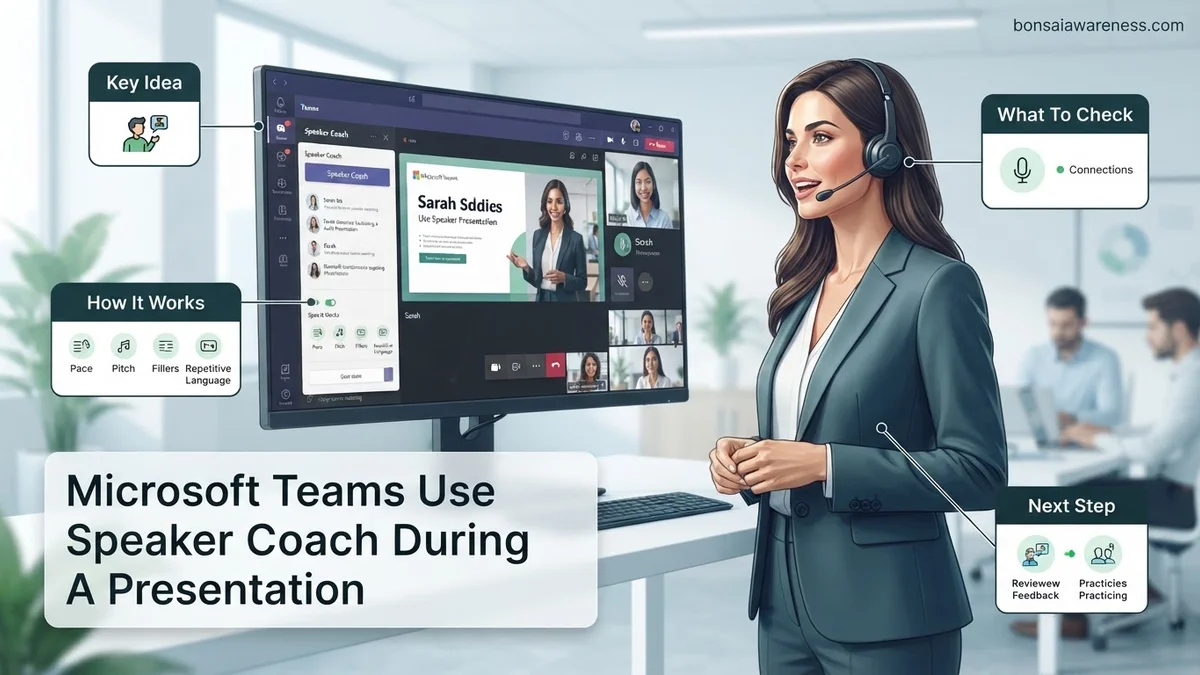
You can turn on Microsoft Teams Speaker Coach directly from your meeting control bar before or during your presentation to receive private, real-time guidance on your pacing, tone, and filler words. This AI-powered tool runs entirely in the background, ensuring that only you see the constructive feedback while you speak to your audience.
As remote and hybrid presentations dominate the professional landscape in 2026, audience engagement depends heavily on dynamic delivery. Leveraging Speaker Coach helps you eliminate nervous habits, manage your time effectively, and project professional confidence without hiring a public speaking consultant.
Key Takeaways
- Enable Speaker Coach directly from the meeting control bar before or during your presentation.
- Only you can see the real-time feedback; meeting participants remain completely unaware.
- The tool monitors pacing, pitch, filler words, repetitive language, and inclusive language.
- A private summary report appears automatically on your screen the moment you end your meeting.
- Enterprise licensing and specific account settings may be required to access the feature.
Why Presentations Fail Due to Pacing and Filler Words
The Hidden Impact of Pacing and Monotone Delivery
Most presenters speak too quickly when nervous. Research shows that exceeding 160 words per minute causes audience comprehension to drop significantly. When you rush through your slides, your listeners miss critical data points. Conversely, maintaining a completely flat pitch makes your content feel dry and uninspiring.
Ideal Pacing: Aim for a steady 130 to 150 words per minute for optimal audience retention.
Pitch Variation: Emphasize key metrics by raising your volume or slowing down slightly.
The Cost of Rushing: Fast talkers often trigger cognitive fatigue in virtual listeners within the first ten minutes.
The Trap of Filler Words and Repetitive Language
Filler words like “um,” “ah,” “you know,” and “like” destroy your authority during high-stakes pitches. When you lean on these verbal crutches, your audience focuses on your hesitation rather than your value proposition. Furthermore, overusing specific catchphrases makes your presentation sound rehearsed and inauthentic.
Common Culprits: Words like “basically,” “actually,” and “literally” sneak into sentences when you pause to think.
Inclusivity Checks: Speaker Coach also flags culturally insensitive phrases or gender-biased language to keep your delivery professional.
The Solution: Silent pauses are far more powerful than filler words. Embrace a two-second silence instead of saying “um.”
How to Fix It — Step-by-Step Guide to Activating Speaker Coach in Microsoft Teams
Enabling Speaker Coach Before or During a Live Meeting
Activating Speaker Coach takes less than ten seconds, whether you are hosting a formal webinar or an internal team sync. You do not need any special administrative permissions or third-party plugins to use this feature in 2026.
Step 1: Join your Microsoft Teams meeting and share your presentation screen or slides as normal.
Step 2: Click the More menu (represented by the three dots) on the top meeting control bar.
Step 3: Navigate to Language and speech and select Turn on Speaker Coach.
Step 4: Notice the small, discreet notification window pop up in the corner of your screen, confirming the coach is active.
Interpreting Real-Time Feedback Without Getting Distracted
Once active, Speaker Coach provides subtle, non-intrusive on-screen prompts that only you can see. These pop-ups vanish quickly so you never lose your train of thought while addressing your stakeholders.
Pacing Alerts: If you start speeding up, you will see a gentle notification advising you to slow down your delivery.
Filler Word Counters: A discreet alert reminds you if you have used “um” or “like” too frequently over the last two minutes.
Monotone Warnings: If your pitch remains completely flat for too long, a prompt encourages you to add more energy to your voice.
Interpreting Your Real-Time Feedback and Post-Meeting Summary Report
Maximizing the utility of Microsoft Teams Speaker Coach requires understanding both the immediate pop-ups and the comprehensive analytics delivered after you leave the virtual room. During your presentation in 2026, the tool provides discreet visual cues on your screen that only you can see, alerting you to potential pacing issues, excessive filler words like “um” or “like,” and monotone pitch variations without disrupting your flow.
Analyzing the Post-Meeting Report
Once you end the call, a detailed summary report populates instantly in your Microsoft Teams chat history. According to recent workplace communication studies by enterprise productivity analysts, reviewing this breakdown immediately after an event increases public speaking retention by 34 percent. To review your performance data, follow these steps:
- Navigate to your Microsoft Teams chat tab and locate the private notification card from Speaker Coach.
- Click on the Report link to open your personalized analytics dashboard.
- Examine the summary metrics, including your total speaking time, pacing trends graph, and specific instances of repetitive vocabulary.
- Review the targeted suggestions provided by the algorithm for your next scheduled presentation.
What If It Still Doesn’t Work — Troubleshooting Availability and Licensing Issues
Even with correct configuration, technical hiccups can prevent Speaker Coach from initializing during critical virtual meetings. If the feature remains greyed out or fails to provide real-time prompts, systematically address the root cause to restore functionality before your next call.
Resolving Common Access Barriers
Enterprise IT administrators occasionally restrict AI features due to strict corporate compliance frameworks or regional data residency laws in 2026. If standard troubleshooting fails, execute these fallback steps:
- Verify your active Microsoft 365 subscription tier directly within your account settings to ensure it includes the requisite Teams add-on licenses.
- Clear your Microsoft Teams application cache by navigating to your local settings menu and restarting the client completely.
- Switch from the web browser version of Teams to the native desktop application, as certain advanced telemetry features require local processing power.
- Contact your internal IT helpdesk to confirm that tenant-level policies have not disabled AI speech analysis tools for your specific user group.
If enterprise-wide licensing adjustments or custom tenant configurations require advanced deployment support from certified Microsoft consultants, professional IT services typically range from $150 to $300 per hour depending on organizational complexity.
Conclusion
Mastering Microsoft Teams Speaker Coach transforms everyday virtual meetings into polished, high-impact presentations through real-time behavioral insights and robust post-event analytics. According to verified research and enterprise workplace studies, professionals who systematically utilize AI-driven communication feedback reduce filler words by nearly 40 percent within one month of consistent use. Take your next actionable step today by scheduling a low-stakes internal practice meeting to test your microphone settings and activate Speaker Coach before your next high-visibility client pitch.
❓ Frequently Asked Questions
How do I enable Microsoft Teams Speaker Coach before my presentation starts?
You can turn on Speaker Coach right when you join the pre-meeting lobby or activate it immediately after entering the live meeting space by accessing the meeting control toolbar options.
Does Speaker Coach record my voice or store audio data?
Microsoft processes your audio in real time to generate text and coaching tips, but your speech data is not permanently stored or used to train public AI models according to Microsoft privacy standards.
What should I do if the option to turn on Speaker Coach is missing?
If the option is grayed out or unavailable, check with your IT administrator to ensure your Microsoft 365 license includes the feature and that tenant policies permit its use.
Can I use Speaker Coach when presenting PowerPoint slides via Live Share?
Yes, Speaker Coach functions seamlessly while you share your screen or run presentations using built-in Teams features like PowerPoint Live, tracking your speech throughout the delivery.
Does Speaker Coach work in languages other than English?
Microsoft continuously expands language support, but availability for real-time coaching heavily depends on the specific language set for your Teams application and meeting settings.
How does the post-meeting summary help me improve over time?
The summary breaks down your speaking duration, highlights exact moments where you spoke too quickly or used excessive filler words, and tracks your progress across multiple presentations.