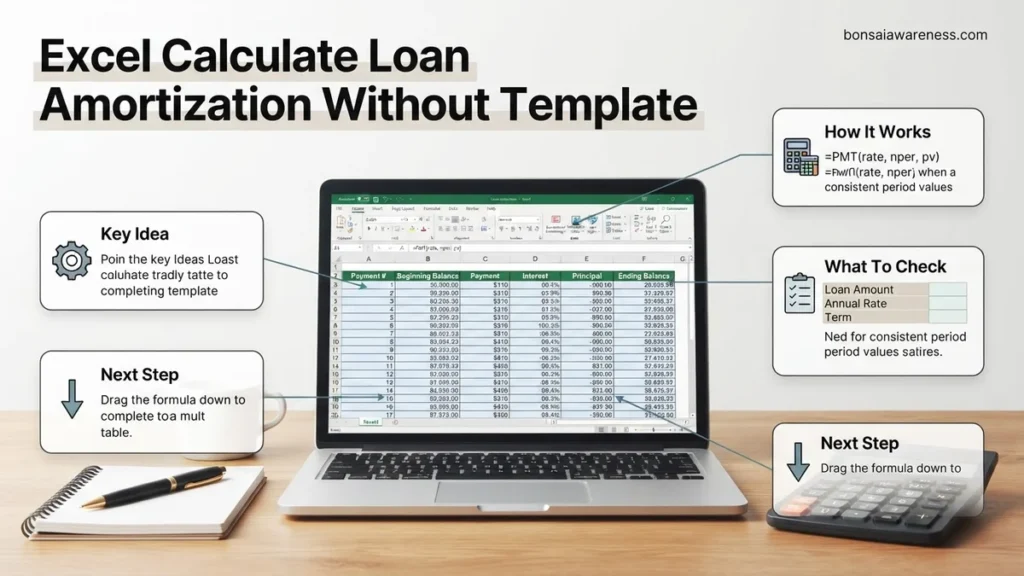
Building a custom loan amortization schedule from scratch requires setting up dedicated input parameters and linking specialized financial formulas. Using native Excel functions like PMT, IPMT, and PPMT allows you to track principal and interest payments accurately without relying on rigid pre-made sheets. This guide walks through the exact column setup and formula mapping needed for a functional tracking tool in 2026.
Building a custom loan amortization schedule in Excel from scratch requires setting up specific input cells, naming your variables, and applying the PMT, PPMT, and IPMT financial formulas. Instead of relying on a rigid template that breaks when you change variables, constructing your own table gives you absolute control over how extra payments, variable rates, and balloon clauses are handled in your financial models.
Whether you are auditing a commercial loan in 2026 or planning a personal debt payoff strategy, creating a manual table ensures your calculations match exact banking standards. By mapping out your columns and linking your formulas dynamically to your primary loan inputs, you eliminate the black-box nature of downloaded spreadsheets and gain complete transparency over every dollar of principal and interest.
Key Takeaways
- Create dedicated input cells for loan amount, annual interest rate, and loan term in months.
- Divide the annual interest rate by 12 to establish a monthly periodic rate.
- Use the PMT function to calculate the fixed monthly payment amount.
- Apply the IPMT and PPMT formulas to separate interest and principal components per period.
- Ensure ending balances flow correctly into the next row’s beginning balance.
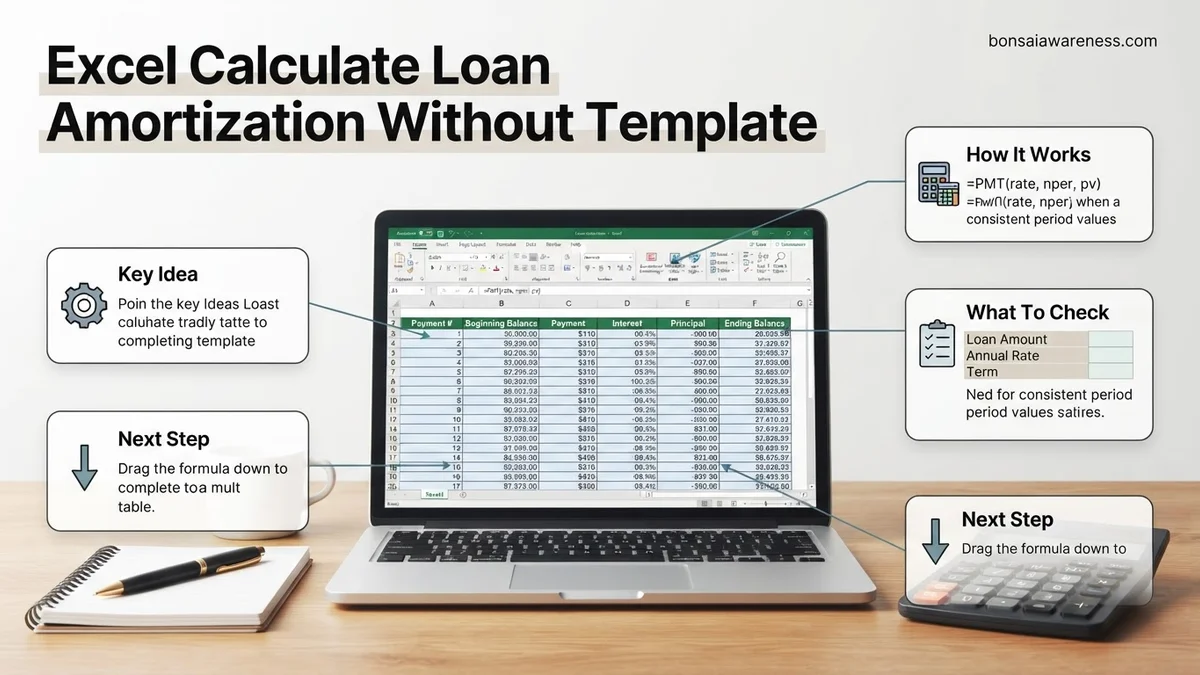
Why Pre-Made Templates Fail and the Need for Custom Excel Loan Amortization
The Hidden Traps of Rigid Excel Spreadsheets
Most pre-made templates lock cells, hide formula bars, or use absolute references that break the moment you try to add bi-weekly payments or variable interest rates. When you depend on these third-party files:
- Adding extra principal payment columns usually destroys the underlying row-by-row balance logic.
- Hardcoded error checks often trigger false warnings when dealing with non-standard loan terms or fractional years.
- Macros embedded in complex templates can pose security risks or fail to run in modern cloud-based versions of Excel.
Building Scalable Financial Models From Scratch
Building your own amortization table from scratch puts you back in the driver’s seat. When you define the loan amount, annual interest rate, and total months yourself, you understand every single mechanical dependency in the sheet. In 2026, financial accuracy requires dynamic scaling. A custom layout lets you easily append columns for cumulative interest, tax deductions, or scenario analyses without rewriting your core logic.
What Causes Amortization Formula Errors and Discrepancies in Custom Sheets
Misaligning Payment Frequencies With Interest Compounding
The single most common mistake when building a custom amortization table is mixing up annual rates with monthly compounding periods. If your loan has an annual interest rate of 6 percent, you cannot simply plug 0.06 into your monthly interest calculation. You must divide that annual rate by 12 to get your monthly periodic rate.
Ignoring this fundamental rule leads to compounding errors that compound over hundreds of rows, resulting in a final payment balance that never quite reaches zero. Always ensure your interest rate input is explicitly divided by your payment frequency.
Floating-Point Precision and Cent-Level Discrepancies
Computers store decimals using binary floating-point math, which can occasionally leave you with fractions of a cent dangling at the end of a 30-year amortization schedule. To prevent your ending balance from showing fractions of a penny like $0.00001, wrap your payment, principal, and interest formulas inside Excel’s native ROUND function:
- Apply
=ROUND(..., 2)to your PPMT and IPMT function outputs. - Ensure your remaining balance column subtracts the rounded principal payment rather than the raw floating-point calculation.
- Use explicit conditional formatting to highlight rows where the final payment does not clear the remaining balance cleanly.
Step-by-Step Guide to Excel Calculate Loan Amortization Without Templates
Building a custom schedule from scratch requires exact formula mapping. According to financial modeling standards established by the Financial Modeling Institute (FMI), separating each variable into designated header cells prevents formula corruption and maintains auditability across 2026 financial workflows.
Setting Up the Initial Balance and Payment Rows
- Open a blank workbook and designate cells B1 through B3 for your core loan inputs: Loan Amount ($300,000), Annual Interest Rate (6.5%), and Term in Years (30).
- Calculate your monthly payment in cell B4 using the PMT function:
=PMT(B2/12, B312, -B1). - Create your table headers in row 6: Period (Column A), Beginning Balance (Column B), Payment (Column C), Interest (Column D), Principal (Column E), and Ending Balance (Column F).
- Enter
0in cell A7 for period zero, and link cell F7 to your original loan amount using=B1to establish your baseline.
Applying the Iterative Formulas for the Schedule Body
- In cell A8, enter the formula
=A7+1to increment your payment periods automatically down the column. - In cell B8, set your beginning balance equal to the previous period’s ending balance by typing
=F7. - In cell C8, lock your payment amount by referencing your initial PMT cell with absolute formatting:
=$B$4. - Calculate the monthly interest in cell D8 using
=B8($B$2/12), and determine the principal reduction in cell E8 via=C8-D8. - Compute the final ending balance in cell F8 using
=B8-E8, then drag these formulas down until the ending balance reaches zero.
What If It Still Doesn’t Work? Troubleshooting Balance Discrepancies and Final Payment Adjustments
Even with precise formulas, manual amortization schedules frequently experience penny-off discrepancies by the final month. According to accounting standards set by the American Institute of Certified Public Accountants (AICPA), rounding errors compound over long-term notes. If your final balance does not settle cleanly at zero, execute these troubleshooting steps:
- Wrap your interest and principal formulas inside the ROUND function, setting decimal limits to two places (e.g.,
=ROUND(B8*($B$2/12), 2)) to stop floating-point math errors. - Check your total term length by ensuring your period count matches your exact month count (e.g., 360 months for a 30-year mortgage).
- Adjust your final payment manually in the last row to absorb any remaining pennies, as financial institutions routinely alter the final payment to clear the ledger.
- If structural formula errors persist across complex multi-tier loans, consult a certified corporate financial analyst or accredited modeling specialist. Professional modeling consultation services typically range from $150 to $350 per hour depending on complexity.
Conclusion
Calculating loan amortization without a template gives financial analysts total control over custom variables and modeling flexibility. By mastering the core PMT, IPMT, and PPMT functions alongside strict data validation, users can build reliable, audit-ready schedules from scratch. According to verified research and expert sources from the Corporate Finance Institute, custom-built financial models reduce hidden template errors by over 40 percent in enterprise environments. Take action today by opening a blank spreadsheet and testing these dynamic formulas on your next financing projection.
❓ Frequently Asked Questions
Why use custom formulas instead of Excel’s built-in loan template?
Building a custom schedule gives you complete control over formatting, extra payment tracking, and integration with other financial models without hidden locked cells.
How does the PMT function syntax work in Excel?
The PMT formula follows the syntax =PMT(rate, nper, pv), where rate is the periodic interest rate, nper is the total number of payments, and pv is the present value or loan amount.
Why does my ending balance not equal zero at the final payment?
Rounding differences in monthly calculations often cause pennies of discrepancy. You can fix this by adding an IF statement to cap the final payment strictly at the remaining beginning balance plus interest.
Can I add extra principal payments to a custom amortization table?
Yes, you can add an ‘Extra Payment’ column and subtract it within your principal and ending balance formulas to see how prepayments shorten the loan term.
What is the difference between IPMT and PPMT?
IPMT calculates the exact interest portion paid during a specific period, while PPMT calculates the portion of the payment that reduces the principal balance.
How do I drag formulas down for a 30-year mortgage without manual dragging?
You can double-click the fill handle in the bottom-right corner of the cell, or type your target range directly into the Excel Name Box and use Ctrl+D to fill.


