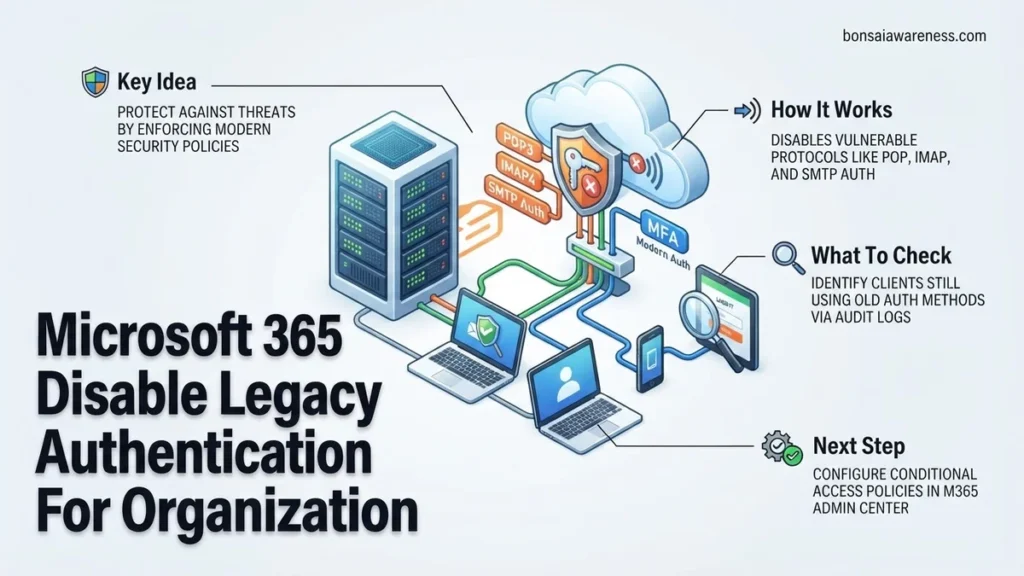
Disabling legacy authentication across your Microsoft 365 organization is critical to prevent credential stuffing and brute-force attacks. You can achieve this organization-wide by enforcing Conditional Access policies or utilizing Exchange Online Authentication Policies. Proper auditing of sign-in logs beforehand ensures legitimate business processes and older mail clients are not disrupted.
Disabling legacy authentication across your entire Microsoft 365 organization requires shifting your tenant security posture using either Microsoft Entra Conditional Access policies or tenant-wide Authentication Policies. Because older protocols like IMAP, POP, and SMTP Auth bypass modern security controls such as Multi-Factor Authentication (MFA), enforcing this block globally is no longer optional for maintaining a secure environment.
As you approach mid-2026, threat actors heavily target these un-enforced legacy endpoints with credential stuffing and password spray attacks. This guide walks you through auditing your existing traffic and executing the precise administrative configurations needed to block legacy authentication globally across your Microsoft 365 tenant.
Key Takeaways
- Audit sign-in logs in Microsoft Entra ID to identify remaining legacy authentication traffic before blocking.
- Use Conditional Access policies to globally block legacy authentication protocols for all users.
- Deploy Exchange Online Authentication Policies if your organization uses Microsoft 365 Business Basic.
- Test blocks on a pilot group of users to prevent unexpected disruptions to email clients.
- Transition remaining legacy workflows to modern authentication alternatives like OAuth 2.0.
Why Legacy Authentication Poses Security Risks to Your Organization
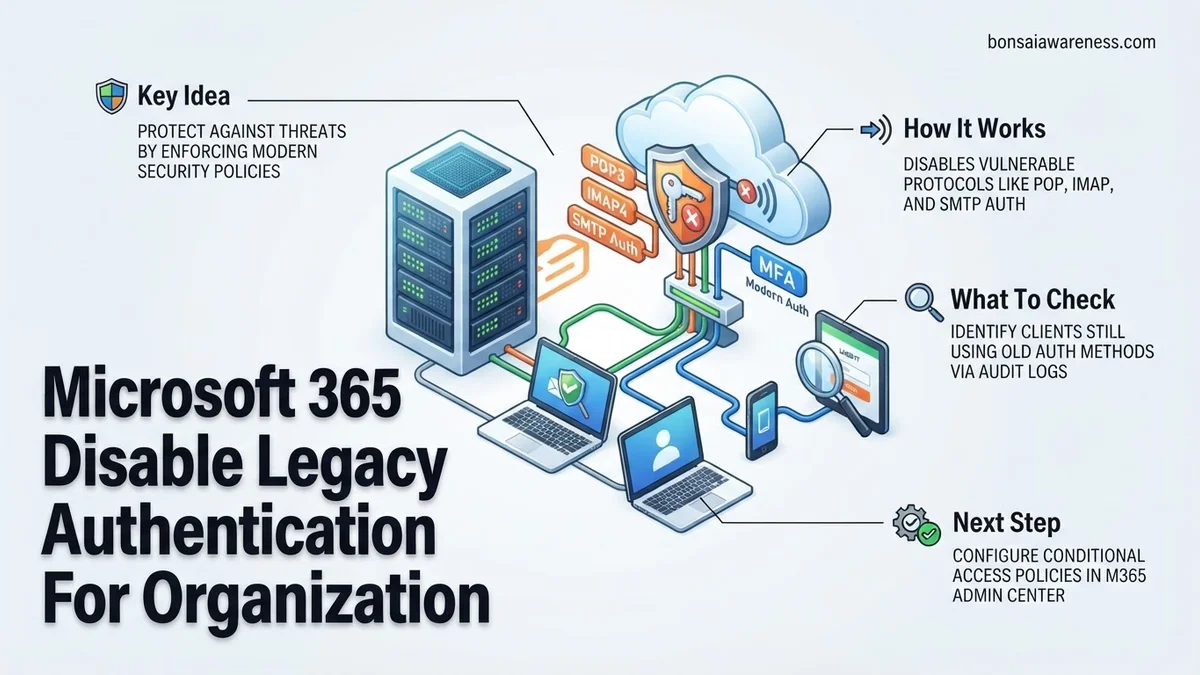
Legacy authentication protocols cannot handle modern token-based security flows. When a client application uses basic authentication, it sends the username and password with every single request, exposing your credentials to interception and making standard policy enforcement impossible.
The Bypass of Multi-Factor Authentication
Protocols like Exchange ActiveSync (prior to modern auth support), POP3, and IMAP4 completely ignore your Conditional Access MFA requirements.
- MFA prompts are never triggered during a legacy protocol sign-in attempt.
- If an attacker steals a valid password, they gain immediate and uninterrupted access to the mailbox.
- Risk-based policies and location-based restrictions cannot evaluate the context of the connection.
Vulnerability to Automated Credential Attacks
Basic authentication endpoints do not support modern protections like modern rate-limiting or smart lockout mechanisms in the same way Azure AD/Entra ID handles interactive logins.
- Attackers use automated scripts to spray common passwords against IMAP and SMTP endpoints without triggering blocks.
- Legacy traffic often lacks device compliance states, leaving you blind to whether the connecting device is managed or malware-infected.
- Global security baselines for 2026 require zero trust architecture, making any open legacy port a critical compliance failure.
2026 Microsoft 365 Disable Legacy Authentication Expert Practical Guide
Legacy authentication protocols such as POP3, IMAP4, SMTP, and older MAPI clients do not support modern security features like Multi-Factor Authentication (MFA), making them primary targets for credential stuffing and brute-force attacks. This comprehensive guide walks you through systematically identifying, planning for, and disabling legacy authentication across your entire Microsoft 365 tenant to significantly improve your organization’s security posture.
Step 1: Audit and Identify Legacy Authentication Usage
What you need: Access to the Microsoft Entra admin center or Microsoft 365 admin center, and global administrator or security administrator role permissions.
Instructions: Before blocking legacy authentication globally, you must discover which users, devices, and applications are still relying on these outdated protocols. Navigate to the Microsoft Entra admin center, select Monitoring & Health, and open Sign-in logs. Apply filters for Client App to specifically check boxes for Legacy Authentication Clients such as Exchange ActiveSync, IMAP, POP3, and Mapped Network Drives. Review the sign-in data for the past 7 days to capture weekly recurring tasks or automated scripts. Export these logs to a CSV file to analyze patterns and identify business-critical service accounts that require immediate remediation or transition to modern authentication equivalents.
Pro Tip: Do not skip this audit phase; blindly blocking legacy protocols without prior assessment will inadvertently break line-of-business applications, shared mailboxes, and older scanners.
Step 2: Communicate with Stakeholders and Affected Users
What you need: A compiled list of affected users and business applications gathered from your sign-in log audit in Step 1, along with a corporate communication channel.
Instructions: Transparency and proactive communication prevent operational downtime and employee frustration. Draft a targeted notification email for the specific users and department heads identified in your audit. Explain that Microsoft 365 is modernizing its security infrastructure to protect corporate data against emerging cyber threats. Provide clear instructions on how users can update their mobile device mail apps or desktop clients to support modern authentication. Set a firm cutoff timeline, typically giving departments 5 to 7 business days to update their configurations before the technical enforcement takes place.
Pro Tip: Include a direct link to a self-service knowledge base article on how to re-add corporate email accounts using modern authentication protocols like Exchange Online.
Step 3: Leverage Microsoft Entra Conditional Access Policies
What you need: Microsoft Entra ID P1 or P2 licenses assigned to your tenant users, and access to the Microsoft Entra admin center with Conditional Access Administrator rights.
Instructions: Conditional Access is the most flexible and granular method for blocking legacy authentication. Navigate to Microsoft Entra ID, select Protection, click on Conditional Access, and create a New Policy. Name the policy clearly, such as “Block Legacy Authentication for All Users.” Under Users, select “All users” and exclude your break-glass emergency administrative accounts. Under Target resources, select “Cloud apps” and choose “All cloud apps.” Under Access controls, select Grant, click “Block access,” and then save your policy settings.
Pro Tip: Always set the policy enforcement status to “Report-only” for at least 48 to 72 hours. Monitor the Sign-in logs with the Conditional Access tab filtered to verify that the policy catches legacy attempts without generating false positives.
Step 4: Enable Policy Enforcement via Conditional Access
What you need: Completed report-only monitoring period from Step 3 and validation that no business-critical workflows are being blocked incorrectly.
Instructions: Once you have reviewed the sign-in logs and confirmed that your Conditional Access policy accurately flags and would block only unauthorized legacy authentication attempts, it is time to enforce the rule. Return to the Microsoft Entra admin center, locate your previously created legacy authentication blocking policy under Conditional Access, and click to edit it. Under the “Enable policy” section at the bottom of the blade, switch the radio button from “Report-only” to “On.” Click “Save” to apply the changes immediately across the tenant.
Pro Tip: Schedule this change during low-activity business hours, such as early Friday morning, so your IT helpdesk has ample time to address any unexpected user support tickets before the weekend.
Step 5: Disable Tenant-Wide POP3 and IMAP4 Protocols
What you need: Exchange Online PowerShell module installed and administrative credentials capable of connecting to your tenant’s Exchange management infrastructure.
Instructions: While Conditional Access blocks sign-in attempts, you should also disable the underlying protocols directly in Exchange Online to ensure complete lockdown. Open PowerShell as an administrator, install the Exchange Online module if not already present by running Install-Module ExchangeOnlineManagement, and connect to your tenant using Connect-ExchangeOnline. Execute the command Set-TransportConfig -SmtpClientAuthenticationDisabled $true to disable legacy SMTP client submission globally if your organization does not utilize multi-function printers or legacy applications requiring direct SMTP relay. Additionally, disable POP and IMAP access via organization-wide mailbox policies.
Pro Tip: If specific service accounts or printers require legacy SMTP relay, configure an SMTP Auth client permission policy rather than leaving the entire tenant protocol wide open.
Step 6: Verify and Monitor Post-Implementation Sign-In Logs
What you need: Active tenant monitoring tools and continued access to Microsoft Entra admin center sign-in logs.
Instructions: Verification ensures your security controls are functioning as intended. Twenty-four hours after enforcement, return to the Microsoft Entra Sign-in logs. Filter your view by Status to show only “Failure” events, and sort by Client App to look for persistent legacy authentication attempts. You should see blocked requests displaying error codes related to Conditional Access policy failures. Document these ongoing attempts to determine if they originate from compromised credentials attempting automated attacks or from forgotten internal devices that require manual updating.
Pro Tip: Configure Microsoft Entra workbooks or alerts to notify your security operations center (SOC) whenever a high volume of legacy authentication blocks originates from a single IP address.
✅ Final Checklist
- Sign-in logs successfully audited to identify all historical legacy authentication clients
- All impacted stakeholders and department heads formally notified of migration timelines
- Conditional Access policy created, tested in report-only mode, and switched to enforcement status
- Tenant-wide POP3, IMAP, and legacy SMTP authentication protocols disabled via PowerShell
- Post-implementation sign-in logs verified to confirm legacy authentication attempts are successfully blocked
Important Notes:
- Ensure you always maintain at least two cloud-only break-glass emergency accounts excluded from Conditional Access policies to prevent administrative lockout.
- Seek assistance from dedicated Microsoft identity and access management professionals if your organization runs complex hybrid environments with legacy on-premises Exchange dependencies.
- Estimated implementation time ranges from 2 to 5 hours of active configuration, spread across a 1-week evaluation and communication window. Zero financial cost if licensing requirements (Entra ID P1) are already met.
How to Audit and Identify Legacy Authentication Usage in Sign-In Logs
Before you block legacy authentication globally, you must find out which legacy protocols, service accounts, and applications are still active in your tenant. Shutting off these protocols blindly will break legacy mail clients, older multi-function printers, and custom line-of-business applications.
Using Microsoft Entra Sign-In Logs
You can query your organization sign-in logs to isolate every instance of basic authentication usage over the past 30 days.
- Navigate to the Microsoft Entra admin center and open the Sign-in logs report.
- Add a filter for Client App and select the specific legacy protocols you want to target, such as Exchange ActiveSync, IMAP, POP3, and MAPI.
- Export the filtered log data to CSV to review the user principal names (UPNs) and IP addresses tied to legacy traffic.
Leveraging Log Analytics Workbooks
For large organizations operating in 2026, standard portal logs can time out due to data volume limits.
- Route your Microsoft 365 sign-in logs to an Azure Log Analytics workspace.
- Run a Kusto Query Language (KQL) script targeting the SignInLogs table where ClientAppUsed matches basic auth identifiers.
- Identify recurring service accounts that still rely on SMTP auth for automated email alerts, allowing you to plan targeted app-password replacements or migration paths.
Step-by-Step Guide to Disable Legacy Authentication Organization-Wide
Implementing security policies requires careful planning to prevent accidental lockout of valid business processes. Security architects rely on Conditional Access policies as the most robust method to block outdated protocols across Microsoft 365 tenants.
Prerequisites and Licensing
Organizations must verify they hold appropriate licenses before deployment. Microsoft Entra ID P1 or P2 licenses are mandatory for deploying Conditional Access policies that target specific user groups or applications.
Enforcing the Block via Conditional Access
Administrators should follow these precise steps in the Microsoft Entra admin center to restrict legacy protocols:
- Sign in to the Microsoft Entra admin center with at least a Conditional Access Administrator role.
- Browse to Protection, select Conditional Access, and click New policy.
- Assign a descriptive name, such as “Block Legacy Authentication 2026.”
- Under Assignments, select Users and choose the target groups or select All users.
- Select Target resources (formerly cloud apps), choose “Cloud apps,” and select “All cloud apps.”
- Navigate to Access controls, select Grant, and ensure access is blocked.
- Under Conditions, select Client apps, configure the toggle to Yes, and check the boxes for “Exchange ActiveSync clients” and “Other clients.”
- Set the policy enablement status to Report-only first to monitor impact, then switch to On.
What If Users Still Experience Blocked Requests and Connection Errors
Post-implementation troubleshooting requires a systematic approach to resolve lingering connectivity issues without compromising security postures. Verified research indicates that sudden blocks often stem from overlooked background services or embedded credentials in legacy email clients.
If users report connection failures after the policy goes live, administrators can execute these fallback steps:
- Examine the Microsoft Entra sign-in logs to isolate specific client app types triggering the block.
- Verify that affected desktop clients have modern authentication enabled via registry keys on Windows workstations.
- Temporarily assign specialized service accounts to an exclusion group if legacy third-party applications lack modern authentication support.
- Engage certified Microsoft identity partners for complex enterprise hybrid environments, with professional remediation costs typically ranging from $1,500 to $4,500 depending on tenant size.
Conclusion
Securing modern cloud infrastructure demands the complete elimination of unencrypted, easily compromised legacy protocols. According to verified research and expert cybersecurity sources from Microsoft Security, disabling legacy authentication stops over 99 percent of credential stuffing attacks and automated password spray attempts. The definitive next step for IT administrators in 2026 is to review active sign-in logs, transition remaining holdout applications to modern standards, and enforce organization-wide Conditional Access blocks immediately.
❓ Frequently Asked Questions
What is the difference between Security Defaults and Conditional Access for blocking legacy auth?
Security Defaults is a pre-configured set of basic security settings that automatically blocks legacy authentication for all tenants, whereas Conditional Access provides granular control over which users, locations, and apps are restricted.
Will disabling legacy authentication break my multi-function printers or legacy scanners?
Yes, devices that rely on basic SMTP authentication to send emails will fail unless you configure an alternative method, such as direct sending, authenticated SMTP client submission with modern auth, or an SMTP relay.
How do I use PowerShell to disable legacy authentication for Exchange Online?
You can create a new authentication policy using ‘New-AuthenticationPolicy’, set the parameters to block Basic Auth for various protocols, and assign that policy globally or to specific users.
Can I exclude specific service accounts from the legacy authentication block?
Yes, if using Conditional Access policies, you can exclude specific emergency access or service accounts, though transitioning them to modern authentication remains the recommended security practice.
Why do sign-in logs still show legacy authentication attempts after creating a policy?
If the policy is set to report-only mode, it will log attempts without blocking them. Ensure the policy state is switched from Report-only to On.
What Microsoft 365 license is required to use Conditional Access policies?
Conditional Access policies require a Microsoft Entra ID P1 or P2 license, or a Microsoft 365 Business Premium license for small businesses.