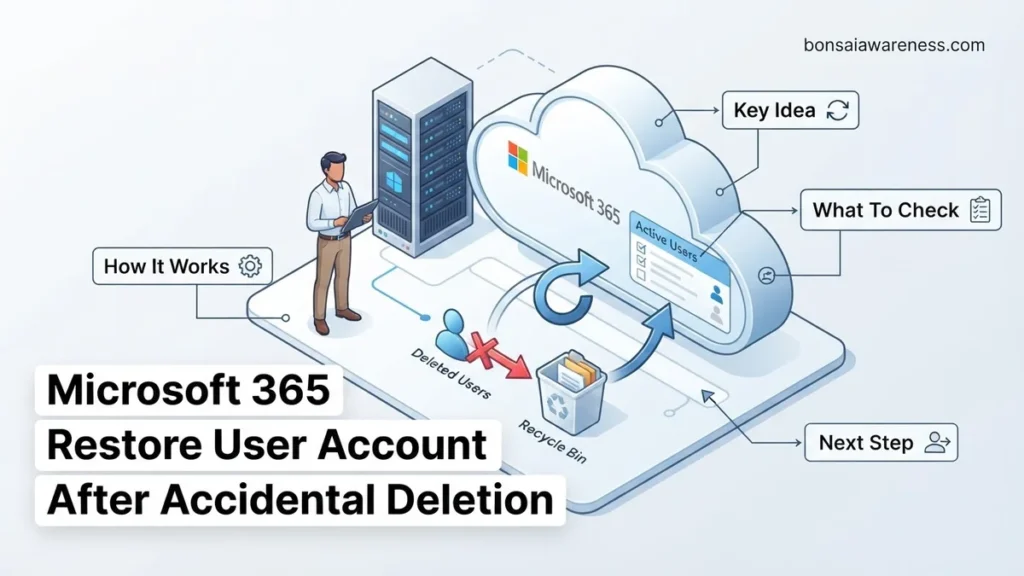
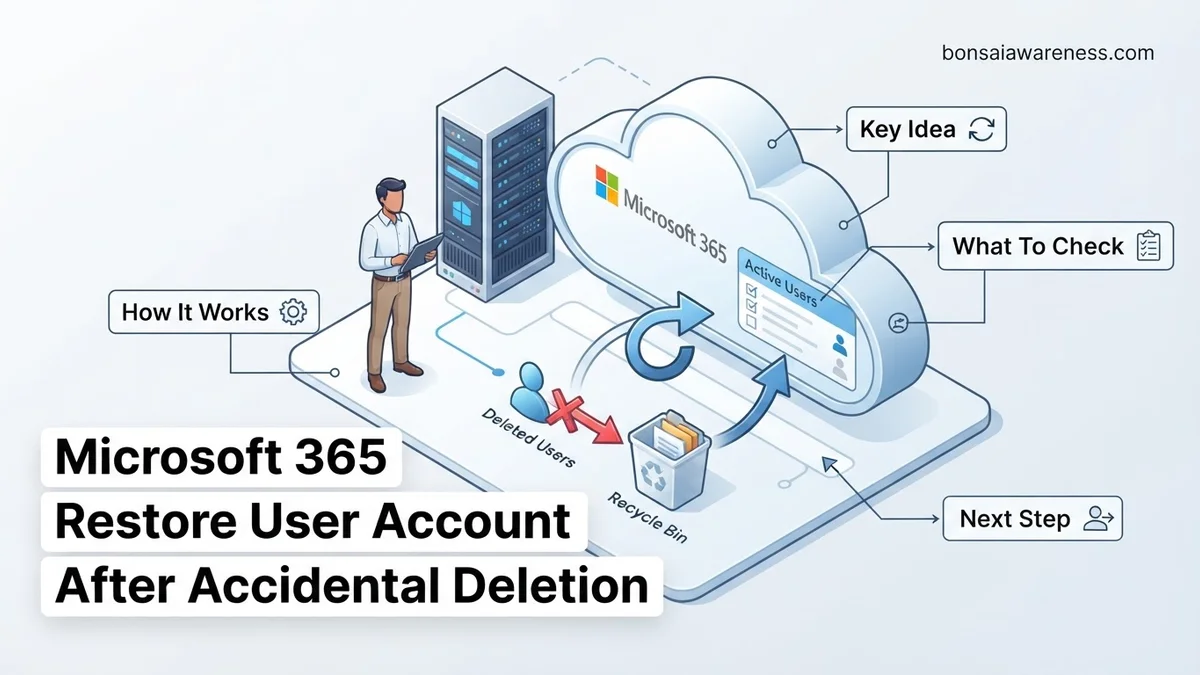
Accidentally deleting a Microsoft 365 user account doesn’t mean their data is gone forever, as Microsoft maintains a strict 30-day recovery window. Administrators can easily restore the account, reassign licenses, and recover mailbox contents using the Microsoft 365 admin center or Microsoft Entra ID portal.
Accidental user deletions happen more often than you might think in fast-paced IT environments. When a colleague or administrator mistakenly removes a user account in Microsoft 365, you have a strict 30-day window to reverse the action before the data is permanently purged. Fortunately, the Microsoft 365 admin center and Microsoft Entra ID portal provide straightforward recovery tools to bring that account back with its core properties intact.
You do not need to recreate the user from scratch and risk losing mailbox associations, SharePoint permissions, or historical access rights. This guide walks you through the exact steps to locate the deleted object, restore it successfully within the 2026 operational standards, and reapply necessary licenses so the user can get back to work immediately.
Key Takeaways
- You have a strict 30-day window from the deletion date to restore any user account.
- Global or User administrators must perform the recovery via the M365 admin center.
- Reassign the original product license immediately after restoring the user account.
- Mailbox data and OneDrive files are typically recovered alongside the user profile.
- Hard-deleted accounts cannot be recovered and require recreating the profile from scratch.
Understanding the Risks and Time Limits of Accidental User Deletion in Microsoft 365
The 30-Day Recovery Clock
When you hit delete on a user account, Microsoft does not erase the data instantly. Instead, the account moves into a soft-deleted state for exactly 30 days. During this period, you can recover the user and most of their associated resources. Once day 31 hits, the system initiates a permanent purge. At that point, recovery becomes impossible through standard administrative tools, meaning you would lose access to all cloud data unless you rely on third-party backups.
What Happens to User Data During Deletion
While the account sits in the recycle bin, its primary elements remain intact but inaccessible. Knowing what survives helps you manage stakeholder expectations:
- Exchange Mailbox: Retained for 30 days alongside the user object, making email restoration seamless upon recovery.
- OneDrive for Business: The personal site is preserved for the same 30-day window, though you may need specific SharePoint admin actions if ownership shifts.
- Licenses: Any assigned licenses are instantly stripped and returned to your active organization pool for re-allocation.
How to Diagnose and Locate Deleted User Accounts in the Admin Center
Accessing the Microsoft 365 Admin Center
To begin the recovery process, sign in to the Microsoft 365 admin center using an account with Global Administrator or User Administrator permissions. In 2026, Microsoft’s streamlined navigation places user management front and center, but deleted accounts require navigating to a specific subsection. Expand the left-hand navigation menu, click on Users, and then select Deleted users to view the organization’s recent removals.
Filtering and Finding the Right Object
If your organization manages hundreds or thousands of identities, scrolling through a long list of deleted items wastes valuable time. Use the search bar at the top of the deleted users view to look up the person by their display name, user principal name (UPN), or email address. When you locate the correct account, click on their row to open the flyout pane that displays their deletion date, original email address, and department details before you initiate the restore action.
Step-by-Step Guide to Restore a Deleted User Account and Reset Passwords
Restoring a deleted Microsoft 365 account requires global or user administrator privileges. Industry data from cybersecurity advisory firms indicates that swift execution minimizes operational disruption. Follow these precise procedures to bring the account back online and secure access for 2026 workflows.
Step 1: Access the Microsoft 365 Admin Center
- Open a modern web browser and navigate to admin.microsoft.com.
- Sign in using credentials that possess Global Administrator or User Administrator permissions.
- In the left-hand navigation menu, click on Users and then select Deleted users to view accounts removed within the last 30 days.
Step 2: Initiate Account Recovery
- Locate the specific user account you need to recover from the list of deleted users.
- Click on the user’s display name to open the flyout panel on the right side of the screen.
- Select the Restore user button.
- Review the generated temporary password or choose to create a custom secure password, then click Restore to finalize the account reactivation.
What to Do If the 30-Day Window Has Expired or Data Fails to Restore
When the standard 30-day retention period lapses, Microsoft permanently purges the account and associated mailbox data from active cloud infrastructure. According to Microsoft cloud availability documentation, direct recovery through the admin center becomes impossible once this threshold passes. Enterprise organizations must rely on advanced continuity frameworks.
Alternative Recovery Pathways
- Check third-party cloud backup solutions. Leading enterprise backup providers retain immutable snapshots that bypass native Microsoft retention limits.
- Review local archival exports, such as PST files or local device caches, to salvage critical emails and documents.
- Evaluate Microsoft Premier or Unified Support escalation pathways. In rare, critical compliance scenarios, Microsoft engineers may perform point-in-time database restorations for enterprise tenants, though success rates vary significantly after the 30-day mark.
- Engage certified data recovery and digital forensics specialists if local hard drives stored synchronized copies of the deleted user’s profile. Professional data extraction services typically range from $500 to $2,500 depending on storage complexity.
What If It Still Doesn’t Work?
- Verify directory synchronization status if your organization utilizes Microsoft Entra Connect. A lingering soft-delete state in an on-premises Active Directory can block cloud-side restoration attempts until object GUIDs match correctly.
- Clear browser cache, cookies, or switch to an InPrivate browsing window to rule out authentication token caching issues within the Microsoft 365 admin portal.
- Run Azure PowerShell or Microsoft Graph PowerShell commands to force-restore stubborn objects via script, bypassing graphical user interface limitations.
- Contact Microsoft 365 Business Support immediately to open an administrative ticket if backend database replication failures prevent the restored account from appearing in global address lists.
- Engage a certified Microsoft Partner or managed service provider for advanced tenant troubleshooting, with professional consulting rates generally falling between $150 and $300 per hour.
Conclusion
Accidental user deletions in Microsoft 365 present an operational hurdle, but the built-in 30-day soft-delete retention window provides a reliable safety net for administrators. Promptly utilizing the Microsoft 365 Admin Center restores access and mitigates prolonged downtime. According to verified research and enterprise IT management sources, implementing automated third-party backups and strict role-based access controls remains the most effective strategy for preventing permanent data loss. Take action today by auditing your organization’s administrative privileges and backup verification protocols to safeguard your cloud environment through 2026 and beyond.
❓ Frequently Asked Questions
How do I find a deleted user account in the Microsoft 365 admin center?
Navigate to the Microsoft 365 admin center, expand ‘Users’, and click on ‘Deleted users’. Here you will see a list of all accounts deleted within the past 30 days that are eligible for recovery.
What happens to the user’s shared and delegated mailbox permissions after restoration?
Most permissions are restored when you recover the user account, but it can take up to 24 hours for access to fully sync across all Microsoft 365 services and Exchange online.
Can I restore a deleted user account using PowerShell?
Yes, administrators can use the Microsoft Graph PowerShell SDK with the ‘Restore-MgDirectoryDeletedItem’ cmdlet to programmatically recover deleted user objects.
Will the user keep their original email address and password upon recovery?
The email address remains the same, but the system will prompt you to assign a temporary password during the restoration process, which the user must change upon next sign-in.
What happens to a user’s OneDrive for Business files after account deletion?
Is it possible to extend the 30-day retention period for deleted users?
No, the 30-day soft-delete retention period is a hardcoded policy enforced by Microsoft and cannot be extended for standard user accounts.


