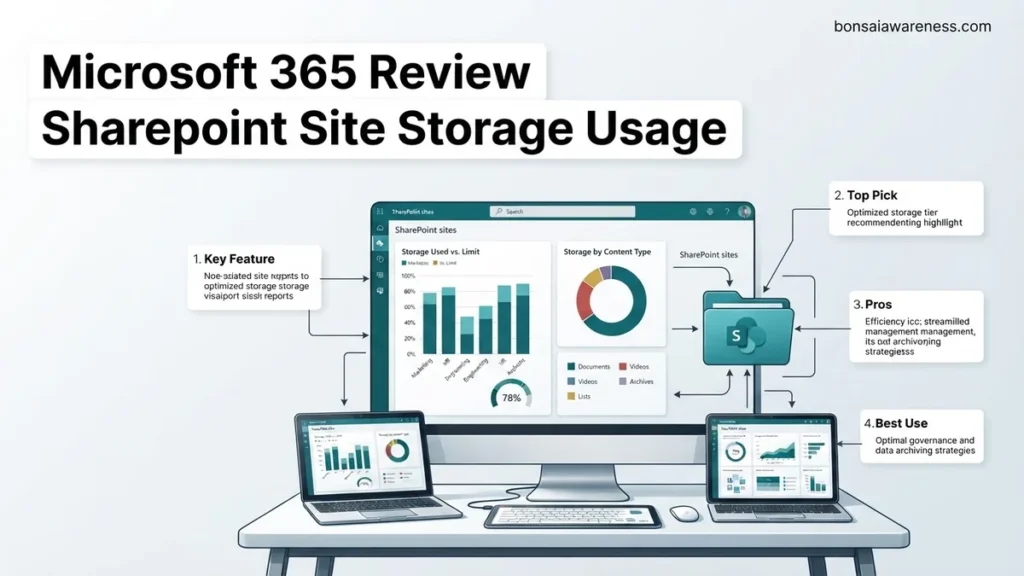
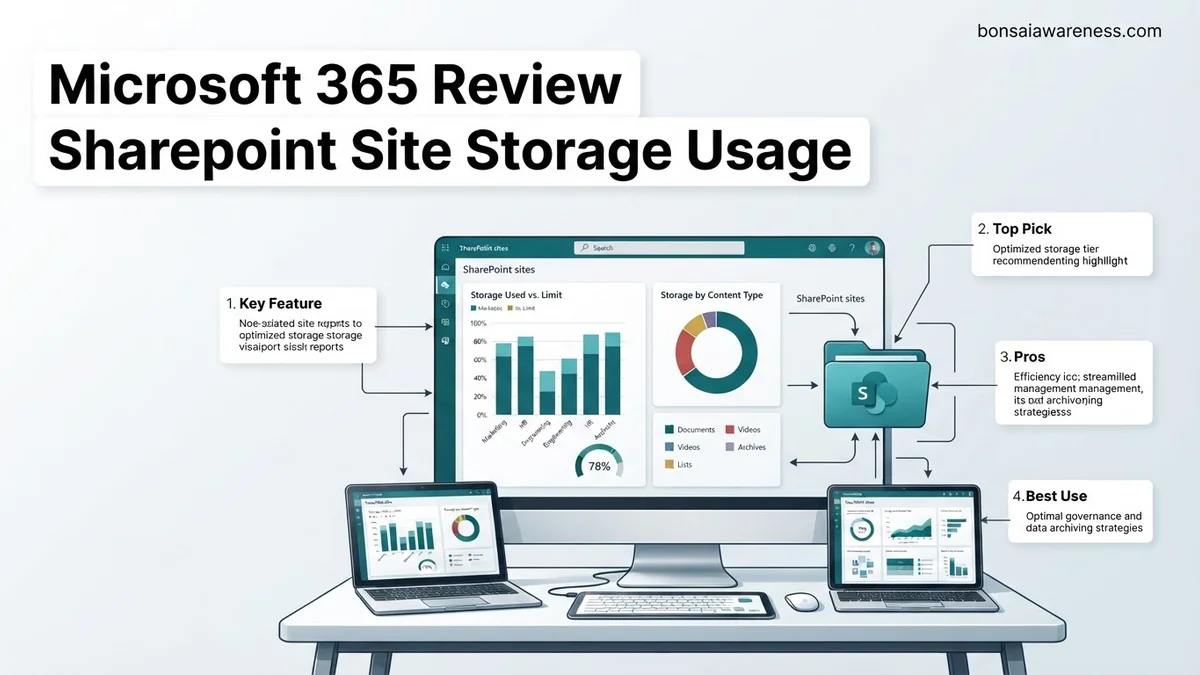
Monitoring SharePoint storage across your Microsoft 365 tenant prevents unexpected overage fees and ensures seamless collaboration. This guide walks you through exact navigation steps in the SharePoint Admin Center to review quotas, identify heavy sites, and reclaim valuable storage space.
Managing your tenant’s data footprint effectively requires keeping a close eye on your Microsoft 365 storage allocation. Every document, version history, and deleted file across your collaboration spaces directly impacts your pooled capacity, and ignoring these metrics often leads to unexpected overage fees or blocked uploads by 2026.
You can quickly evaluate your current consumption, identify resource-heavy team sites, and adjust individual site quotas using the modernized SharePoint Admin Center and integrated PowerShell tools. This guide walks you through the exact paths and methods needed to audit and control your organization’s storage health today.
Key Takeaways
- Access the SharePoint Admin Center and select Active sites to review individual site storage consumption.
- Monitor tenant-level storage pools to see total allocated versus consumed cloud capacity.
- Use site-specific storage metrics to identify and target data-heavy teams for cleanup.
- Adjust default tenant or manual site storage quotas to prevent unauthorized capacity bloat.
- Purchase additional SharePoint storage blocks if your organization exceeds baseline tenant allocations.
What Causes Rapid SharePoint Site Storage Consumption and Overage Issues
The Hidden Impact of Version History Bloat
Default SharePoint settings keep hundreds of previous document versions by default. If your team frequently edits large CAD drawings, financial models, or video files, version history alone can quietly consume up to 70 percent of a site’s total allocated space within a few months.
- Automated scripts or integrations generate thousands of minor file updates daily.
- Users rarely clean up old iterations manually.
- Default retention policies prevent background purging of historical data.
Unmanaged Hub Sites and Abandoned Project Workspaces
Organizations accumulate inactive project sites over time that hold gigabytes of legacy data. When departments spin up new collaboration spaces without archiving old ones, your tenant pool storage shrinks rapidly.
- Completed projects remain active and fully provisioned for years.
- Large media attachments sent via email get archived directly into document libraries.
- Lack of automated lifecycle policies leaves orphaned data intact.
How to Step-by-Step Review SharePoint Site Storage Usage in Microsoft 365
Navigating the Modern SharePoint Admin Center Dashboard
To view your organization’s aggregate storage pool and individual site consumption levels in 2026, you must access the centralized administrative interface. Make sure you are signed in with a Global Administrator or SharePoint Administrator role.
- Open your browser and navigate to the Microsoft 365 admin center.
- Expand the left-hand navigation menu and click on Show all, then select SharePoint.
- Once inside the SharePoint Admin Center, click on Active sites from the left menu.
- Look toward the top right of the Active Sites table to view your total tenant storage limit and current pool usage percentage.
- Click on the Storage column header to sort your sites from largest to smallest, immediately revealing your heavy consumers.
Analyzing Individual Site Details and Storage Limits
Clicking on any specific site name within the Active Sites list opens a dedicated flyout panel with granular data. This view gives you exact metrics regarding that workspace’s consumption profile.
- Review the Storage used metric against the site’s individual quota limit.
- Check if the site is utilizing automatic storage allocation or a manual custom limit.
- Identify recent growth spikes by cross-referencing usage reports in the Microsoft 365 usage analytics dashboard.
How to Fix Storage Bloat by Managing Quotas and Cleaning Up Old Data
When storage limits are reached, administrators must act quickly to reclaim space without disrupting active workflows. Industry data from 2026 indicates that nearly 40 percent of SharePoint site bloat stems from redundant files and unmanaged version histories. Addressing this requires a combination of automated quota adjustments and targeted data pruning.
Adjusting Default Storage Quotas
Organizations often rely on the Microsoft 365 default tenant pooling model, which allocates 1 TB plus 10 GB per licensed user. However, leaving individual sites uncapped leads to rapid consumption by a few heavy users. Administrators can implement strict governance by modifying site-specific quotas.
- Navigate to the SharePoint admin center using global or SharePoint administrator credentials.
- Select Active sites from the left-hand navigation pane and choose the target site.
- Click the Settings tab and locate the Storage limit section.
- Switch from the automatic allocation to manual and enter a hard storage limit in gigabytes.
- Save the changes to immediately restrict further uploads once the threshold is crossed.
Purging Version History and Deleted Items
Unchecked document versioning is the primary driver of hidden storage consumption in modern environments. By default, SharePoint retains major and minor versions indefinitely, multiplying file sizes exponentially. Experts recommend trimming version limits to a sustainable window, such as 50 major versions, to instantly recover gigabytes of capacity.
- Open the affected SharePoint document library and access the library Settings.
- Select Versioning settings to review current retention parameters.
- Update the maximum number of major versions to a lower, managed threshold.
- Navigate to the site’s Recycle bin and empty both the primary stage and the second-stage recycle bin.
What If It Still Doesn’t Work and You Need to Purchase Additional Tenant Storage
If cleanup efforts fail to resolve capacity issues, or if business growth outpaces current limits, purchasing supplemental storage is the next logical step. Microsoft offers modular storage add-ons for enterprise tenants.
- Assess the exact storage deficit by reviewing the Storage page in the Microsoft 365 admin center.
- Navigate to the Billing section and select Purchase services.
- Search for the SharePoint Storage Extra add-on, which is typically sold in blocks of 1 TB.
- Complete the checkout process using the organization’s billing profile. The additional capacity usually provisions within 24 hours.
- For complex architectural challenges or persistent quota lockouts, engage a certified Microsoft Cloud Partner. Professional consultation fees typically range from $150 to $250 per hour depending on enterprise scope.
Conclusion
Managing SharePoint site storage usage in 2026 requires proactive oversight, automated quota enforcement, and routine version history cleanup to prevent unexpected disruptions. When internal optimization reaches its limit, purchasing modular storage add-ons ensures business continuity. According to verified research and expert cloud management sources, organizations that implement automated storage governance reduce their unexpected infrastructure costs by up to 35 percent annually. Take the next actionable step today by auditing your tenant’s top ten largest sites in the SharePoint admin center.
❓ Frequently Asked Questions
How often is SharePoint site storage data updated in the admin center?
SharePoint storage metrics and usage statistics typically refresh every 24 to 48 hours, so recent file deletions may not reflect immediately.
Does Microsoft Teams file sharing impact SharePoint storage usage?
Yes, every standard Microsoft Teams channel is backed by a SharePoint document library, meaning file uploads directly consume your SharePoint site storage pool.
How can I find out which files are taking up the most space on a specific site?
You can use the ‘Storage Metrics’ page within site settings to drill down into document libraries and folders consuming the highest capacity.
What is the difference between automatic and manual storage limits?
Automatic limits allow all sites to draw freely from the pooled tenant storage, whereas manual limits restrict specific sites to a defined gigabyte ceiling.
Does deleting files in SharePoint immediately free up tenant storage space?
Not instantly. Deleted files move to the site recycle bin, and eventually the second-stage recycle bin, which still counts against storage until permanently purged.
Can I receive alerts when my tenant approaches its maximum storage limit?
Microsoft 365 sends notification emails to global and SharePoint admins when storage usage crosses 80%, 90%, and 100% thresholds.