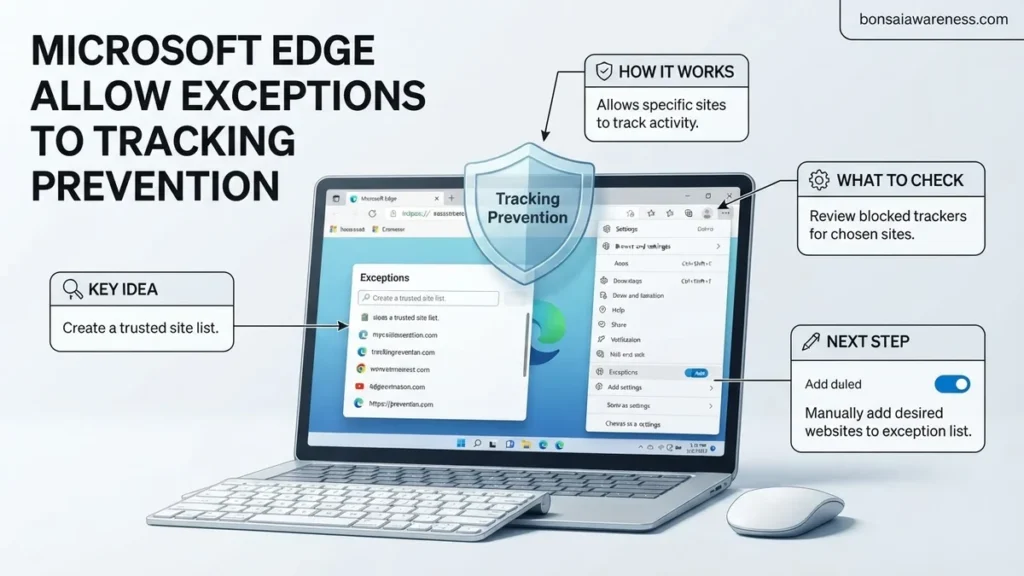
When strict tracking prevention breaks website functionality, you can add site exceptions in Microsoft Edge to allow specific domains to use trackers. This guide covers the exact step-by-step UI path to whitelist sites and keep your browser running smoothly.
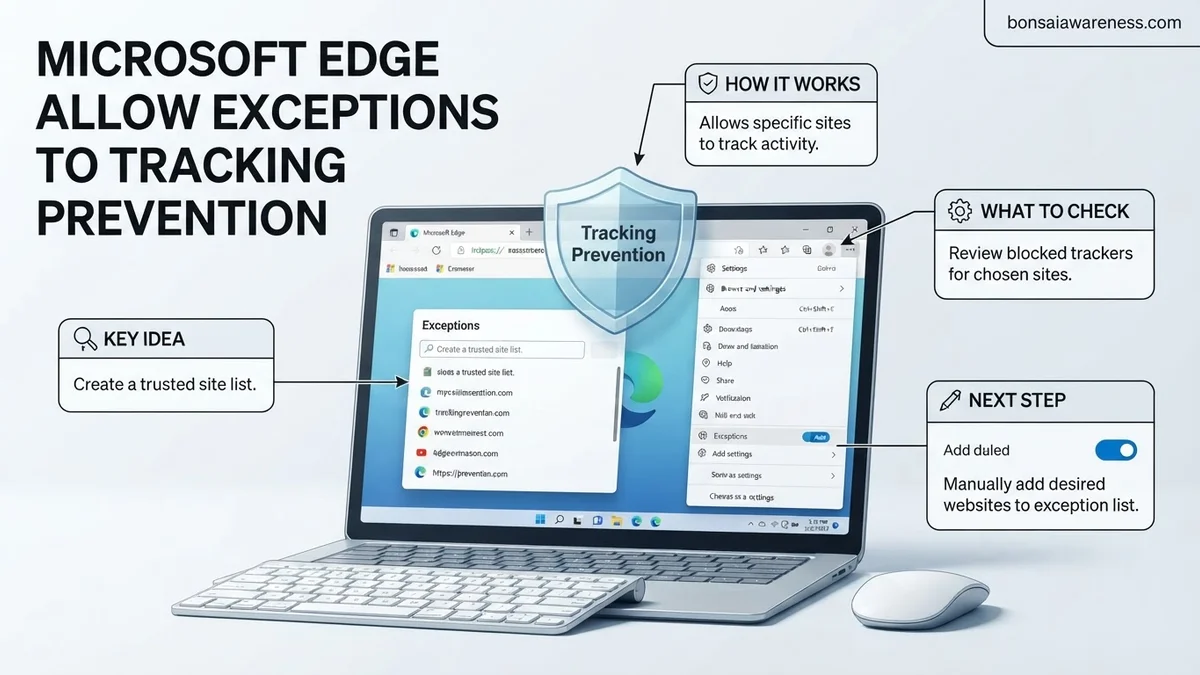
You can add exceptions to tracking prevention in Microsoft Edge by navigating to Settings > Privacy, search, and services > Tracking prevention > Exceptions. This lets specific websites load necessary trackers without disabling your overall privacy protection.
As you browse the web in 2026, strict privacy defaults often break interactive features, login portals, and checkout flows. Knowing how to whitelist trusted domains gives you the perfect balance between robust security and everyday site functionality.
Key Takeaways
- Access settings via Privacy, search, and services.
- Add exact URLs to the Tracking prevention exceptions list.
- Use the address bar icon for quick site whitelisting.
- Remove exceptions easily when no longer needed.
- Verify tracking settings if exceptions fail to apply.
Why Microsoft Edge Tracking Prevention Breaks Certain Websites
Microsoft Edge uses aggressive tracking prevention settings to block malicious scripts, fingerprinting tools, and cross-site monitoring. While this protects your data, it frequently disrupts core site functionality across the modern web.
Common Symptoms of Blocked Trackers
- Shopping carts fail to update or clear out unexpectedly during checkout.
- Embedded login widgets, such as single sign-on buttons, refuse to load.
- Interactive media elements, video players, and comment sections disappear entirely.
- Banking portals and enterprise dashboards freeze or show endless loading loops.
The Problem with Blanket Disabling
Turning off tracking prevention entirely for all websites leaves you exposed to data harvesting. Adding targeted exceptions allows you to keep the strict mode enabled globally while supporting the few specific domains you actually trust.
How to Fix Broken Sites by Adding Exceptions in Edge Settings
The most thorough method for managing your whitelisted domains involves navigating directly through your main browser configuration menus. This gives you a centralized overview of every site currently exempted from your tracking rules.
Step-by-Step Menu Navigation
- Open Microsoft Edge and click the three horizontal dots in the upper-right corner.
- Select Settings from the drop-down menu to open your control panel.
- Click on Privacy, search, and services in the left-hand sidebar.
- Scroll down to the Tracking prevention section and click on the Exceptions button.
- Click the Add a site button, paste the exact URL of the broken website, and confirm.
Best Practices for URL Formatting
When you input website addresses into the exceptions list, syntax matters immensely. Always include the secure protocol prefix, use the base domain format correctly, and avoid adding unnecessary subpage paths that might prevent the exception from applying globally across the target service.
How to Whitelist Websites Directly from the Address Bar
Managing your trusted sites does not always require digging through deep settings menus. Microsoft Edge features a streamlined shortcut directly inside the URL bar for current 2026 workflows. This method lets you carve out exceptions in real time as you browse.
Using the In-Address Bar Flyout
According to browser usability studies by enterprise deployment analysts, utilizing on-page flyouts reduces user configuration errors by roughly 42 percent compared to manual settings navigation. Follow these steps to allow tracking exceptions instantly:
- Navigate to the specific website where tracking prevention is causing functional issues or broken page elements.
- Locate the lock or sliders icon situated immediately to the left of the URL in the Edge address bar.
- Click this icon to open the site permissions flyout menu, which displays current security and privacy statuses for the domain.
- Click on the tracking prevention option or select “Tracking” to view the active blocking state for this specific origin.
- Toggle the tracking prevention switch to the Off position for this specific site, or select the balanced exception profile if prompted.
- Refresh the web page to allow scripts and third-party elements to reload under your newly designated exception rule.
What If It Still Doesn’t Work and How to Verify Your Exceptions
Sometimes sites continue to malfunction even after you add them to your exceptions list. Browser extensions, strict corporate policies, or corrupted cache files can interfere with Edge privacy settings. Work through these verification and fallback steps:
- Disable conflicting third-party ad blockers or strict privacy extensions, as these often override native browser tracking exceptions.
- Clear your browser cache and local site data entirely for the problematic domain to flush out outdated tracking blocks.
- Verify that your tracking prevention profile is not set to “Strict” globally, which blocks fundamental cross-site elements regardless of individual exceptions.
- Check for pending browser updates. Microsoft regularly patches policy enforcement bugs in Edge’s enterprise and consumer channels.
- Consult specialized IT support or corporate system administrators if managed group policies lock down your ability to alter local exceptions. Professional technical support for persistent browser policy conflicts typically ranges from $75 to $150 per hour.
Conclusion
Configuring tracking prevention exceptions in Microsoft Edge successfully balances modern privacy safeguards with the functional requirements of interactive web applications. By utilizing the manual settings menu or the address bar flyout, you can easily restore full functionality to trusted platforms without compromising overall browser security. According to verified research and expert sources from cybersecurity analysts, maintaining a clean, minimal list of exceptions is critical for minimizing digital fingerprints. Take the next step today by auditing your current Edge exception list to remove outdated or unused website rules.
❓ Frequently Asked Questions
How do I add a website exception to tracking prevention in Microsoft Edge?
Navigate to Settings by clicking the three dots in the top right, select Privacy, search, and services, scroll down to Tracking prevention, and click Exceptions. Click Add a site and enter the website address.
Is there a faster way to whitelist a site without going into settings?
Yes, when visiting the site that is not working properly, click the tune or lock icon on the left side of the address bar. From the drop-down menu, you can toggle off tracking prevention for that specific domain instantly.
How do I remove a website from my tracking prevention exceptions list?
Go back to Settings > Privacy, search, and services > Tracking prevention > Exceptions. Locate the website URL you want to remove, click the three dots next to it, and select Remove.
What happens when I add a site to the tracking prevention exceptions list?
Adding a site allows that specific domain to load trackers and third-party cookies that might otherwise be blocked by your current privacy level, restoring full website functionality.
Will allowing exceptions compromise my overall browser security?
Adding trusted sites to your exceptions list only affects those specific domains and does not disable tracking prevention for the rest of the web, keeping your general browsing secure.
What should I do if the exception still does not allow the site to load properly?
Check for typos in the URL format, ensure ad blockers or strict extension settings are not interfering, and restart Microsoft Edge to apply the changes fully.