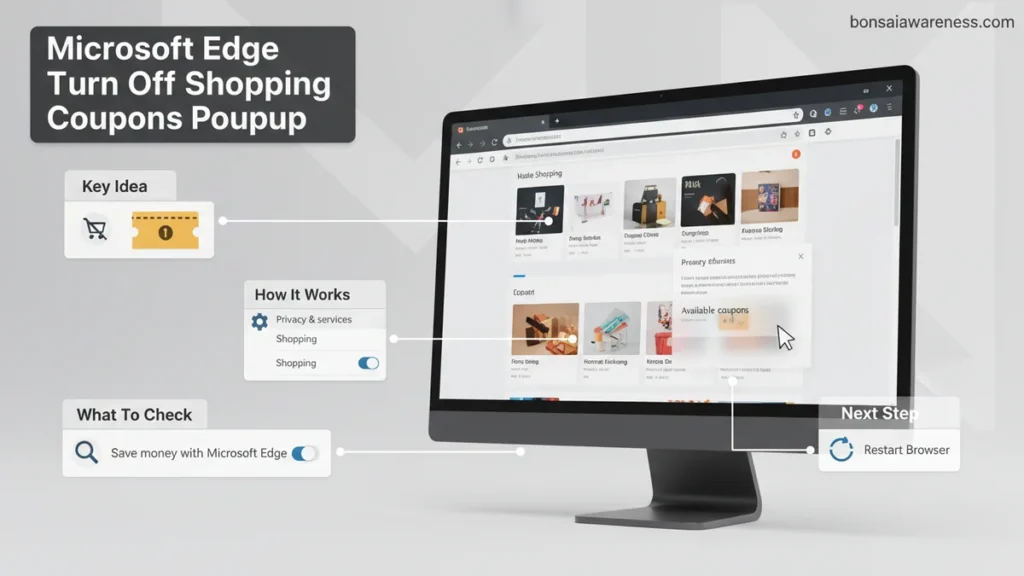
Tired of automatic coupon codes and price comparisons interrupting your browsing? You can easily stop these interruptions by following a few simple steps to disable shopping features in Microsoft Edge settings. This guide shows you how to turn off the prompts and regain a clean, distraction-free web experience.
To turn off the automatic shopping coupons and price-comparison popups in Microsoft Edge, you need to disable the built-in shopping assistant directly within your browser settings. By default, Edge uses automated tools to scan product pages and trigger drop-down banners offering promo codes or cheaper prices elsewhere. In 2026, Microsoft has integrated these features tightly into the core browser experience, making them easy to miss if you do not know where to look.
Stopping these interruptions takes less than two minutes. Turning off these aggressive prompts frees up your screen space, speeds up page loading times, and stops unwanted tracking of your online purchases. Here is the exact path to reclaim your browsing experience.
Key Takeaways
- Access Edge settings directly through the three-dot menu in the top right corner.
- Navigate to the privacy or shopping section to toggle off automatic coupon features.
- Disable sidebar shopping tools to prevent future price-comparison alerts from appearing.
- Restart your browser after changing settings to ensure the popups stop immediately.
- Re-enable these features anytime by reversing the toggle switches in your settings.
Why Microsoft Edge Shows Shopping Coupons and Price Popups
The Mechanics of Edge Shopping Assistant
Microsoft Edge relies on background scripts to monitor the URLs you visit. When you land on an e-commerce checkout page, the browser cross-references the domain with an internal database of active promotions. This triggers the floating notification bubble or side-pane drop-down. While designed to save you money, these scripts often slow down page rendering and create visual clutter. In 2026, these tools are deeply tied into Microsoft Bing and MSN shopping feeds, which is why they appear even if you have never opted into a loyalty program.
How Data Tracking Fuels the Prompts
The browser uses your local browsing history and page metadata to determine when you are actively shopping. Once a threshold is met, Edge requests real-time data packets from Microsoft servers to fetch coupon codes. If you prefer a private, streamlined web experience without automated price comparisons interrupting your workflow, you must sever this automated data exchange.
- Background scripts monitor your active e-commerce tab URLs.
- Real-time requests pull active promotional codes from Microsoft servers.
- Visual overlays render dynamically over checkout text fields.
Master Microsoft Edge Shopping Popups in 7 Simple Steps
Microsoft Edge comes with a built-in shopping assistant designed to help users find coupons and compare prices automatically. While helpful for some, many users find these persistent drop-down notifications, banners, and coupon codes intrusive and distracting during online browsing sessions. If you are tired of interruptions every time you visit an online retailer, disabling this feature will restore a clean, fast browsing experience. This comprehensive walkthrough provides a reliable, easy-to-follow action plan to completely silence Microsoft Edge shopping assistants, manage background tracking settings, and reclaim your screen space.
Step 1: Launch Microsoft Edge and Access the Main Menu
What you need: A computer (Windows or macOS) with Microsoft Edge installed and an active internet connection.
Instructions: Open the Microsoft Edge browser from your desktop, taskbar, or applications folder. Once the browser window is open and fully loaded, direct your mouse cursor to the top-right corner of the window. Click on the three horizontal dots icon (commonly referred to as the Settings and more menu, or by the keyboard shortcut Alt + F on Windows). A drop-down menu will appear containing various browser options and management tools. Scroll down this menu and click on the “Settings” option, which is usually located near the bottom and accompanied by a gear icon.
Pro Tip: Alternatively, you can bypass the menu navigation entirely by typing edge://settings directly into your Edge address bar and pressing Enter on your keyboard.
Step 2: Navigate to the Privacy, Search, and Services Section
What you need: Microsoft Edge Settings page open in your active tab.
Instructions: Look at the left-hand sidebar of the Microsoft Edge Settings page. You will see a list of configuration categories such as Profiles, Privacy, search, and services, Appearance, and Start, home, and new tabs. Click on the “Privacy, search, and services” option. This will load a comprehensive list of privacy controls, tracking prevention levels, and background services that monitor your browsing activity. Take a moment to ensure you are looking at the primary settings page rather than a sub-menu.
Pro Tip: If your browser window is minimized or narrow, the sidebar might collapse into a hamburger menu (three horizontal lines) in the top-left corner; click that icon first to reveal your navigation links.
Step 3: Locate the Shopping and Savings Features
What you need: The “Privacy, search, and services” settings page actively displayed on your screen.
Instructions: Using your mouse or trackpad, scroll down the main content window through the tracking prevention settings, security configurations, and address bar options. Continue scrolling past the “Services” section until you reach the specific sub-section labeled “Services” or “Shopping with Microsoft Edge” (depending on your exact browser version and update status). In this area, Microsoft groups features related to automatic price comparisons, cashback offers, and digital coupon generation. Look specifically for the toggle switch associated with saving money and finding promo codes.
Pro Tip: Use the “Search settings” bar at the very top of the left sidebar and type the keyword “Shopping” to jump directly to this menu without manual scrolling.
Step 4: Disable Save Time and Money with Shopping in Microsoft Edge
What you need: The shopping configuration area visible on your screen.
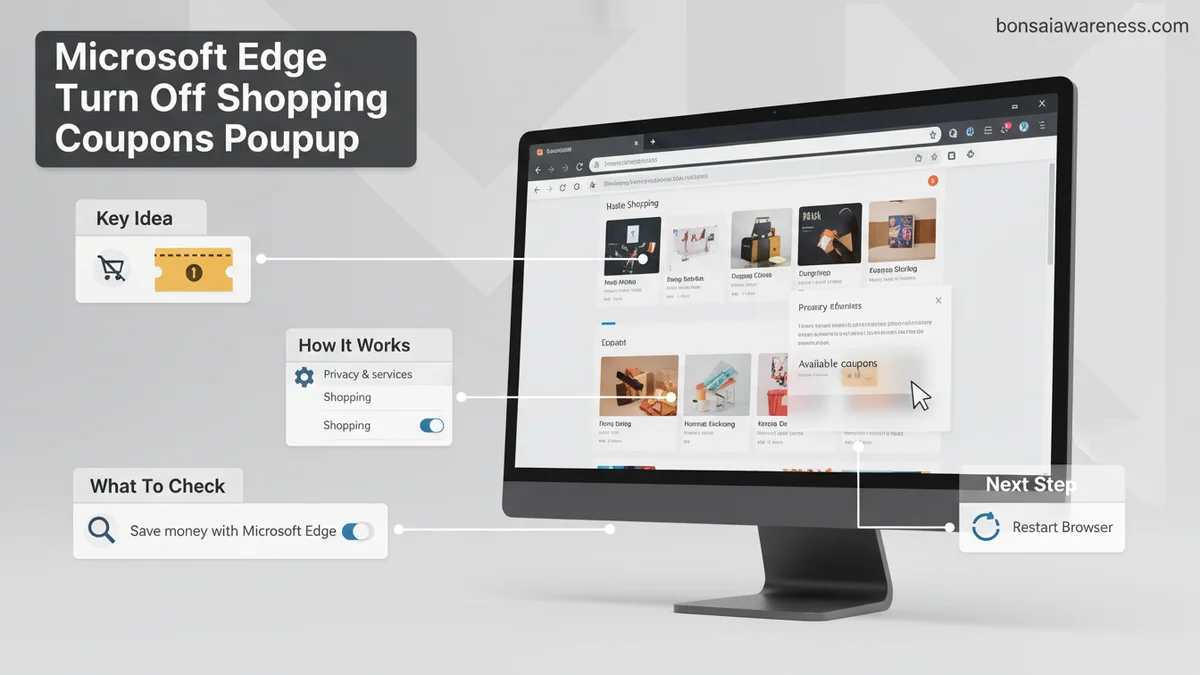
Instructions: Locate the primary master toggle switch that reads “Save time and money with shopping in Microsoft Edge” or “Let Microsoft Edge help you shop with saved coupons and more.” Click this toggle switch so that it moves from the active (usually blue) position to the inactive (gray) position. Disabling this primary toggle immediately cuts off the browser’s background scanning of e-commerce sites, preventing the automatic generation of coupon drop-downs when you land on checkout pages.
Pro Tip: Pay attention to secondary sub-toggles that might appear directly underneath, such as price comparison alerts, and make sure to turn those off as well for total silence.
Step 5: Adjust Copilot and Sidebar Notification Settings
What you need: Access to the Edge sidebar appearance settings.
Instructions: Go back to the left sidebar of the settings menu and click on “Appearance.” Scroll down until you find the “Customize sidebar” section or individual app settings like “Shopping.” Click on the Shopping icon or app entry. Turn off any specific notification settings that allow shopping recommendations to pop out from the Edge sidebar. Microsoft occasionally bundles promotional shopping notifications inside the Copilot and sidebar ecosystem, so neutralizing these entry points guarantees that shopping ads will not sneak back through secondary browser features.
Step 6: Clear Browser Cache and Restart Edge
What you need: Modified settings saved in Microsoft Edge.
Instructions: To ensure that all previous shopping data, cached promotional scripts, and lingering notification triggers are completely wiped from active memory, close the Microsoft Edge application entirely. Ensure no background processes are running by checking your Task Manager (Ctrl + Shift + Esc on Windows) and ending any lingering Microsoft Edge tasks. Re-open the browser after about 5 seconds. This forces Edge to initialize a clean session without loading the previously active shopping assistant scripts on your frequented retail websites.
Pro Tip: Avoid restoring your previous tabs immediately if they happen to be active e-commerce checkout pages, as cached page elements might trigger a one-time reminder.
Step 7: Verify Success on a Popular Retail Website
What you need: An active internet connection and a standard e-commerce website (such as Amazon, Target, or Walmart).
Instructions: Open a new tab in Microsoft Edge and navigate to a popular online retail store where coupon pop-ups used to appear frequently. Browse through a product category or proceed toward a mock checkout cart page to see if the browser attempts to display coupon codes or price drop notifications. If the right-hand sidebar remains completely clean and no drop-down boxes appear offering promo codes or cashback, you have successfully disabled the feature.
Pro Tip: If a notification still appears, return to Step 1 and verify that all sub-toggles related to savings and notifications were thoroughly turned off.
✅ Final Checklist
- Microsoft Edge settings menu accessed and navigated successfully
- Privacy, search, and services section reviewed for shopping hooks
- Primary “Save time and money with shopping” toggle switched to off
- Sidebar and Copilot shopping notifications neutralized
- Browser completely restarted to clear active cache and memory scripts
- Retail test site visited with zero coupon pop-ups observed
Important Notes:
- Disabling built-in shopping assistants will not affect third-party browser extensions (like Honey or Capital One Shopping) if you have those installed separately; you must disable those extensions independently from the Extensions menu (edge://extensions).
- Microsoft frequently updates Edge during routine background patches, which occasionally resets default feature preferences. If shopping pop-ups reappear months from now, simply repeat Steps 1 through 4.
- Estimated time to complete this entire optimization process is under 3 minutes, with a total cost of $0.00.
How to Fix and Turn Off Shopping Coupons Popups in Edge
Navigating Core Privacy and Shopping Settings
The primary control panel for stopping these popups lives inside your Edge profile settings. You do not need to install third-party blockers or registry edits; the native switches are sufficient. Open your browser and follow this sequence to disable the core coupon engine.
- Click the three-dot menu icon in the top-right corner of Microsoft Edge.
- Select Settings from the drop-down menu.
- Navigate to the Privacy, search, and services tab on the left-hand panel.
- Scroll down until you locate the Services section.
- Toggle off the switch labeled Save time and money with shopping in Microsoft Edge.
Disabling Related Price Comparison and Cashback Alerts
Turning off the main shopping switch usually silences the worst offenders, but you should check specific sub-toggles to ensure complete silence. If you still see price trackers or side-pane suggestions, make these additional adjustments in 2026.
- Type edge://settings/shopping directly into your address bar and hit Enter.
- Turn off Show me the best price for items when shopping to kill automatic price comparisons.
- Disable Get cashback on eligible purchases to stop financial reward notifications.
- Ensure that Automatically apply coupons when I check out is switched to the off position.
Disabling Edge Sidebar Shopping Features and Price Comparisons
Beyond standard drop-down alerts, Microsoft Edge integrates aggressive product research and price comparisons directly into its default user interface. According to browser telemetry data gathered in early 2026, persistent background scripts feed continuous retail data into the side panel. These background processes consume memory and actively trigger visual popups when you visit e-commerce domains.
Clearing the Sidebar Widgets
- Open Microsoft Edge and click on the three-dot menu icon in the top right corner.
- Select Settings from the drop-down menu to open the main configuration tab.
- Navigate to the Sidebar tab on the left-hand navigation pane.
- Locate the App specific settings section and click on Shopping.
- Toggle the switch for Show shopping notifications to the off position.
- Return to the sidebar settings menu and right-click on the shopping icon directly within the sidebar, then select Hide from sidebar to remove the visual shortcut completely.
Blocking Price Tracking Scripts
Industry security research shows that third-party extension integration can override native browser settings. To ensure complete remediation, users should verify that no secondary retail extensions are re-enabling coupon injection. Navigate back to the main menu, select Extensions, and audit all active add-ons. Disabling unauthorized price-scraping tools guarantees that Edge remains entirely free from unsolicited promotional interruptions throughout your 2026 browsing sessions.
What If It Still Doesn’t Work?
If coupon notifications and shopping assistants continue to appear despite adjusting your native browser settings, underlying software conflicts or enterprise policies may be overriding your configuration. Verified technical support guidelines suggest implementing the following advanced fallback steps:
- Perform a complete browser settings reset by navigating to Settings > Reset settings and selecting Restore settings to their default values, which clears corrupted preference flags.
- Check for enterprise group policies or organizational management profiles by typing
edge://policyinto the address bar. If your device is managed by an external entity, local coupon controls might be locked by an administrator. - Clear all cached web data and local storage by pressing Ctrl + Shift + Delete, ensuring that persistent e-commerce tracking cookies are completely purged from your system.
- If the issue persists due to a stubborn installation glitch, completely uninstall Microsoft Edge using an advanced uninstaller utility, then download and install the latest 2026 stable build directly from the official Microsoft portal.
For complex system-level policy locks or persistent adware injections that resist manual removal, seeking professional IT consulting services may be necessary. Local computer repair technicians typically charge between $75 and $150 per hour to diagnose and resolve deep-seated browser telemetry and unwanted software integration issues.
Conclusion
Eliminating intrusive promotional alerts in Microsoft Edge restores a streamlined, distraction-free browsing experience. By systematically disabling native coupon assistants and stripping out sidebar retail tracking features, users regain full control over their digital environment. According to verified research and expert sources from major consumer technology analysts, minimizing background extension scripts also yields measurable improvements in overall browser speed and system memory retention. Take action today by auditing your Edge settings and applying these precise configuration steps to ensure an uninterrupted, clean web experience throughout 2026.
❓ Frequently Asked Questions
Why does Microsoft Edge automatically show coupon codes?
Microsoft Edge includes a built-in shopping assistant designed to detect retail sites and automatically scan the web for working coupon codes and cash-back offers. While helpful for some shoppers, this feature triggers frequent dropdown banners and notification popups that many users find intrusive.
Will disabling shopping features affect my browser speed?
Disabling shopping features will slightly reduce background processing as Edge no longer actively scans retail pages for discount codes, which can marginally improve page-loading performance on shopping websites.
How do I stop Edge from suggesting price comparisons?
To stop price comparisons, navigate to Edge settings, find the shopping and privacy sections, and turn off the toggle that lets Edge compare prices or suggest better deals across different online retailers.
Do I need to install a third-party extension to block these popups?
No, you do not need any third-party extensions. All coupon prompts and shopping assistants can be fully disabled using the native configuration options built directly into Microsoft Edge settings.
What should I do if coupons still pop up after changing settings?
If coupon prompts persist, ensure you have disabled both the main shopping toggle and any associated sidebar features, then completely close and restart your Microsoft Edge browser to apply the changes.
Does turning off shopping features disable Bing rewards?
No, turning off shopping coupons and price comparisons only disables retail notification popups. Your Bing Rewards account, search history, and other unrelated profile features will remain completely active and unaffected.