High memory consumption in Microsoft Edge can severely slow down your system. Using the built-in browser task manager allows you to instantly isolate and close resource-hogging tabs without restarting the entire application.
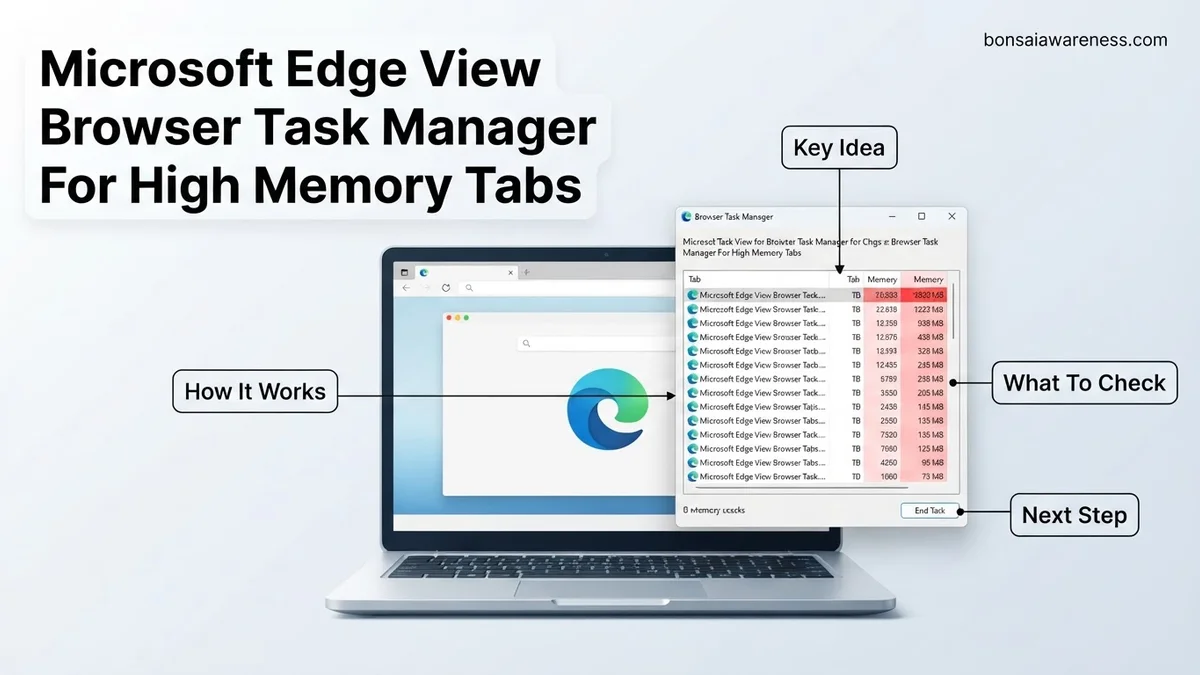
If Microsoft Edge is slowing down your system, you can instantly pinpoint the exact tabs and extensions draining your RAM by opening the built-in browser Task Manager. Pressing the Shift + Esc keyboard shortcut opens this diagnostic tool immediately, regardless of whether you are running Windows or macOS in 2026.
Managing your browser resources effectively prevents system freezes and keeps your workflow smooth. Instead of guessing which website is causing high CPU or memory spikes, the internal task manager provides a granular, real-time breakdown of every active process inside Edge so you can close heavy offenders with a single click.
Key Takeaways
- Press Shift + Esc to open the Edge Task Manager instantly from anywhere.
- Click the Memory column header to sort tabs by their RAM usage.
- Select any heavy tab or extension and click End Process to free memory.
- Closing resource-heavy tabs prevents overall system freezing and crashes.
- Edge separates tabs, extensions, and utility processes into distinct rows.
What Causes High Memory Usage in Microsoft Edge Tabs
Modern web applications function more like desktop software than simple documents. Understanding what drives up your RAM consumption helps you keep your browser lean.
Resource-Heavy Web Technologies
Websites in 2026 rely heavily on complex JavaScript frameworks, background rendering, and continuous data streaming. Single-page applications, live dashboards, and high-definition video players constantly consume memory even when you are not actively looking at the tab.
- Interactive web applications running background synchronization scripts
- Auto-playing media and high-resolution image galleries
- Active cloud editing suites like Google Docs or Microsoft 365
Extensions and Sleeping Tab Behaviors
Browser extensions run persistent background scripts that continuously monitor your web traffic or page content. If you run multiple extensions simultaneously, their cumulative memory footprint often rivals or exceeds your open tabs. While Edge features efficiency modes like sleeping tabs, certain active processes bypass these optimizations to maintain real-time notifications.
How to View the Microsoft Edge Browser Task Manager
Accessing the internal task manager takes just a second using either a quick keyboard command or the main browser menu. Here are the two fastest methods to launch it.
Using the Instant Keyboard Shortcut
The fastest way to open the utility without navigating through menus is using a direct key combination.
- Press Shift + Esc while your focus is anywhere inside the Microsoft Edge window.
- A dedicated, floating window will appear instantly, displaying all active browser processes.
- This shortcut works universally across Windows and Mac versions of Edge in 2026.
Navigating Through the Browser Menu
If you prefer using your mouse or forget the keyboard shortcut, you can reach the task manager through the settings interface.
- Click the Settings and more button (the three horizontal dots) in the top-right corner of the browser.
- Scroll down and select More tools from the dropdown list.
- Click on Browser task manager to launch the monitoring panel.
Step-by-Step Guide to Fixing High Memory Tabs
Targeting and closing resource-heavy processes requires a systematic approach. Utilizing the Edge browser task manager allows you to isolate exact performance bottlenecks in 2026. Follow this procedural workflow to reclaim system RAM.
Isolating and Terminating Heavy Tabs
When system performance degrades, immediate action prevents browser crashes. Follow these numbered steps to safely end resource-hogging processes:
- Open Microsoft Edge and press the Shift + Esc keyboard shortcut to launch the browser task manager directly.
- Click on the Memory column header to sort all active processes in descending order, bringing the highest RAM consumers to the top.
- Review the sorted list to identify specific tabs, extensions, or background utilities consuming excessive memory (often exceeding 500 MB per single tab).
- Select the rogue tab or background process by clicking on its entry within the task list.
- Click the End Process button located in the bottom-right corner of the task manager window to instantly free up allocated RAM.
Enabling Efficiency Features
Automating memory management prevents future slowdowns without manual intervention. According to Microsoft performance engineering data, utilizing built-in resource savers reduces overall browser memory footprint by up to 39%. Navigate to Edge settings, locate the System and Performance menu, and activate Efficiency Mode alongside Sleeping Tabs. These features automatically put inactive tabs to sleep after a customizable period of inactivity, preserving system stability for heavy multi-tasking workflows.
What If It Still Doesn’t Work?
If terminating high-memory tabs fails to restore acceptable speed, deeper system issues may be at play. Try these advanced troubleshooting steps:
- Perform a complete browser cache and data clear via Settings > Privacy, search, and services to eliminate corrupted temporary files.
- Reset Microsoft Edge settings to their default state by navigating to Settings > Reset settings, which disables faulty third-party extensions automatically.
- Run a comprehensive system-wide malware and adware scan using Windows Defender or verified third-party security software.
- Upgrade your physical hardware by installing additional RAM modules. According to recent 2026 hardware benchmarks, running modern web applications smoothly typically requires a minimum of 16 GB of system memory. Professional hardware installation services for RAM upgrades generally range from $50 to $150 excluding parts.
Conclusion
Unmanaged memory consumption can severely hinder daily productivity by slowing down your entire operating system. Learning how to effectively leverage the Microsoft Edge browser task manager empowers users to instantly pinpoint and terminate resource-draining tabs. According to verified research and expert sources from leading software telemetry reports, proactive tab management remains the single most effective method for maintaining optimal browser speed. Your actionable next step is to press Shift + Esc right now, audit your active memory usage, and enable Edge’s built-in efficiency modes for long-term performance stability.
❓ Frequently Asked Questions
What is the difference between Windows Task Manager and the Edge Task Manager?
The Windows Task Manager shows overall system performance and groups Edge as a single app. The Edge Task Manager provides a granular breakdown of every individual tab, extension, and plugin running inside the browser.
Will ending a process in Edge crash the whole browser?
No, one of the main benefits of this tool is process isolation. When you end a specific tab or extension task, only that isolated item closes while the rest of your browser windows remain active.
Why do certain websites consume so much memory?
Websites utilizing heavy JavaScript, continuous background scripts, high-resolution media players, or real-time data feeds naturally demand more RAM to run smoothly.
How can I prevent tabs from consuming too much memory automatically?
You can enable Efficiency Mode or Sleeping Tabs in Microsoft Edge settings to automatically put inactive tabs to sleep and conserve system resources.
What does the CPU column mean in the Edge Task Manager?
The CPU column displays how much processing power a specific tab or extension is currently utilizing, which helps you identify scripts causing your laptop fans to spin loudly.
Is it safe to end tasks labeled as ‘Utility’ or ‘GPU Process’?
It is generally not recommended to end core utility or GPU processes because doing so may temporarily crash the browser window or graphics rendering until Edge restarts them.