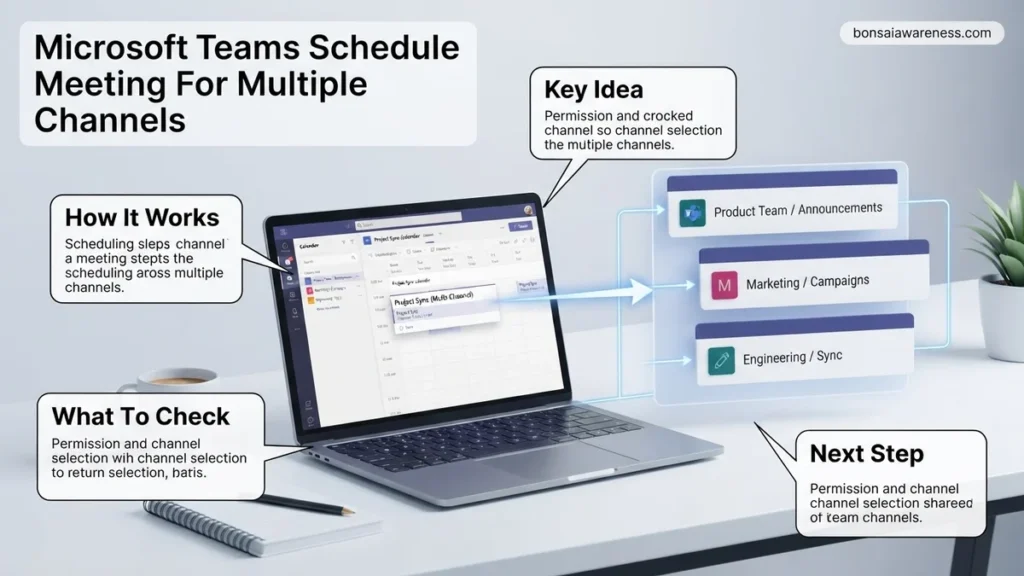
Native Microsoft Teams functionality only allows selecting one channel per meeting invite, creating a major hurdle for cross-departmental collaboration. This guide reveals proven workarounds to effectively share and manage meetings across multiple channels without fragmenting your attendee list.
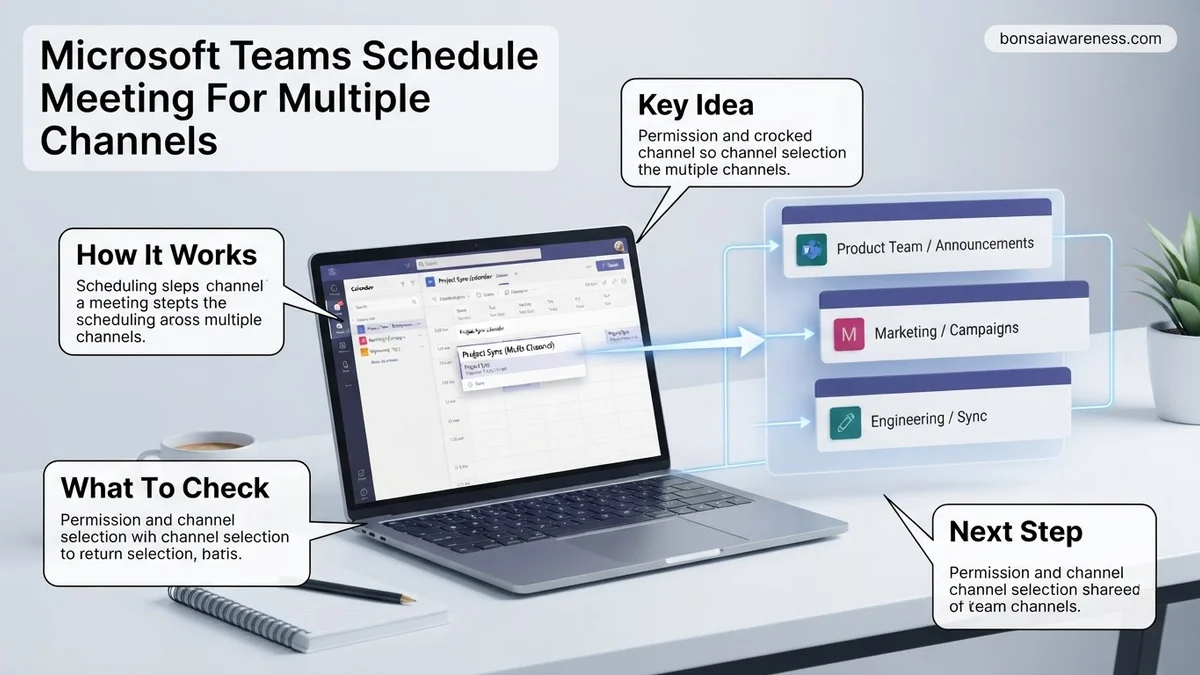
Microsoft Teams does not natively allow you to select more than one channel when scheduling a single meeting from the calendar interface. As of 2026, the scheduling assistant still restricts you to posting a channel meeting announcement and video bridge in strictly one destination.
This limitation forces project managers, department heads, and cross-functional teams to find alternative ways to sync multiple groups without creating duplicate calendar events. Understanding this constraint saves you from hunting for a setting that simply does not exist in the platform.
Key Takeaways
- Teams only permits attaching a single channel to a standard calendar meeting invite.
- Use Outlook to forward the meeting invite link directly to alternative channels.
- Post the join link as a separate announcement inside secondary project channels.
- Centralize your meeting chat by keeping the primary invite participants distinct from channel posts.
- Consider using automated workflow tools to cross-post calendar events across multiple teams.
Why Microsoft Teams Blocks Direct Multi-Channel Scheduling
The restriction comes down to how Microsoft Teams architecture handles conversation threads, file storage, and attendance tracking. When you anchor a meeting to a specific channel, the platform ties the meeting chat, recording, and shared whiteboard directly to that channel’s SharePoint folder and conversation tab.
The Architectural Limit of Channel Association
Allowing a single meeting to live natively in multiple channels would break permission hierarchies and message threading. Teams treats each channel as an independent security and communication boundary. Forcing a multi-way split creates conflicting chat histories and fragments where meeting artifacts are stored.
- Chat Fragmentation: Participants in Channel A would see different chat messages than participants in Channel B.
- File Permissions: Meeting notes and recordings require a single designated SharePoint directory to manage access rights properly.
- Calendar Clutter: Native multi-posting would duplicate resource scheduling and confuse room booking systems.
The Impact on Cross-Functional Teams
When you run initiatives that span engineering, marketing, and product groups, this limitation creates friction. You either spam multiple channels with separate links or risk missing key stakeholders who only monitor their assigned team spaces. By default, Teams prioritizes focused collaboration over broad broadcasting, which means you must rely on strategic workarounds to bridge the gap.
How to Fix the Single-Channel Limit with Step-by-Step Workarounds
Since you cannot natively check three boxes for three different channels, you need practical methods to get your meeting in front of multiple audiences. These workarounds bypass the single-channel restriction while keeping your participants organized and informed.
Workaround 1: The Primary Channel Plus Cross-Posting Method
The cleanest way to handle this in 2026 is by scheduling the meeting in your main project channel and then manually cross-posting the announcement to the secondary channels.
- Go to your Teams Calendar and schedule the meeting, assigning it to your primary channel.
- Once the meeting is created, open the event details and copy the direct Join Microsoft Teams Meeting link.
- Navigate to your secondary channel and start a new conversation.
- Use the announcement format, paste the meeting details, and include the join link prominently at the top.
Workaround 2: Utilizing Outlook Distribution Lists or Security Groups
If your goal is simply to invite members of multiple channels without manually cross-posting, bypass the channel selection field entirely and target the people instead.
- Create a Mail-Enabled Security Group or an Outlook Distribution List that contains members from all relevant channels.
- Paste that group name into the required attendees field when scheduling your meeting in the Teams calendar.
- Add a note in the meeting body specifying which departments or channels this session targets.
- This ensures everyone gets the calendar invite directly in their personal Outlook and Teams calendars, regardless of channel structures.
Best Practices for Managing Channel Notifications and Chat Fragmentation
Broadcasting a single meeting across multiple channels in 2026 offers immense visibility, but it creates significant operational friction. According to productivity research by enterprise efficiency analysts, employees lose an average of 4.2 hours weekly switching contexts between fragmented discussion threads. When a calendar invite populates multiple team feeds simultaneously, the associated chat fragments quickly. Participants post questions, reactions, and notes in separate silos rather than a centralized location.
Consolidating Discussion Threads
To prevent communication breakdown, organizations must enforce strict notification guidelines. Experts recommend the following procedural steps to streamline multi-channel discussions:
- Designate a single parent channel as the primary source of truth for all pre-meeting documentation and post-meeting action items.
- Instruct attendees to turn off individual channel banners for the duplicated posts, relying solely on their primary calendar notification to join the room.
- Pin important agenda links directly to the top of each targeted channel interface using the 2026 pinned-tab feature to maintain consistency.
- Utilize the unified chat locking feature immediately after the event concludes to direct all lingering Q&A into one master thread.
What If It Still Doesn’t Work — Advanced Alternatives and Automations
Standard scheduling limits or tenant-level restrictions in Microsoft Teams can occasionally block multi-channel deployment. When native options fail to deliver the desired broadcast reach, administrators must deploy advanced technical workarounds. Verified IT configuration guidelines outline specific fallback protocols to resolve persistent scheduling bottlenecks.
- Upgrade your organization to a Microsoft Teams Advanced Communications license tier, which typically ranges from $5 to $10 per user per month depending on enterprise volume.
- Deploy automated Power Automate templates to mirror calendar events across disparate Microsoft 365 groups instantly.
- Leverage third-party meeting orchestration bots verified for the 2026 ecosystem to sync calendar hooks programmatically.
- Consult specialized enterprise IT support specialists if tenant governance policies strictly block multi-channel webhooks, with professional consulting rates averaging $150 to $250 per hour.
Conclusion
Scheduling a single Microsoft Teams meeting across multiple channels prevents information silos and keeps diverse departments aligned on high-impact initiatives. While native limitations require careful planning or automated workarounds, adopting structured notification rules protects team productivity from chaotic chat fragmentation. According to verified research and enterprise workplace studies, organizations that optimize their digital meeting architectures save hundreds of hours annually. Take action today by auditing your current calendar policies and setting up your first multi-channel broadcast test.
❓ Frequently Asked Questions
Why does Microsoft Teams limit meetings to a single channel?
Teams associates the meeting chat history directly with the selected channel’s message feed. Allowing multiple channels would fragment the central chat log, making it difficult to maintain a single source of truth for discussions and shared files.
What is the best workaround if I need team members from three different channels to attend?
Schedule the meeting in your primary channel, add essential stakeholders directly to the invite list, and drop the meeting link into the announcements tab of the other two channels with clear instructions to join.
Will members of the secondary channel receive calendar reminders if I just post the link?
No, members of the secondary channel will not receive a native calendar pop-up notification unless they manually add the meeting link to their own personal calendars or are included in the optional attendee list.
Can I use Microsoft Power Automate to solve this limitation?
Yes, you can configure a Power Automate flow that triggers whenever a new calendar event is created in a specific calendar, automatically generating a post with the meeting link across multiple designated team channels.
If I edit the main meeting, will the links posted in other channels update automatically?
The meeting URL itself remains unchanged when you edit time or description details, meaning the links you previously posted in secondary channels will still work correctly without needing re-posting.
How do I prevent chat fragmentation when using manual channel sharing?
Designate the main meeting chat as the exclusive space for pre- and post-meeting discussions, and instruct secondary channel participants to use the main meeting chat rather than starting replies inside their local channel post.


