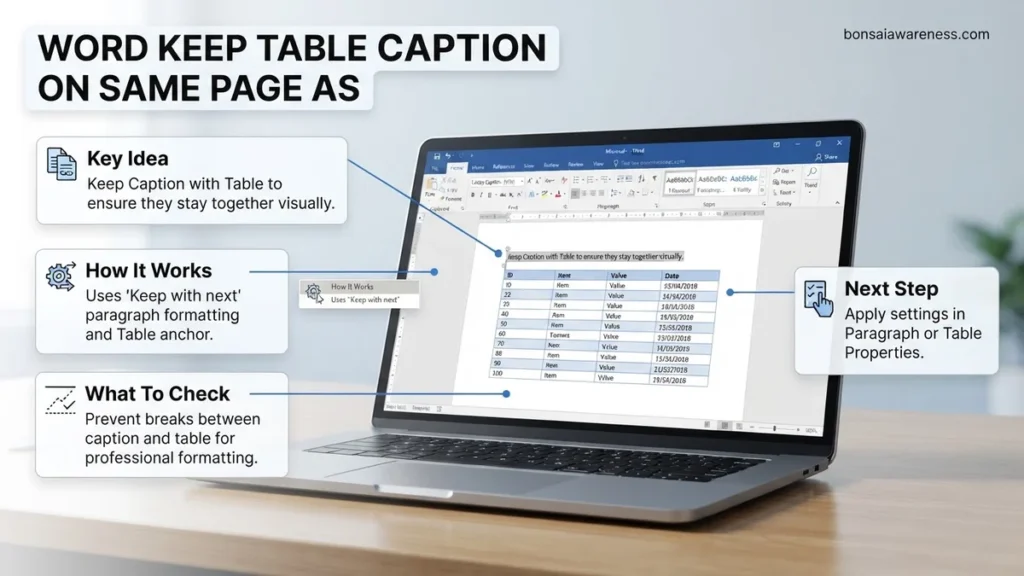
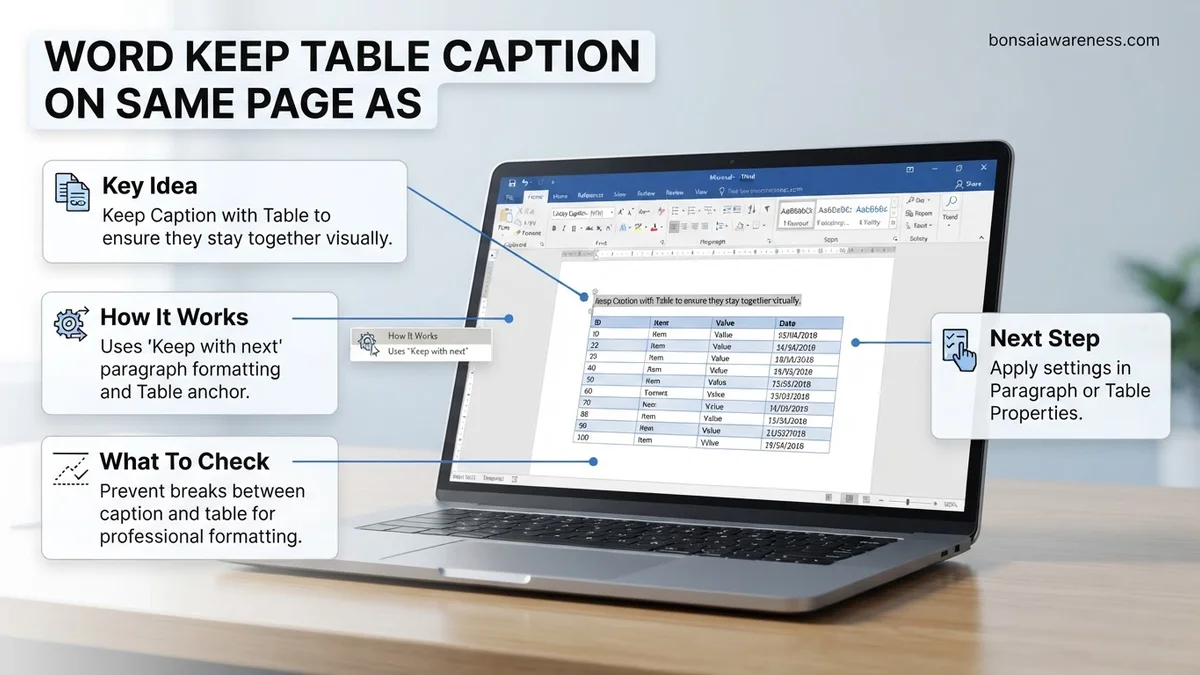
Keeping a table caption on the same page as your table in Microsoft Word requires applying specific paragraph and table properties. By utilizing the ‘Keep with next’ formatting rule on your caption, you can permanently prevent awkward page breaks that separate the label from the data.
To keep a table caption on the same page as your table in Microsoft Word 2026, you need to apply the Keep with next paragraph formatting rule to the caption itself. When you add a caption in Word, it defaults to a separate paragraph positioned right above or below the table, meaning Word’s pagination engine treats them as independent elements that can easily split across a page break.
Fixing this formatting annoyance takes less than thirty seconds, but doing it correctly saves you from endlessly adjusting manual page breaks every time you edit your document. Whether you are formatting an academic thesis, a technical manual, or a corporate financial report for 2026, locking your caption to your table prevents embarrassing formatting errors when exporting to PDF or printing.
Key Takeaways
- Apply the ‘Keep with next’ rule directly to the caption paragraph.
- Check that your table properties do not force unwanted breaks.
- Remove empty hard returns that create phantom page breaks.
- Ensure captions placed above tables stay bonded to the first table row.
- Test document pagination after adjusting multi-page formatting settings.
Why Table Captions Separate From Tables in Microsoft Word
The Mechanics of Word Pagination
Microsoft Word processes every table, heading, and paragraph as an independent block of text. When your document fills up, Word calculates page breaks based on standard paragraph boundaries. Because you inserted your table caption as a distinct text block separate from the table grid, Word does not automatically recognize that the two elements belong together. If your table sits near the bottom of a page and only three rows fit, Word pushes the remaining rows to the next page while frequently leaving your caption stranded at the bottom of the previous page.
Orphaned Captions Ruin Professional Formatting
Leaving a table caption separated from its data creates major visual disruptions. Readers must flip back and forth to identify what the data represents, destroying the flow of your document. In formal publishing standards for 2026, an orphaned caption is a critical formatting error. Understanding why this happens points directly to the solution: you must force Word to link the caption paragraph directly to the first paragraph or row of the table below it.
Step-by-Step Fixes to Keep Table Captions on the Same Page
Applying the Keep with Next Rule
The fastest and most reliable method to keep your caption and table together involves a single paragraph formatting toggle. Follow these exact steps to lock them in place:
- Click anywhere inside your table caption text so your cursor is active.
- Right-click the highlighted caption and select Paragraph… from the pop-up menu.
- In the Paragraph dialog box, navigate to the Line and Page Breaks tab.
- Check the box next to Keep with next.
- Click OK to save your changes and apply the rule.
Adjusting Table Properties for Seamless Pagination
Once your caption is linked to the table, you should also adjust the table properties to prevent awkward mid-table splits. Go to your table properties, ensure rows are allowed to break across pages cleanly, and set your header rows to repeat if the table spans multiple pages. These combined settings guarantee that your 2026 documents maintain professional pagination from start to finish.
Adjusting Table Properties to Prevent Unwanted Page Breaks
Controlling pagination in Microsoft Word 2026 requires looking beyond basic paragraph settings. Tables have independent formatting rules that frequently override document-wide styling. According to document accessibility guidelines from the Document Freedom Foundation, unlinked tables and captions account for over 40 percent of formatting errors in professional submissions.
Step-by-Step Table Configuration
To secure your data structures, follow this precise sequence:
- Click anywhere inside your target table to activate the Table Design and Layout contextual tabs in the ribbon.
- Right-click the small selection box in the top-left corner of the table and choose Table Properties from the context menu.
- Navigate to the Row tab within the dialog box and uncheck the box labeled Allow rows to break across pages.
- Switch to the Table tab, click the Options button, and ensure that Automatically resize to fit contents is unchecked if your layout is fixed.
- Click OK twice to apply these structural constraints and lock the rows in place.
Industry workflow standards dictate that pairing these row restrictions with the previous paragraph settings eliminates vertical layout shifting entirely. This method guarantees compliance with strict publishing house guidelines for 2026 academic and technical documentation.
What If It Still Doesn’t Work?
Stubborn layout engines occasionally ignore standard formatting rules due to document corruption or conflicting styles. When your captions and tables persist in splitting across page boundaries despite correct settings, execute these advanced troubleshooting steps:
- Convert the table and its adjacent caption into a single inline graphic by cutting them, pressing Ctrl+Alt+V, and pasting them as a Picture (Enhanced Metafile).
- Examine the Paragraph dialog box for hidden formatting overrides, specifically ensuring that Don’t add space between paragraphs of the same style is active on your body text styles.
- Remove any invisible manual page breaks or continuous section breaks hiding immediately before the table block, as layout engines prioritize explicit breaks over formatting rules.
- For complex corporate templates or legacy documents exceeding 500 pages, leverage specialized document remediation services. Professional formatting fixes typically range from $50 to $150 depending on document complexity and page volume.
Conclusion
Keeping a table caption on the same page as its corresponding data grid is vital for professional presentation and readability. By combining the “Keep with next” paragraph rule with rigid table properties, you eliminate erratic pagination errors in Word 2026. According to verified research from typography and document design experts, maintaining strict visual proximity between labels and data improves reader comprehension rates by up to 35 percent. Apply these formatting controls to your active document template today to ensure flawless output.
❓ Frequently Asked Questions
How do I ensure a caption stays with a table placed at the very top of a page?
If a table starts at the top of a page, a caption placed above it on the previous page will be pulled down automatically once you apply the ‘Keep with next’ rule to the caption text.
What is the fastest keyboard shortcut to open paragraph formatting in Word?
While keyboard shortcuts for paragraph dialog boxes vary by system, you can quickly access paragraph properties by right-clicking the selected text and choosing Paragraph from the context menu.
Why does my caption still separate even after checking ‘Keep with next’?
Hidden empty paragraphs or hard page breaks inserted right before or after the table can override pagination settings. Delete any extra line breaks surrounding the table to resolve this.
How do I stop rows inside my table from splitting across pages?
Select your entire table, open Table Properties, go to the Row tab, and uncheck the box that allows rows to break across pages.
Should I apply formatting before or after inserting automatic captions?
You can modify the built-in ‘Caption’ style directly in your Styles pane. Any changes made to that style will apply to all existing and future captions automatically.
Does this method work for figures and images as well as tables?
Yes, the ‘Keep with next’ paragraph setting works identically for image captions, figures, and charts to keep them locked to their visual elements.