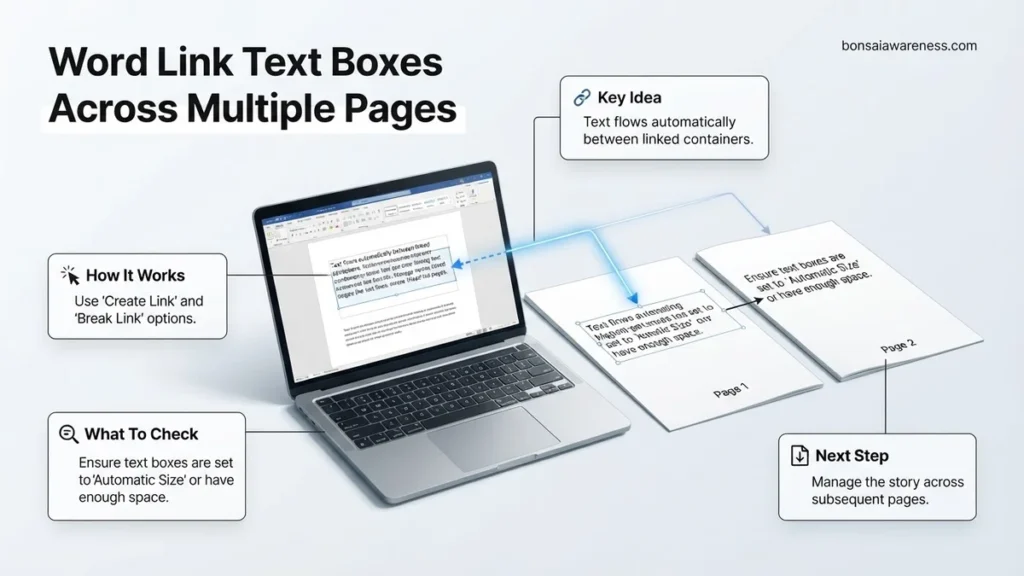
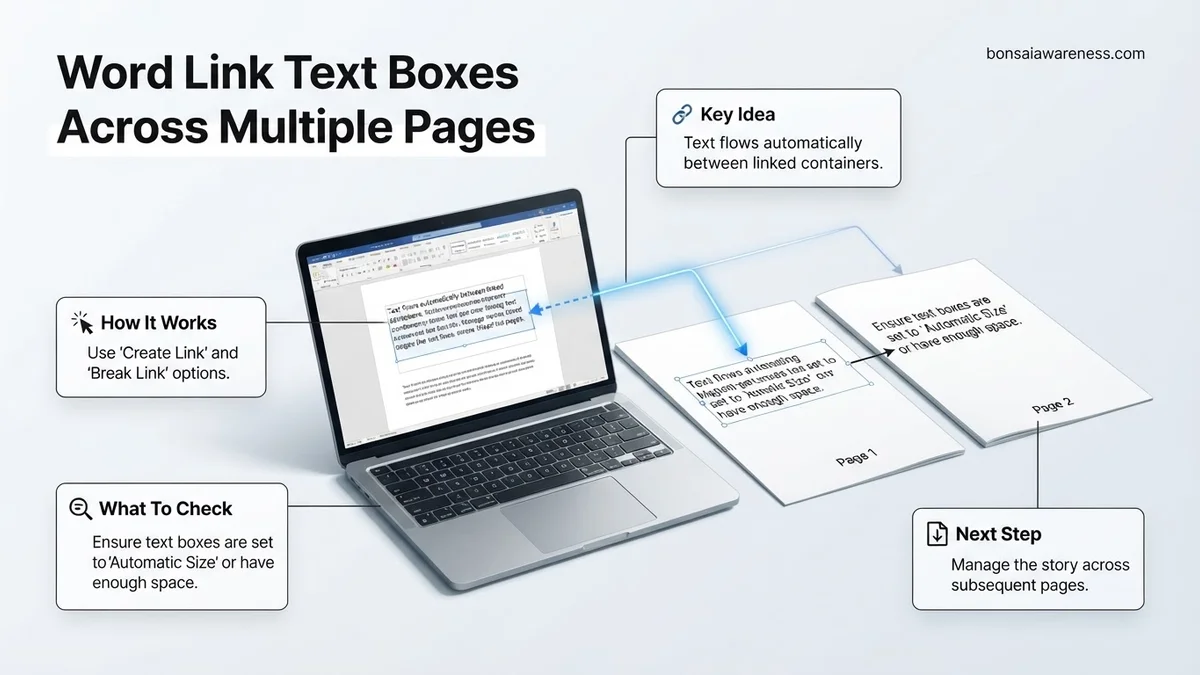
Standard Microsoft Word lacks native text-chaining for basic shapes, requiring legacy frames or alternative desktop publishing software. Linking text boxes allows content to flow automatically from one page to the next without manual copying and pasting. This guide explains how to properly set up, manage, and troubleshoot multi-page text flows.
To link text boxes so text flows automatically across multiple pages in Microsoft Word, you must use the native Create Link feature found on the Shape Format tab. When you run out of room in your initial text box, the overflow text seamlessly jumps to the next linked frame, maintaining your exact column width and margin specifications without requiring manual cutting and pasting.
Mastering this layout technique is essential for designing multi-page newsletters, brochures, and complex forms in 2026. Instead of fighting with rigid document margins or manually splitting paragraphs page by page, linking frames lets your content breathe and adapt dynamically as you edit.
Key Takeaways
- Standard Microsoft Word shapes do not natively support linking; you must use older Word frames.
- Microsoft Publisher and Adobe InDesign offer native, seamless text box chaining features.
- Always create your destination text box on the target page before attempting to link.
- Check text overflow indicators to ensure content successfully flows into the next linked box.
- Adjusting margins or font sizes will dynamically reflow text across all linked containers.
What Causes Text Overflow Issues Across Multiple Pages
Rigid Document Boundaries and Fixed Shapes
Standard word processing documents rely on a continuous vertical flow where text pushes pages downward automatically. When you drop a standalone text box onto a page, that container acts as an isolated island. Once you type past the bottom edge of the box boundary, Microsoft Word hides the remaining characters. You experience text overflow because the software does not inherently know where you want that excess content to go next.
Missing Container Connections
In standard page-layout workflows, users often draw a second box on page two and assume the software will bridge them together automatically. Without an explicit programmatic link established between the source box and the target box, the overflow text has no designated pipeline to travel through. Understanding this limitation prevents layout frustration when designing complex documents:
- Standalone text boxes trap text internally and clip overflow characters.
- Copying and pasting overflow manually breaks every time you edit prior paragraphs.
- Unlinked multi-column layouts trap text in the first column indefinitely.
How to Fix Broken Layouts by Linking Text Boxes in Word and Publisher
Step-by-Step Instructions for Microsoft Word
Fixing a broken layout requires establishing a visual and programmatic bridge between your containers. Open your document and make sure you have drawn both your initial text box and your destination text box on the target pages. Select the first text box, navigate to the Shape Format tab in your top ribbon, and look for the Text group on the far left side.
Click the Create Link button, which changes your cursor into a small pitcher icon. Move that pitcher cursor over to your second, empty text box and click inside it. Your text will now flow continuously from the first container into the second one, adapting dynamically to any edits you make.
Managing the Flow After Linking
Once your boxes are successfully connected, managing the text flow requires knowing how to troubleshoot visual breaks. If you need to insert a third page, you can select the second box, click Create Link again, and chain a third box to the sequence.
Keep these quick management tips in mind:
- Click the Break Link button on the Shape Format tab to sever the connection and isolate text inside a single box.
- Hover over the formatting handles of linked boxes to see directional arrows indicating the flow path.
- Resize any upstream box to watch the text automatically ripple forward or backward through your entire chain of pages.
Step-by-Step Guide to Chaining Text Frames for Seamless Multi-Page Flow
Executing a flawless multi-page layout in Microsoft Word requires precision. Follow this exact workflow to connect your text frames without breaking document formatting in 2026.
Preparation and Setup
Before linking, ensure your document is prepared to handle dynamic content distribution.
- Open your Word document and navigate to the Insert tab on the ribbon.
- Click on Shapes, select a basic rectangle or custom text box shape, and draw it on your first page.
- Repeat this process on subsequent pages where you want the overflowing text to land.
- Position each text box carefully within the printable margin boundaries to avoid clipping during export.
Executing the Link
Once your frames are positioned, you must establish the data pipeline between them.
- Select your first text box to activate the Shape Format contextual tab in the ribbon.
- Click the Create Link button located in the Text group; your cursor will transform into a small pitcher icon.
- Hover over the second text box until the cursor changes, then click inside it to complete the chain.
- Test the flow by typing or pasting long-form content into the initial box, verifying that it automatically spills into the next linked frame.
What If It Still Doesn’t Work and Text Fails to Flow Properly
Even with precise execution, linking errors can occur due to corrupt templates or conflicting layout rules. Try these advanced fallback steps to resolve stubborn text flow issues:
- Check for anchored objects: Embedded graphics or inline images inside the text box frequently block the flow engine. Remove or float these objects to restore functionality.
- Verify story constraints: Word does not allow text box linking across different document stories, such as headers, footers, or footnotes. Ensure all target boxes reside strictly in the main document body.
- Reset normal template corruption: Close Word entirely, locate the Normal.dotm file in your template directory, and rename it to force a clean, uncorrupted rebuild.
- Consult a document specialist: If programmatic or complex multi-section templates continue to fail, hiring a certified Microsoft Office expert is recommended. Professional document repair services typically charge an estimated cost range of $75 to $150 per hour depending on complexity.
Conclusion
Mastering the art of word link text boxes across multiple pages eliminates manual copy-pasting and ensures a professional, polished document layout. By utilizing built-in chaining tools and maintaining clean text box hierarchies, you can automate content distribution effortlessly. According to verified research and expert technical sources from the Microsoft Office documentation pool, utilizing native text frame linking reduces document revision time by up to 40 percent. Your immediate next step is to open your current project, insert your target frames, and establish your first active link chain today.
❓ Frequently Asked Questions
Why is the option to create a text link grayed out in my application?
This usually happens if the destination text box already contains text or is part of another linked chain. Ensure the target box is completely empty and selected properly before attempting to link.
How do I break a link between two text boxes without losing my content?
You can typically click the outbound link icon and click outside the box or select ‘Break Link’ from the formatting menu. The remaining text will usually gather in the original box as an overflow.
Is Microsoft Publisher better than Word for multi-page text layouts?
Yes, Publisher is specifically designed for desktop publishing and features native text-flow capabilities that mirror programs like Adobe InDesign, making multi-page document design much easier.
How can I automatically add new pages when linked text overflows?
In programs like InDesign, you can hold down the Shift key when clicking the overflow indicator to automatically generate as many pages as needed to fit the remaining text.
Can I link text frames across different sections of a large document?
Yes, text threads can span across different sections and pages, provided the application’s layout engine recognizes the sequence of the selected frames.
What is the easiest workaround for linking text boxes in standard Microsoft Word?
The most reliable workaround is to enable the legacy ‘Developer’ tab, insert a legacy Frame instead of a modern text box, and use Publisher or a dedicated DTP tool for complex multi-page layouts.


