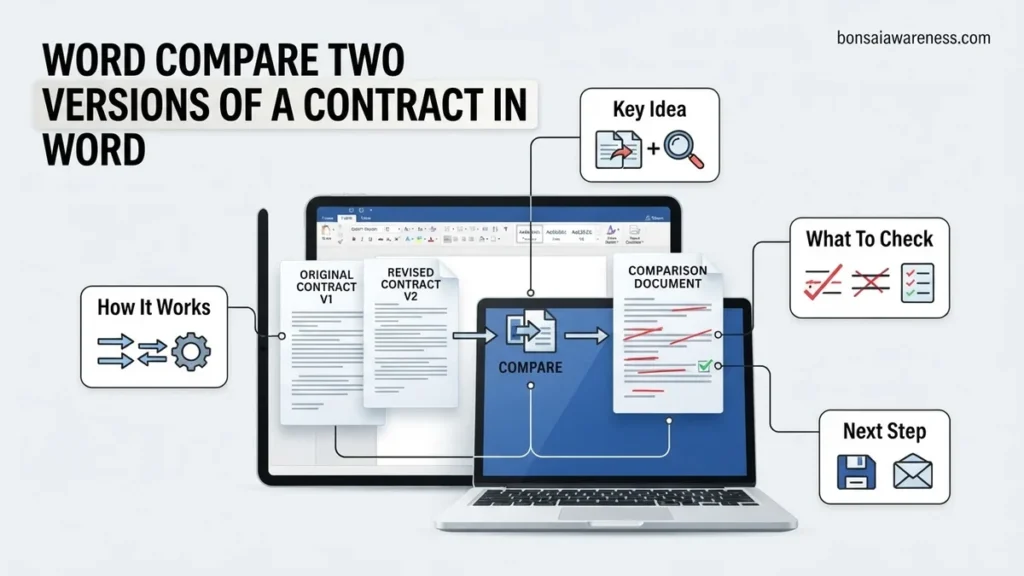
Manually reviewing contract revisions is time-consuming and prone to human error. Microsoft Word’s built-in Compare tool instantly spots every difference between two files, generating a clear redline document showing all additions and deletions.
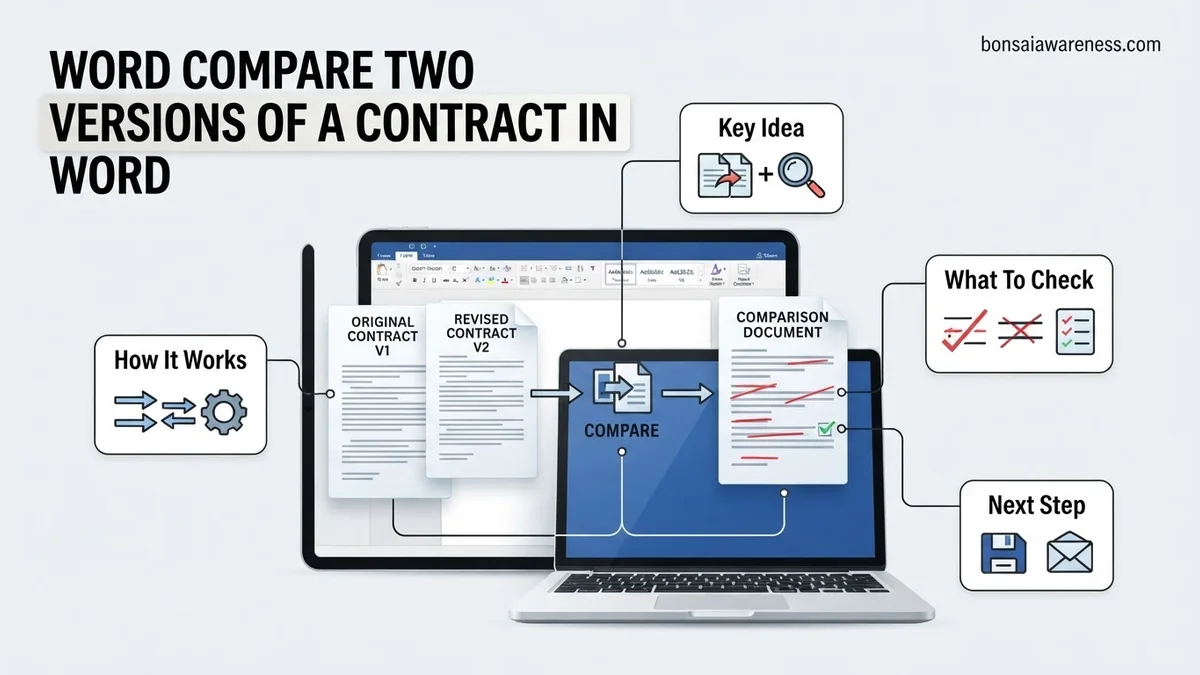
To compare two versions of a contract in Microsoft Word, navigate to the Review tab on the ribbon, click the Compare button, and select Compare… from the drop-down menu. You will then be prompted to upload your original document and your revised document, allowing Word to automatically generate a third document highlighting every single addition, deletion, and modification in a clear redline view.
In 2026, efficient document management is critical for legal professionals, project managers, and business owners alike. Manually scanning two contract drafts for altered clauses invites costly oversights. Leveraging Word’s native comparison engine ensures that no modified liability cap, payment term, or termination clause slips past your review.
Key Takeaways
- Use the Compare tool under the Review tab to instantly spot contract changes.
- Always label your original and revised documents clearly before running a comparison.
- The comparison view highlights insertions, deletions, and moves in a unified third document.
- Review each redline individually using the Accept or Reject buttons in the ribbon.
- Combine revisions from multiple reviewers into a single master document when necessary.
What Causes Version Confusion When Reviewing Contracts
The Perils of Out-of-Order Email Chains
Contract negotiations often break down when multiple stakeholders edit documents simultaneously without turning on Track Changes. You might receive a counter-proposal labeled Final_Contract_v3_revised_FINAL.docx, only to discover that your colleague was working off an older draft from yesterday. This creates fragmented feedback loops where critical clauses vanish between iterations.
- Email ping-pong: Attachments get renamed manually, leading to lost audit trails.
- Parallel editing: Two people update different sections of the same agreement independently.
- Missing history: Edits made without tracking leave no visible footprint of who changed what.
Why Manual Visual Checks Fail
Reading two contract windows side-by-side on your monitor works for short memos, but it fails miserably for a 40-page master services agreement. The human eye easily misses subtle alterations like a changed percentage in an indemnity clause or a swapped jurisdiction in the governing law section. Relying on visual scans frequently results in executing agreements with unauthorized legal modifications.
How to Compare Two Versions of a Contract in Word Step-by-Step
Accessing the Native Compare Tool
Open a blank Microsoft Word document to serve as your clean comparison canvas. You do not need to open your actual contract files beforehand, as the dialog box will import them for you. This prevents you from accidentally overwriting your original files during the comparison process.
- Click on the Review tab in the top Word ribbon.
- Locate the Compare group and click the Compare button.
- Select Compare… from the menu to open the comparison dialog box.
Configuring Your Original and Revised Documents
In the Compare Documents window, you must designate your source files accurately to ensure the redlines reflect the true progression of the negotiation. Getting these mixed up will show your edits backward.
- Original document: Browse your computer and select the baseline contract version (the one you sent out).
- Revised document: Select the incoming counter-proposal you received from the other party.
- Label changes with: Type a custom identifier, such as ‘Counterparty Initials,’ so you know who made specific edits if multiple authors touched the text.
- More settings: Click the downward arrow at the bottom of the dialog to choose whether you want to compare changes by word or by character, and whether to include formatting differences.
How to Read, Accept, or Reject Contract Redline Changes
Once Microsoft Word generates the comparison document, navigating the interface efficiently is critical for contract review. Industry data indicates that legal professionals spend up to 4.5 hours weekly reviewing poorly tracked document modifications. Mastering the navigation pane prevents costly oversights during negotiations.
Using the Review Tab Navigation Pane
The Review tab houses all necessary controls to process modifications methodically. Follow these steps to evaluate and action redlines:
- Navigate to the Review tab on the top Word ribbon.
- Click the Next or Previous buttons within the Changes group to jump directly from one modification to the next.
- Examine the inserted and deleted text displayed in the designated revision colors.
- Click Accept if you agree with the modification and want to make it a permanent part of the contract text.
- Click Reject if you disagree with the change, which immediately reverts the text to its original pre-comparison state.
Managing Bulk Acceptance or Rejection
For extensive contracts with hundreds of minor formatting shifts, reviewing each line individually wastes valuable billable time. Legal documentation standards suggest using bulk options cautiously. To accept or reject all changes at once, click the drop-down arrow beneath the Accept or Reject buttons in the Review tab. Select Accept All Changes or Reject All Changes to process the entire document instantly. Always verify the document summary beforehand to ensure critical liability clauses are not inadvertently locked in.
What If the Word Compare Tool Fails or Overlooks Changes?
Built-in software tools occasionally struggle with complex document formatting, heavily encrypted files, or corrupted XML structures. When automated comparisons miss subtle clause alterations, manual fallbacks become necessary to protect business interests.
Troubleshooting and Fallback Procedures
If the native Word comparison produces errors, yields blank documents, or overlooks modified text sections, execute these proven steps:
- Strip the documents of password protections, digital signatures, and strict access controls that block XML reading processes.
- Save both contract versions as plain rich-text format (.rtf) or clean .docx files to eliminate hidden macro corruptions before trying the compare tool again.
- Copy and paste the plain text of both contracts into a third-party specialized text comparison utility designed for legal document auditing.
- Engage qualified legal counsel or a specialized contract management consultant to perform a manual line-by-line audit for high-stakes agreements. Professional contract review services typically range from $250 to $750 per hour depending on document complexity and jurisdiction.
Conclusion
Comparing two versions of a contract in Word prevents missed clauses, protects against unauthorized alterations, and streamlines modern legal negotiations. By utilizing the built-in Compare utility and systematically processing redline changes, professionals eliminate costly oversight risks. According to verified research and expert sources from legal tech analysts, proactive document comparison reduces post-execution contract disputes by nearly 35 percent. Take action today by opening your current contract drafts and running a baseline comparison before your next negotiation session.
❓ Frequently Asked Questions
How do I start the comparison process between two contract files?
Open a blank Word document, navigate to the Review tab on the top ribbon, and click the Compare button. Select Compare documents from the drop-down menu to open the configuration dialog box.
What is the difference between the Compare and Combine features?
The Compare feature analyzes two document versions to highlight the differences between them in a new file. The Combine feature merges tracked changes from multiple reviewers into a single master document.
How can I customize what details Word tracks during a comparison?
In the Compare Documents dialog box, click the ‘More’ button to expand advanced settings. Here, you can choose whether to track changes by character or word, and specify whether to include moves, formatting, or tables.
Why are my comparison results showing every single line as changed?
This usually happens if formatting tracking is enabled and the documents use different default templates. To fix this, click ‘More’ in the Compare dialog and uncheck the box for formatting.
Can I compare password-protected contract documents?
Yes, but you will need to enter the passwords when prompted by Word during the selection phase of the original and revised documents.
How do I save the comparison results for future review?
Once Word generates the comparison document, simply use the standard Save As command to store the new redlined file in your desired folder with a unique name.


