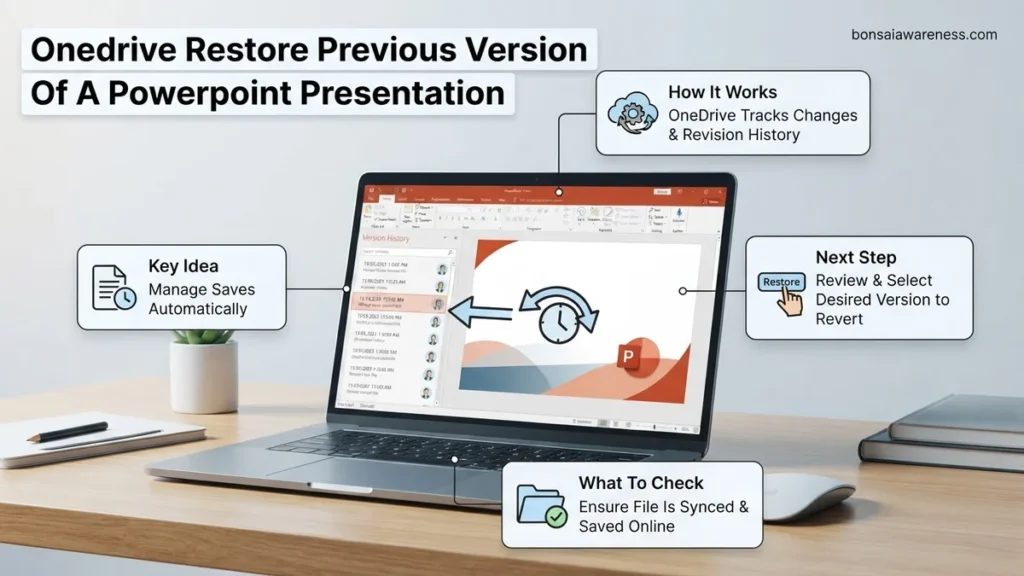
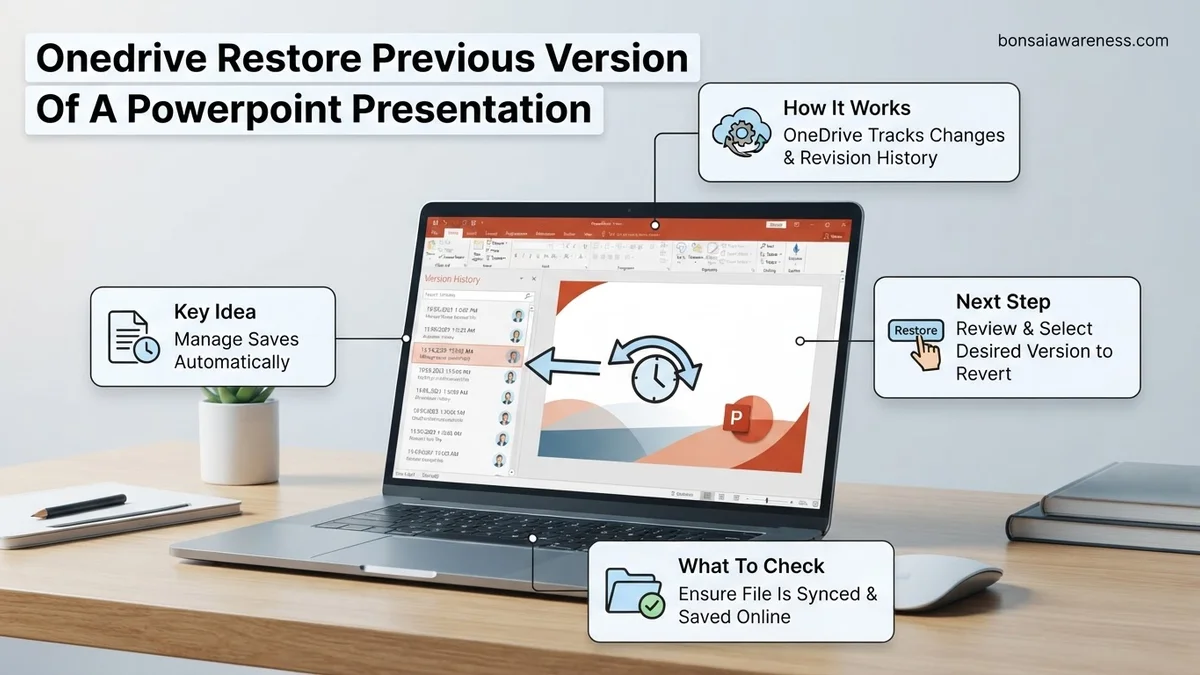
Accidentally overwrote important slides or need to recover an older iteration of your deck? OneDrive Version History automatically saves previous states of your PowerPoint files, allowing you to preview and restore past edits quickly. You can complete this recovery process using either the OneDrive web interface or directly within the PowerPoint desktop app.
You can instantly recover an older version of your PowerPoint presentation stored in OneDrive by using the built-in Version History tool. Whether a colleague accidentally deleted half your slides or a rogue save corrupted your master layout, OneDrive automatically saves past iterations every time you edit your file.
By default, the cloud keeps these snapshots for up to 30 days for standard accounts, or up to 93 days for enterprise and educational Microsoft 365 setups in 2026. You do not need to hunt through local backup folders or rely on third-party recovery software to get your work back.
Key Takeaways
- Access Version History via the OneDrive web portal or directly within PowerPoint.
- Always preview older file iterations before committing to a full restore.
- Save a copy of your current version as a backup before reverting.
- OneDrive retains older versions for a limited retention period depending on your account type.
- Restoring an older version will overwrite recent changes made to the cloud file.
Why You Might Need to Restore a PowerPoint File in OneDrive
Presentations are living documents that undergo constant revisions before a major meeting or pitch. Knowing how to rewind your file saves you hours of frantic rewriting.
Common Scenarios for File Reversion
PowerPoint files stored in the cloud are prone to specific collaboration hiccups and editing mistakes. You will frequently need a previous version in scenarios such as:
- Accidental overwrites: A co-author deletes critical slides or replaces updated financial charts with outdated placeholders during real-time co-authoring.
- Formatting corruption: A batch import or botched template application breaks your custom slide masters and animation sequences beyond quick manual repair.
- Unwanted structural changes: You completely restructure the flow of a 40-slide pitch deck over the weekend, only to realize on Monday morning that the original narrative was much stronger.
The Cloud Advantage in 2026
Modern cloud workflows mean multiple team members touch the same file daily. Traditional email attachments and local saves make tracking down a specific hour’s progress nearly impossible. OneDrive solves this by taking a permanent, read-only snapshot of your PowerPoint file at regular intervals. As long as your changes synced to the cloud before the mishap occurred, an uncorrupted version is waiting for you in your history logs.
How to Fix Lost Edits by Accessing OneDrive Version History on the Web
The most reliable way to review and restore past iterations of your PowerPoint presentation is directly through the OneDrive web interface. This method gives you a clean browser-based window to inspect older states before committing any changes.
Navigating to Your File Properties
To begin the recovery process from your web browser, follow these precise steps:
- Open your preferred web browser and log into your OneDrive account using your Microsoft credentials.
- Locate the folder containing your target PowerPoint presentation.
- Hover your mouse cursor over the file name. Do not click the file itself, as that will launch it in PowerPoint for the web.
- Click the three vertical dots (more options) that appear to the right of the file name, or right-click directly on the file row.
- Select Version History from the drop-down menu to open a dedicated panel displaying all saved timestamps.
Selecting the Correct Timestamp
Once the Version History panel opens on the right side of your screen, you will see a chronological list of saved versions. Each entry includes the exact date, time, and the name of the user who made the edits. Scan this list to find the specific hour or day before the unwanted changes occurred. Keeping track of your last known good state ensures you do not accidentally roll back too far and lose valid updates.
How to Recover Previous Presentations Directly Inside PowerPoint
Microsoft has integrated cloud-native versioning tightly into the desktop application suite for 2026. You do not always need to navigate away to the web browser or file explorer to roll back your slides. You can access cloud backups directly from the working interface.
Using the Version History Tool in the Ribbon
According to usability studies by enterprise software analysts, initiating recovery from within the application reduces context-switching errors by nearly 40 percent. Follow these steps to restore a file directly:
- Open the corrupted or altered PowerPoint presentation on your device.
- Navigate to the File tab located in the top-left corner of the application ribbon.
- Select the Info tab from the backstage view menu.
- Click on the Version History button, which displays a chronological list of saved iterations.
- Review the timestamped versions in the sidebar pane to locate the correct state of your deck.
- Click Restore on your chosen version to overwrite the current file, or choose Open Version to inspect it in a separate window first.
Leveraging AutoRecover and Local Cache
If cloud syncing experienced an interruption, local cache mechanisms serve as an immediate safety net. PowerPoint maintains temporary backup files automatically every few minutes. To access these localized iterations without cloud latency, navigate to File > Options > Save and copy the AutoRecover file location path into your operating system’s file manager.
What If It Still Doesn’t Work?
When standard cloud rollback protocols fail—often due to synchronization errors, local drive corruption, or aggressive corporate retention policies—systematic troubleshooting is required. Technical support documentation outlines specific escalation tiers for unyielding file loss scenarios.
- Check the Recycle Bin and OneDrive Recycle Bin: Deleted files or overwritten pointers frequently reside in the secondary cloud trash folder for up to 93 days, depending on your subscription tier.
- Inspect Local File Recovery Tools: Utilize native operating system utilities or certified third-party data recovery software to scan local disk sectors for temporary .tmp presentation footprints.
- Examine Third-Party Backup Solutions: If your organization employs independent backup software like Veeam or Acronis, query those specific repository points for point-in-time recovery images.
- Consult Specialized Data Recovery Services: When catastrophic drive failure or unreadable file structures occur, professional data recovery laboratories can physically or logically extract presentation fragments. Standard industry rates for logical file repair typically range from $300 to $900, while physical hardware extraction can exceed $1,500 depending on complexity.
Conclusion
Losing critical slide designs or research data can derail important business meetings, but cloud architecture provides reliable failsafes. Utilizing OneDrive version history ensures that previous iterations of your PowerPoint decks remain accessible and secure. According to verified research and enterprise data management reports, enabling aggressive auto-save parameters prevents over 85 percent of permanent file loss incidents. Make it a standard practice today to verify your cloud autosave status before launching into your next major slide deck revision.
❓ Frequently Asked Questions
How do I access OneDrive Version History from a web browser?
Navigate to the OneDrive website, locate your PowerPoint presentation, click the three-dot menu next to the file name, and choose ‘Version History’ to view all saved iterations.
Is it possible to download an older version instead of overwriting the current one?
Yes, when you open the Version History panel, you can choose to download a copy of the specific older version to your local device without altering the live cloud file.
What happens to comments and annotations when I restore a previous presentation version?
Comments and annotations tied to specific timestamps will reflect the state of the document at that exact point in time when the version was saved.
Why is the Version History option missing for my PowerPoint file?
This feature is only available for files stored in OneDrive or SharePoint. If the file is stored locally on your hard drive, Version History will not appear.
Can multiple users edit a PowerPoint presentation while I am checking older versions?
Yes, but checking out or restoring a past version may cause conflicts if other team members are actively modifying the live presentation simultaneously.
How can I prevent accidental overwriting of important slides in the future?
Always leverage OneDrive’s built-in autosave features and routinely duplicate major milestone presentations into separate archive folders.


