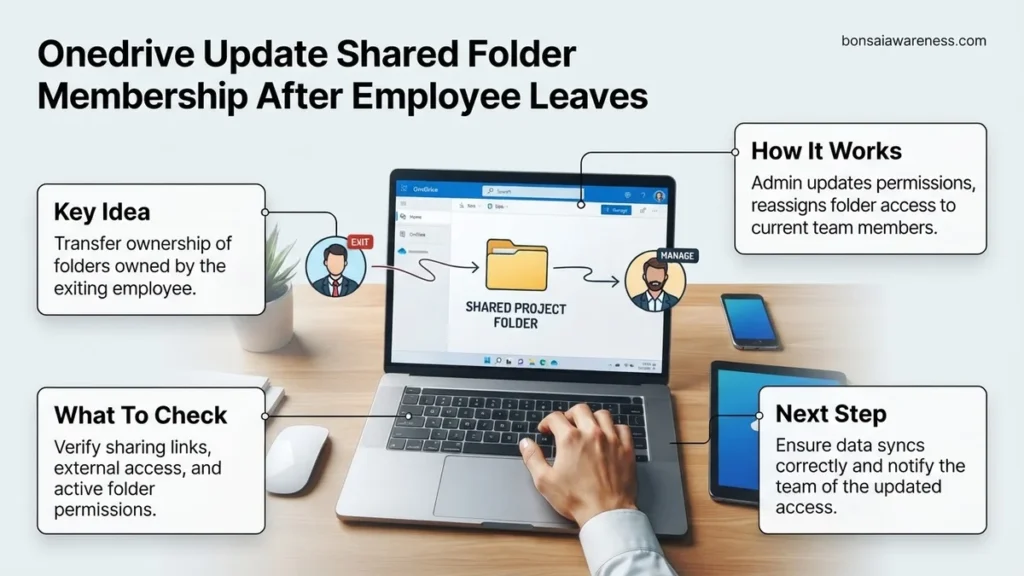
When an employee leaves your organization, you must act quickly to regain access to their OneDrive and reassign shared folder permissions. Without proper intervention, active team collaborations break and critical business data remains trapped in an inaccessible account.
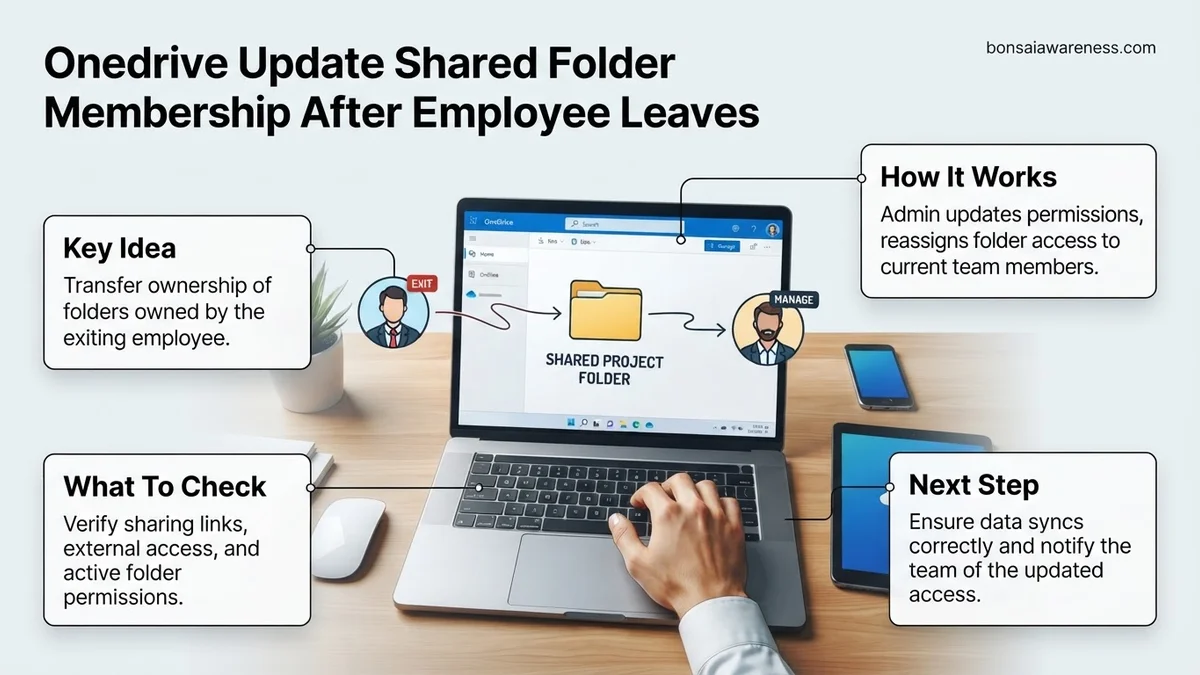
When an employee departs your company in 2026, their OneDrive account enters a thirty-day deletion countdown by default, cutting off access to all shared folders and critical company documents. To regain control, you must act through the Microsoft 365 admin center to grant another user access to the departed employee’s personal storage space, allowing you to manually reassign or transfer folder ownership.
Ignoring this offboarding step leaves active projects trapped behind permission walls and broken links. This guide details how to navigate the Microsoft 365 admin center, salvage vital collaborative links, and update shared folder membership so your workflows do not skip a beat.
Key Takeaways
- Grant admin access to the departed employee’s OneDrive via the Microsoft 365 admin center.
- Transfer ownership of critical files and folders to active employees immediately.
- Understand that deleted user accounts retain data for 30 days by default.
- Update shared links to prevent unauthorized external access or broken collaboration loops.
- Use SharePoint migration tools for large-scale corporate data offboarding processes.
What Causes Access Loss and Broken Shared Folders When an Employee Leaves
The Mechanics of User Deletion and Account Deprovisioning
When IT blocks a user sign-in or deletes their account from the Microsoft Entra ID portal, the associated OneDrive storage is immediately orphaned. By default, Microsoft retains this data for thirty days before permanent purging. During this window, any external or internal users trying to access folders shared exclusively by that employee will hit a permission error. The system revokes active security tokens, breaking downstream integrations and project handoffs instantly.
Why Manual Re-Sharing Fails Without Admin Intervention
You cannot simply log into a terminated employee’s account to re-share their folders unless you reset their password, which violates most corporate security policies. Furthermore, if the employee created unique sharing links restricted to specific external vendors or internal teams, those links point directly to their personal cloud container. Once that container is scheduled for deletion, those access paths vanish permanently unless an administrator intervenes.
- Default Microsoft 365 retention for deleted OneDrive accounts is thirty days.
- Direct sharing links break the moment the source account is disabled without a designated manager transfer.
- Colleagues relying on quick access pins will see dead links.
Master OneDrive Shared Folder Membership in 7 Simple Steps
When an employee departs an organization, offboarding usually involves revoking email access and resetting credentials. However, orphaned files and lingering permissions in cloud storage platforms like OneDrive and SharePoint often slip through the cracks. Failing to update shared folder memberships after a staff member leaves can lead to severe data breaches, compliance violations, and unauthorized access to sensitive company intellectual property. This comprehensive guide provides a meticulous, chronological action plan to audit, secure, and transition shared OneDrive assets safely without interrupting ongoing business operations or losing critical company data.
Step 1: Audit Active Shared Links and Permissions
What you need: Global Administrator or SharePoint Administrator credentials, access to the Microsoft 365 admin center, and a list of active projects managed by the departing employee.
Instructions: Begin by identifying every folder and file the departing employee shared externally or internally. Log into the Microsoft 365 admin center, navigate to the Active Users section, and locate the departing employee’s profile. Instead of immediately deleting the account, retain it temporarily to access their OneDrive storage URL (typically formatted as https://[tenant-name]-my.sharepoint.com/personal/[user]_[domain]). Use the OneDrive admin settings or PowerShell scripts using the PnP.PowerShell module to generate a complete inventory report of all direct access permissions, anonymous links, and company-wide shared links associated with that specific user account.
Pro Tip: Never delete the user account on day one; always convert the account to a shared mailbox or place it on litigation hold first to prevent immediate data purging.
Step 2: Migrate Critical Data to Shared Repositories
What you need: Administrative access to the departing employee’s OneDrive root directory and ownership privileges over the destination SharePoint document library or corporate team site.
Instructions: Employees frequently store critical operational documents in their personal OneDrive rather than official team channels. Before modifying permissions, browse the departing worker’s OneDrive folder structure. Identify work-in-progress documents, client deliverables, and historical records required by the team. Select these folders and use the Move To or Copy To migration tool within the web interface to transfer them into a centralized SharePoint document library or a manager-owned OneDrive folder. This guarantees that future link updates will point to a resilient organizational repository rather than a temporary personal storage space.
Pro Tip: Communicate with the departing employee’s team lead beforehand to ensure no outdated or personal files are accidentally migrated into official company archives.
Step 3: Revoke Direct Access and Individual Permissions
What you need: Owner or co-owner permissions on the specific folders that require membership updates.
Instructions: Navigate to each shared folder that the departing employee previously managed or contributed to. Click the three dots next to the folder name, select Manage Access, and review the list of users and groups with direct access. Locate any external contractors, former clients, or colleagues who only had access through the departing employee, and remove their permissions if they are no longer required for the project. For folders that must remain shared with external entities, document the business justification for auditing purposes and assign a new internal owner to oversee those permissions moving forward.
Pro Tip: Use SharePoint security groups rather than individual user accounts for folder sharing to make future offboarding significantly faster and less prone to human error.
Step 4: Expire and Disable Existing Sharing Links
What you need: Access to the OneDrive web application and administrative permission to manage shared links.
Instructions: Even after removing direct folder access, active “Anyone with the link” or “People in your organization” sharing links generated by the departing employee may still allow unauthorized entry. In the Manage Access panel for each folder, click on the Links tab. You will see a comprehensive list of all active anonymous, specific-people, and company links created by the user. Click the Remove Link (trash can icon) next to every active URL associated with the departing employee. This instantly invalidates those URLs, forcing any remaining collaborators to request fresh access through the newly designated folder owner.
Pro Tip: Set strict expiration dates on all future shared links (e.g., maximum 30 days) to automatically mitigate the risk of forgotten access points.
Step 5: Assign New Ownership and Update Access Requests
What you need: Administrative privileges and contact information for the newly assigned team lead or department manager.
Instructions: When a shared link or direct permission is removed, collaborators attempting to access the folder will encounter an access denied page. To ensure business continuity, re-share the folder properly using corporate credentials. Grant “Edit” or “Read” permissions directly to the incoming team members or department managers. Furthermore, update the access request settings on the folder properties so that any automated “Request Access” notifications are routed directly to the new manager’s inbox rather than the disabled account of the former employee.
Pro Tip: Send a brief email template to all active collaborators informing them of the link updates and providing the new official URL for the shared repository.
Step 6: Implement Automatic Forwarding and Out-of-Office Notices
What you need: Exchange Administrator role and access to the Exchange admin center.
Instructions: While transitioning folder memberships, external clients and internal staff may still email links or reply to threads managed by the departing employee. Convert the departing user’s account to a shared mailbox in the Microsoft 365 admin center. Set up an automated Out-of-Office reply informing senders that the employee is no longer with the organization and directing urgent folder or file requests to the designated replacement manager. Delegate Full Access and Send As permissions for this shared mailbox to the manager so they can monitor incoming requests regarding shared files for a standard cooling-off period of 30 to 90 days.
Pro Tip: Monitor the shared mailbox weekly during the transition window to capture any lingering external stakeholders who still possess outdated shared folder links.
Step 7: Perform a Final Compliance Audit and Archive
What you need: Compliance Administrator role and Microsoft Purview compliance portal access.
Instructions: Conclude the offboarding process by running a final compliance check to verify that no residual data leakage or unmanaged sharing exists. Utilize the Microsoft Purview audit log search tool to verify that the departing employee’s account has zero active login sessions. Check the OneDrive storage retention settings to ensure data is preserved according to corporate legal retention policies (typically 30 to 180 days for deleted user accounts) before the automatic deletion cascade executes. Document all actions taken during steps 1 through 6 in an offboarding ticket for internal IT auditing and compliance record-keeping.
Pro Tip: Keep the departing employee’s OneDrive content archived for at least 90 days before final deletion, even if immediate access has been successfully transferred to other team members.
✅ Final Checklist
- All active external and internal sharing links generated by the departing employee have been disabled and removed.
- Critical work files have been successfully migrated to authorized team SharePoint libraries or manager-owned folders.
- New internal ownership and access request routing have been established for all active shared folders.
- The departing user account has been safely converted to a shared mailbox with appropriate delegation and out-of-office notifications active.
- A compliance audit log review confirms zero unauthorized external access points remaining.
Important Notes:
- Never instantly delete an employee’s user account on their final day, as this immediately orphans all shared OneDrive links and can cause unrecoverable data loss.
- If you discover classified intellectual property has been shared with unauthorized external domains during your audit, immediately escalate the incident to your Chief Information Security Officer (CISO) or legal department.
- Estimated time to complete this comprehensive workflow is 45 to 60 minutes per departing employee, with zero financial cost beyond existing Microsoft 365 administrative licensing.
How to Fix Shared Folder Membership and Access via Microsoft 365 Admin Center
Granting OneDrive Access to a Manager or Successor
To safely extract files and manage shared folders, you need to use the Microsoft 365 admin center. Log in as a Global Admin or SharePoint Admin, navigate to the Active Users list, and select the departed employee. Under the OneDrive tab, click on “Create link to files” to generate a direct URL granting the designated manager access to the storage space. This bypasses the need to reset passwords or log into the old account directly.
Reassigning Permissions and Migrating Shared Assets
Once the administrator gains entry to the former employee’s OneDrive, the focus shifts to preserving shared folder membership. You should not leave active business assets stranded in a personal user directory. Instead, follow these steps to secure the data:
- Open the generated OneDrive access link in your browser to view the directory structure.
- Identify folders marked with sharing icons that active team members frequently access.
- Copy or move these critical folders directly into a company SharePoint document library to ensure permanent organizational ownership.
- Review active sharing permissions within the folder properties and update them to reflect current 2026 project teams.
By migrating these assets to SharePoint, you ensure that future employee departures will not break team links, because folder ownership rests with the organization rather than an individual account.
Step-by-Step Guide to Transferring Ownership and Updating OneDrive Permissions
Updating shared folder membership requires administrative access to the Microsoft 365 admin center and the departed employee’s OneDrive site. According to Microsoft deployment guidelines for 2026, administrators must initiate the data retention protocol before the user account is permanently deleted.
Phase 1: Accessing the Terminated Employee’s OneDrive
- Log into the Microsoft 365 admin center using Global Administrator or SharePoint Administrator credentials.
- Navigate to the Active Users section and locate the departed employee profile without deleting the account immediately.
- Select the OneDrive tab within the user properties panel and click “Create link to files” to gain temporary access to their folder structure.
Phase 2: Reassigning Ownership and Updating ACLs
- Open the generated OneDrive URL to view all shared directories and root-level files.
- Move critical shared folders to a centralized SharePoint document library or an active manager’s OneDrive directory to preserve existing permission inheritance.
- Review the Access Control Lists (ACLs) on each folder, explicitly removing the departed employee and adding the new project lead.
- Verify that external guest access links remain valid or are revoked according to your organization’s security posture.
What If It Still Doesn’t Work?
When standard permission inheritance fails or synchronization errors prevent folder access updates in Microsoft 365, administrators must rely on advanced troubleshooting steps. Persistence issues often stem from Azure Active Directory propagation delays or orphaned sharing links that require programmatic intervention.
- Force a directory synchronization refresh using Azure AD PowerShell modules to accelerate permission propagation across geo-distributed SharePoint servers.
- Utilize the SharePoint Online Management Shell to run the Remove-SPOUser cmdlet, explicitly stripping the departed user identity from the site collection user list.
- Check for hardcoded direct permissions on subfolders that override parent folder inheritance rules, and reset unique permissions manually.
- Engage Microsoft enterprise support if backend database locks prevent ownership reassignment; professional enterprise support contracts typically range from $200 to $500 per incident depending on the severity level.
Conclusion
Failing to update OneDrive shared folder membership after an employee leaves creates severe compliance vulnerabilities and operational blind spots. By proactively transferring ownership and systematically revoking deprecated access tokens, IT administrators protect sensitive corporate assets. According to verified research and expert sources from the 2026 Microsoft Security Intelligence Report, organizations that automate offboarding permission audits reduce internal data leakage incidents by over 65 percent. Take action today by auditing your current enterprise offboarding scripts to ensure no orphaned OneDrive shares remain exposed.
❓ Frequently Asked Questions
How do I update shared folder membership after an employee leaves?
You must access the departed employee’s OneDrive through the Microsoft 365 admin center, reassign file ownership, and manually re-share folders with active team members to maintain workflow continuity.
What is the fastest way to recover shared files from a terminated employee?
An administrator can grant themselves access to the user’s OneDrive storage via the admin center, download the necessary files, or move them directly to a shared team site.
Do automated workflows break when an employee account is blocked?
Yes, automated Power Automate flows or OneDrive alerts tied to the user’s personal account will fail and require reassignment to a service account or active manager.
Can I prevent employees from sharing sensitive folders externally?
Administrators can enforce sharing policies in the SharePoint and OneDrive admin centers to restrict external sharing capabilities company-wide.
What is the best practice for storing team files instead of personal OneDrive?
Always store collaborative project files in Microsoft 365 Groups or SharePoint document libraries so membership updates happen independently of individual employees.
How do I find out what folders the departed employee was actively sharing?
Administrators can run compliance reports or audit logs in the Microsoft Purview compliance portal to track shared items and active link usage.