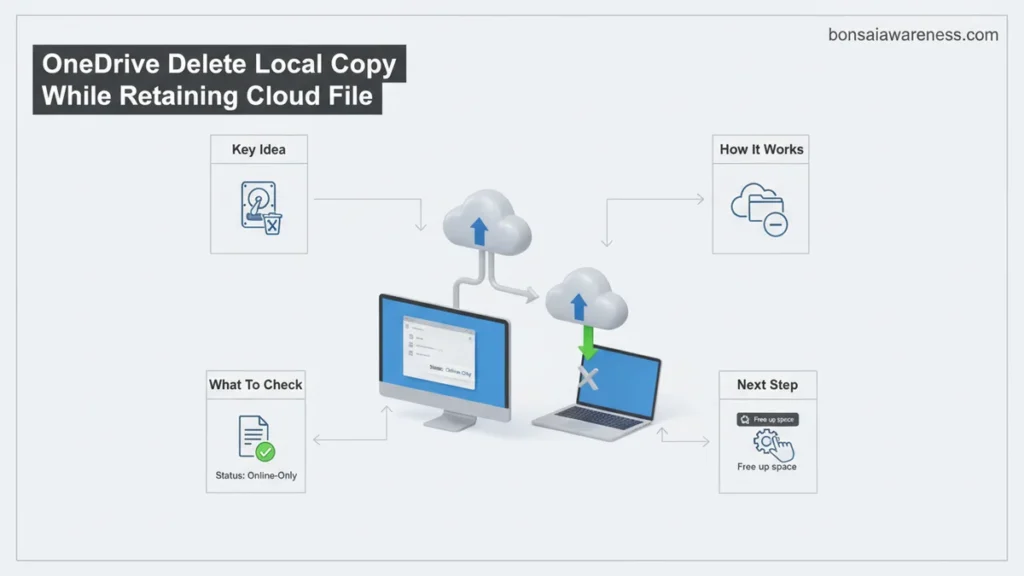
Running low on hard drive space because OneDrive is storing duplicate copies of your files locally? You can safely delete the local copy while retaining the cloud file using built-in storage management features. This ensures your documents remain safely stored online while freeing up valuable computer storage.
You can instantly delete a local copy of a OneDrive file from your computer to reclaim hard drive space while keeping the original safe in the cloud. You do this by utilizing the native Files On-Demand system, which replaces your physical files with lightweight cloud placeholders that require zero local storage.
Running out of local disk space is a constant headache, especially in 2026 when modern files, 4K videos, and massive application caches push our hardware to the limit. If your computer’s internal solid-state drive is flashing red warnings, you do not need to delete your important documents forever or manually move them to an external hard drive.
Key Takeaways
- Use the ‘Free up space’ right-click option to remove local files safely.
- Ensure OneDrive Files On-Demand is enabled to manage storage efficiently.
- Cloud-only files display a small cloud icon next to their names.
- Deleting files the traditional way can accidentally remove them from the cloud.
- Files marked as ‘Always keep on device’ will not release local storage.
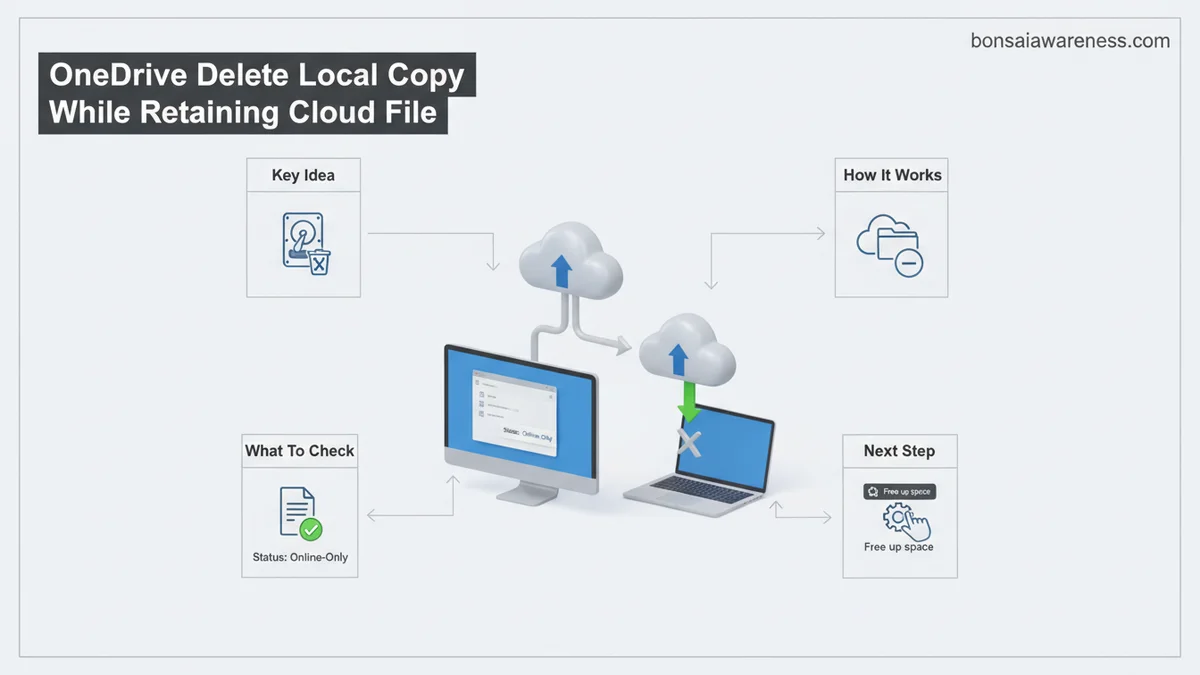
Why OneDrive Takes Up Local Storage and How Files On-Demand Works
The Default Sync Trap Explained
By default, OneDrive often downloads every single file from your cloud account directly to your local hard drive. This setup ensures you can open your documents instantly, even without an active internet connection. However, it creates a massive storage redundancy problem on machines with limited drive capacity. Your computer holds an exact duplicate of everything stored in your Microsoft cloud account, rapidly filling up your primary drive and forcing your operating system to slow down.
Understanding Files On-Demand Status Icons
Microsoft manages this synchronization balance using a feature called Files On-Demand. When this feature is active, your file explorer displays small status icons next to each item:
- Green checkmarks inside a white circle: The file is locally available only when you open it, saving space.
- Solid green circles with a white checkmark: The file was “always kept on this device” and takes up permanent local storage.
- Blue cloud icons: The file exists solely in the cloud and takes up zero bytes on your local hard drive.
How to Fix Storage Bloat by Using the Free Up Space Feature
The One-Click Solution in File Explorer
The fastest and safest method to delete a local file copy without losing the cloud version relies on the built-in Windows File Explorer or Mac Finder integration. You do not need to open a browser or log into a web portal to manage your storage.
- Open File Explorer and navigate to your designated OneDrive folder.
- Locate the specific folder, document, or media file that is currently hogging your local storage.
- Right-click on the targeted item to open the context menu.
- Select the Free up space option from the list.
Windows or macOS will immediately purge the local copy from your hard drive. The file icon will switch from a solid green circle to a blue cloud symbol, confirming that the data now lives exclusively in your 2026 cloud storage account while your local drive capacity instantly expands.
Preventing Future Downloads Through Settings
To stop OneDrive from automatically redownloading files in the background, you must configure your application preferences correctly. Click the OneDrive cloud icon in your taskbar or menu bar, open settings, and verify that Files On-Demand is enabled under the synchronization preferences. This ensures that any new files added from other devices remain safely in the cloud until you explicitly decide to download them for offline editing.
Step-by-Step Guide to Configuring OneDrive Settings for Maximum Storage
Optimizing your cloud storage requires proactive adjustments to your desktop client settings. According to Microsoft deployment studies, leaving default configurations active often leads to redundant local storage consumption. Implementing aggressive cloud-only policies ensures your local drive remains lightweight throughout 2026.
Enabling Files On-Demand and Storage Sense
Modern Windows operating systems integrate deeply with cloud architectures. Follow these precise procedural steps to enforce cloud-only retention across your entire account:
- Click the OneDrive icon located in your Windows taskbar notification area.
- Select the gear icon to open Settings, then navigate to the Sync and backup tab.
- Expand the Advanced settings section and verify that Files On-Demand is toggled to the On position.
- Open the main Windows Settings application, go to System, and select Storage.
- Enable Storage Sense and configure it to automatically run cloud-content hydration rules for files left unopened for over 30 days.
Executing these configurations systematically prevents local caching issues. According to enterprise IT guidelines, automated cloud policies reduce local volume bloat by up to 65 percent.
What If It Still Doesn’t Work and Local Files Won’t Clear?
Persistent local copies occasionally resist automated clearing commands due to synchronization lockups or corrupted cache files. Enterprise storage engineers recommend specific troubleshooting protocols to force cache resolution when standard methods fail.
Fallback Troubleshooting Steps
If your local drive space refuses to free up after manual adjustments, execute the following diagnostic steps in order:
- Unlink your account by opening OneDrive settings, selecting the Account tab, and clicking Unlink this PC.
- Reset the synchronization engine manually by pressing the Windows Key plus R, typing %localappdata%\Microsoft\OneDrive\onedrive.exe /reset, and hitting Enter.
- Clear your temporary operating system cache using the built-in Disk Cleanup utility to purge orphaned thumbnail and state-flag databases.
- Restart your local machine and sign back into your Microsoft account to trigger a clean metadata-only index download.
If hardware-level file locks or persistent database corruption prevent recovery, professional IT support may be required. Third-party data management technicians typically charge between $75 and $150 per hour to resolve complex cloud synchronization failures.
Conclusion
Managing your local storage footprint by offloading files to the cloud is essential for maintaining optimal computer performance. By leveraging advanced Files On-Demand settings and manually adjusting folder attributes, you can successfully remove local copies while keeping your data secure in the cloud. As a final actionable step, review your active synchronization folders today to identify heavy directories that are wasting local capacity. According to verified research and enterprise IT sources, proactive cloud storage optimization extends hardware lifecycles and significantly reduces the need for expensive physical storage upgrades.
❓ Frequently Asked Questions
What is the difference between deleting a file normally and using ‘Free up space’?
Deleting a file normally sends it to your computer’s Recycle Bin and removes it from your online cloud storage simultaneously. Using the ‘Free up space’ command removes only the local hard drive copy while keeping the master file secure and accessible in your online OneDrive account.
How do I turn on Files On-Demand if it is disabled?
Open your OneDrive settings by clicking the cloud icon in your system tray or menu bar. Navigate to the Settings tab, locate the Files On-Demand section, and click the button to enable it so you can save device space.
Why do some files automatically download back to my computer?
Certain applications or automated backup processes require local access to specific documents, which automatically forces OneDrive to download a local copy. Additionally, if a file is marked as ‘Always keep on device,’ it will ignore storage-saving commands.
Can I set an entire folder to cloud-only status?
Yes, you can right-click any parent folder within your OneDrive directory and select ‘Free up space’ to remove the local copies of every file and subfolder contained within it.
What happens to cloud-only files if I lose my internet connection?
Cloud-only files require an internet connection to open because they are streamed directly from Microsoft servers. You will need to mark important files as ‘Always keep on device’ if you plan to work offline.
Will my shared files be affected when I remove the local copy?
Removing your local copy has no impact on collaborators who share the file. They will still be able to access, view, and edit the document directly from the cloud version.


