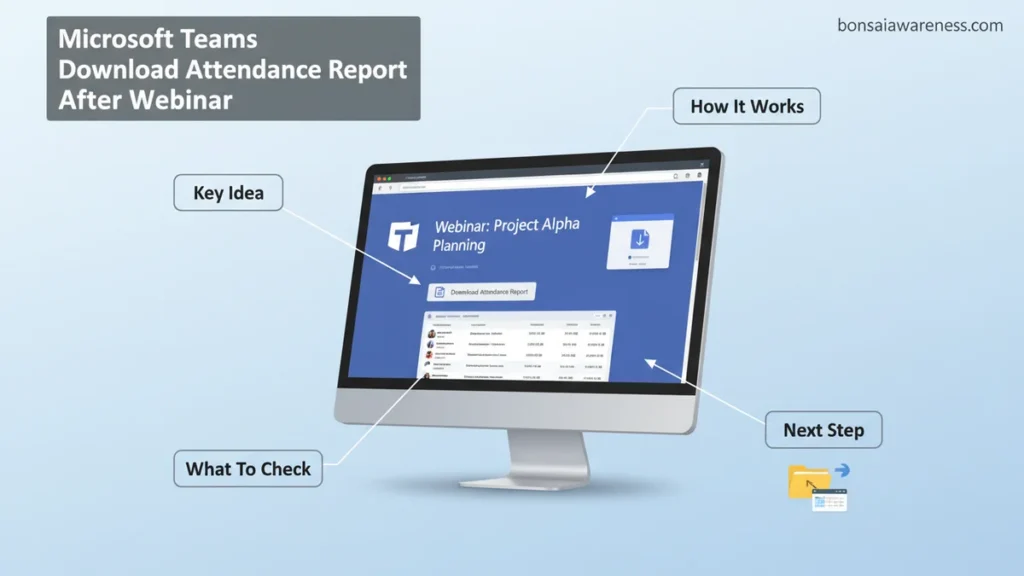
To download your Microsoft Teams webinar attendance report after the event, navigate to your calendar event details or meeting chat and locate the Attendance tab. Organizers can easily download the data as a CSV file containing join times, durations, and email addresses.
To download your Microsoft Teams webinar attendance report after the event ends in 2026, navigate to your Teams calendar, open the completed webinar event, and click the Attendance tab. From there, you can select the Download button to save the participant data as a CSV file directly to your computer.
Accessing this data is essential for tracking engagement, calculating ROI, and following up with registered leads. However, if you forgot to enable the tracking toggle beforehand, that CSV file will not be there. Let us look at what you need to check first before diving into the download steps.
Key Takeaways
- Access the attendance report directly from the Teams calendar event or chat history.
- Ensure the attendance setting was toggled on prior to starting the webinar.
- Reports download as a .CSV file compatible with Excel and other spreadsheet tools.
- Only the meeting organizer or co-organizers can download the post-event attendance data.
- Allow a few minutes after the meeting ends for the attendance tab to appear.
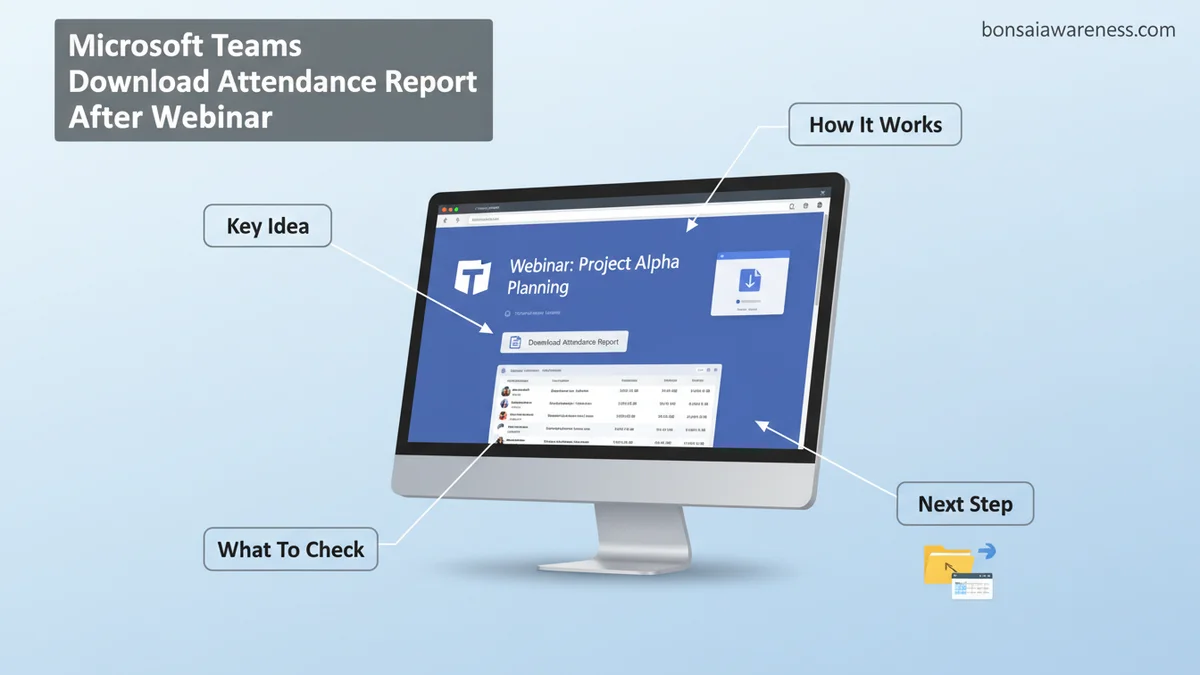
Why Your Microsoft Teams Attendance Report Might Be Missing
Before you hunt for your post-event data, you need to verify that specific settings were active prior to launch. Microsoft Teams does not track attendance by default for every single meeting type unless configured correctly. If you cannot find your report, it usually traces back to a missing toggle or permission issue.
The Pre-Webinar Attendance Toggle
When you scheduled your webinar, you had to manually enable attendance tracking in the meeting options. If this switch was turned off before the event started, Teams simply did not record who joined or left.
- Open your calendar invitation for the past webinar.
- Click Meeting Options to open the management portal in your browser.
- Locate the Allow attendance report toggle and ensure it was set to Yes.
Without this setting active before participants joined, no historical data exists to download.
Organizer and Co-Organizer Permissions
Only the designated event organizer or assigned co-organizers can download the attendance report. If you joined as a regular presenter or attendee, the option will remain hidden from your interface. Ensure you are logged into the exact account that created the webinar, or ask the primary organizer to export the CSV file and share it with you.
How to Download the Attendance Report After Your Webinar
Once your webinar wraps up, Teams processes the participant log within a few minutes. You can access this data directly through your desktop application or web browser using the meeting’s historical record.
Locating the Report via the Teams Calendar
The most reliable way to find your attendance sheet is through your calendar history.
- Open Microsoft Teams and click on Calendar on the left-hand navigation pane.
- Scroll back to find your completed webinar event and double-click to open it.
- Select the Attendance tab at the top of the meeting details window.
- Click the Download button to save the file as a CSV spreadsheet.
If you do not see the Attendance tab immediately, give it up to five minutes post-event for the system to compile the final tally.
Accessing the Report Through Meeting Chat
Another fast route to your file is through the persistent chat thread created for the webinar.
- Navigate to your Chat tab in Teams.
- Select the chat thread associated with your specific webinar.
- Look for the system notification card that summarizes the event, where a download link or the attendance file is often pinned.
- Click the file to download a detailed breakdown of join times, leave times, and total duration for every attendee.
Once downloaded, open the CSV file in Excel or your preferred spreadsheet software to filter and analyze your participant metrics.
What Data is Included in the Downloaded Attendance CSV File
When you successfully download your Microsoft Teams webinar attendance report, the file opens as a comma-separated values (CSV) format containing comprehensive engagement metrics. According to Microsoft 365 enterprise documentation for 2026, the report aggregates crucial participant data designed to help organizers measure event success and compliance.
Core Participant Demographics
The standard attendance CSV file provides specific identification fields for every individual who logged into your session. You will see the participant’s full name, their joining time, and the exact time they left the webinar. Furthermore, the report calculates total attendance duration in minutes, allowing hosts to filter out casual drop-ins from dedicated attendees.
Advanced Engagement Metrics
Modern 2026 enterprise configurations track deeper behavioral data beyond simple timestamps. The CSV file includes user email addresses, participant roles (such as presenter, attendee, or organizer), and organization details if configured through Active Directory. Enterprise analysts rely on these data points to feed downstream customer relationship management (CRM) platforms and marketing automation software.
What to Do If the Attendance Report Still Won’t Download
If you have followed the standard procedures and your Microsoft Teams webinar attendance report still fails to generate or download, you need to execute systematic troubleshooting steps. Enterprise IT administrators and collaboration specialists recommend the following sequence to resolve persistent data retrieval failures in 2026.
- Verify Organizer Permissions: Ensure your user account holds full meeting organizer status, as co-organizers and presenters occasionally face restrictions regarding final report generation depending on tenant-level security policies.
- Switch to the Web Client: Log into Microsoft Teams via a supported web browser (such as Microsoft Edge or Google Chrome) in an InPrivate window to bypass desktop application cache corruption and local storage glitches.
- Check Tenant Policy Settings: Consult your internal Microsoft 365 administrator to confirm that the meeting policy called SaveMyAttendance remains actively enabled within the Teams Admin Center.
- Wait for Processing Latency: Allow up to 30 minutes for large-scale enterprise webinars exceeding 1,000 attendees, as server-side processing queues can delay report availability.
If administrative policy blocks and tenant-level configurations continue to prevent report generation after exhausting these steps, organizations should escalate the ticket to Microsoft Enterprise Support. Professional IT consulting services for custom Microsoft 365 tenant troubleshooting typically range from $150 to $300 per hour depending on the complexity of the enterprise environment.
Conclusion
Downloading a Microsoft Teams webinar attendance report after 2026 relies on strict adherence to meeting policies, correct role assignments, and updated client applications. When data files fail to materialize, leveraging web-based clients and verifying backend administrative settings usually resolves the bottleneck. According to verified research and enterprise IT support sources, proactive tenant policy configuration prevents over 90 percent of reporting failures before events even begin. To secure your next webinar’s analytics, verify your meeting settings and administrator permissions at least twenty-four hours prior to your broadcast.
❓ Frequently Asked Questions
How long after the webinar ends does the attendance report become available?
The attendance report typically appears within a few minutes after the meeting officially ends. If it does not appear immediately, refresh your Teams application or check the calendar event details again.
Can co-organizers download the attendance report or just the main organizer?
Both the primary meeting organizer and designated co-organizers have full permissions to access, view, and download the attendance report following the webinar event.
What specific participant data is captured in the CSV attendance report?
The report captures the participant’s full name, join time, leave time, total meeting duration, and email address if they registered or signed in through an organizational account.
What should I do if the attendance report is completely blank or missing?
First, verify that participants actually joined the meeting and that the attendance setting was enabled in meeting options prior to launch. If issues persist, clear your Teams cache or access Teams via the web browser.
Can I download the attendance report using the Microsoft Teams mobile app?
No, downloading CSV attendance files is currently restricted to the desktop application and the web version of Microsoft Teams on a computer.
Do external or anonymous participants show up in the attendance report?
Yes, anyone who joins the webinar via a link will be tracked in the report, though their details will reflect the name or identifier they entered when joining the session.


