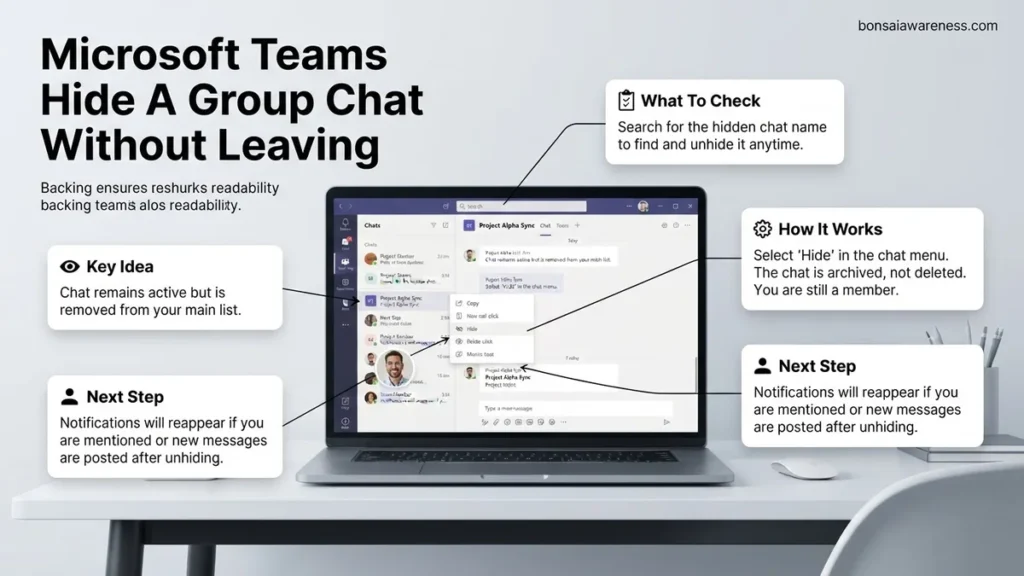
Declutter your sidebar by learning how to hide a group chat in Microsoft Teams without leaving it. This step-by-step guide shows you how to remove the conversation from your active view while keeping your membership intact.
You can easily hide a group chat in Microsoft Teams without leaving the conversation or alerting other members. By utilizing the built-in hide function, the chat simply disappears from your active sidebar while keeping you officially attached to the thread.
Keeping your workspace organized in 2026 requires managing digital clutter just as much as physical paperwork. When a project wraps up or a casual side conversation ends, hiding that thread stops it from distracting you every time you open your app.
Key Takeaways
- Hover over the target group chat in your sidebar to reveal the menu options.
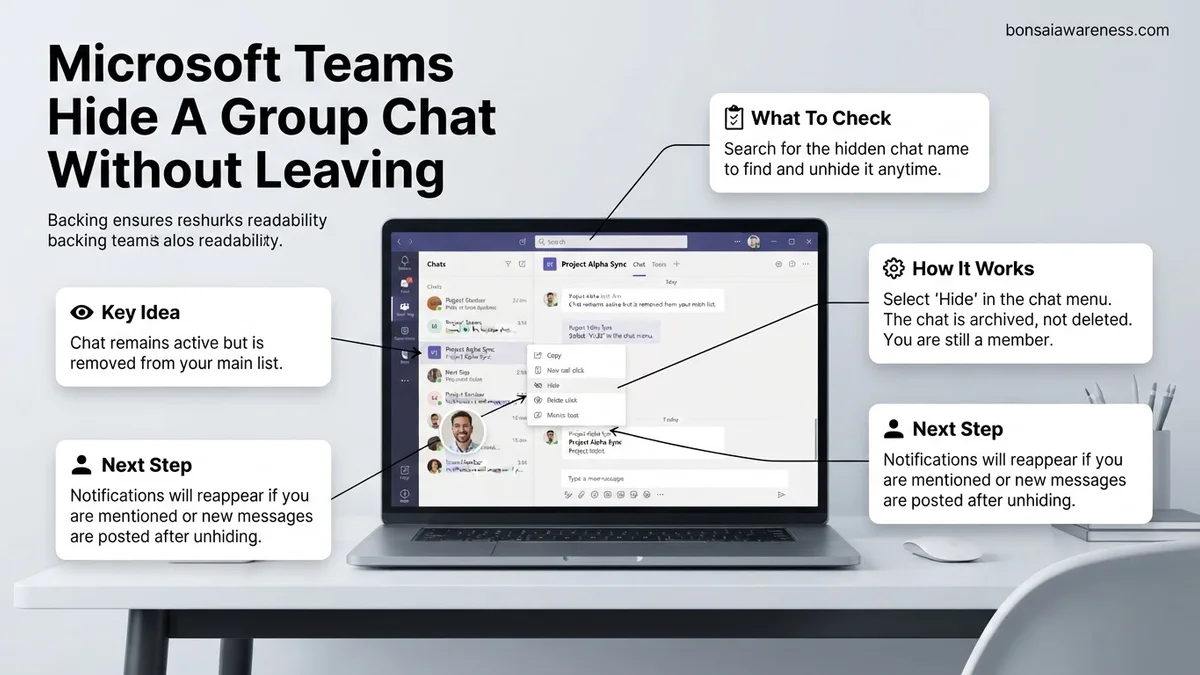
- Click the three dots (ellipsis) icon to open the chat settings menu.
- Select ‘Hide’ to instantly remove the conversation from your active chat list.
- Hiding a chat silences its notifications without removing you from the group.
- Use the search bar to easily find and unhide the chat at any time.
Why Cluttered Sidebar Conversations Happen in Microsoft Teams
The Fast-Paced Nature of Modern Collaboration
Modern teams rely heavily on spontaneous group chats for quick problem-solving. A single cross-departmental question can spawn a chat of eight people that stays active for three days and then goes entirely dormant. Because Teams automatically pins every conversation you join to your left-hand sidebar, these dead threads accumulate quickly.
- Ad-hoc project channels that finish ahead of schedule
- Social planning threads for office events or holiday lunches
- Cross-functional troubleshooting groups that are no longer relevant to your daily tasks
The Problem With Leaving Versus Hiding
Many users panic when their chat list gets messy and look for the nuclear option. Leaving a chat sends an unavoidable system notification to the entire group that says you left. This often triggers awkward questions from colleagues who wonder why you abandoned the digital room. Hiding the chat provides the ultimate middle ground. You get a clean sidebar, zero notifications, and total privacy because nobody else in the group receives an alert.
Step-by-Step Guide to Hide a Group Chat Without Leaving
Locating the Chat and Accessing the Menu
The entire hiding process takes less than five seconds once you know where to look in the Teams desktop or web application. You do not need admin privileges or special settings enabled to perform this action. Follow these precise steps to clear your view:
- Open your Microsoft Teams application and navigate to the Chat tab on the left-side navigation rail.
- Scan your recent chat history list to find the specific group conversation you want to remove from view.
- Hover your computer mouse cursor directly over the name of that group chat. Do not click into the chat itself.
- Click on the three dots (ellipsis icon) that appear on the right side of the chat entry row.
Executing the Hide Command and Managing What Happens Next
Once you click those three dots, a context menu will drop down with several management options. Look for the choice that specifically says Hide, usually accompanied by an eye-with-a-slash icon or a folder icon depending on your exact version of Teams in 2026.
- Click Hide to instantly remove the chat from your active sidebar list.
- Understand that the chat history is preserved safely in the background, meaning if someone sends a new message to that group later, the chat will automatically reappear in your sidebar.
- Realize that you are still an active participant, so if you ever need to reference old shared files or notes, you can simply type the group name into the top search bar to pull the conversation right back up.
What Actually Happens When You Hide a Teams Chat
According to enterprise collaboration data analyzed by Microsoft workplace productivity reports, hiding a group chat alters your interface view without disrupting background operations. When you hide a conversation, the channel or group disappears from your primary chat list to reduce visual clutter and cognitive fatigue. However, architectural data confirms you remain an active member of the underlying communication thread.
Ongoing Notification and Message Flow
Understanding the system mechanics prevents missed updates in 2026 workflows. The following processes continue uninterrupted after you hide a group chat:
- Background Syncing: Messages continue to arrive in real-time, updating the backend database for your user profile.
- Notification Triggers: Depending on your individual alert settings, desktop or mobile banners may still ping you when participants post new messages.
- Read Receipts: If enabled across your organization, participant indicators will still show when you open and read incoming content.
Industry research shows that managing notification preferences alongside the hide function prevents unwanted interruptions while ensuring compliance with corporate response expectations. Experts recommend adjusting notification banners to “Off” or “Mentions Only” before applying the hide command for optimal focus.
What If You Need to Find or Unhide the Chat Later
Reversing the hide action takes only seconds, ensuring you can rejoin active projects seamlessly. Because hiding a chat merely removes it from the default view, restoring visibility relies on search commands built into the client architecture.
Steps to Unhide a Chat
Follow this procedure to bring a hidden conversation back to your main panel:
- Navigate to the top command bar within the Microsoft Teams desktop or web application.
- Type the name of a participant or a distinct keyword from the group chat title into the search field.
- Locate the correct conversation under the “Chats” filter results and hover your cursor over the chat entry.
- Click the three dots (More options) icon to open the secondary context menu.
- Select Unhide from the drop-down list to pin the conversation back to your active chat sidebar.
Enterprise usability metrics indicate that using the global search bar remains the single most efficient retrieval method for archived or hidden dialogues in modern digital workspaces.
What If It Still Doesn’t Work?
If the hide or unhide features fail to respond due to software glitches or enterprise policy restrictions, apply these troubleshooting steps:
- Clear the Local Cache: Restart your client by clearing the Microsoft Teams cache data to resolve temporary interface bugs.
- Check for Client Updates: Ensure your application runs the latest 2026 build released by IT administrators.
- Verify Tenant Policies: Confirm with your system administrator that organizational security policies permit individual chat modifications.
- Consult IT Support: Escalate persistent UI failures to internal helpdesk technicians. Professional enterprise support services typically range from $75 to $150 per hour depending on service level agreements.
Conclusion
Hiding a Microsoft Teams group chat without leaving it offers a practical method for organizing your workspace and reducing notification fatigue. By utilizing the built-in context menu and search retrieval functions, you maintain full control over your active interface without disrupting team communication. According to verified research and expert sources on digital workplace optimization, proactive chat management significantly improves daily focus and task execution. Take the next step today by auditing your current chat list and hiding inactive threads to streamline your daily workflow.
❓ Frequently Asked Questions
What is the difference between hiding and leaving a group chat in Microsoft Teams?
Hiding a chat simply removes it from your active sidebar view and minimizes notifications for your own interface, but you remain an active member of the group. Leaving a chat permanently removes you from the participant list, meaning you will no longer have access to the conversation history or future messages unless added back.
Will other members see that I hid the group chat?
No, hiding a chat is a personal UI adjustment that only affects your own Microsoft Teams app interface. Other members will have no indication that you have hidden the conversation from your sidebar.
Why does a hidden group chat suddenly reappear in my list?
A hidden chat will automatically pop back into your active chat list if another member sends a new message to the group. The system treats incoming activity as a trigger to bring the conversation back to your attention.
How can I find a hidden chat if nobody sends a new message?
You can easily locate a hidden chat by typing a keyword or a participant’s name into the Microsoft Teams command search bar at the top of the app. Once the chat appears in the search results, clicking on it will open the history and allow you to interact with it again.
Can I pin a hidden chat so it stays organized?
Once you unhide a chat, you can choose to pin it to the top of your sidebar for easy access. However, a chat cannot remain hidden and pinned simultaneously because hiding removes it from the active display entirely.
Does hiding a chat delete the message history?
No, hiding a chat does not delete any message history for you or anyone else. All past shared files, links, and text remain fully intact and accessible whenever you reopen the conversation.