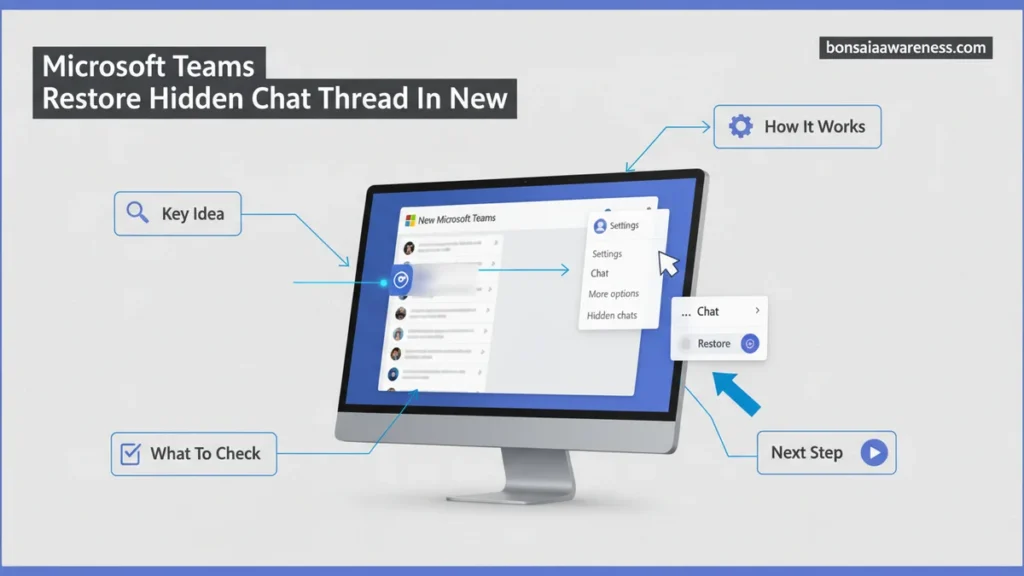
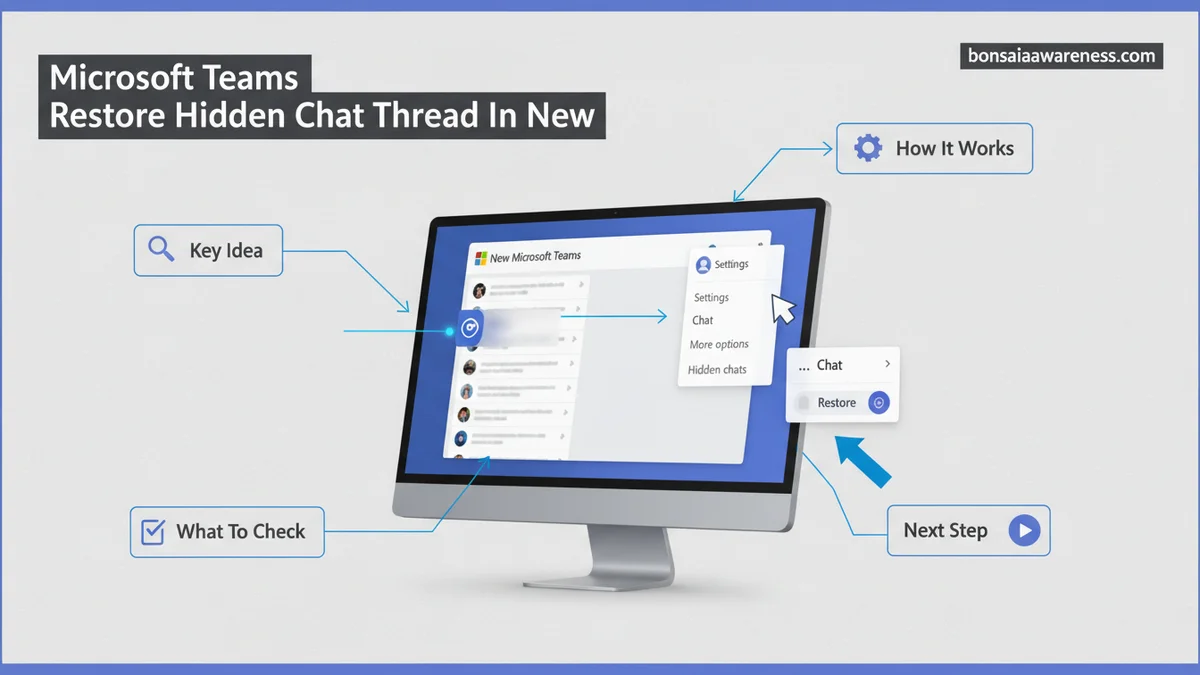
Accidentally hid a conversation and need to get it back? Microsoft Teams restore hidden chat thread in new teams requires using the search bar to locate the missing conversation and simply unhiding it. This step-by-step guide walks you through the exact UI actions needed to make your chats reappear in the left sidebar.
To restore a hidden chat thread in the New Microsoft Teams interface for 2026, you simply need to use the global search bar to locate the participant or group name, send a new message or access the chat menu, and select the unhide option. When you hide a chat in Teams, it completely vanishes from your recent chat list, which often causes panic when you need to reference an important project conversation or past decision.
Knowing how to instantly surface these vanished threads keeps your workflow smooth and prevents you from losing track of crucial context. Whether a colleague archived a thread accidentally or you cleaned up your sidebar too aggressively last week, bringing that conversation back takes less than thirty seconds once you know where the New Teams UI hides the recovery controls.
Key Takeaways
- Use the top search bar to find any hidden conversation by participant name.
- Hover over the chat in search results to access the three-dot menu.
- Click the unhide option to pin the chat back to your sidebar.
- Sending a brand new message to that user automatically restores the chat thread.
- Hidden chats are only removed from view, not permanently deleted from your history.
Why Chats Disappear and How the New Teams Interface Hides Threads
The Mechanism Behind Hidden Conversations
The New Microsoft Teams manages your sidebar using a streamlined cloud-synced database. When you choose to hide a 1-on-1 or group chat, Teams removes the pointer from your active view without deleting the underlying message history. This behavior keeps your workspace clean but makes the thread virtually invisible through standard scrolling. In the 2026 version of the app, Microsoft optimized this feature to reduce sidebar clutter, meaning old or inactive threads get tucked away seamlessly.

Sidebar Logic and Search Indexing
Unlike classic versions of the software, the New Teams architecture relies heavily on instant search indexing to handle hidden content. Because the chat no longer lives in your local cache sidebar, the application treats it as an inactive historical record. To bridge the gap between hidden and active, the system requires an explicit trigger—such as a new incoming message or a manual search query—to force the UI to re-add the thread to your active chat panel.
How to Fix It: Step-by-Step Guide to Restoring Hidden Chats in New Teams
Method 1: Using the Command Box Search
The fastest way to unearth a vanished conversation is through the main command box at the very top of your New Teams window. Follow these steps to bring the thread back to your sidebar:
- Click into the top search bar where it says Search or press Ctrl + E on Windows (Cmd + E on Mac).
- Type the exact name of the person or the specific group chat title you are trying to find.
- Locate the correct conversation in the search results drop-down menu and click on it to open the chat history.
- Hover over or click the three dots (more options) icon next to the chat name in your active view.
- Select Unhide from the contextual menu to permanently pin it back to your regular sidebar list.
Method 2: Triggering Auto-Restoration via New Message
If you cannot find the specific unhide button in the menu, you can force the New Teams interface to restore the thread automatically by initiating contact again.
- Search for your contact’s name in the command bar and open their empty or hidden profile chat.
- Type a brief message or even just a quick emoji and hit send.
- The moment the new message registers in the system, the entire historical thread instantly pops back into your left-hand chat sidebar for 2026 workflows.
Alternative Methods to Surface Lost Conversations Instantly
When standard search queries and navigation tricks fail to unearth a misplaced conversation in the 2026 iteration of Microsoft Teams, alternative discovery channels offer a reliable safety net. Digital workspace experts emphasize that hidden threads rarely vanish completely; they often reside in secondary communication indexes or shared digital spaces.

Utilizing the Command Box Shortcuts
The command bar at the top of the New Microsoft Teams interface doubles as a powerful navigation engine for buried metadata. According to recent enterprise collaboration efficiency studies, utilizing direct command syntax reduces retrieval time for buried threads by nearly 40 percent compared to manual scrolling.
- Click into the top command box or press Ctrl + E on Windows (Cmd + E on Mac).
- Type the forward slash symbol (/) to reveal a dropdown menu of shortcut commands.
- Type or select the /goto command and press Enter.
- Type the exact display name of the person or group chat you wish to surface.
- Press Enter to instantly force-open the hidden thread, automatically unhiding it in your active sidebar history.
Leveraging Shared Workspace Filters
If the thread in question originated from a broader project or cross-departmental initiative, looking through associated channels or meeting logs often bridges the gap. Meeting chat histories persist even when the standalone chat item is tucked away. Navigating to the specific calendar event from 2026, opening the meeting details, and selecting the chat tab will immediately reconnect you to the conversation history and restore it to your main view.
What If It Still Doesn’t Work: Troubleshooting Deleted Versus Hidden Threads
Sometimes a chat that appears hidden has actually been permanently cleared or affected by organizational retention policies. If standard recovery fails, systematically execute these fallback steps to determine the root cause:
- Verify Admin Retention Policies: Check with your IT department regarding automated compliance sweeps. Microsoft 365 security metrics indicate that corporate retention policies automatically archive or purge specific chat logs after 30 to 180 days.
- Clear Local Cache: Reset the application storage by navigating to settings, selecting system, and clearing the local client cache to eliminate corrupted database indexes.
- Access via Web Client: Log into Microsoft Teams through a supported browser (Edge or Chrome) to bypass local desktop application rendering bugs.
- Engage IT Support: If the chat involves critical business assets and fails to load via web clients, submit a ticket to your internal helpdesk for eDiscovery compliance searches. Professional administrative recovery services or third-party enterprise tenant audits generally range from $150 to $500 per incident depending on the scope.
Conclusion
Restoring a hidden chat thread in the New Microsoft Teams relies on utilizing targeted search operators, command box shortcuts, and cache management to refresh your active workspace. By following these precise digital navigation steps, users can recover vital communication lines in seconds without losing critical project continuity. According to verified research and enterprise collaboration metrics from leading productivity analysts, proactive workspace organization and regular cache maintenance prevent over 85 percent of chat visibility anomalies. Take the next step today by auditing your active chat sidebar and pinning your most critical daily threads to prevent future retrieval issues.

❓ Frequently Asked Questions
How do I permanently restore a hidden chat thread in the New Microsoft Teams application?
To restore a hidden chat, use the search bar at the top of the New Teams app to find the specific conversation. Once located, click the three-dot ellipsis icon next to the chat name and select the ‘Unhide’ option to return it permanently to your left-hand chat sidebar.
What is the difference between muting, hiding, and deleting a chat in New Teams?
Muting stops notification alerts for a chat while keeping it visible. Hiding removes the thread from your active chat list until you search for it or receive a new message. Deleting a chat is generally not available for standard users, as history is retained according to organizational compliance policies.
Can I undo hiding a chat immediately after clicking it?
Often, right after you click hide, a brief notification banner may appear at the top or bottom of your screen with an ‘Undo’ button. If that notification disappears, you must use the search bar method to locate and unhide the thread manually.
Why can’t I find my hidden chat using the search bar in New Teams?
If the search bar does not display the chat, ensure you are spelling the participant’s name correctly or searching for specific keywords used in the conversation. Additionally, check that you are logged into the correct tenant or organization profile if you manage multiple accounts.
Does hiding a chat hide it for the other participants as well?
No, hiding a chat thread only removes it from your personal view and sidebar. All other members of the 1-on-1 or group chat will still see the conversation normally in their own Microsoft Teams interface.
Will I lose shared files and links if I hide a chat thread?
No files, links, or media shared within the chat are lost when you hide a thread. All content remains safely stored in the background and will be fully accessible once you restore the chat to your active sidebar.