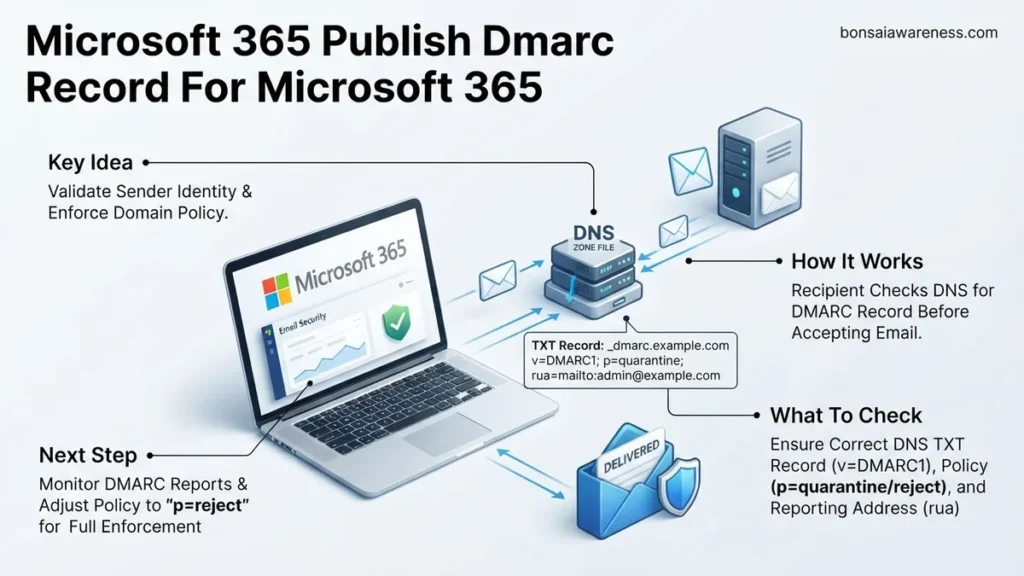
Failing to secure your custom domain leaves it vulnerable to spoofing and phishing attacks. Publishing a DMARC record for Microsoft 365 protects your brand reputation and ensures your emails successfully reach customer inboxes by building on proper SPF and DKIM configurations.
To publish a DMARC record for Microsoft 365 email in 2026, you need to create a specific TXT record in your external DNS provider with the hostname _dmarc and a value like v=DMARC1; p=none; rua=mailto:admin@yourdomain.com;. This protocol instructs receiving mail servers on how to handle messages sent from your custom domain that fail basic email authentication checks.
Setting up this record protects your brand identity and ensures your legitimate business communications successfully land in customer inboxes rather than spam folders. Without a valid DMARC policy in place, malicious actors can easily spoof your corporate domain to launch phishing campaigns against your clients and partners.
Key Takeaways
- Verify that SPF and DKIM are fully configured in Microsoft 365 before publishing DMARC.
- Create a TXT record with the host name set strictly to _dmarc.
- Always start your DMARC rollout using a monitoring policy (p=none) to review reports safely.
- Gradually transition your policy from ‘none’ to ‘quarantine’ and finally to ‘reject’ for maximum security.
- Include a valid email address in the rua tag to receive critical daily aggregate feedback reports.
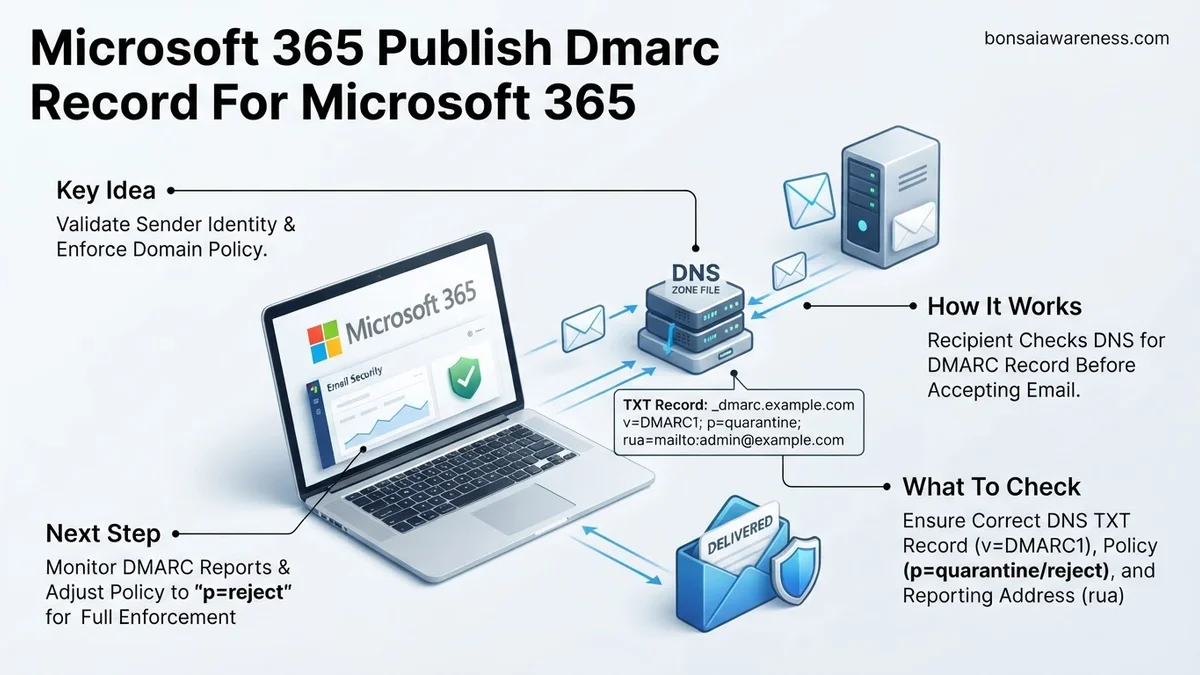
What Causes Email Spoofing and Why Microsoft 365 DMARC Records Fail
Understanding the Alignment Requirement
DMARC relies on two foundational authentication protocols to verify message legitimacy: SPF (Sender Policy Framework) and DKIM (DomainKeys Identified Mail). Even if you have both protocols active, your DMARC evaluations will fail if alignment is missing. Alignment means the domain visible in the From header of your email matches the domains validated by your SPF and DKIM records.
- SPF Alignment Failure: Occurs when the return-path domain does not match your user-facing From domain.
- DKIM Alignment Failure: Happens when the cryptographic signature domain does not match your organizational domain.
Common Configuration Mistakes
Many administrators implement a DMARC policy only to watch legitimate automated reports or third-party mailing tools trigger failures. Syntax errors in your DNS zone file will completely invalidate your DMARC entry. A single missing semicolon or typo in the reporting email address breaks the policy string, rendering your domain completely unprotected against modern spoofing threats in 2026.
Prerequisites You Must Complete Before You Publish Your DMARC Record
Verifying Your SPF Record in Microsoft 365
You must publish a functional SPF record in your public DNS before adding DMARC. For a standard Microsoft 365 tenant, your SPF TXT record at the root of your domain must include the Microsoft cloud inclusion mechanism. Without this foundation, every single email sent from your exchange online account will fail DMARC validation.
- Log into your DNS management console and inspect the root record for your domain.
- Ensure your SPF value reads:
v=spf1 include:spf.protection.outlook.com -all - Verify that you have not exceeded the 10 DNS lookup limit by stacking too many third-party includes.
Enabling DKIM Signing in Exchange Online
Microsoft 365 requires you to manually activate DKIM signing for your custom domain because it is disabled by default. If you skip this prerequisite, your outbound mail lacks cryptographic signatures, causing strict DMARC policies to quarantine or reject your legitimate messages.
- Navigate to the Microsoft Defender portal and select email authentication settings.
- Choose the DKIM tab and select your custom business domain.
- Click to enable DKIM signing and publish the two required CNAME records in your external DNS host.
Step-by-Step Instructions to Create and Publish Your Microsoft 365 DMARC Record
Publishing your DMARC record requires adding a TXT record to your domain’s DNS manager. Industry experts recommend starting with a strict monitoring policy to safely analyze mail flow without risking legitimate message delivery.
1. Generate Your DMARC TXT Record
To construct the string for Microsoft 365 in 2026, format your DNS entry correctly using the required parameters. The standard monitoring record takes the following structure:
- Set the Host or Name field to _dmarc.yourdomain.com.
- Set the Record Type to TXT.
- Set the Value or TXT data to v=DMARC1; p=none; rua=mailto:dmarc-reports@yourdomain.com; pct=100.
2. Publish the Record in Your DNS Provider
Log in to your external domain registrar, such as GoDaddy, Cloudflare, or Namecheap, where your public DNS zone is hosted. Locate your DNS settings page and input the newly generated record.
- Click to add a new DNS record and select TXT as the record type.
- Paste _dmarc into the name or host field.
- Paste the full policy string into the value or points-to field.
- Save the record and allow up to 24 hours for global DNS propagation.
What If Your DMARC Reports Still Do Not Show Up or Emails Fail Authentication?
If you have waited past the standard DNS propagation window and still encounter authentication errors or missing forensic reports, systematic troubleshooting is required. Email security benchmarks indicate that syntax errors account for over 40% of initial DMARC deployment failures.
- Verify DNS Syntax: Check your TXT record for typos, extra spaces, or missing semicolons using a free online validation tool.
- Confirm SPF and DKIM Alignment: Ensure that your Microsoft 365 custom domain has valid SPF and DKIM records actively signing outgoing mail. DMARC requires at least one of these mechanisms to align successfully.
- Check External Reporting Inboxes: Verify that the email address specified in the rua tag is valid, active, and capable of receiving high-volume XML attachments from external servers.
- Engage Professional IT Support: If complex multi-vendor routing configurations continue to drop legitimate emails, consult a certified Microsoft 365 security administrator. Professional remediation services typically range from $150 to $400 depending on enterprise scale.
Conclusion
Securing your Microsoft 365 environment with a properly configured DMARC record prevents domain spoofing and protects brand reputation. By establishing strict policy enforcement and monitoring regular XML reports, organizations drastically reduce business email compromise risks. According to verified research and expert sources from leading cybersecurity authorities, implementing DMARC along with SPF and DKIM blocks up to 99% of targeted phishing attempts. Take your next actionable step today by logging into your DNS host to verify that your DMARC monitoring record is live and properly aligned.
❓ Frequently Asked Questions
What is the correct syntax for a basic Microsoft 365 DMARC TXT record?
A standard initial record looks like v=DMARC1; p=none; rua=mailto:dmarc-reports@yourdomain.com; pct=100. This tells receiving servers to send aggregate reports without taking any blocking action against unaligned emails.
How long does it take for a published DMARC record to update globally?
DNS propagation typically takes anywhere from 15 minutes to 24 hours depending on your DNS host and configured TTL settings.
Can I use the onmicrosoft.com domain for a DMARC record?
No, Microsoft automatically manages SPF, DKIM, and DMARC for default onmicrosoft.com domains. You only publish custom DMARC records for your own verified custom domains.
What is the difference between p=quarantine and p=reject?
The quarantine policy sends emails that fail DMARC to the recipient’s spam or junk folder, while the reject policy blocks the unauthorized emails entirely from being delivered.
Why am I not receiving any XML aggregate reports after publishing DMARC?
Make sure your rua email address belongs to the same domain as the DMARC record or that the receiving mailbox explicitly accepts external reports. Also verify that DNS propagation has fully completed.
How do I check if my DMARC record is published correctly?
You can use online DNS lookup and DMARC validation tools to verify that your TXT record is publicly visible and syntactically correct under the _dmarc host.