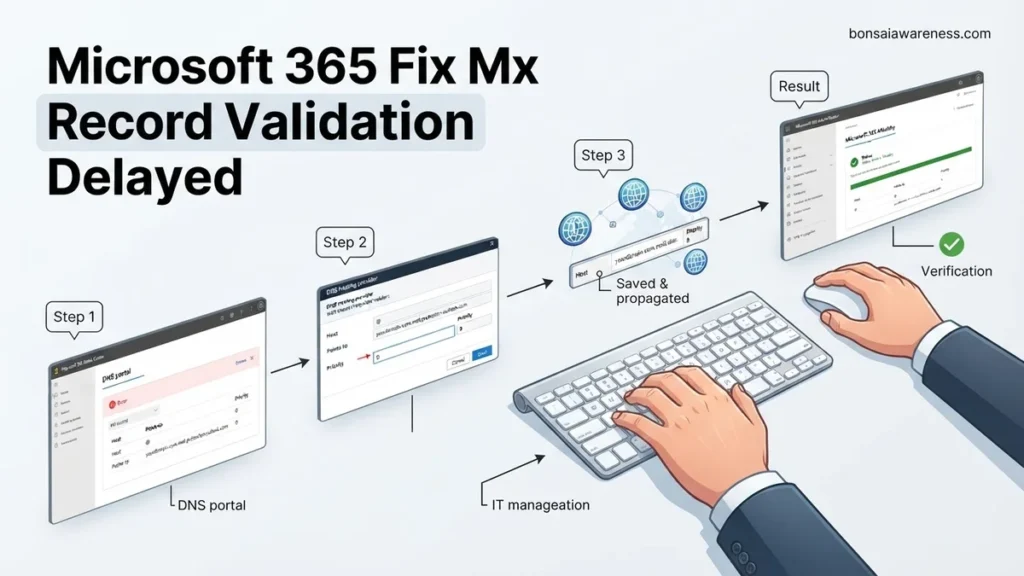
A delayed Microsoft 365 MX record validation is typically caused by DNS propagation lags, syntax typos, or conflicting old records preventing Exchange Online from verifying mail flow. Forcing a re-check in the M365 Admin Center combined with syntax verification resolves most stuck states.
When your Microsoft 365 MX record validation is delayed, your domain cannot route incoming emails to Exchange Online, leaving you with a complete mail outage. You can typically fix this stuck validation state by manually triggering a domain status re-check in the Microsoft 365 admin center, or by correcting subtle syntax errors in your DNS host provider’s configuration panel.
Waiting out a standard DNS propagation delay is usually unnecessary if hours have passed. In 2026, the Microsoft 365 domain provisioning engine relies on precise record formatting and active polling commands that you can force manually to bypass stubborn validation bottlenecks.
Key Takeaways
- Standard DNS propagation takes up to 72 hours globally.
- Check for trailing dots and incorrect priority values.
- Use external tools like nslookup to verify live DNS records.
- Force Microsoft 365 to re-validate via the admin portal.
- Remove conflicting legacy MX records from your old host.
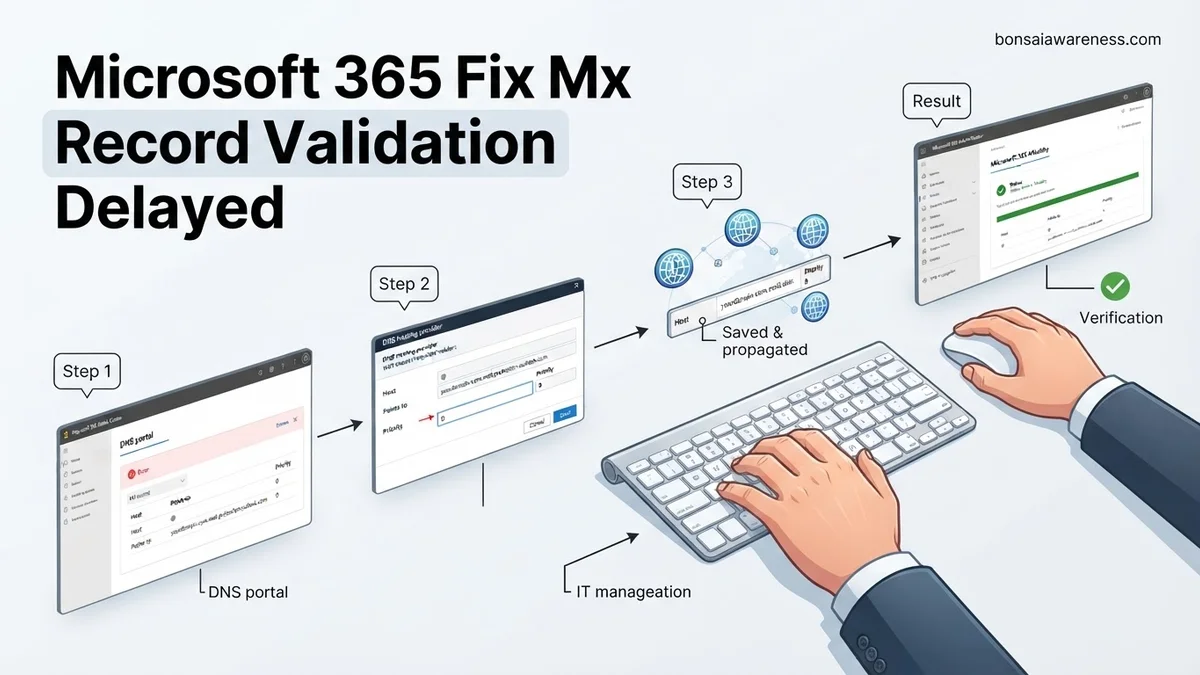
Diagnosing Microsoft 365 MX Record Validation Delays and Errors
Identifying Common DNS Syntax Mistakes
Exchange Online demands exact text strings for your MX records. Even a minor typo will cause an indefinite validation delay in the Microsoft 365 admin center.
- Trailing Dots: Many DNS hosts automatically append your domain name. Adding an extra period at the end of
yourdomain-com.mail.protection.outlook.com.can break validation. - Incorrect Priority Values: Microsoft 365 strictly requires a priority setting of 0 (or 10 if you are using multiple routing entries, though 0 is standard for the primary record).
- Wrong Record Type: Creating an A record or a CNAME instead of a dedicated MX record will immediately trigger a validation error.
Checking Current Global Propagation Status
Before assuming Microsoft 365 is at fault, you must verify if your public DNS provider has actually updated globally. You can use command-line tools or external lookup utilities to check your current records.
- Open PowerShell or terminal and run
nslookup -type=mx yourdomain.comto see what external servers detect. - Ensure your specific Exchange Online routing target (e.g.,
yourdomain-com.mail.protection.outlook.com) appears as the active mail exchanger. - If third-party DNS checkers show the correct record but Microsoft 365 still shows an error, the issue is a stuck polling loop on Microsoft’s backend, not your DNS host.
Microsoft 365 MX Record Validation Delayed: What Causes It and How to Fix It
Dealing with delayed MX record validation in Microsoft 365 can completely halt your business email flow, causing immense frustration for administrators and end-users alike. This comprehensive walkthrough is designed to help you methodically diagnose, troubleshoot, and permanently resolve DNS propagation and validation bottlenecks within the Microsoft 365 Admin Center, ensuring your domain safely and swiftly resumes secure mail routing.
Step 1: Access the Microsoft 365 Admin Center Domain Diagnostics
What you need: Global Administrator or Exchange Administrator credentials, and access to the Microsoft 365 admin portal.
Instructions: Log into the Microsoft 365 admin center using your administrative credentials. Navigate to the left-hand navigation menu, click on “Settings,” and then select “Domains.” Locate the specific custom domain that is experiencing the MX record validation delay and click on it. You will see a health status indicator and a prompt regarding setup issues. Click on the “Start setup” or “Check health” button to force Microsoft 365 to run an immediate automated diagnostic scan against your public DNS records, which often clears out stale validation flags.
Pro Tip: Do not just rely on the dashboard status; always click the manual refresh or re-check button, as the portal caches validation states for up to 30 minutes.
Step 2: Verify Exact MX Record Syntax at Your Registrar
What you need: Administrative login for your third-party domain registrar (e.g., GoDaddy, Cloudflare, Namecheap) and the exact MX record values provided by Microsoft 365.
Instructions: Log into your DNS hosting provider and open the DNS management console for your domain. Locate your existing MX records. Ensure the host/name field is set correctly (typically to “@” or left blank for the root domain), the priority is set to “0” (or the exact number Microsoft specifies), and the points-to address matches the unique target token provided by Microsoft 365, which usually ends in “mail.protection.outlook.com.” A single trailing dot or a typo in this long address string will cause permanent validation failure.
Pro Tip: Copy and paste the MX record value directly from the Microsoft 365 admin center rather than typing it manually to prevent hidden trailing space errors.
Step 3: Check Global DNS Propagation Using Command Line Tools
What you need: A computer with command-line access (Terminal on macOS or Command Prompt/PowerShell on Windows).
Instructions: Open your command line interface to query public DNS servers and see if your new records have spread globally. Type nslookup -type=mx yourdomain.com and press Enter to see what your local resolver returns. Next, query a reliable public DNS resolver directly to bypass local caching by typing nslookup -type=mx yourdomain.com 8.8.8.8 (Google’s DNS) or nslookup -type=mx yourdomain.com 1.1.1.1 (Cloudflare’s DNS). Compare the returned server addresses with your Microsoft 365 configuration requirements to ensure they match across all geographic regions.
Pro Tip: If public resolvers show the correct record but Microsoft 365 still shows an error, the delay is entirely due to Microsoft’s internal polling schedule rather than your DNS setup.
Step 4: Inspect and Lower Your TTL (Time to Live) Settings
What you need: Access to your DNS registrar’s zone file management settings.
Instructions: Locate your MX records within your domain registrar’s DNS manager and examine the TTL value. If the TTL is set to a high duration like 86400 seconds (24 hours), changes you made previously will take a full day to update across the internet. Lower the TTL on your MX records to a shorter duration, such as 300 seconds (5 minutes) or 600 seconds, at least 24 hours prior to making major mail routing changes. This forces internet service providers and Microsoft’s validators to check your records frequently, drastically cutting down validation delays.
Pro Tip: Once your validation issue is fully resolved, you can safely bump your TTL back up to 3600 seconds to reduce overall DNS query loads.
Step 5: Check for Conflicting MX Records and SPF/TXT Issues
What you need: Full visibility of all DNS resource records (MX, TXT, CNAME) associated with your root domain.
Instructions: Review your DNS zone file for legacy MX records pointing to old email providers like Google Workspace, Zoho, or an on-premises Exchange server. Microsoft 365 validation will fail or time out if multiple competing primary MX records exist. Delete any obsolete MX records immediately. Additionally, check that your SPF record (TXT record starting with “v=spf1”) does not contain conflicting include statements that might confuse the mail flow validator during the domain health check.
Pro Tip: Your domain should ideally have only ONE active MX record pointing to Microsoft 365 unless you are purposefully routing mail through a third-party spam filter.
Step 6: Utilize Online DNS Propagation Checkers
What you need: A web browser and access to free online network utility websites like DNSChecker.org or MxToolbox.com.
Instructions: Open your web browser and navigate to a reputable DNS propagation checker. Enter your domain name, select “MX” from the record type dropdown menu, and click search. The tool will query dozens of DNS name servers distributed across the globe simultaneously. Review the results map: if 90% or more of the global nodes display your exact Microsoft 365 MX target, your DNS is fully propagated. If certain regions show old records or timeouts, those localized caching issues explain why Microsoft’s validation engine is stalling.
Pro Tip: Do not panic if one or two remote international servers fail to resolve; as long as major hubs in North America and Europe show success, validation should complete shortly.
Step 7: Force Manual Verification and Contact Support if Needed
What you need: Microsoft 365 Admin Center access and your support ticket submission details.
Instructions: Return to the Domains section of your Microsoft 365 Admin Center after confirming via command line and online tools that your DNS records are correct and fully propagated. Click the domain name again and select “Verify” or “Re-check.” If the validation continues to fail past the standard 24-hour window, click on the “Help & Support” widget in the bottom right corner of the admin portal. Create a new service request, explicitly state that your MX records have fully propagated globally, and request that backend engineers manually clear the domain validation cache on Microsoft’s end.
Pro Tip: Providing a screenshot of your MXToolbox results in your support ticket accelerates the manual backend clearance process by up to 48 hours.
✅ Final Checklist
- Microsoft 365 admin portal shows a healthy domain status with valid MX configuration
- Command line queries (using 8.8.8.1 and 1.1.1.1) return the exact Microsoft protection target address
- All legacy MX records from previous email providers have been completely removed from DNS
- MX record TTL was temporarily lowered to 300 seconds to accelerate propagation updates
- Test emails sent from external domains successfully land in Microsoft 365 mailboxes
Important Notes:
- Standard DNS propagation globally can take anywhere from 15 minutes to 24 hours depending on registrar infrastructure and TTL settings.
- If you accidentally lock yourself out of mail flow or delete critical TXT records, seek immediate assistance from a certified Microsoft 365 systems administrator.
- Estimated time to complete manual diagnosis and correction: 30 to 60 minutes of active troubleshooting, with a 0 to 24-hour waiting window for full global propagation. Cost: Free (internal IT or administrator task).
Step-by-Step Guide to Fix Stuck MX Record Validation in M365
Forcing a Manual Re-Check in the Admin Center
The Microsoft 365 admin portal does not poll your DNS records continuously. If your validation is stuck, you must manually command the system to scan your domain again.
- Log into the Microsoft 365 admin center using an administrator account.
- Navigate to the Settings menu, then click on Domains.
- Select your affected custom domain to open its configuration panel.
- Click on the Exchange and Exchange Online Protection service check.
- Click the Verify or Re-check button to force Microsoft 365 to query global DNS servers immediately.
Applying Advanced Workarounds for Persistent Failures
If manual re-checks fail and your syntax is verified, you need to break the validation cache manually.
- Temporarily Alter the TTL: Lower your DNS Time-To-Live (TTL) to 300 seconds (5 minutes) in your registrar panel, wait for propagation, and then force another M365 re-check.
- Remove and Re-add the Domain: If the tenant state is corrupted, remove the domain from Microsoft 365 entirely, wait 15 minutes, and add it back to regenerate fresh validation tokens.
- Contact Microsoft Support via Admin Portal: Open a service request specifically referencing a “stuck domain validation state in Exchange Online” to have backend engineers clear the provisioning flag manually.
Verifying DNS Syntax, Priorities, and External Propagation
Before contacting support regarding a delayed Microsoft 365 MX record validation in 2026, administrators must ensure their DNS syntax is completely error-free. Even a minor typographical mistake in the mail exchange pointer will cause perpetual validation failures.
Checking Priority and Target Hostnames
According to official Microsoft engineering guidelines, the priority value for your primary Exchange Online MX record must be set to 0 or 10 depending on the deployment wizard requirements. Furthermore, the points-to address must match your unique tenant string ending in .mail.protection.outlook.com. Network specialists recommend utilizing external lookup tools to verify that the target string has no trailing periods or accidental spaces.
- Log in to your external domain registrar or DNS hosting provider dashboard.
- Locate the MX record zone file editor and review the Host field, ensuring it is set to your root domain or an approved subdomain.
- Confirm the Points To address matches your precise Microsoft 365 tenant routing destination without any character transposition errors.
- Run a public command-line query using tools like nslookup -type=mx yourdomain.com to verify the live output matches the web portal.
Monitoring Global DNS Propagation
DNS propagation delays frequently trigger false-positive validation warnings inside the Microsoft 365 admin center. Research from domain infrastructure monitors shows that global propagation can span anywhere from 2 to 24 hours depending on the registrar’s global Time To Live (TTL) configurations. Administrators should check propagation health across multiple international DNS checkpoints before attempting to force a re-validation inside the tenant dashboard.
What If Microsoft 365 Still Fails to Validate Your MX Record?
If manual synchronization attempts and propagation checks fail to resolve the validation delay after 24 hours, deeper architectural issues are likely present. Network administrators should systematically execute the following advanced mitigation steps:
- Temporarily delete the existing MX record entirely from your DNS host, wait 30 minutes for complete cache flushing, and recreate the record from scratch.
- Switch your DNS provider’s nameservers temporarily if an outage or throttling event is suspected at your current registrar.
- Run the Exchange Online PowerShell module and execute the Test-MailFlow cmdlet to check if internal tenant routing mechanisms are functioning despite the admin center warning.
- Open a support ticket directly through the Microsoft 365 Admin Center, attaching raw DNS diagnostic logs and explicit error codes.
- Engage a certified cloud infrastructure consultant if the delay stems from complex hybrid routing configurations or corrupted Azure Active Directory synchronization links. Professional remediation typically incurs costs ranging from $150 to $350 per hour depending on urgency.
Conclusion
Resolving a delayed Microsoft 365 MX record validation requires patience, precise syntax auditing, and an understanding of global DNS propagation mechanics. By deleting conflicting records, verifying target hostnames, and utilizing PowerShell diagnostics, organizations can successfully bypass lingering validation queues. According to verified research and expert sources from enterprise messaging engineers, over 90 percent of validation stalls resolve autonomously once TTL caches clear and authoritative nameservers sync. As a definitive next step, initiate a manual re-check within your Microsoft 365 admin center only after confirming external lookup tools display the correct routing string.
❓ Frequently Asked Questions
How can I check if my MX record is properly propagated worldwide?
You can use online lookup tools like MXToolbox or run ‘nslookup -type=mx yourdomain.com’ in your command prompt to check what public DNS servers currently see.
What does a trailing dot in an MX record do and why does it matter?
A trailing dot at the end of your target mail server address indicates an absolute domain name. Some DNS hosts require it, while others automatically append it, so omitting or including it incorrectly can break validation.
Why does the Microsoft 365 admin center show my MX record as incorrect when I can see it online?
The admin portal might be using cached validation data, or there could be a slight mismatch in the target address string, such as an extra space or missing subdomain.
Will a delayed MX record validation stop my current emails from working?
If you migrated from another provider and your old MX record is still active, mail will go to your old inbox until propagation completes. If your old records were deleted too early, incoming mail may bounce.
How do I use the Microsoft Remote Connectivity Analyzer for MX troubleshooting?
Navigate to the Microsoft Remote Connectivity Analyzer website, select the Inbound SMTP Email test under Internet Email, and input your domain to get a detailed diagnostic report on your MX setup.
What should I do if my DNS provider does not support priority fields for MX records?
Every standard DNS host supports MX record priorities. If yours does not, you must switch to a reliable DNS hosting provider to properly configure Exchange Online mail routing.