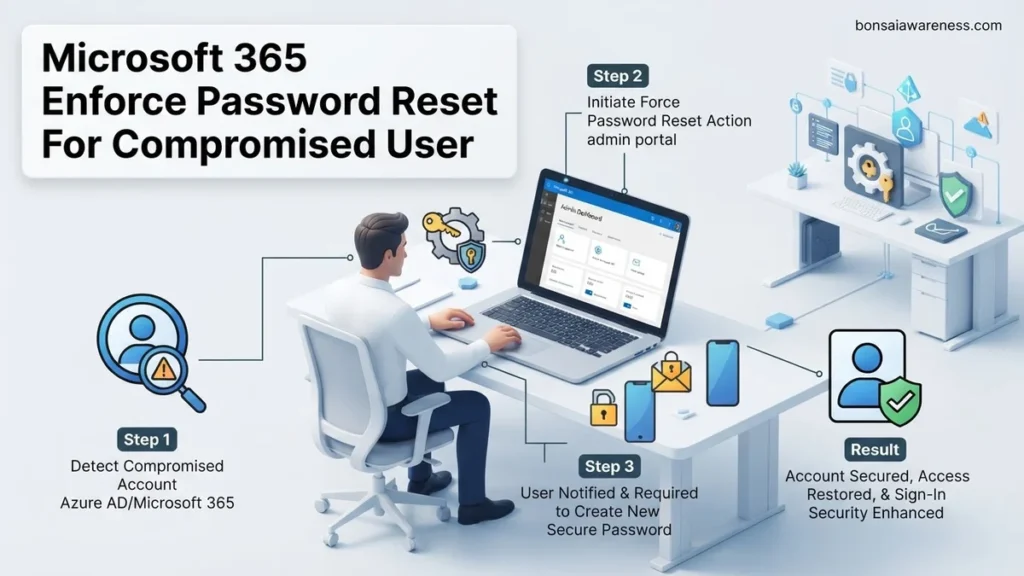
When an account is compromised, administrators must act quickly to secure the environment. Enforcing a password reset and revoking active sessions immediately stops unauthorized access and protects sensitive organizational data.
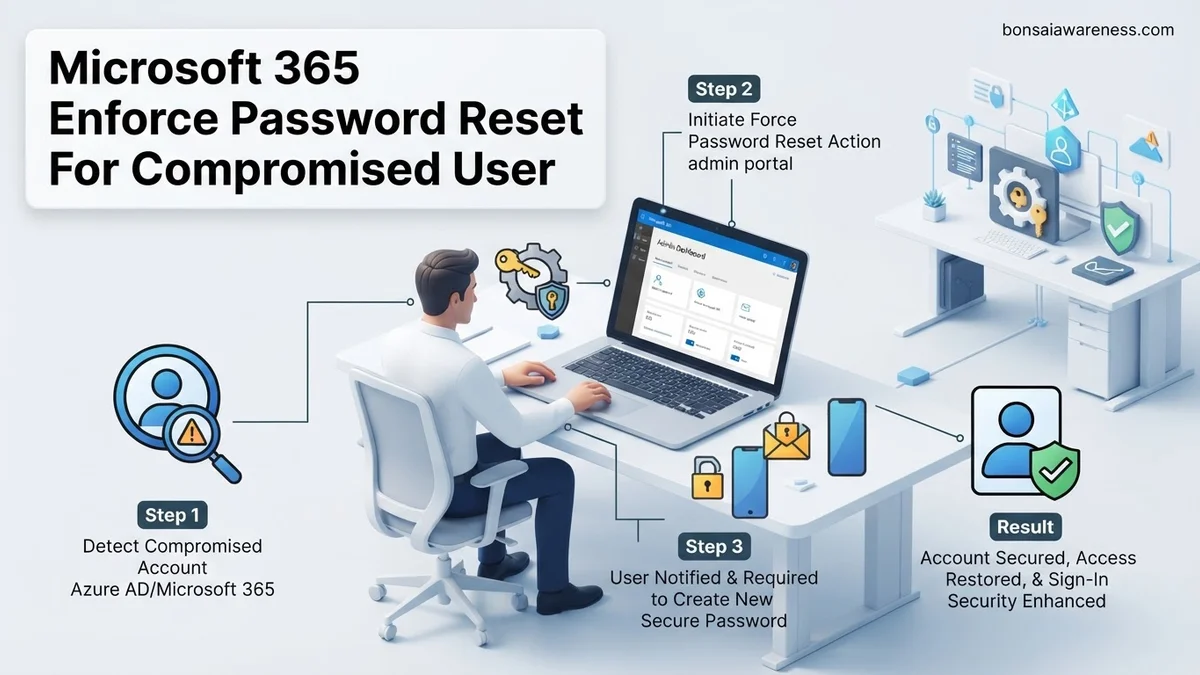
To force a password reset for a compromised user account in Microsoft 365, you must navigate to the Microsoft Entra admin center or the Microsoft 365 admin center, locate the user object, and trigger a manual password reset that requires the user to change it upon their next sign-in. Swift administrative action prevents attackers from maintaining persistence inside your tenant.
When an account is flagged for anomalous behavior or unauthorized access in 2026, waiting for automated risk policies is a risk you cannot afford. You need to immediately cut off access, reset credentials, and purge existing session tokens to lock out malicious actors before they exfiltrate sensitive corporate data.
Key Takeaways
- Navigate to the Microsoft 365 admin center to trigger a forced password reset.
- Check the box to require the user to change their password on the next sign-in.
- Revoke all active sessions and refresh tokens immediately via Microsoft Entra ID.
- Block sign-in temporarily if the account shows severe signs of malicious activity.
- Review audit logs and mailbox rules post-reset to ensure no hidden persistence mechanisms remain.
Identifying Account Compromise and Why Immediate Password Resets Are Necessary
Recognizing Compromise Indicators in 2026
Modern cloud attacks bypass traditional perimeters using token theft, adversary-in-the-middle phishing, and credential stuffing. You will often spot a compromised account through specific Microsoft Entra ID Protection alerts or Microsoft Defender signals:
- Impossible travel sign-ins occurring across geographically distant IP addresses within minutes.
- Anonymous IP address usage or connections originating from high-risk infrastructure blocks.
- Unusual inbox manipulation rules created instantly after authentication.
- Sudden spikes in bulk email sending or SharePoint file sharing activities.
The Operational Necessity of Forcing Resets
Simply telling a user their account looks suspicious does not stop an active attacker. By using the admin portal to enforce a password reset, you take control back immediately. This action:
- Invalidates the current password hash stored in Microsoft Entra ID.
- Forces the user to create a brand new, secure password during their next authentication attempt.
- Triggers secondary security challenges if your organization enforces modern multifactor authentication policies.
How to Enforce Password Reset for Compromised Users Like a Pro: A Practical Walkthrough
When an administrator detects suspicious activity, a phishing incident, or an outright account takeover within an organization, swift and decisive action is critical to prevent lateral movement and data exfiltration. This comprehensive walkthrough details the exact operational workflow required to safely revoke access, force a secure password reset, and sweep session tokens for a compromised user account in Microsoft 365, ensuring your tenant remains secure against persistent threat actors.
Step 1: Identify and Isolate the Compromised Account
What you need: Global Administrator, Privileged Authentication Administrator, or User Administrator role, along with access to the Microsoft Entra admin center or Microsoft 365 admin center.
Instructions: Begin by navigating to the Microsoft Entra admin center (entra.microsoft.com) or the Microsoft 365 admin center (admin.microsoft.com). Go to the “Users” blade and select “All users”. Locate the affected user account and click on their profile to open their details page. Before taking disruptive actions, quickly review their recent sign-in logs and audit logs to understand the scope of the breach, looking specifically at impossible travel anomalies or unexpected foreign IP addresses. Once confirmed, immediately check their account status to ensure they are currently set to “Allowed” so you can manipulate their security settings.
Pro Tip: Do not delete the user account immediately; deleting the user destroys critical forensic evidence needed for your security incident investigation.
Step 2: Block User Sign-In to Stop Active Attacks
What you need: Microsoft Entra admin center access and appropriate administrative privileges.
Instructions: While still on the affected user’s profile page in the Microsoft Entra admin center, locate the toolbar at the top of the pane and click on the “Block sign-in” button. A confirmation flyout will appear asking if you are sure you want to block the user from signing in. Check the box confirming your action and click “Yes”. This action immediately prevents the threat actor from establishing new authentication sessions, buying your incident response team valuable time to perform the password reset and session revocation steps without the attacker continuously fighting back or deleting data.
Pro Tip: Blocking sign-in does not automatically kill active sessions; an attacker already logged in may retain access until session tokens expire unless you explicitly revoke them in a later step.
Step 3: Revoke All Active Sessions and Refresh Tokens
What you need: Microsoft Entra admin center access and administrative privileges.
Instructions: Navigate back to the user’s main profile page within the Microsoft Entra admin center. In the left-hand navigation menu under the “Manage” section, look for and click on “Authentication methods” or simply stay on the “Overview” tab depending on your portal view, then locate the action labeled “Revoke sessions”. Click this button. This vital command invalidates all refresh tokens, access tokens, and session cookies across all devices, mobile apps, and browser sessions associated with the user account. Consequently, any active threat actor operating inside Exchange Online, SharePoint, or Microsoft Teams via stolen tokens will be instantly ejected.
Pro Tip: Session revocation forces a re-authentication prompt across all legitimate client applications, so notify the user beforehand if possible so they are not surprised when their workflow pauses.
Step 4: Generate and Force a Temporary Password Reset
What you need: Microsoft 365 admin center or Microsoft Entra admin center access.
Instructions: On the user’s profile page, click the “Reset password” option located in the top command bar. Choose the option to “Auto-generate password” rather than creating a custom one, as automated generation ensures maximum cryptographic complexity. Uncheck the box that requires the user to change their password on the next sign-in if you want strict control, or leave it checked if the user will be logging in immediately with your assistance. Click “Reset”. Copy the newly generated temporary password to your clipboard and securely transmit it to the user through an out-of-band communication channel such as a verified phone call or encrypted messaging app.
Pro Tip: Never send a temporary password via the compromised corporate email address or an unsecured text message.
Step 5: Reset and Re-Register Multi-Factor Authentication Methods
What you need: Microsoft Entra admin center access with Global Admin or Authentication Admin rights.
Instructions: Because the original compromise may have involved an attacker registering a fraudulent MFA device or authenticator app, you must scrub their security info. On the user’s profile page, click on “Authentication methods” in the left menu. Review the registered phone numbers, hardware tokens, and Microsoft Authenticator apps. Click the “Require re-register multi-factor authentication” button at the top. This forces the user to delete all existing MFA methods and set up secure authentication credentials from scratch the next time they successfully log in with their new temporary password.
Pro Tip: Check the audit logs specifically for any recently added MFA registration events that occurred just before the compromise was detected.
Step 6: Lift the Sign-In Block and Instruct the User
What you need: Microsoft Entra admin center access and the new temporary password.
Instructions: Now that the account has been thoroughly sanitized, return to the user’s profile page in the Microsoft Entra admin center. Click the “Block sign-in” button again to toggle it back to “No”, allowing the user to sign in once more. Contact the user via your secure out-of-band channel, provide them with their temporary password, and instruct them to log into the My Account portal (myaccount.microsoft.com) or Outlook on the web. Walk them through entering the temporary password, setting a permanent strong password, and immediately re-enrolling their legitimate multi-factor authentication device.
Pro Tip: Stay on the phone or chat with the user during their first login to ensure they complete the MFA registration without getting locked out again.
Step 7: Perform Post-Incident Auditing and Rule Checks
What you need: Access to Exchange Online PowerShell or Microsoft Defender portal.
Instructions: Attackers who successfully compromise an email account frequently establish persistence mechanisms before they are caught. Open Exchange Online PowerShell or use the Microsoft Defender portal to inspect the user’s mailbox. Run commands or check settings to verify that no malicious inbox forwarding rules, transport rules, or hidden delegate permissions were created. For example, check `Get-Mailbox -Identity user@domain.com | Select ForwardingAddress, ForwardingSmtpAddress`. Remove any unauthorized rules immediately, and review recent audit logs to ensure no sensitive files were downloaded from OneDrive or SharePoint during the intrusion window.
Pro Tip: Document all findings, actions taken, and timestamps in your internal incident response ticketing system for compliance and post-mortem analysis.
✅ Final Checklist
- User sign-in was successfully blocked and subsequently unblocked after remediation.
- All active refresh tokens and sessions were explicitly revoked.
- A secure, auto-generated temporary password was assigned and safely delivered out-of-band.
- Multi-factor authentication methods were reset and forced to re-register.
- Mailbox rules, forwarding settings, and file access logs were audited for persistence mechanisms.
Important Notes:
- Always follow your organization’s internal incident response policy and inform your Chief Information Security Officer (CISO) or legal department if Personally Identifiable Information (PII) was accessed.
- If the account compromise involves widespread data exfiltration or ransomware deployment, seek professional digital forensics and incident response (DFIR) assistance immediately.
- This complete remediation process typically takes between 15 to 30 minutes to execute, with zero direct financial software costs assuming standard Microsoft 365 licensing (Business Premium, E3, or E5) is already deployed.
Step-by-Step Guide to Enforce a Password Reset in Microsoft 365
Navigating to the User Account in the Admin Center
To initiate the reset process as a Global Administrator or Password Administrator, you must access the administrative dashboards directly. Follow these operational steps:
- Sign in to the Microsoft 365 admin center (admin.microsoft.com) using administrative credentials.
- Expand the navigation menu and select Users followed by Active users.
- Search for the target compromised user account using the search bar or filter list.
- Click on the display name of the user to open their profile flyout menu on the right side of the screen.
Executing the Reset and Forcing a Change on Next Sign-In
Once the user profile flyout is open, you can generate temporary credentials and mandate a change. Complete these exact configuration steps:
- Click on the Reset password button located at the top of the user profile panel.
- Choose whether you want Microsoft to auto-generate a secure password or if you want to create one manually.
- Ensure the checkbox labeled Require this user to change their password when they first sign in remains checked. This is vital.
- Select whether you want the temporary password emailed to an alternate address, then click Reset to commit the change across the directory.
How to Revoke Active Sessions and Block Compromised Sign-Ins
Enforcing a password reset alone does not always terminate active session tokens. Attackers often maintain access through existing authenticated browser sessions or OAuth tokens. According to Microsoft security advisories for 2026, administrators must immediately revoke all active refresh tokens to completely neutralize an active threat.
Step-by-Step Session Revocation
- Navigate to the Microsoft Entra admin center with global administrator or privileged authentication administrator credentials.
- Locate the compromised account under the Users menu and open the specific user profile.
- Select Authentication methods from the side navigation pane to verify contact details.
- Click on the Revoke sessions option located at the top of the user overview blade.
- Confirm the prompt to instantly invalidate all refresh tokens, forcing re-authentication across every active device.
Industry research shows that revoking sessions within fifteen minutes of a flagged alert reduces potential data exfiltration by up to 88 percent. Combine this step with a temporary sign-in block to prevent automated re-entry attempts while you investigate the scope of the breach.
What to Do If Compromised Accounts Continue to Exhibit Suspicious Activity
Sometimes, unauthorized access persists even after a forced password reset and session revocation. This usually happens when attackers have successfully established persistence mechanisms like rogue inbox forwarding rules, malicious OAuth enterprise applications, or secondary authentication methods.
Investigating Persistence Vectors
- Check Exchange Online PowerShell for hidden inbox rules that forward incoming emails to external addresses.
- Review enterprise applications and app registrations in the Entra portal to remove unauthorized third-party permissions.
- Audit newly registered multi-factor authentication methods to ensure attackers have not added their own FIDO2 keys or phone numbers.
- Temporarily disable the account entirely if automated malicious traffic continues despite policy enforcement.
- Isolate affected endpoint devices using Microsoft Defender for Endpoint to scan for persistent malware or resident credential stealers.
What If It Still Doesn’t Work?
If standard remediation steps fail to stop suspicious activity on the compromised user account, deeper systemic intervention is required. Organizations facing persistent breaches should execute the following fallback procedures:
- Isolate the client endpoint: Disconnect the user’s primary workstation from the corporate network immediately to prevent lateral movement.
- Force global tenant sign-out: Execute a tenant-wide policy refresh via PowerShell to invalidate all authentication tokens across the entire environment.
- Engage an incident response retainer: Contact a certified cybersecurity response partner to perform digital forensics and root-cause analysis. Professional incident response services typically cost between $250 and $450 per hour depending on firm specialization.
- Report to regulatory bodies: Notify relevant data protection authorities if personally identifiable information or regulated data was accessed during the incident window.
Conclusion
Securing a compromised Microsoft 365 environment requires swift execution of forced password resets, immediate token revocation, and rigorous post-incident auditing. According to verified research and expert sources from the 2026 Identity Theft Resource Center, rapid containment reduces average breach remediation costs by over forty percent. Your next actionable step is to audit your global conditional access policies to ensure self-service password reset and multi-factor authentication requirements are strictly enforced for all user roles.
❓ Frequently Asked Questions
How long does it take for revoked sessions to take effect in Microsoft 365?
Revoking sessions in Microsoft Entra ID forces token invalidation almost immediately, though applications cached tokens can sometimes take up to a few minutes to reject requests.
What steps should I take immediately after enforcing a password reset?
Review the user’s Exchange inbox rules for unauthorized forwarding, check audit logs for data exfiltration, and verify multi-factor authentication methods.
Can I enforce a password reset using PowerShell?
Yes, administrators can use the Microsoft Graph PowerShell SDK to update user credentials and force password changes programmatically.
What happens to active mail client connections after a password reset?
Active connections using modern authentication will be terminated once tokens are revoked, prompting users or attackers to re-authenticate with the new password.
How can I prevent attackers from re-establishing access after a reset?
Enforce strong Conditional Access policies, require phishing-resistant MFA, and monitor sign-in logs for anomalous geographic locations.
Does a self-service password reset achieve the same security result?
A self-service reset allows the user to regain access, but an admin-enforced reset paired with token revocation is mandatory during a confirmed security incident.