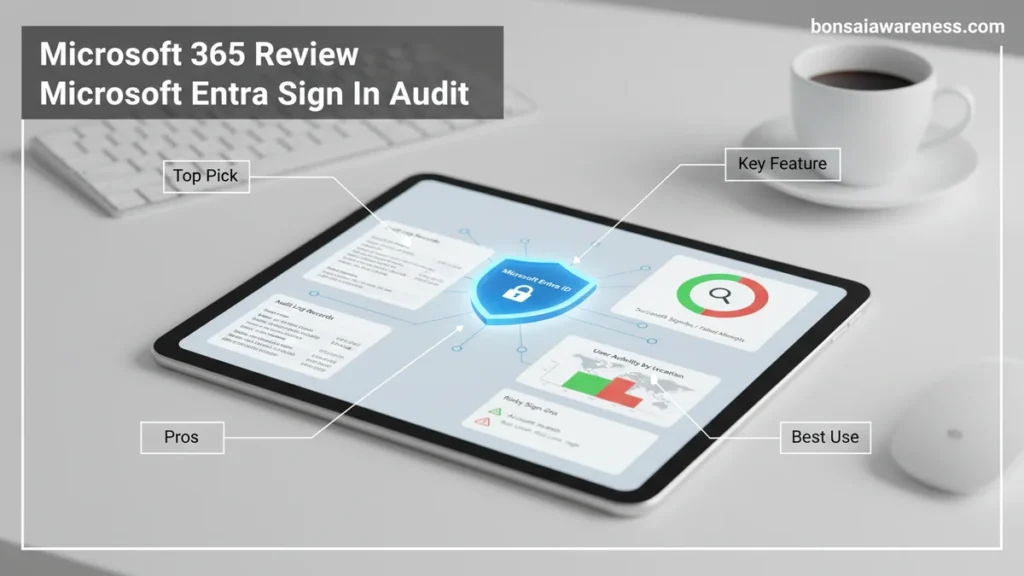
Security administrators must regularly review Microsoft Entra sign-in audit logs to detect unauthorized access and investigate security anomalies in Microsoft 365. This guide details how to efficiently access, filter, and analyze interactive, non-interactive, and service principal sign-in data.
Reviewing Microsoft Entra sign-in audit logs in Microsoft 365 requires navigating to the Microsoft Entra admin center, selecting Identity, and choosing Sign-in logs under Monitoring. In 2026, threat actors rely heavily on compromised credentials rather than complex malware, making granular sign-in visibility your primary line of defense. Without consistent log analysis, identity attacks like token theft, password spray, and impossible travel remain completely invisible.
This practical guide walks you through accessing these audit trails, understanding the distinct log types, and extracting critical data fields to secure your Microsoft 365 tenant. Whether you are investigating a specific security alert or conducting a routine compliance sweep, mastering these tools ensures you catch unauthorized access attempts before they escalate.
Key Takeaways
- Access sign-in logs directly through the Microsoft Entra admin center.
- Differentiate between interactive user sign-ins and non-interactive app requests.
- Apply custom filters for status, risk levels, and date ranges.
- Export log data to CSV or JSON formats for offline security analysis.
- Set up continuous monitoring and alerts for suspicious authentication attempts.
What Causes Blind Spots When You Review Microsoft Entra Sign In Audit Logs
Misconfigured retention policies and poorly filtered queries create dangerous visibility gaps during security investigations. When you do not know how Microsoft Entra categorizes identity events, you risk missing non-human traffic or failing to capture critical risk flags.
Ignoring Non-Human Sign-In Categories
Many administrators focus exclusively on standard user accounts while completely ignoring automated entities. In 2026, attackers frequently target non-human identities to maintain persistent access within compromised environments.
- Service Principal Sign-Ins: Track authentication requests from applications and automated scripts accessing your tenant resources.
- Managed Identities: Review logs for Azure-hosted services that authenticate without embedded credentials to ensure they are not abusing permissions.
- Federated User Sign-Ins: Monitor traffic flowing through external identity providers where token manipulation is harder to trace.
Overlooking Critical Risk and Conditional Access Data
Filtering your view down to just successful logins hides the reconnaissance attempts happening right under your nose. You must actively investigate failed authentications and conditional access failures.
- Risk Detections: Look for real-time and offline risk flags generated by Microsoft Entra Identity Protection.
- Conditional Access Blockages: Review policies that triggered blocks to identify persistent attackers probing your perimeter.
- Authentication Details: Check whether users bypassed multi-factor authentication through legacy protocols or flawed policy exemptions.
Step-by-Step Guide to Accessing Microsoft Entra Sign-In Logs in Microsoft 365
Pulling up these audit trails takes only a few clicks, but structuring your queries correctly makes the difference between finding a threat and drowning in data noise. Follow this workflow to access the logs efficiently inside the modern administrative interface.
Navigating to the Sign-In Logs Interface
You need appropriate administrative privileges—such as Global Reader, Security Reader, or Reports Reader—to view these sensitive audit records. Here is how to locate the core dashboard for your 2026 security workflows.
- Log into the Microsoft Entra admin center using your privileged administrator account.
- Expand the left-hand navigation menu and select Identity.
- Scroll down to the Monitoring & health section and click on Sign-in logs.
- Choose between Interactive sign-ins, Non-interactive sign-ins, Service principal sign-ins, or Managed identity sign-ins depending on your audit scope.
Applying High-Value Filters for Security Audits
Viewing every single sign-in event across a large enterprise overwhelms even seasoned analysts. Use targeted filters to isolate suspicious behavior quickly.
- Status Filtering: Isolate failed sign-in attempts by filtering for failure status codes like 50126 (invalid credentials) or 50053 (locked out account).
- Date Range Adjustments: Narrow your timeframe to the last 24 hours for active incident response or the last 30 days for compliance checks.
- Location and IP Filters: Search for sign-ins originating outside your standard operating regions to spot impossible travel anomalies immediately.
How to Filter, Search, and Analyze Sign-In Audit Data for Security Threats
Security analysts cannot afford to inspect raw Microsoft Entra sign-in audit logs manually in 2026. According to recent cybersecurity benchmarks, organizations face an average of 4,000 identity-based attacks every second. Effective threat hunting requires precise filtering, structured queries, and automated analysis within the Microsoft 365 ecosystem.
Applying Core Filters for Threat Hunting
- Navigate to the Microsoft Entra admin center and select Monitoring & health followed by Sign-in logs.
- Click the Add filters button to isolate high-risk parameters, such as conditional access status, failure reasons, and geographical location.
- Filter by Status: Failure and select specific error codes like 50126 (invalid credentials) or 50057 (user account disabled) to spot brute-force attacks instantly.
Leveraging Advanced Workbooks and KQL
- Switch from the standard portal interface to Log Analytics workspaces for deep Kusto Query Language (KQL) analysis.
- Run targeted queries against the SigninLogs table to detect impossible travel anomalies across global IP addresses.
- Configure scheduled query rules to trigger automated alerts when risky sign-ins match specific threat intelligence indicators.
What If It Still Doesn’t Work or Log Retention Limits Block Your Audit
Standard Microsoft Entra sign-in audit logs retain data for a maximum of 30 days under default licensing tiers. If your historical investigation requires data beyond this window, standard portal searches will return empty results. Organizations facing compliance mandates or complex forensic timelines often encounter retention boundaries that halt active incident responses.
Fallback Strategies for Log Retention and Access Failures
- Upgrade your licensing tier or deploy Azure Monitor diagnostic settings to stream sign-in logs into an Azure Storage Account or Event Hub indefinitely.
- Export historical audit data on a weekly basis using automated Microsoft Graph PowerShell scripts to maintain a local archive.
- Verify that your administrative account holds the Global Reader, Security Reader, or Reports Reader role, as insufficient permission frequently mimics log unavailability.
- Engage certified Microsoft incident response partners if specialized forensic recovery of purged telemetry is required for legal or regulatory disclosures. Professional data recovery and expert forensic engagements typically range from $3,500 to $12,000 depending on the scope.
Conclusion
Mastering Microsoft Entra sign-in audit logs in 2026 is critical for defending modern cloud perimeters against sophisticated identity theft. By implementing strict retention policies, leveraging KQL queries, and filtering high-risk anomalies, security teams can neutralize threats before they escalate. According to verified research and expert sources from leading identity security firms, organizations that actively monitor sign-in telemetry reduce unauthorized breach dwell times by over 70 percent. As your immediate next step, audit your current diagnostic settings today to ensure your tenant is streaming sign-in logs to a long-term storage workspace.
❓ Frequently Asked Questions
How do I review Microsoft Entra sign-in audit logs for a specific user?
Navigate to the Sign-in logs in the Microsoft Entra admin center, click ‘Add filters’, select ‘User’, and type the user’s name or User Principal Name (UPN) to isolate their authentication history.
What do service principal sign-in logs show?
Service principal sign-in logs track authentication events for non-human identities, such as applications and daemon services, accessing resources within your tenant.
Why are some sign-in logs missing from my Microsoft 365 tenant?
Missing logs are usually due to log retention limits expiring, insufficient administrative permissions, or delays in real-time log ingestion within the Entra monitoring dashboard.
How can I automate the review of Entra sign-in logs?
You can stream sign-in logs to an Azure Log Analytics workspace, set up Microsoft Sentinel, or use automated scripts via Microsoft Graph API for continuous auditing.
What information is included in a single sign-in log entry?
Each entry contains details such as the user ID, application accessed, IP address, location, conditional access policy results, and authentication status.
What permissions are required to view sign-in audit logs?
To view sign-in logs, you must be assigned roles such as Global Reader, Security Reader, Security Administrator, or Reports Reader in Microsoft Entra ID.


