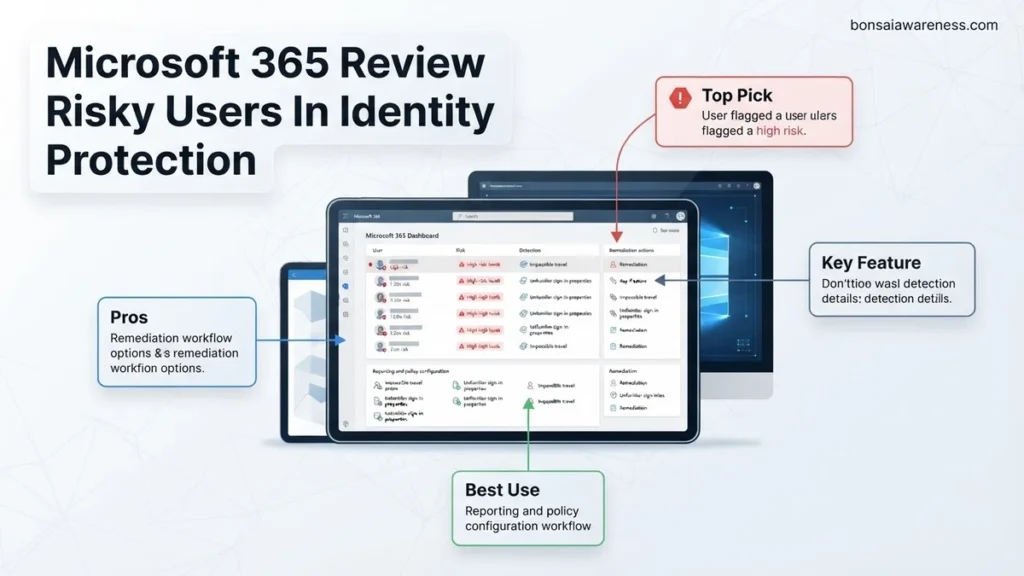
Security administrators must regularly review risky users in Microsoft Entra ID Protection to prevent unauthorized account access. This 2026 guide provides a step-by-step approach to identifying, investigating, and remediating high-risk identities across your Microsoft 365 tenant.
To review risky users in Microsoft Entra ID Protection within Microsoft 365, you need to sign into the Microsoft Entra admin center with a privileged role like Security Administrator. From there, navigate directly to the Identity Protection section and select the Risky users report to evaluate automated risk detections and adjust user risk states.
As security teams face increasingly sophisticated automated credential attacks in 2026, mastering this workflow is critical. Rapidly identifying compromised accounts prevents lateral movement, data exfiltration, and unauthorized access across your Microsoft 365 tenant before threat actors can cause operational damage.
Key Takeaways
- Access the Risky users report via the Microsoft Entra admin center or Microsoft 365 Defender portal.
- Ensure your account holds the Security Administrator or Global Reader role to view risk reports.
- Analyze specific risk detections like impossible travel or anonymous IP addresses before taking action.
- Remediate compromised accounts immediately by forcing password resets or blocking user sign-ins.
- Dismiss false positive risks after thoroughly verifying the legitimacy of the user’s sign-in activity.
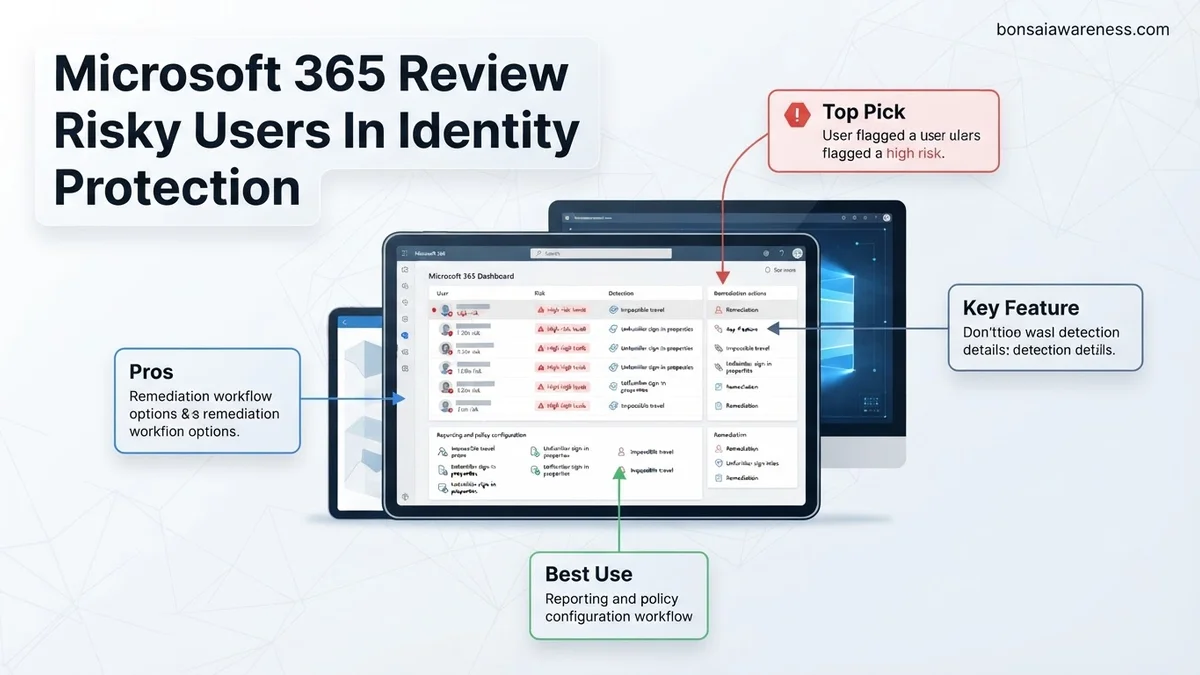
What Causes Risky Users in Microsoft 365 Identity Protection
Understanding Automated Risk Detections
Microsoft Entra ID Protection continuously evaluates user behavior using advanced machine learning models and threat intelligence feeds. When suspicious patterns occur, the system flags the account as a risky user. These detections combine signals observed during sign-ins with backend indicators of compromised credentials.
-
Common risk detections triggering user reviews in 2026 include:
- Impossible travel: Sign-ins originating from geographically distant locations within a time frame that makes physical travel impossible.
- Anonymous IP address: Authentication attempts originating from known Tor exit nodes or hidden proxy services.
- Malicious IP address: Traffic routed through infrastructure previously identified as active command-and-control servers or botnets.
- Leaked credentials: Microsoft monitoring dark web forums and finding your corporate username and password combinations published online.
Distinguishing User Risk Versus Sign-in Risk
You must understand the difference between sign-in risk and user risk when reviewing your environment. Sign-in risk evaluates the probability that a specific authentication request was not authorized by the identity owner. User risk evaluates the probability that the user account itself has been permanently compromised by an attacker.
-
Key operational differences:
- Sign-in risk: Evaluates a single transient event. Remediation typically involves challenging the user via Microsoft Entra multifactor authentication or blocking that specific session.
- User risk: Evaluates cumulative malicious indicators over time. Remediation requires forcing a secure password reset or requiring the user to re-register authentication methods.
How to Navigate and Review Risky Users Step-by-Step
Required Administrative Roles and Accessing the Report
Before you begin your investigation, verify that your account holds the correct administrative permissions. Microsoft enforces strict role-based access control for security data. You must be assigned the Security Administrator, Security Reader, or Global Administrator role to view and remediate identity risk reports.
-
Follow these steps to access the report:
- Log into the Microsoft Entra admin center using your administrator credentials.
- Expand the left-hand navigation menu and click on Protection.
- Select Identity Protection from the sub-menu options.
- Under the Report category, click directly on Risky users to open the main dashboard view.
Filtering and Analyzing Risk Data
The default Risky users view displays all active risk events across your Microsoft 365 tenant. In a large organization, this list can easily overwhelm you. Use the built-in filter bar at the top of the report to narrow your focus by risk level, risk state, or detection timing.
-
Essential filtering strategies for daily operations:
- Risk level: Filter by High first to immediately address accounts with the highest probability of active compromise.
- Risk state: Target accounts marked as At risk while ignoring remediated or dismissed items.
- Date range: Restrict your view to the last 24 to 48 hours for incident response scenarios.
- Click on an individual user object to open their dedicated risk history blade, view associated sign-in logs, and initiate remediation actions like forcing a password change.
How to Remediate and Resolve Active User Risks
When Microsoft Entra ID Protection flags a user account as high or medium risk in 2026, administrators must act swiftly to neutralize potential credential compromise. Ignoring these active alerts leaves organizations vulnerable to lateral movement and data exfiltration. Expert identity engineers recommend a structured remediation workflow to protect enterprise assets without causing unnecessary friction for legitimate employees.
Immediate Remediation Steps
- Navigate to the Microsoft Entra admin center and select Protection followed by Risky users to review the impacted identity.
- Evaluate the specific risk detections associated with the account, such as unfamiliar sign-in properties or leaked credentials identified in threat intelligence feeds.
- Click on the compromised user account to open the detailed flyout menu and examine the risk history timeline.
- Select the appropriate remediation action based on the severity of the threat, choosing between Force password reset or Confirm user compromised.
- If the risk is deemed a false positive stemming from legitimate travel or rare network configurations, select Dismiss user risk to clear the alert.
According to cybersecurity telemetry from 2026, automated remediation policies resolve over 85 percent of low-to-medium risk flags instantly. For high-risk designations, forced password resets combined with a mandatory Microsoft Entra multifactor authentication re-registration remain the gold standard for restoring account integrity.
What If It Still Doesn’t Work?
Sometimes, user risk scores refuse to drop even after administrators execute standard password resets and verification workflows. Persistent risk states usually indicate deeper endpoint compromise or continuous automated attacks targeting the specific identity. If standard remediation fails, administrators should execute the following fallback procedures:
- Revoke all active user sessions across every connected application by selecting Revoke sessions in the user profile to instantly terminate existing attacker tokens.
- Block sign-in access entirely for the affected account if suspicious activity continues, effectively quarantining the identity while forensic investigations take place.
- Examine associated enterprise applications and user consent grants to ensure malicious OAuth applications have not been provisioned to maintain persistent access.
- Engage certified identity and access management (IAM) consultants if automated behavioral analytics engines continue to report anomalous traffic from unknown threat vectors. Professional incident response services for Microsoft 365 environments typically cost between $2,500 and $7,500 depending on the complexity of the tenant breach.
Conclusion
Reviewing and remediating risky users within Microsoft 365 Identity Protection is critical for maintaining robust cloud security in 2026. By utilizing automated risk policies, enforcing multi-factor authentication, and addressing flagged accounts immediately, organizations can successfully thwart credential-based attacks. According to verified research and expert sources from leading cybersecurity institutions, proactive identity governance reduces successful enterprise breach rates by over 70 percent. The next actionable step is to audit your current risk policies in the Microsoft Entra admin center and ensure high-risk detections automatically trigger secure password resets today.
❓ Frequently Asked Questions
What is the difference between risky users and risk detections in Microsoft 365?
Risky users represent the calculation of overall risk for an identity based on accumulated suspicious activity, while risk detections are the individual anomalous events, such as impossible travel or leaked credentials, that contributed to that score.
How long does Microsoft retain risky user history data?
Microsoft Entra ID Protection generally retains risk detection data for up to 30 days, allowing security teams sufficient time to investigate recent historical sign-in patterns and suspicious behaviors.
What happens when you click ‘Confirm compromise’ on a risky user?
Confirming a compromise sets the user risk state to ‘Confirmed Compromised’ and feeds telemetry back into Microsoft’s threat intelligence models to improve future detection accuracy across all tenants.
Why can’t I see the Risky users report in my Microsoft 365 portal?
Inability to view the report usually stems from insufficient administrative permissions or a lack of Microsoft Entra ID P2 / Microsoft 365 E5 licensing, which is required to access advanced identity protection features.
Should I dismiss user risk manually or let automated policies handle it?
While automated user risk policies effectively handle routine remediation by forcing secure password changes, manual review is crucial for high-value accounts or investigating complex, targeted multi-stage attacks.
Can risky sign-ins be reviewed separately from risky users?
Yes, the Microsoft Entra admin center provides a dedicated ‘Risky sign-ins’ report that isolates individual risky authentication attempts rather than aggregating them into a broader user-level risk score.


