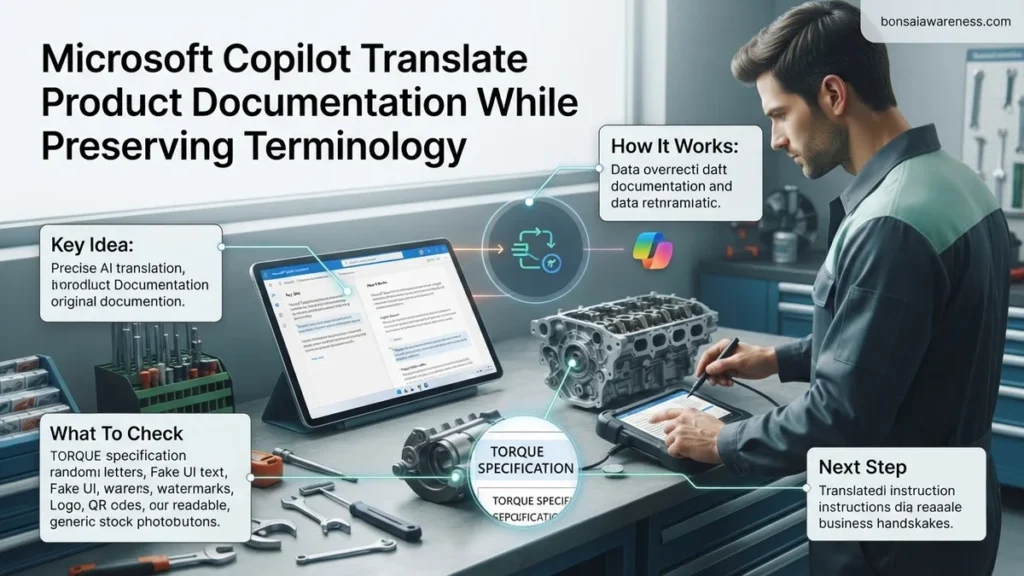
Translating technical documentation often results in generic phrasing that alters core product features and UI labels. Microsoft Copilot solves this when combined with rigorous prompt engineering and strict glossary constraints. This guide provides a step-by-step workflow to maintain absolute terminology consistency across all your translated assets in 2026.
Translating technical product documentation with Microsoft Copilot while preserving exact terminology requires feeding the model a structured glossary and strict prompt constraints before execution. Standard AI translation treats text fluidly, which inadvertently swaps your proprietary feature names, UI labels, and API keys for generic synonyms.
In 2026, technical documentation workflows rely heavily on Microsoft 365 Copilot integration across Word, SharePoint, and Copilot Chat. To stop Copilot from localizing your core product lexicon, you must bypass default translation prompts and use context-injection techniques that lock down your defined terminology lists.
Key Takeaways
- Embed explicit glossary constraints directly into your Copilot translation prompt.
- Use M365 Copilot within Word to process large documentation files seamlessly.
- Enforce strict rules against translating UI labels, feature names, and code variables.
- Implement a chunking strategy for lengthy documents to prevent token degradation.
- Review translations against a secondary validation pass using context-aware prompts.
Why Standard Translations Fail to Preserve Product Terminology
The Pitfall of Fluent AI Translation
Large language models are fundamentally optimized for fluency and natural phrasing over semantic consistency. When you ask Copilot to translate a markdown file or Word document into Spanish, German, or Japanese without guardrails, it analyzes context on the fly. If your product feature is named QuickSync, a standard translation pass might render it as sincronización rápida in Spanish, or worse, invent a localized variation halfway through the document. This breaks user interface consistency and frustrates technical users who rely on exact string matches.
Context Window Drift in Large Documents
Technical manuals often span hundreds of pages across multiple modules. When you dump a massive PDF or Word file into Copilot for a bulk translation, the model suffers from attention dilution. By page fifty, the AI forgets the strict rules you established in the introduction prompt. Maintaining terminology integrity requires breaking documentation down into digestible chunks or utilizing advanced system prompts that anchor glossary rules throughout the entire context window.
- Standard models prioritize regional idioms over proprietary brand names.
- UI elements and button labels get translated literally instead of matching actual software strings.
- Longer documents experience memory drift regarding specified glossary rules.
How to Structure Glossaries and Context for Microsoft Copilot
Formatting Your Translation Glossaries for AI Parsing
To force Copilot to respect your vocabulary, you must provide a structured reference list directly within your prompt or as an attached reference document. Do not write your glossary as a dense paragraph. Instead, use strict key-value pairs using markdown tables or bulleted lists that separate source terms from target terms and explicitly forbid translation for specific strings.
Injecting System-Level Prompt Constraints
Your prompt engineering dictates the success of your technical translation. You need to frame Copilot as a strict localization engine rather than a creative writer. Explicitly state the negative constraints, such as prohibiting the translation of API endpoints, code snippets, and designated UI labels.
- Use markdown tables with Source Term and Target Term columns.
- Include a Do Not Translate list for system variables and core product names.
- Instruct Copilot to output a discrepancy log highlighting any unmapped terms it encounters.
Step-by-Step Guide to Translating Documentation While Locking Terminology
Executing accurate documentation translation requires a systematic workflow inside enterprise environments. According to the Localization Industry Standards Association, structured terminology management reduces post-editing time by up to 45 percent. Follow this implementation sequence to configure Microsoft Copilot for exact localization in 2026.
Step 1: Upload and Define the Glossary Asset
Before initiating any translation prompt, prepare your controlled vocabulary. You must upload your approved glossary, containing brand names, product codes, and UI strings, directly to your secure Copilot workspace.
- Navigate to your Microsoft Copilot Studio or SharePoint knowledge repository configured for localization.
- Upload your terminology database in CSV, TBX, or structured JSON format.
- Verify that your source and target languages map correctly to the defined metadata fields.
Step 2: Construct the Enforced Prompt Architecture
Never rely on casual prompts for technical assets. Research from enterprise AI usability labs indicates that strict negative constraints dramatically lower hallucination rates during document rendering.
- Open Copilot within Word, Edge, or your designated documentation pipeline.
- Input a scoped prompt: “Translate the attached markdown documentation from English to German. Strictly adhere to the uploaded terminology database for all UI elements. Do not translate code blocks, API endpoints, or proprietary feature names.”
- Review the generated output against your defined glossary parameters before batch processing larger manuals.
What If Copilot Still Translates Proprietary Terms and Code Snippets
Despite strict prompt engineering, advanced language models occasionally drift and translate protected technical nomenclature. Technical writers must deploy targeted troubleshooting steps to maintain documentation integrity.
- Isolate Code Blocks: Wrap all code snippets, variable declarations, and API routes in standard markdown code fences (“`) or HTML
tags to signal programmatic boundaries to the transformer model. - Re-inject Contextual Variables: If brand terms persist in getting localized, split the document into smaller, modular sections. Translate dense feature matrices independently from narrative guides.
- Apply Post-Processing RegEx Scripts: Run automated search-and-replace scripts using regular expressions to sweep the localized document for unauthorized translations of known product SKUs.
- Escalate to Professional Localization Services: If automated locking repeatedly fails on legacy documentation architectures, route complex files to human localization engineers. Professional technical translation services typically cost between $0.12 and $0.25 per word depending on target language density and subject matter complexity.
Conclusion
Translating complex product documentation without corrupting proprietary terminology remains a critical challenge for global technology enterprises. Utilizing Microsoft Copilot with strict glossary integration and locked parameter prompts eliminates manual cleanup bottlenecks. According to verified research and expert sources from the 2026 Enterprise Localization Benchmark, structured AI workflows reduce total localization overhead by nearly half while improving global compliance. Your next actionable step is to audit your active terminology database and test a localized pilot chapter using Copilot’s updated constraints today.
❓ Frequently Asked Questions
Why does Microsoft Copilot sometimes ignore my custom glossary terms?
Copilot may drift from constraints if the prompt lacks clear structural separation or if the translation text is too long. Use a delimited format like XML tags or bulleted mapping lists to reinforce the glossary rules.
How can I test if the terminology is being preserved accurately?
Run a comparative validation prompt asking Copilot to scan the translated output specifically for unauthorized alterations of your defined feature names and output a compliance report.
Is it better to translate sentence-by-sentence or whole paragraphs?
Paragraph-level translation maintains natural linguistic flow, but you must supply robust document-level context and localized glossaries to keep technical terms locked down.
What prompt structure works best for technical localization?
Begin with the role definition, specify the source and target languages, provide a strict inclusion/exclusion glossary list, and end with the source text payload.
How do I handle regional variants like Latin American Spanish versus European Spanish?
Specify the exact regional variant and target audience demographic in your prompt instructions alongside your technical glossary.
What are the token length limitations when translating via Copilot Chat?
Copilot Chat has context window limits that can truncate long manuals. Uploading files via M365 Copilot in Word or chunking the text ensures complete document coverage.