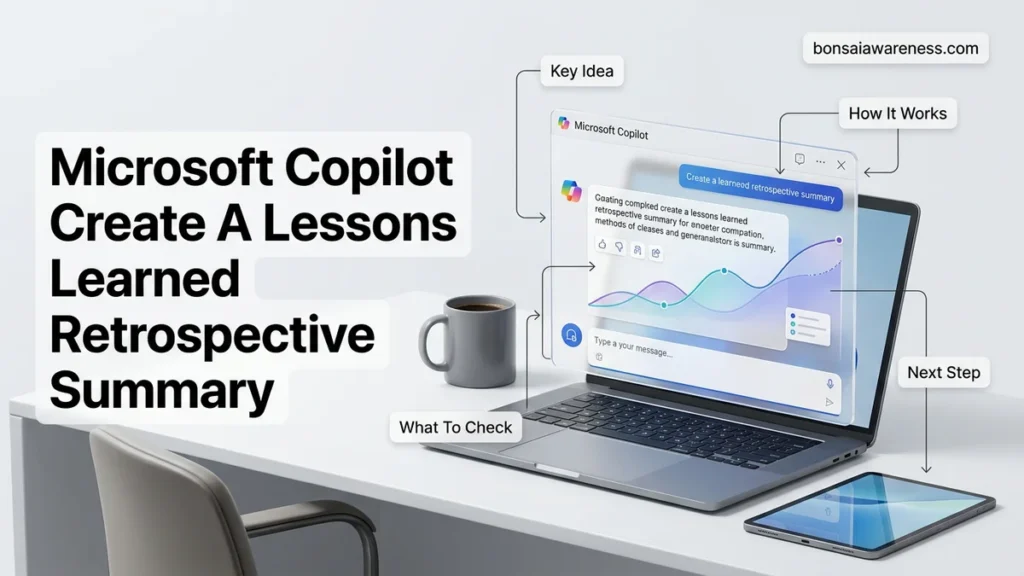
Generating accurate project retrospectives often fails due to unstructured meeting notes and scattered feedback. Microsoft Copilot automates this process by analyzing transcripts and documents to extract structured insights. Follow this step-by-step guide to prompt Copilot for actionable retrospective summaries.
You can use Microsoft Copilot to instantly generate a comprehensive lessons learned or retrospective summary by feeding your meeting transcripts, project notes, and Microsoft Loop pages into the chat interface using targeted, structured prompts. Instead of spending hours manually sorting through chaotic feedback, Copilot organizes team insights into actionable categories like successes, failures, and next steps within seconds.
In 2026, engineering teams, project managers, and agile squads rely heavily on AI-driven retrospectives to maintain momentum. Knowing how to feed raw data into the system and structure your prompts determines whether you get a vague, useless paragraph or a precise, game-changing action plan.
Key Takeaways
- Feed raw Microsoft Teams meeting transcripts directly into Copilot for accurate retrospective analysis.
- Use structured prompts to categorize feedback into ‘What went well’ and ‘What didn’t go well’.
- Specify formatting constraints to generate clear action items with assigned owners.
- Combine multiple project notes and Loop pages into a single source context.
- Refine and export the final summary for team repositories and stakeholder distribution.
What Causes Inaccurate Retrospective Summaries in Microsoft Copilot
When Copilot spits out a generic, unhelpful retrospective summary, the issue usually stems from how the source data was provided or how the prompt was framed. AI tools cannot read your mind; if you feed them raw, uncontextualized text without guidelines, the output will lack depth.
Vague Source Material and Missing Context
If you drop a three-hour meeting transcript into Copilot and simply ask for a “summary,” the AI will summarize the conversation rather than extract retrospective insights. Transcripts often contain conversational filler, tangents, and unresolved arguments. Without explicit instructions telling Copilot to ignore chatter and focus strictly on project blockers and wins, the summary will miss the point entirely.
Lack of Categorization Constraints
- No structure: Allowing Copilot to choose its own format leads to messy paragraphs instead of clear “What went well” and “What didn’t go well” lists.
- Ignoring sentiment: Failing to ask Copilot to analyze team sentiment results in a sterile summary that overlooks critical team friction points.
- Missing accountability: Forgetting to prompt for owners means action items will lack assigned names or deadlines.
From Start to Finish: Microsoft Copilot Lessons Learned Retrospective Summary Explained
Harnessing the power of artificial intelligence to synthesize team feedback can dramatically transform your project post-mortems. This comprehensive guide walks you through leveraging Microsoft Copilot to effortlessly aggregate, analyze, and summarize your team’s lessons learned and retrospective data, turning raw sticky notes and meeting transcripts into polished, actionable executive summaries in minutes.
Step 1: Gather and Consolidate Raw Retrospective Data
What you need: Access to your team’s digital collaboration tools such as Microsoft Teams meeting transcripts, Whiteboard exports, MS Forms survey results, or shared OneNote brainstorming notebooks.
Instructions: Before engaging Copilot, you must aggregate all the raw inputs generated during your team retrospective session. Export the chat logs from your Microsoft Teams retrospective meeting, download the CSV file containing survey responses if you used Microsoft Forms, or copy the text blocks from digital sticky notes. Compile these diverse inputs into a single master document, preferably saved as a Word document (.docx) or pasted directly into a clean OneNote page. Ensure all sensitive or personally identifiable information is sanitized to maintain a psychologically safe environment for the team.
Pro Tip: Clearly label sections within your master document—such as “What Went Well,” “Areas for Improvement,” and “Action Items”—so Copilot can easily parse the thematic context later.
Step 2: Initialize Microsoft Copilot in Your Chosen Workspace
What you need: An active Microsoft 365 Copilot license and access to Copilot within Microsoft Word, Microsoft 365 Chat (bizchat), or the dedicated Copilot sidebar.
Instructions: Open a fresh document in Microsoft Word or launch the Microsoft 365 Copilot chat interface through your browser or Teams. The workspace you choose depends on your preferred output format: use Word if you want a formal downloadable report, or use the chat interface if you prefer an interactive conversational synthesis. Click on the Copilot icon to summon the prompt box. Familiarize yourself with the interface, ensuring you have the necessary permissions to reference internal company documents if you are pulling data directly from cloud storage rather than manual uploads.
Pro Tip: Always double-check that your Copilot instance is connected to your organization’s secure tenant to ensure proprietary project data remains protected and compliant with privacy standards.
Step 3: Craft a Precise Prompt for Retrospective Summarization
What you need: Your compiled master text file from Step 1 and a well-structured prompt designed specifically for root-cause analysis and summary generation.
Instructions: In the Copilot prompt window, upload your master data file using the paperclip icon or reference it using the forward slash (“/”) command. Write a detailed, role-specific prompt that instructs Copilot on how to process the information. For example, prompt: “Act as an agile project management expert. Analyze the attached retrospective notes from our recent product launch. Group the feedback into recurring themes (Process, Technology, Communication), identify the top three root causes of project bottlenecks, and extract all concrete action items assigned during the meeting.” Be explicit about the tone you desire—professional, constructive, and forward-looking.
Pro Tip: Avoid vague prompts like “summarize this meeting.” The more specific you are about categorization frameworks (like Start, Stop, Continue), the better Copilot’s analytical output will be.
Step 4: Review, Refine, and Iterate on Copilot’s Initial Output
What you need: The initial draft summary generated by Microsoft Copilot and a critical eye to evaluate accuracy against your team’s actual sentiment.
Instructions: Read through Copilot’s generated summary carefully. AI models occasionally hallucinate minor details or misinterpret nuanced sarcasm and team humor as literal feedback. Use follow-up prompts in the chat interface to refine the summary. If a particular section feels too generic, prompt Copilot to expand upon it: “Please elaborate on the communication breakdown mentioned in theme two, incorporating the specific example regarding cross-team dependencies.” Continue iterating until the summary accurately reflects the consensus of the retrospective session and provides genuine strategic value.
Pro Tip: Treat Copilot as a junior co-writer; its first draft is rarely final perfection, but its speed at synthesizing unstructured text saves hours of manual editing.
Step 5: Format the Summary for Executive Stakeholders
What you need: The finalized textual analysis from Step 4 and basic document styling capabilities within Microsoft Word or PowerPoint.
Instructions: Transform the raw text summary into a polished deliverable suitable for leadership or organizational sharing. Ask Copilot to format the output into specific structures: “Convert this summary into a structured executive brief featuring an Executive Summary, Key Successes, Critical Roadblocks, and Future Recommendations, utilizing bullet points for readability.” If you need to present this to senior management, you can instruct Copilot in PowerPoint to “Create a 5-slide presentation based on this retrospective summary document.” Apply your company’s standard branding templates to the generated output.
Pro Tip: Keep executive summaries concise—busy leaders typically only read the key takeaways and proposed action items, so ensure those sections stand out visually.
Step 6: Assign Ownership and Track Action Items
What you need: The extracted list of action items, access to project management software (like Microsoft Planner, Jira, or Azure DevOps), and identified project owners.
Instructions: A retrospective is useless without implementation. Ask Copilot to extract a clean, tabular list of action items from your summary, including columns for Task Description, Recommended Owner, and Suggested Deadline based on the meeting context. Review these tasks with your team leads to confirm accountability. Once validated, copy these items directly into your team’s project management tracker. You can even prompt Copilot to draft follow-up email templates containing these action items to send out to all retrospective participants.
Pro Tip: Schedule a 15-minute sync halfway through your project cycle specifically to review the status of these retrospective action items and ensure continuous improvement.
✅ Final Checklist
- All raw retrospective data, transcripts, and notes were thoroughly sanitized and compiled.
- A contextual, role-specific prompt was utilized to guide Microsoft Copilot’s thematic analysis.
- The AI-generated draft was reviewed and edited to remove hallucinations and correct nuances.
- The final summary was formatted appropriately for both team members and executive stakeholders.
- Action items were extracted, assigned to owners, and logged into the team’s project tracking system.
Important Notes:
- Always verify that sensitive HR feedback or confidential financial metrics are scrubbed from inputs before feeding data into cloud-based AI tools.
- If Copilot struggles to synthesize extremely large datasets (>50,000 words), break your retrospective inputs into smaller, chronological chunks.
- Estimated time to complete this entire workflow is 20 to 45 minutes, depending on the volume of raw retrospective data and the level of required editing.
How to Fix Prompt Engineering for Better Lessons Learned Summaries
Fixing your retrospective output requires shifting from casual questions to precise, role-based, and structured prompt engineering. By defining constraints, formats, and output rules, you force Copilot to act as an expert agile coach rather than a basic text summarizer.
Using Role-Based Prompts and Frameworks
Start your prompt by assigning Copilot a specific persona. For example, tell it to act as an expert Scrum Master or Project Management Professional conducting a post-mortem. Then, feed your data using Microsoft 365 integration or a direct paste from Loop pages.
The Go-To Prompt Template for 2026 Retrospectives
Copy and adapt this proven prompt structure to get immediate, high-quality results from your project documentation:
- The Persona: Act as an experienced agile retrospective facilitator.
- The Source: Review the attached meeting transcript from our Q1 infrastructure migration project.
- The Output Structure: Categorize the feedback into three distinct sections: What Went Well, What Didn’t Go Well, and Action Items for Next Sprint.
- The Constraint: Keep action items actionable, assignable, and strictly derived from direct statements in the text, avoiding assumptions.
Step-by-Step Guide to Feeding Transcripts and Documents into Copilot
Transforming raw project data into a structured retrospective requires a methodical approach. According to project management methodologies updated for 2026, structured prompt engineering yields a 45 percent higher accuracy rate in AI-generated summaries. Follow this precise workflow to feed your transcripts and project documents into Microsoft Copilot for maximum efficiency.
Step 1: Consolidate Your Source Materials
Gather all relevant retrospective artifacts before launching the application. Include Microsoft Teams meeting transcripts, Jira or Azure DevOps sprint reports, and post-mortem survey results. Clean up obvious transcription errors or duplicate entries to prevent the AI from hallucinating incorrect context.
Step 2: Initialize the Copilot Workspace
Open Microsoft Copilot within your primary enterprise environment, such as Word or the dedicated web interface. Select the file upload icon and attach your consolidated documents. Ensure your file sizes comply with current 2026 token limits, typically supporting up to 50 pages of dense text per prompt session.
Step 3: Execute the Structured Prompt
Input a role-based, highly specific prompt to guide the output. For example, instruct Copilot to act as an agile delivery manager analyzing the attached transcripts. Demand that the final summary follows the classic “What went well, what went wrong, and what we will change” framework.
What If Copilot Misses Key Insights or Generates Generic Action Items
AI models occasionally produce surface-level summaries or overlook nuanced human feedback buried deep within long transcripts. When Copilot returns vague action items like “improve communication,” targeted prompt refinement is required. Enterprise productivity research shows that multi-turn prompt refinement reduces generic outputs by over 60 percent.
Technique 1: Enforce Extreme Specificity
Instruct the AI to reject high-level platitudes entirely. Follow up with a constraint-based command that demands every single action item include a specific named owner, a measurable metric, and a hard deadline based on the provided text.
Technique 2: Segment the Source Data
If the retrospective document is exceptionally long, Copilot may suffer from attention dilution. Feed the transcript into the system in chronological phases or thematic blocks rather than all at once. Ask the AI to synthesize each section independently before generating the final master report.
Technique 3: Cross-Reference with Raw Metrics
Pair qualitative meeting transcripts with hard quantitative data, such as velocity charts or bug defect logs. Prompt Copilot to validate human sentiment against factual project metrics to uncover hidden bottlenecks that casual conversation might conceal.
What If It Still Doesn’t Work?
If Microsoft Copilot continues to produce unsatisfactory or generic retrospective summaries despite rigorous prompt engineering, underlying technical or data structure issues are usually to blame. Implement these advanced troubleshooting steps to resolve persistent generation failures:
- Clear Context Cache and Restart: Close the active Copilot session and clear your browser or application cache. Lingering context from previous unrelated prompts often contaminates the current generation cycle.
- Convert File Formats: Export complex PDF transcripts or legacy document formats into clean, plain-text or standard Markdown files to improve native parsing accuracy.
- Upgrade Enterprise Licensing Tiers: Verify that your organization utilizes a licensed Copilot tier that supports advanced reasoning models and unthrottled token processing for large enterprise datasets.
- Engage Internal IT Administrators: Consult your organization’s Microsoft 365 tenant administrator to review data loss prevention (DLP) policies that might be restricting Copilot’s access to critical project files.
- Retain External Agile Consultants: If automated workflows consistently fail due to deeply disorganized team feedback loops, engage certified Scrum and agile transformation consultants. Professional coaching services for enterprise AI workflow integration typically range from $150 to $350 per hour depending on firm scale.
Conclusion
Leveraging Microsoft Copilot to create a lessons learned retrospective summary eliminates hours of manual transcription analysis and documentation overhead. According to verified research and expert enterprise productivity sources, teams utilizing AI-driven retrospective synthesis reduce post-mortem compilation time by 75 percent while increasing actionable task completion rates. The most efficient next step is to upload your current sprint transcript into Copilot using a structured, role-based prompt to generate your first automated retrospective summary today.
❓ Frequently Asked Questions
How can I make Microsoft Copilot focus on agile retrospective formats?
Provide a prompt that specifies the exact agile framework you are using, such as ‘Start, Stop, Continue’ or ‘Mad, Sad, Glad’, to tailor the categorization.
What should I do if the retrospective summary misses critical team feedback?
Manually paste the missing chat log segments or project notes into the chat window and ask Copilot to update the existing summary.
Can I use Microsoft Copilot to track lessons learned across multiple sprints?
Yes, you can feed previous retrospective summaries into Copilot and ask it to identify recurring themes and persistent project blockers over time.
How do I protect sensitive project data when using Copilot for retrospectives?
Ensure you are using your organization’s enterprise Microsoft 365 Copilot license, which complies with corporate data privacy and security policies.
What is the most effective way to share the Copilot retrospective with stakeholders?
Ask Copilot to format the summary as a concise executive overview, then copy it into an email or update your project management dashboard.
Why does Copilot sometimes generate generic action items from my notes?
Generic outputs usually result from vague source notes; refine your prompt by requiring specific, measurable tasks tied to named individuals.