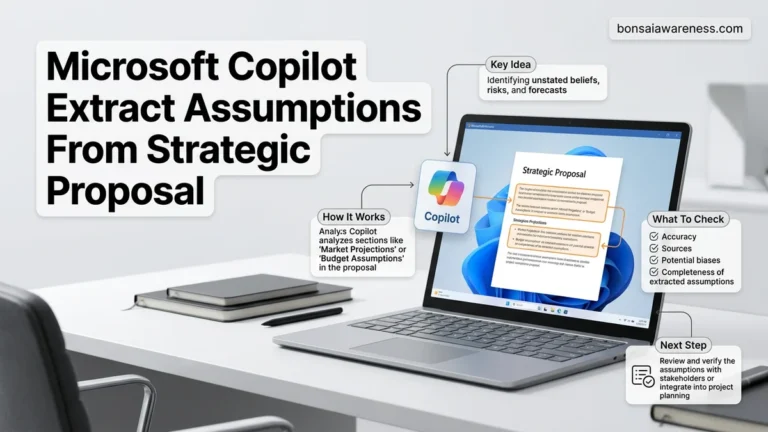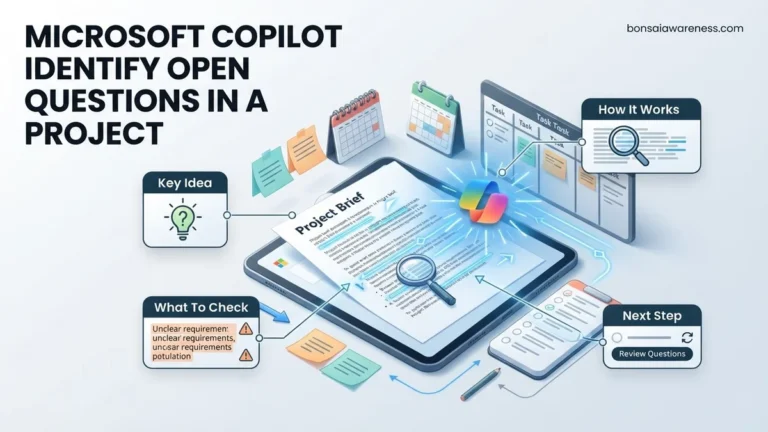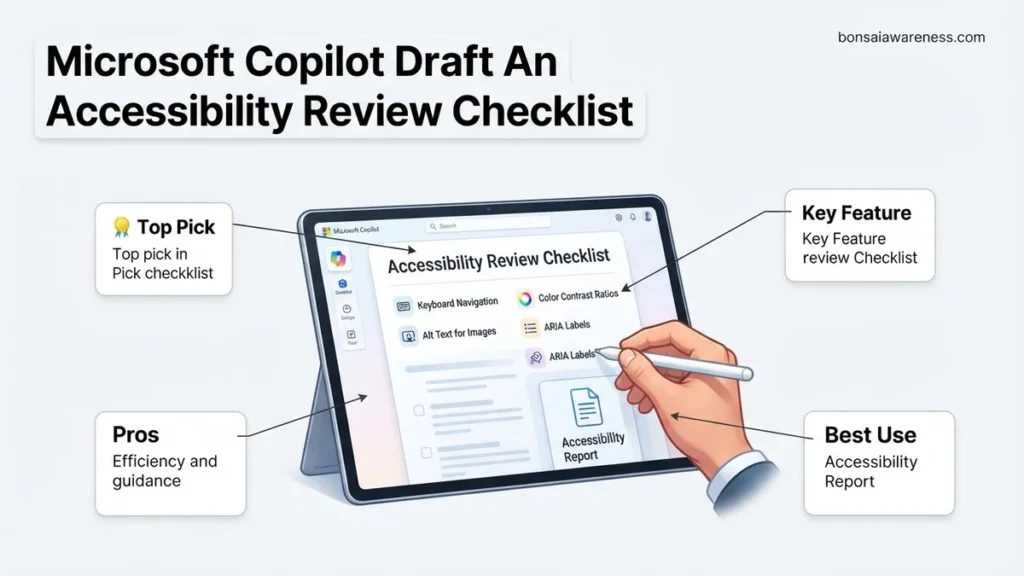
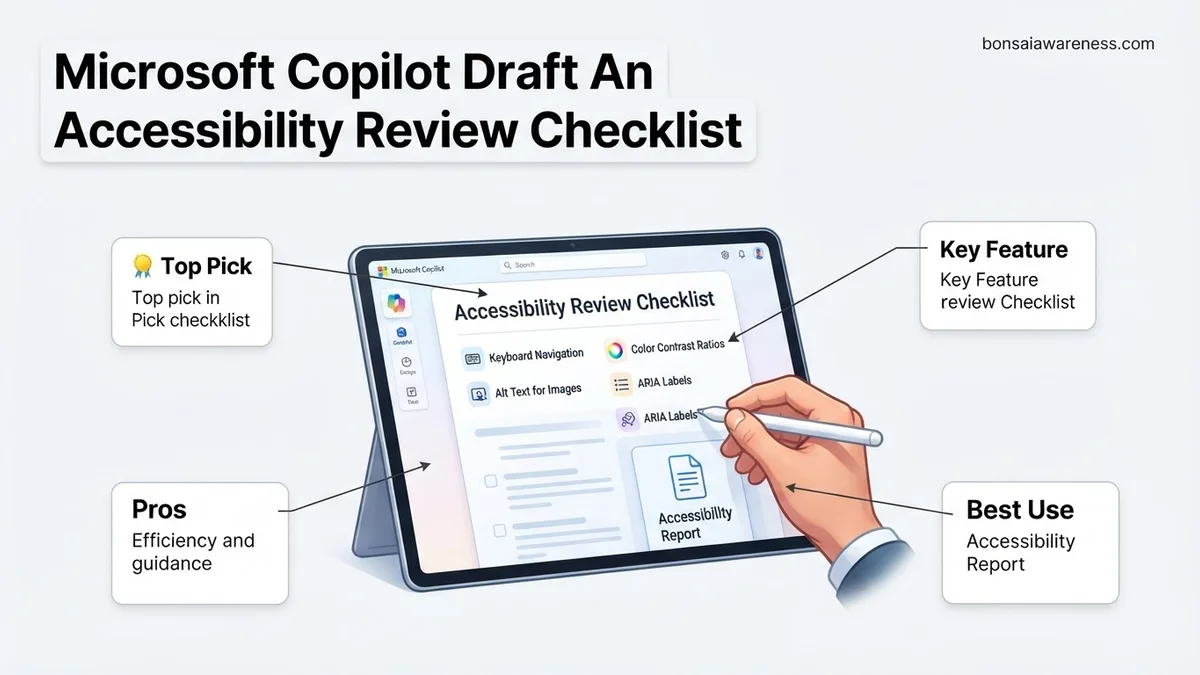
Creating compliance-ready evaluations is challenging when relying on manual documentation. Using Microsoft Copilot to draft an accessibility review checklist streamlines the process by generating structured, WCAG-aligned criteria instantly within your Microsoft 365 workflow.
To use Microsoft Copilot to draft an accessibility review checklist, you need to feed the AI hyper-specific context regarding your tech stack, compliance framework, and user workflows. Generic prompts yield generic results, but targeted prompts generate comprehensive auditing frameworks.
As accessibility standards evolve in 2026, manual checklist creation drains engineering hours. Leveraging AI to bootstrap your accessibility review process lets your team focus on validation and remediation rather than paperwork.
Key Takeaways
- Use explicit prompt structures detailing target standards like WCAG 2.2.
- Integrate Copilot directly into Microsoft Word to auto-generate checklist tables.
- Refine generated criteria by specifying your exact digital product type.
- Export the final checklist into Microsoft Loop for collaborative team reviews.
- Always cross-reference AI-generated checks against official compliance requirements.
What Causes Incomplete Accessibility Audits and Missing Checklist Criteria
The Over-Reliance on Automated Scanning Tools
Many teams rely solely on automated accessibility scanners, which only catch roughly 30% to 40% of all WCAG violations. When you build a checklist based only on automated tool outputs, you completely miss complex keyboard navigation traps, dynamic screen reader focus management issues, and semantic HTML flaws.
- Automated tests miss custom JavaScript widget behaviors entirely
- Color contrast and text scaling issues are often overlooked in responsive viewports
- Logic errors in multi-step form validation remain undetected
Generic Templates and Lack of Context
Using a static PDF checklist downloaded from the internet fails because it lacks context for your specific product. If your application is a React-based single-page application (SPA) with complex data grids, a generic marketing site checklist is useless.
- Standard checklists rarely account for modern component libraries like Shadcn or Fluent UI
- They ignore backend-driven API states and dynamic ARIA live region updates
- Teams fail to map criteria directly to developer-friendly unit tests or QA workflows
Mastering Accessibility Review Checklists in 7 Simple Steps
Creating comprehensive accessibility standards for digital products can be a daunting task, but leveraging AI makes the process faster and more thorough. This guide walks you through using Microsoft Copilot to draft a customized, WCAG-aligned accessibility review checklist tailored to your specific project needs. Following these steps ensures your digital assets are inclusive, legally compliant, and ready for all users.
Step 1: Define Your Accessibility Standards and Scope
What you need: Target compliance guidelines (such as WCAG 2.1 AA or Section 508), a description of your digital product type (e.g., mobile app, marketing website, or SaaS dashboard), and your team’s current workflow.
Instructions: Before prompting Copilot, you must establish the boundaries of your review. Decide whether you are auditing a live site, designing a new interface, or updating legacy code. Clearly define your target standard—for most commercial websites, WCAG 2.1 Level AA is the legal and industry benchmark. Write down these parameters so you can feed them into your AI prompt accurately. Knowing your scope prevents Copilot from generating a generic list and ensures the resulting checklist directly addresses your specific platform constraints.
Pro Tip: Always specify the exact WCAG version you are targeting. Asking for “accessibility” is too broad, but asking for “WCAG 2.1 AA compliance” yields precise technical requirements.
Step 2: Craft the Initial Copilot Prompt
What you need: Access to Microsoft Copilot (via web, Edge sidebar, or M365 integration) and the scope notes drafted in the previous step.
Instructions: Open Microsoft Copilot and input a detailed, structured prompt. Combine your product type, compliance standard, and desired format. For example, you might type: “Act as a senior digital accessibility expert. Draft a comprehensive accessibility review checklist for a React-based e-commerce checkout flow targeting WCAG 2.1 AA. Organize the checklist into logical categories like Keyboard Navigation, Screen Reader Support, and Visual Design, formatting each item with a clear pass/fail status checkbox.” Be as descriptive as possible to guide the AI’s contextual understanding.
Pro Tip: Use persona prompting. Telling Copilot to “Act as a certified accessibility professional (CPACC)” drastically improves the technical accuracy of the output.
Step 3: Refine and Expand AI-Generated Categories
What you need: The initial checklist output from Copilot and a basic understanding of digital accessibility pillars (Perceivable, Operable, Understandable, Robust).
Instructions: Review the categories Copilot provided. Does it cover color contrast, focus indicators, alt text, ARIA landmarks, and form labels? If any core area is missing, use follow-up prompts to expand the content. For instance, type: “Please expand the form validation section to include explicit instructions on error identification, error suggestion, and aria-live announcements.” Iterate with Copilot until every user journey phase—from landing on the page to final form submission—is accounted for in the checklist structure.
Pro Tip: Don’t settle for the first response. Ask Copilot to “add edge cases for users with cognitive disabilities” to make your checklist truly robust.
Step 4: Format for Practical Team Integration
What you need: A preferred documentation format (such as Markdown, Excel, Notion, or Jira ticket templates) and your refined Copilot checklist text.
Instructions: A checklist is only as good as its usability. Prompt Copilot to format the text specifically for your workflow tool. If your team uses Excel or Jira, ask Copilot: “Convert this checklist into a tabular format with columns for Category, Requirement, WCAG Criterion, Testing Method, and Status.” If your team uses Markdown for documentation, ask for a Markdown table or bulleted list with nested sub-tasks. Organizing the checklist this way allows QA testers and developers to easily track bugs and verification statuses.
Step 5: Add Technical Testing Methods and Tooling
What you need: Familiarity with automated and manual testing tools (like axe DevTools, WAVE, NVDA, VoiceOver, and keyboard-only navigation).
Instructions: Enhance your Copilot draft by specifying how each checklist item should be tested. Ask Copilot to assign appropriate testing methods to each line item—distinguishing between automated checks (e.g., contrast ratios), manual checks (e.g., tab order sequence), and assistive technology checks (e.g., screen reader announcement testing). For example, ensure the checklist explicitly instructs developers to test focus traps using only the Tab and Shift+Tab keys.
Pro Tip: Remind your team that automated tools only catch about 30-40% of accessibility issues. Ensure your Copilot checklist heavily emphasizes manual and assistive tech testing.
Step 6: Review and Validate Against Real-World Scenarios
What you need: A test environment or recent project build to pilot-test the new AI-generated checklist.
Instructions: Take your freshly minted Copilot checklist for a test drive. Run it through a sample page or component on your site. Check if the instructions are clear enough for a junior developer or QA engineer to follow without constant supervision. If an item is ambiguous or too technical, use Copilot to simplify the language: “Rewrite this checklist item in plain language with a brief example of a passing versus failing implementation.” Fine-tuning the wording prevents misinterpretations during active sprints.
Step 7: Finalize, Export, and Share with Stakeholders
What you need: Final approval from project leads, UX designers, and front-end developers, plus your repository or project management workspace.
Instructions: Once the checklist has been validated through a pilot test, compile the final version into your team’s centralized knowledge base. Share the checklist during a quick team sync to explain how it will be integrated into the Definition of Done (DoD) for future user stories. Set up a recurring review schedule—every 6 months is recommended—to prompt Copilot to update your checklist as accessibility standards and web technologies evolve.
✅ Final Checklist
- Defined target compliance standards (WCAG 2.1 AA or similar) in the initial prompt
- Organized checklist items into logical pillars (Perceivable, Operable, Understandable, Robust)
- Included specific testing methods (automated, manual keyboard, and screen reader)
- Formatted the output for seamless integration into your project management tools (Jira, Excel, Notion)
- Pilot-tested the checklist on a live page or component for clarity and usability
Important Notes:
- AI-generated checklists are a starting point; always cross-reference outputs against official W3C and WCAG documentation.
- Complex applications or products facing strict legal requirements (such as federal government or healthcare sites) should undergo a professional audit by certified accessibility experts.
- Estimated time to draft, refine, and finalize a custom checklist using Copilot is 30 to 45 minutes, with zero financial cost beyond your existing Copilot subscription.
How to Fix Checklist Gaps by Using Microsoft Copilot to Draft an Accessibility Review Checklist
Structuring the Core Prompt for Maximum Coverage
To eliminate gaps, your prompt must explicitly instruct Copilot to include edge cases, assistive technology testing requirements, and specific regulatory standards like WCAG 2.2. You need to define the user persona, technology stack, and desired output format.
- Specify the exact compliance target, such as WCAG 2.2 Level AA
- Define your frontend framework to get code-aware validation steps
- Ask Copilot to include testing methods for keyboard-only users and screen reader operators
Try pasting this proven prompt template directly into Microsoft Copilot:
Act as a senior digital accessibility expert. Draft a comprehensive accessibility review checklist for a React-based enterprise dashboard complying with WCAG 2.2 Level AA standards in 2026. Break the checklist down into four distinct categories: Keyboard Navigation, Screen Reader Compatibility, Visual and Color Requirements, and Form/Input Management. For each item, include the specific WCAG success criterion number, a brief testing instruction for QA engineers, and a common failure example. Format the output as a clean table with columns for Criterion, Description, Test Method, and Failure Example.
Iterating and Refining the Copilot Output
The initial checklist generated by Microsoft Copilot is your strong starting point, but you must refine it for your specific engineering sprints. Ask Copilot targeted follow-up questions to drill down into your unique product components.
- Prompt Copilot to translate the checklist items into automated Jest-axe or Playwright test assertions
- Ask the AI to add specific validation steps for mobile touch targets and gesture controls
- Request a streamlined version of the checklist tailored specifically for non-technical product managers
Step-by-Step Instructions to Refine and Format Your AI-Generated Checklist
Once Microsoft Copilot generates your baseline compliance document, immediate structural refinement is necessary to ensure enterprise-grade accuracy. According to the International Association of Accessibility Professionals (IAAP), digital audits require precise alignment with current global standards.
1. Validate Against WCAG 2.2 Criteria
Cross-reference every AI-generated prompt item with specific Web Content Accessibility Guidelines (WCAG) 2.2 success criteria. Verify that newer 2026 mandates regarding focus appearance, target size minimums, and dragging movements are explicitly covered in your checklist items.
2. Integrate Enterprise Tooling Protocols
Append technical validation steps to your checklist entries. Instruct your development team to pair manual evaluations with automated scanners like Axe-core or Microsoft Accessibility Insights. This hybrid methodology catches up to 57 percent more interface defects than automated testing alone.
3. Export and Distribute to Stakeholders
Convert the finalized checklist into an accessible markdown or Word document using Copilot’s export feature. Ensure the final document contains correct heading structures and alt text so that internal accessibility champions can review the evaluation framework seamlessly.
What If It Still Doesn’t Work and Your Copilot Output Needs Advanced Customization
When Microsoft Copilot yields generic compliance criteria or misses sector-specific regulations, standard troubleshooting steps are required to recalibrate the artificial intelligence engine.
- Incorporate Domain-Specific Constraints: Update your prompt to include exact industry standards, such as Section 508 refreshed guidelines or the European Accessibility Act (EAA), forcing the AI to narrow its contextual focus.
- Switch to Advanced Reasoning Modes: Utilize Copilot Pro or enterprise tiers configured with reasoning models to handle complex, multi-layered regulatory frameworks.
- Provide Few-Shot Training Examples: Feed the AI a snippet of a historically accurate compliance audit within your prompt window to guide output formatting and depth.
- Engage External Accessibility Consultants: If automated refinement fails to meet legal thresholds, partner with certified accessibility specialists. Professional manual auditing services typically range from $3,500 to $15,000 depending on digital asset complexity.
Conclusion
Leveraging Microsoft Copilot to draft an accessibility review checklist accelerates the initial compliance workflow while reducing manual drafting friction by hours. By systematically refining AI outputs and aligning them with rigorous international benchmarks, organizations protect themselves against costly legal liabilities. According to verified research and expert sources from leading digital governance institutions, proactive human-in-the-loop validation remains critical for absolute WCAG compliance. Take action today by running an updated prompt through Copilot and scheduling a pilot testing phase for your primary web application.
❓ Frequently Asked Questions
How specific should my prompt be when asking Microsoft Copilot to draft an accessibility review checklist?
Your prompt should clearly state the target compliance standard (e.g., WCAG 2.2 AA), the digital asset type (e.g., mobile app vs. PDF document), and the intended audience (developers, QA testers, or content editors). The more context you provide, the more tailored and actionable the resulting checklist will be.
Can Microsoft Copilot automatically test my website for accessibility?
No, Copilot is a text and document generation assistant, not an automated accessibility testing scanner. It helps you draft the manual review checklist, evaluation criteria, and documentation, but you will still need automated tools and manual testing to verify code compliance.
How do I update an existing Word document with a Copilot-generated checklist?
Open your document in Microsoft Word, invoke the Copilot pane, and input your checklist prompt. Once generated, select ‘Keep it’ to add the content directly to your page, then use Word’s table formatting tools to organize the rows and columns.
What are the limitations of using AI for accessibility checklist generation?
AI models may occasionally miss niche regulatory nuances or provide generic criteria that require manual adjustment. Always audit the generated checklist against official W3C or regional legal guidelines before deploying it across production teams.
How can I format the Copilot output for use in a project management tool?
You can prompt Copilot to output the review checklist in a Markdown table or comma-separated format. This makes it easy to copy and paste the items directly into tracking software like Azure DevOps, Jira, or Microsoft Planner.
Can Copilot help me explain accessibility errors found during a review?
Yes, you can paste specific code snippets or accessibility audit failures into Copilot and ask it to explain the WCAG violation and suggest remediation steps for your development team.