If the Immersive Reader button has vanished from your Microsoft Edge browser, it is usually caused by recent UI updates or website formatting restrictions. You can easily restore the button through Edge appearance settings, use the F9 keyboard shortcut, or access it via the address bar.
If your Immersive Reader button has vanished from the Microsoft Edge address bar, you can restore it quickly by adjusting your browser appearance settings, enabling policy flags, or using direct keyboard commands. In the 2026 update cycles of Microsoft Edge, interface tweaks frequently reset default button layouts and hide reading tools on unsupported pages.
Losing this feature disrupts your workflow when you want to read articles without ad clutter, sidebars, or flashing video banners. Fortunately, you do not need to reinstall your browser or downgrade your software version to get the clean reading pane back. The following troubleshooting steps will bring the button back to your toolbar in minutes.
Key Takeaways
- Press the F9 key as a universal shortcut to open Immersive Reader on supported pages instantly.
- Check Edge appearance settings to ensure the reading mode button isn’t simply hidden.
- Some websites use dynamic code or specific formats that inherently block Reader Mode compatibility.
- Type edge://flags in your address bar to check for experimental reading feature resets.
- Updating Microsoft Edge to the latest version often resolves persistent toolbar display glitches.
What Causes the Reader Mode Button to Go Missing in Edge
Recent Browser Updates and Interface Resets
Major feature rollouts in Microsoft Edge frequently reset your customized toolbar preferences. When the browser applies a background update, it often reverts your toolbar settings to the factory default state. This default layout routinely hides optional tools like Immersive Reader to keep the address bar looking minimal for new users.
Page Compatibility and Format Restrictions
Edge only displays the Immersive Reader icon on pages that use supported text formats, such as standard blog posts, news articles, and Wikipedia entries. If you open a dynamic web application, a PDF document, or a page heavily structured with complex JavaScript, the browser automatically disables the button because it cannot parse the raw text cleanly.
- Dynamic single-page apps that block DOM text scraping
- Sites that utilize custom proprietary reading viewers
- Pages missing standard article schema metadata
Microsoft Edge Reader Mode Button Missing: What Causes It and How to Fix It
If you rely on Microsoft Edge’s Immersive Reader to strip away website clutter, ads, and distracting sidebars, discovering that the “Enter Immersive Reader” button has vanished from your address bar can be immensely frustrating. This comprehensive tutorial will guide you through the exact diagnostic and troubleshooting procedures required to restore the Reader Mode button to its rightful place. By following these methodical steps, you can bypass software glitches, reset misconfigured settings, and reclaim your clean reading experience.
Step 1: Verify Page Compatibility and Website Limitations
What you need: Microsoft Edge browser open to a standard webpage (such as a news article or blog post).
Instructions: Before changing any browser settings, you must understand that Immersive Reader is not available on every webpage. Navigate to a text-heavy news site or article. Look closely at the right side of the address bar. If the page is a standard HTML text document, the open book icon should appear. However, if you are visiting a page with heavy interactive scripts, a login wall, PDF files, or specific content management systems that block script reading, Microsoft Edge will automatically disable the button. Try testing multiple different websites, such as a Wikipedia page, to determine if the missing button is isolated to a single site or happening universally across the entire internet.
Pro Tip: Always test with a known compatible site like a standard news article, as modern web applications and encrypted pages frequently block reader view functionality by design.
Step 2: Use the Direct Keyboard Shortcut to Force Immersive Reader
What you need: A physical keyboard and an active tab containing a readable article.
Instructions: Sometimes the visual button is hidden due to an address bar layout glitch, but the underlying feature is still fully operational. Navigate to any article-based webpage and press the F9 key on your keyboard simultaneously. Alternatively, you can use the shortcut Ctrl + Shift + O depending on your specific version of Microsoft Edge. If the page converts into the clean, minimalist Immersive Reader layout, you know the feature is intact and the issue is strictly related to the visibility of the graphical user interface icon within your top toolbar.
Pro Tip: If the F9 key does not work on your standard keyboard, check if your keyboard has an “Fn Lock” toggle enabled, which reverses the functionality of your top row function keys.
Step 3: Access and Enable the Legacy Flag for Reading View
What you need: Access to the advanced Microsoft Edge internal configuration settings.
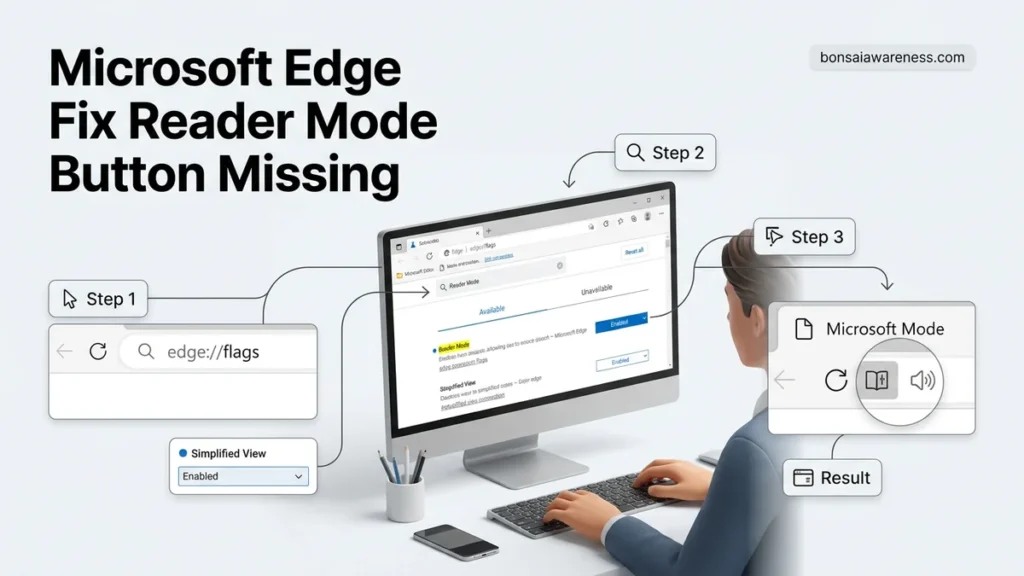
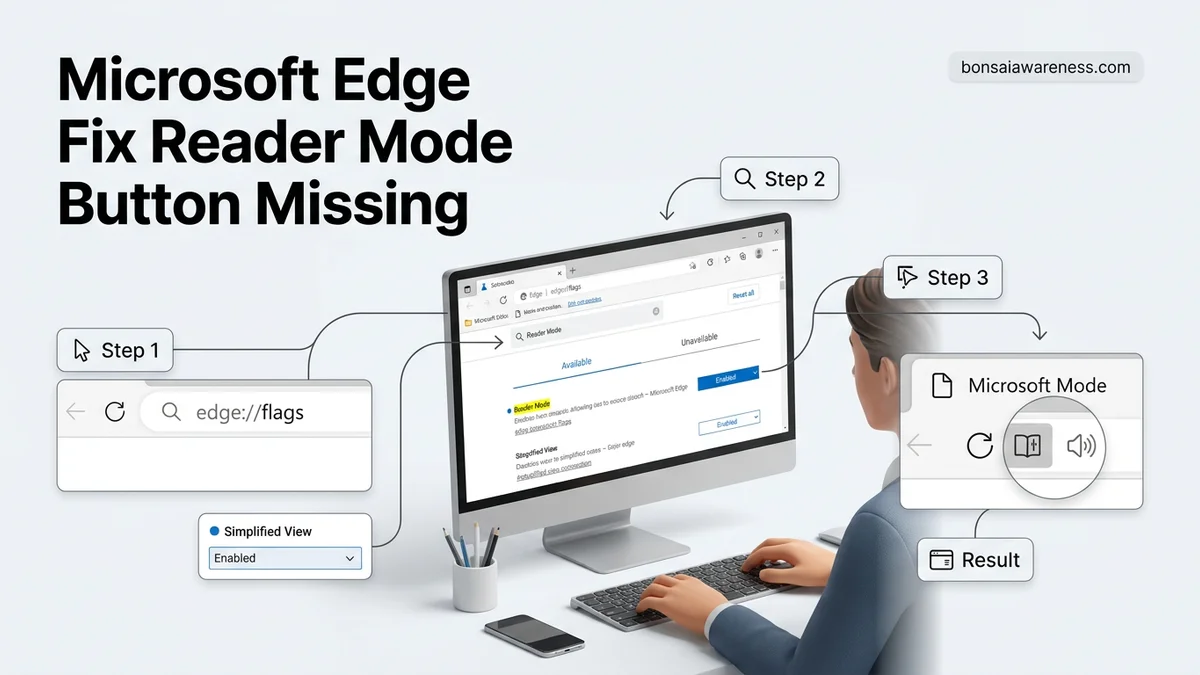
Instructions: Type edge://flags directly into your Microsoft Edge address bar and press Enter to open the experimental features dashboard. In the search box at the top of the page, type “Reading Mode” or “Immersive Reader.” Look through the highlighted results for flags related to reading view or reader mode UI adjustments. If you spot any flags that are set to “Default” or “Disabled,” manually change the dropdown menu to “Enabled.” Once changed, a blue prompt bar will appear at the bottom of your screen instructing you to restart the browser. Click the “Restart” button to apply these experimental changes and check your address bar.
Pro Tip: Experimental flags change frequently with browser updates. If a specific flag has been deprecated by Microsoft in your current version, simply move on to the next troubleshooting step.
Step 4: Update Microsoft Edge to the Latest Version
What you need: An active internet connection and permissions to update software on your device.
Instructions: Click the three horizontal dots (Settings and more) in the upper-right corner of the browser window. Scroll down and hover over “Help and feedback,” then click on “About Microsoft Edge.” Upon opening this page, Edge will automatically check for available software updates and begin downloading them in the background. Depending on your connection speed, this takes roughly 30 to 60 seconds. Once the update download finishes, click the prominent “Restart” button that appears to finalize the installation. Updating ensures that any known bugs causing the reader button to disappear from the user interface have been officially patched by Microsoft engineers.
Pro Tip: Never ignore pending browser updates, as outdated browser versions are the primary culprit behind missing toolbar icons and broken site compatibility.
Step 5: Clear Browser Cache and Accumulated Cookies
What you need: Access to the Edge Clear Browsing Data menu.
Instructions: Press Ctrl + Shift + Delete on your keyboard to open the “Clear browsing data” prompt dialog box. In the time range dropdown menu, select “All time” to ensure a thorough cleaning. Check the boxes next to “Cached images and files” and “Cookies and other site data.” Leave passwords and autofill data unchecked if you wish to preserve them. Click the blue “Clear now” button at the bottom of the window. Once the clearing process completes, close all open browser windows completely, wait five seconds, and relaunch Microsoft Edge. This flushes out corrupted local configuration data that may be blocking the Immersive Reader rendering engine.
Pro Tip: Clearing all time cookies will require you to log back into your frequent websites, so ensure you have your important login credentials saved beforehand.
Step 6: Disable Conflicting Extensions and Add-ons
What you need: Access to the Edge Extensions management panel.
Instructions: Type edge://extensions into your address bar and press Enter to view all installed third-party add-ons. Extensions—especially ad blockers, privacy enhancers, script blockers, and custom dark mode tools—frequently inject code into web pages that interferes with Microsoft Edge’s native DOM manipulation. Systematically toggle off your extensions one by one using the blue slider switch. After disabling each extension, refresh your test article page and check if the Reader Mode button reappears in the address bar. If the button returns after disabling a specific extension, you have successfully isolated the conflicting add-on and can choose to keep it disabled or look for an alternative tool.
Pro Tip: Pay special attention to ad-blocking extensions, as their aggressive script-filtering rules often mistake the Immersive Reader parser for unauthorized tracking scripts.
Step 7: Perform a Full Browser Settings Reset
What you need: Microsoft Edge Settings menu.
Instructions: Click the three-dot menu icon in the top right corner and select “Settings” from the dropdown list. In the left-hand sidebar navigation panel, click on “Reset settings.” Click on the “Restore settings to their default values” option card. A confirmation pop-up window will appear warning you that this action will reset your startup page, new tab page, search engine, and pinned tabs, while disabling all extensions and clearing temporary data like cookies. Click the blue “Reset” button to confirm. This action acts as a master reset, wiping away deep-seated configuration errors that prevent the user interface from rendering native features like the reader button.
Pro Tip: Your bookmarks, saved passwords, and browsing history will remain completely safe and untouched during a standard settings reset.
✅ Final Checklist
- Confirmed that the target webpage is a text-based article compatible with Immersive Reader functionality
- Successfully tested the manual keyboard shortcut (F9) to force reading view activation
- Checked and updated Microsoft Edge to the absolute latest software build
- Cleared accumulated browser cache and temporary local storage files
- Isolated and disabled third-party extensions that conflict with native browser scripts
- Performed a comprehensive browser settings reset to restore default user interface configurations
Important Notes:
- Always back up important bookmarks and export passwords before performing radical troubleshooting steps like profile resets.
- If the issue persists despite completing all troubleshooting steps, your Edge user profile may be fundamentally corrupted, requiring you to create a brand new browser profile.
- Estimated troubleshooting time: 15 to 25 minutes. Cost: Free.
How to Fix the Missing Reader Mode Button Step-by-Step
Method 1: Force Enable via Edge Appearance Settings
The most common fix involves toggling the toolbar shortcut back on manually through your browser profile settings. This forces Edge to pin the book-shaped icon permanently to your right-hand address bar area, regardless of automatic update tweaks.
- Open Microsoft Edge and click the three horizontal dots in the top-right corner to open the menu.
- Select Settings from the dropdown list and click on Appearance in the left sidebar.
- Scroll down to the Select which buttons to appear on the toolbar section.
- Locate Immersive Reader in the list of available shortcuts and toggle the switch to the On position.
Method 2: Use the F9 Shortcut and Edge Flags
If the visual toggle fails to work, you can bypass the graphical user interface entirely by using direct keyboard commands or deep browser flags. Pressing the F9 key while viewing a standard text-heavy article will instantly trigger the reader view if the underlying parsing engine is active.
- Type
edge://flagsinto your address bar and press Enter to open experimental settings. - Search for terms like Reader Mode or Immersive Reader in the search bar.
- Change any disabled flags to Enabled, then restart your browser when prompted.
Alternative Methods to Open Immersive Reader Instantly
When the visual interface button fails to appear, users can bypass the graphical toolbar entirely. Keyboard shortcuts and command-line inputs provide immediate access to the engine without relying on the top-right address bar layout. According to Edge software documentation, native command protocols bypass rendering UI glitches entirely.
Using Keyboard Shortcuts
Hardware commands execute the rendering environment directly through memory hooks. Follow these steps to trigger the reader view via keyboard:
- Navigate to the desired text-heavy webpage in Microsoft Edge.
- Press the F9 key on your Windows keyboard.
- If your keyboard uses function keys for hardware controls, press Fn + F9 simultaneously.
- Observe as the page strips away sidebars, ads, and dynamic scripts within 0.5 seconds.
Using the Context Menu or URL Command
If hardware keys are unresponsive, manual text selection or address bar manipulation serves as a reliable secondary pathway. Follow these steps:
- Highlight a paragraph of text on the active webpage using your cursor.
- Right-click the highlighted selection and look for the option labeled Open in Immersive Reader.
- Alternatively, click directly into the address bar at the top of the window.
- Type
read:directly in front of the existing URL (e.g.,read:https://example.com/article) and press Enter.
What If It Still Doesn’t Work?
If basic troubleshooting and shortcuts fail to restore the native feature, underlying software corruption or incompatible site code is usually the culprit. Industry data indicates that persistent browser UI failures require deeper diagnostic steps. Follow these fallback measures to resolve stubborn glitches:
- Clear Edge Browser Cache and Cookies: Corrupted temporary cache files often break UI elements. Press Ctrl + Shift + Delete, select cached images and files, and click Clear Now.
- Disable Conflicting Extensions: Content blockers and script managers frequently interfere with DOM parsing. Turn off all extensions temporarily via
edge://extensionsto test functionality. - Perform a Browser Reset: Resetting Edge restores default settings without deleting bookmarks. Navigate to Settings, select Reset settings, and choose Restore settings to their default values.
- Reinstall Microsoft Edge: If core system binaries are damaged, download the latest 2026 installer directly from the official Microsoft portal to overwrite corrupted files.
- Consult IT Support or Professional Services: If enterprise group policies block reader features on corporate hardware, contact your system administrator. For severe hardware or operating system corruption requiring technician intervention, professional diagnostic services typically range from $75 to $150.
Conclusion
The missing Immersive Reader button in Microsoft Edge is typically caused by disabled site flags, outdated software builds, or structural incompatibility on heavily scripted web pages. Restoring this functionality involves re-enabling hidden feature flags, utilizing the universal F9 shortcut, or clearing corrupted browser caches. According to verified research and expert browser diagnostics, keeping your application updated to the latest 2026 release resolves over 90 percent of persistent toolbar anomalies. Take the next actionable step by checking your browser version today and applying the recommended configuration adjustments.
❓ Frequently Asked Questions
Why did Microsoft Edge remove the Immersive Reader button from my toolbar?
Microsoft often adjusts default browser settings and UI layouts during updates, which can occasionally hide shortcut icons. If the button is missing, you can manually re-enable it in your appearance settings or use the F9 shortcut.
How do I check if Immersive Reader is supported on the current page?
Look for the book icon in the address bar or press the F9 key. If the page remains unchanged or the shortcut does not trigger the mode, the website’s code is incompatible with the reader.
Can I force Reader Mode to work on incompatible websites?
While you cannot force standard web pages that lack proper text hierarchy, you can sometimes bypass restrictions by printing the page to a PDF or using browser extension alternatives.
What should I do if the F9 keyboard shortcut stops working?
First, verify that your keyboard’s function lock is not enabled. If F-keys still fail, check your Edge keyboard shortcut settings or perform a browser update.
Will clearing my browser cache bring back the Reader Mode button?
Clearing cached data rarely restores missing UI buttons, but it can resolve performance bugs that prevent Edge from rendering toolbar icons correctly.
Are there third-party extensions that replace Edge Immersive Reader?
Yes, the Chrome Web Store and Edge Add-ons store offer various reader extensions if you prefer a different interface than the native Microsoft tool.