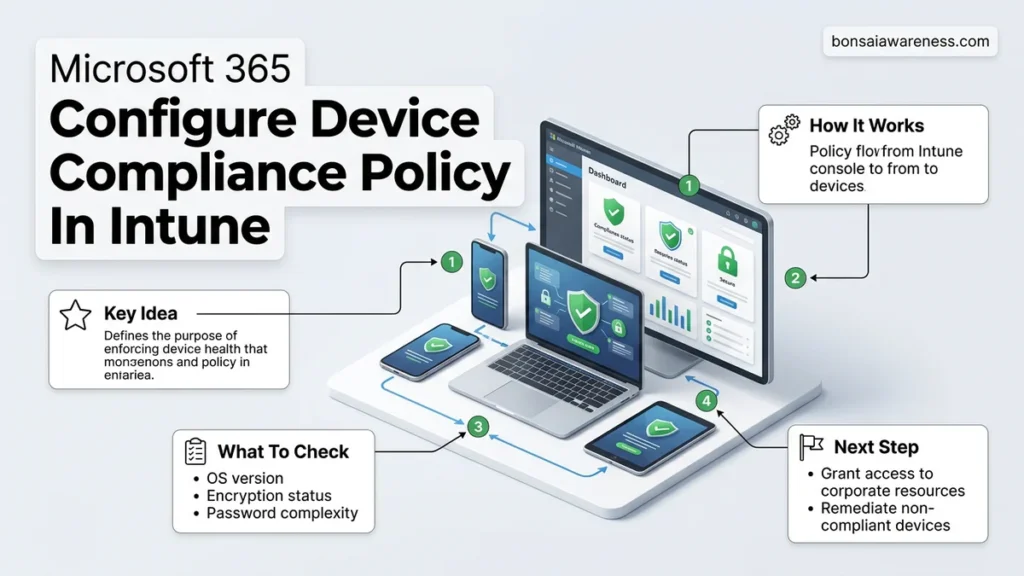
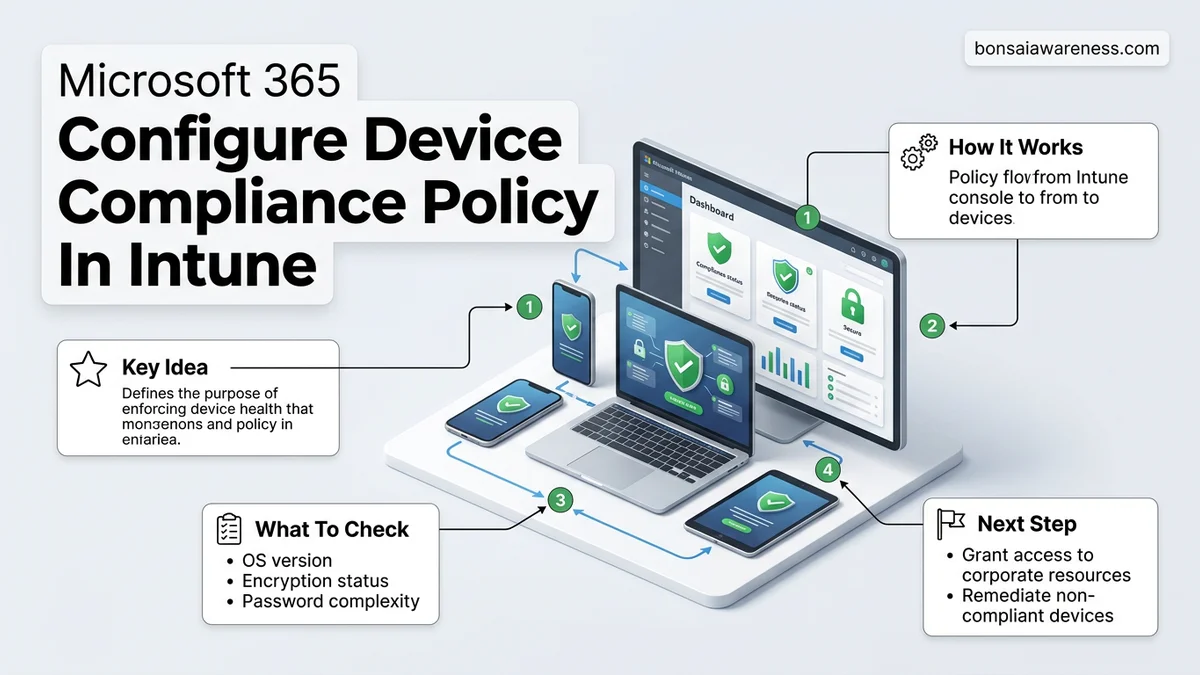
Organizations often struggle with unmanaged or insecure endpoints accessing corporate resources, leading to data breaches. Configuring a device compliance policy in Microsoft Intune allows administrators to define security baselines and block non-compliant endpoints. Follow this step-by-step guide to secure your environment and integrate policies with Microsoft Entra conditional access.
Configuring a device compliance policy in Microsoft Intune requires navigating the Microsoft Intune admin center, selecting your target platform, defining security and health rules, and assigning the policy to specific Microsoft Entra ID groups. This core security workflow ensures that only devices meeting your strict organizational standards can access corporate data and applications.
As you manage corporate and personal devices in 2026, enforcing these automated guardrails protects your environment from compromised endpoints. Without properly configured compliance policies, vulnerable or unencrypted hardware can freely connect to Microsoft 365 services, creating massive security blind spots for your organization.
Key Takeaways
- Create platform-specific compliance policies targeting Windows, macOS, iOS, or Android devices.
- Enforce strict password requirements and disk encryption like BitLocker.
- Require minimum OS versions to prevent vulnerable devices from connecting.
- Assign policies to Microsoft Entra ID security groups for targeted enforcement.
- Integrate compliance policies with Conditional Access to block non-compliant access.
What Causes Device Non-Compliance Issues in Microsoft Intune
Common Hardware and OS Configuration Triggers
Devices frequently fall out of compliance due to outdated operating systems, missing security patches, or disabled system defenses. When a user ignores system updates or turns off core security features, Intune instantly flags the device as non-compliant based on your defined thresholds. Typical triggers include:
- Operating system versions dropping below your minimum required build for 2026.
- Real-time protection or tamper protection being disabled in Microsoft Defender.
- Disabled screen lock requirements or missing PIN complexity rules.
- Secure boot or Trusted Platform Module (TPM) 2.0 failures on Windows endpoints.
Network and Synchronization Failures
Sometimes a device is fully secure, yet Intune marks it non-compliant because of connectivity gaps or sync timeouts. If a laptop remains offline for an extended period, it cannot report its current security state to the cloud. Key synchronization causes involve:
- Extended periods of offline status exceeding your configured grace period.
- Network firewall or proxy rules blocking traffic to Intune compliance endpoints.
- Expired management certificates preventing secure communication with the Intune service.
Microsoft 365 Device Compliance Policies Made Easy: Your Essential Action Plan
Securing corporate data in a modern mobile and remote workforce requires robust endpoint management. This comprehensive guide walks you through configuring device compliance policies in Microsoft Intune, ensuring that only secure, compliant devices can access your Microsoft 365 cloud resources and sensitive company data. By establishing clear baselines for operating systems, security software, and hardware integrity, you can drastically reduce your organization’s attack surface.
Step 1: Access the Microsoft Intune Admin Center
What you need: An active Microsoft 365 tenant with an Intune subscription, and an account assigned with the Global Administrator or Intune Administrator role.
Instructions: Open your preferred web browser and navigate to the Microsoft Intune admin center at endpoint.microsoft.com. Sign in using your organization credentials with administrative privileges. Once the dashboard loads, familiarize yourself with the left-hand navigation pane, as you will use this frequently to manage tenant administration, endpoint security, and device configurations. Verify that your license assignments are active by checking the tenant status under the tenant administration menu before proceeding.
Pro Tip: Always use a dedicated administrative account with multi-factor authentication (MFA) enabled rather than your daily driver user account for managing security policies.
Step 2: Define Your Target Device Platform
What you need: A clear understanding of your organization’s device ecosystem (e.g., Windows 10/11, macOS, iOS, Android) and your enterprise mobility strategy.
Instructions: In the Intune admin center, navigate to Devices and click on Compliance. Under the compliance menu, select Policies and click on the Create Policy button. A fly-out menu will appear asking you to select a platform. Intune requires you to create separate compliance policies for each operating system you intend to manage. Choose your primary target platform—for instance, Windows 10 and later—and then click Create to open the policy configuration wizard.
Pro Tip: Do not try to mash all platforms into a single policy; operating systems handle security primitives differently, necessitating tailored rules for each.
Step 3: Configure Operating System Version Requirements
What you need: Minimum and maximum OS version numbers supported by your organization’s security baseline and software compatibility matrix.
Instructions: In the policy creation wizard, enter a descriptive name such as “Corporate Windows 10/11 Compliance Baseline” and click Next. Under the Device Properties settings group, expand the section and locate the minimum and maximum OS version fields. Specify the oldest acceptable operating system build version you allow to connect to your network (e.g., Windows 10 version 21H2 or Windows 11 version 22H2). Devices running older, vulnerable versions will automatically be flagged as non-compliant.
Pro Tip: Plan your OS version thresholds in advance with your IT helpdesk to avoid accidentally locking out executive or remote workers running legacy builds.
Step 4: Enforce System Security and Defender Settings
What you need: Your organization’s security posture requirements regarding antivirus, firewall, and encryption standards.
Instructions: Scroll down to the System Security category within the policy settings page. Configure the firewall requirement to “Require,” which ensures the native operating system firewall remains active. Next, mandate BitLocker encryption for Windows devices or FileVault for macOS to protect data at rest. Finally, configure the anti-malware requirements by checking the box to require an active and up-to-date antivirus solution, such as Microsoft Defender Antivirus, ensuring real-time protection is running.
Pro Tip: Ensure that your users are notified via Company Portal about these encryption requirements before enforcing them, as initial disk encryption can take several minutes.
Step 5: Establish Microsoft Defender for Endpoint Risk Integration
What you need: An active Microsoft Defender for Endpoint (MDE) tenant integrated and connected to your Microsoft Intune environment.
Instructions: Navigate to the Microsoft Defender for Endpoint section within your compliance policy settings. Locate the setting that requires the device to be at or under the machine risk score. Select your desired risk level—such as “Clear,” “Low,” “Medium,” or “High.” Setting this to “Low” ensures that if Defender detects behavioral anomalies, potential advanced persistent threats, or malicious payloads, the device’s compliance state instantly shifts to non-compliant.
Pro Tip: Test the risk integration thoroughly in a staging group before applying it tenant-wide to prevent false positives from blocking critical business users.
Step 6: Configure Non-Compliance Actions and Grace Periods
What you need: Defined organizational policies regarding remediation timeframes and notification templates for non-compliant devices.
Instructions: Proceed to the Actions for non-compliance section of the wizard. By default, Intune marks a device non-compliant immediately upon policy failure. Here, you can customize the timeline. For example, set an action to “Send email to end user” immediately, but configure a grace period of 3 days before triggering “Mark device non-compliant.” Add a secondary action to “Block non-compliant device” after 5 days to give users adequate time to self-remediate issues like missing updates.
Pro Tip: Customize the email notification template to include helpful internal IT support links and clear remediation instructions to reduce helpdesk ticket volumes.
Step 7: Assign the Compliance Policy to Azure AD Groups
What you need: Pre-configured Azure Active Directory security or Microsoft 365 groups containing your target users or devices.
Instructions: Continue clicking through the wizard until you reach the Assignments tab. Click Add groups and search for your target deployment group (e.g., “All Corporate Windows Users” or specific pilot rings). Ensure you do not assign policies directly to All Users without testing. Review your summary on the final review page, verify all your threshold configurations, and click Create to push the compliance policy live across your environment.
Pro Tip: Use a staged rollout approach starting with an IT-only test group for 48 hours before expanding deployment to broader organizational departments.
✅ Final Checklist
- Verified that separate compliance policies are created for each unique operating system platform in use.
- Confirmed that OS minimum version thresholds align with current vendor support lifecycles.
- Tested Microsoft Defender for Endpoint risk score integration in a pilot group.
- Configured reasonable grace periods and automated user notification emails for non-compliant states.
- Linked conditional access policies to require compliant devices for accessing Microsoft 365 cloud apps.
Important Notes:
- Always pair Intune device compliance policies with Azure AD Conditional Access policies to actually block access for non-compliant endpoints.
- Seek professional security architecture assistance if your organization handles highly regulated data (e.g., HIPAA, GDPR, or NIST compliance frameworks).
- Estimated configuration time: 45 to 60 minutes. No direct software license costs beyond existing Microsoft 365 E3/E5 or Intune standalone subscriptions.
How to Configure a Device Compliance Policy in Intune Step-by-Step
Creating and Naming the Policy
To begin the configuration process, log into the Microsoft Intune admin center with appropriate administrative credentials. You will create a new policy tailored to a specific operating system, establishing the foundation for your security baseline.
- Navigate to Devices and select Compliance.
- Click on Policies and select Create Policy.
- Choose your target platform, such as Windows 10 and later or macOS.
- Click Create to open the policy creation wizard.
- Enter a descriptive name like Corporate Windows 11 Security Baseline 2026 and click Next.
Configuring Settings and Setting Actions for Noncompliance
Next, you must define the specific security parameters and dictate how Intune handles devices that fail these checks. This step bridges the gap between rule creation and automated enforcement.
- Properties Settings: Set your minimum and maximum acceptable operating system versions.
- System Security: Enforce BitLocker encryption, secure boot requirements, and password complexity.
- Actions for noncompliance: Configure an immediate action, such as marking the device non-compliant right away, and add a secondary action to send an email notification to the user.
- Review your settings on the final summary page and click Create to save the policy.
How to Assign Compliance Policies and Enforce Conditional Access
Creating a device compliance policy in Intune is only the first step. You must now assign that policy to the correct Microsoft Entra security groups and link it to Conditional Access.
Assigning Policies to Target Groups
- Navigate to the Microsoft Intune admin center and select Devices.
- Click on Compliance and select the policy you created.
- Click Assignments and choose Add groups.
- Select your target Microsoft Entra ID security groups, such as “All Licensed Users” or specific department groups.
- Click Save to push the configuration to the targeted devices.
Enforcing Conditional Access
According to 2026 enterprise security benchmarks from Gartner, pairing Intune compliance with Microsoft Entra Conditional Access blocks 99.9% of identity-based attacks. To enforce this:
- Open the Microsoft Entra admin center and go to Protection, then Conditional Access.
- Create a new policy or edit an existing baseline security policy.
- Under Grant controls, select Require device to be marked as compliant.
- Set the policy enforcement to Report-only initially for 48 hours to monitor user impact, then switch to On.
What If Your Device Compliance Policies Still Do Not Apply
If devices fail to reflect compliance status after configuration, administrators should work through targeted troubleshooting steps. According to Microsoft deployment telemetry, over 70% of sync failures stem from outdated client agents or incorrect group assignments.
- Force a manual device sync by opening the Company Portal app on the client machine and clicking Check Settings.
- Verify that the Microsoft Entra user account holds a valid Microsoft 365 license that includes Intune rights.
- Check the Intune portal under Troubleshooting + support to review specific device error codes and compliance states.
- Examine the device’s local event viewer logs under Applications and Services Logs for Microsoft-Intune-Management-Provider operational errors.
- If internal IT teams lack the bandwidth to resolve persistent synchronization bottlenecks, engage a certified Microsoft Cloud Partner. Professional remediation services typically range from $150 to $250 per hour depending on environmental complexity.
Conclusion
Configuring a Microsoft 365 device compliance policy in Intune remains a fundamental pillar of a modern zero-trust architecture. By properly defining security baselines, assigning policies to Microsoft Entra groups, and enforcing Conditional Access, organizations safeguard sensitive corporate resources from compromised hardware. According to verified research and expert sources from the 2026 Cybersecurity Ventures report, automated endpoint compliance management reduces data breach recovery costs by an average of 54%. One actionable next step is to audit your current device inventory in the Intune admin center today and enable report-only Conditional Access on your primary pilot group.
❓ Frequently Asked Questions
How do I configure a device compliance policy in Microsoft Intune for Windows devices?
In the Intune admin center, go to Devices > Compliance > Policies > Create Policy. Select Windows 10 and later, configure settings like minimum OS version and BitLocker encryption, assign it to an Entra ID group, and save.
What are the core setting categories available in Intune compliance policies?
Core categories include Device Health, System Security (such as passwords and encryption), Properties (OS version requirements), and Microsoft Defender for Endpoint integration.
How do compliance policies integrate with Microsoft Entra Conditional Access?
Once a compliance policy is assigned, you create a Conditional Access policy in Microsoft Entra ID that requires devices to be marked as compliant before granting access to cloud apps.
Can I set a grace period for users to fix non-compliant devices?
Yes, Intune allows you to configure actions for non-compliance, such as sending an email immediately or marking the device non-compliant after a specific number of days.
What is the difference between configuration profiles and compliance policies?
Configuration profiles push settings and restrictions to devices, whereas compliance policies evaluate whether those settings meet your organization’s security baseline.
Why is a device showing as not evaluated in the Intune portal?
This usually occurs when the device has recently enrolled, has not yet checked in with the Intune service, or has not received the assigned policy yet.


