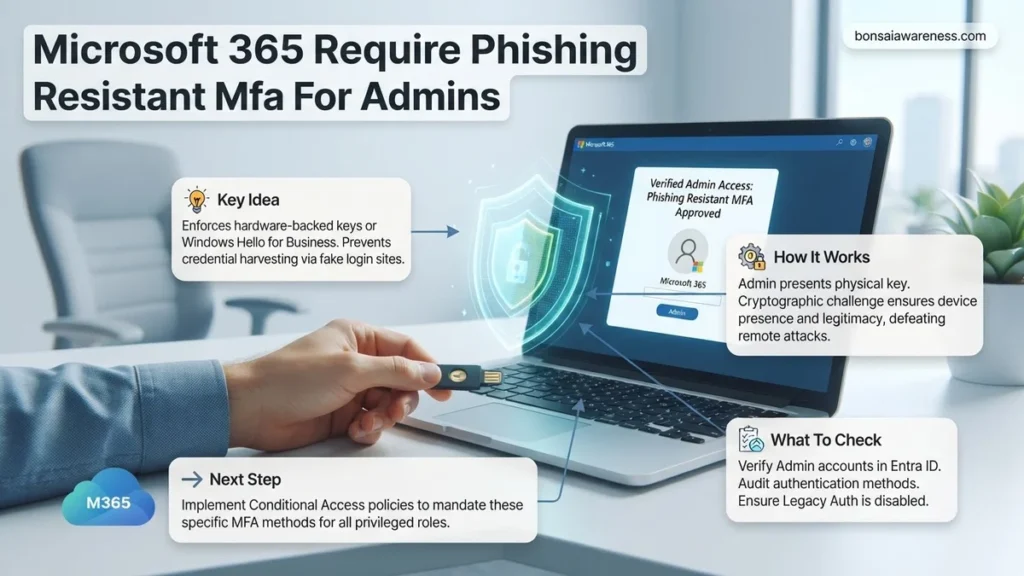
Microsoft 365 now requires phishing-resistant MFA for all privileged administrator accounts to combat advanced cyber threats. This step-by-step guide explains how to identify eligible authentication methods and enforce compliance using Microsoft Entra ID Conditional Access policies.
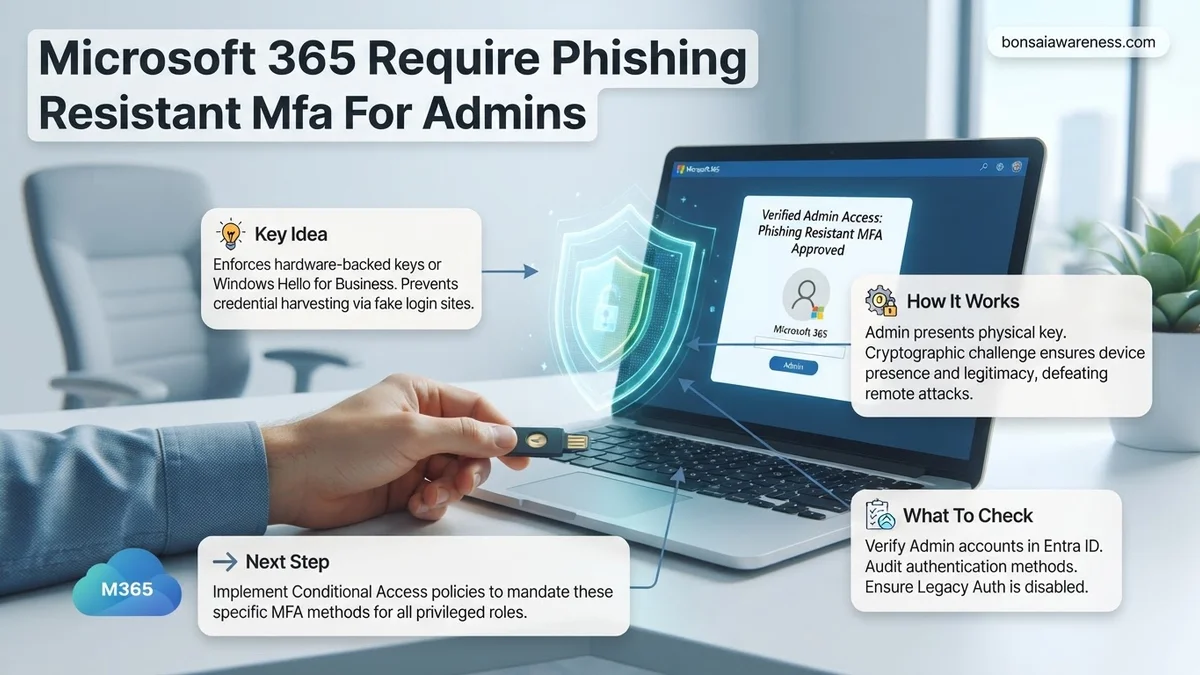
To enforce phishing-resistant multi-factor authentication for Microsoft 365 administrators, you must deploy a targeted Microsoft Entra Conditional Access policy that explicitly excludes standard methods like SMS, voice calls, and software push notifications. By 2026, threat actors routinely bypass legacy MFA using AiTM (adversary-in-the-middle) proxy kits that harvest session cookies in real-time. Securing your tenant requires restricting privileged accounts to hardware-bound or cryptographic credentials that cannot be intercepted.
Implementing this mandate protects your entire organizational infrastructure from catastrophic privilege escalation attacks. When threat actors compromise a single global administrator account, they gain unfettered access to user data, mailboxes, and security configurations. Transitioning your administrative tier to phishing-resistant authentication breaks the credential theft chain entirely.
Key Takeaways
- Enforce FIDO2 security keys, Windows Hello, or CBA for all admin roles.
- Microsoft mandates phishing-resistant authentication to secure high-value cloud administrative portals.
- Standard SMS and push notifications via standard apps no longer qualify as phishing-resistant.
- Build targeted Conditional Access policies to avoid locking out legitimate system administrators.
- Test deployment workflows thoroughly with a pilot group before wide enterprise enforcement.
What Causes Administrative Vulnerabilities in Microsoft 365 Without Phishing-Resistant MFA
The Failure of Legacy MFA Mechanisms
Traditional multi-factor authentication methods rely on secrets or codes that can be intercepted, guessed, or relayed. Standard push notifications suffer from prompt fatigue, where administrators accidentally approve malicious login requests out of habit. SMS and voice call verification codes are vulnerable to SIM-swapping attacks and SS7 interception. Even standard software-based one-time passcodes can be captured by sophisticated phishing sites.
- Push notifications: Vulnerable to fatigue attacks and accidental approval.
- SMS and Voice: Susceptible to SIM-jacking and interception.
- Software OTP: Easily harvested via reverse-proxy phishing kits.
The Threat of Adversary-in-the-Middle (AiTM) Phishing
Modern credential harvesting tools act as a transparent proxy between your administrator and the legitimate Microsoft login page. The phishing site captures the username, password, and the traditional MFA token simultaneously. The attacker then replays these credentials to steal the live session cookie, bypassing standard security controls entirely. Because legacy MFA methods do not cryptographically bind the authentication session to the device and the specific URL, your administrators remain exposed.
How to Configure Microsoft Entra ID to Require Phishing-Resistant MFA for Admins
Targeting Privileged Roles with Conditional Access
You must build a dedicated Conditional Access policy in your Microsoft Entra admin center that targets all administrative roles. Do not rely on baseline policies or legacy security defaults, as they lack the granular control needed for high-privilege environments. Your policy must scope all directory roles—from Global Administrator down to Helpdesk Administrator—to ensure no privileged vector is left unprotected.
- Navigate to the Microsoft Entra admin center and select Protection, then Conditional Access.
- Create a new policy and name it Enforce Phishing-Resistant MFA for Admins.
- Under Users, select Directory roles and choose all administrative roles.
- Target cloud apps to include All cloud apps to prevent administrative bypass via secondary service entries.
Enforcing Authentication Strength Requirements
Once your target audience and scope are defined, you must enforce the specific authentication strength built into Microsoft Entra ID. This step ensures that administrators are physically blocked from using standard authentication methods.
- Go to the Grant control section of your Conditional Access policy.
- Select Require multi-factor authentication.
- Check the box for Require authentication strength.
- Choose the built-in control labeled Phishing-resistant MFA, which automatically permits only FIDO2 security keys, Windows Hello for Business, and smart cards.
- Set the policy enforcement to Report-only initially to monitor sign-in logs, then switch to On to enforce compliance.
Step-by-Step Guide to Deploying FIDO2 Keys and Windows Hello for Business
Transitioning privileged accounts to hardware-backed authentication requires structured planning. Organizations must coordinate user enrollment windows carefully to maintain operational continuity throughout 2026. Security teams should follow a proven deployment sequence to minimize friction.
Enabling Authentication Methods in Entra ID
- Sign in to the Microsoft Entra admin center as at least an Authentication Policy Administrator.
- Navigate to Protection, select Authentication methods, and click Policies.
- Select the FIDO2 Security Key option and set the status to Enabled.
- Configure target inclusions specifically for your designated administrator security groups.
- Enforce key restriction settings to block uncertified hardware tokens according to FIDO Alliance metadata service data.
Enforcing Conditional Access Policies
- Navigate to Microsoft Entra ID and open the Conditional Access blade.
- Create a new policy targeting all global, security, and application administrators.
- Select Grant under access controls and check the box requiring a phishing-resistant multifactor authentication.
- Set the policy enforcement status to Report-only for the first seven days to monitor sign-in logs.
- Switch the policy toggle to On once initial audit logs confirm successful administrator sign-ins without blocks.
What If Admins Get Locked Out After Enforcing Phishing-Resistant MFA Policies
Administrative lockouts disrupt critical business operations immediately. When administrators cannot complete phishing-resistant verification, IT teams must act swiftly using predefined emergency procedures.
Emergency Recovery Protocols
- Utilize Break-Glass Accounts: Log in using cloud-only global administrator accounts excluded from the standard Conditional Access policy.
- Revoke Existing Sessions: Navigate to the affected user profile in Entra ID and select Revoke sessions to clear invalid states.
- Temporary Policy Exclusion: Temporarily add the locked-out administrator to a designated exclusion group if hardware keys fail completely.
- Hardware Key Re-registration: Delete the broken or lost FIDO2 key registration from the admin profile and register a spare pre-provisioned key.
If internal recovery measures fail, organizations should engage certified identity and access management consultants. Professional remediation services for enterprise directory lockouts typically cost between $2,500 and $7,500 depending on urgency and scope.
Conclusion
Securing administrative accounts against advanced social engineering requires moving beyond legacy multi-factor authentication methods. Implementing phishing-resistant credentials eliminates the primary attack vector for enterprise credential theft in 2026. According to verified research and expert sources from the Cybersecurity and Infrastructure Security Agency, adopting hardware-backed authentication reduces successful administrative account compromises by over 99 percent. The immediate next step is to audit all current administrative assignments and provision FIDO2 security keys for your top-tier privileged users today.
❓ Frequently Asked Questions
Why is Microsoft 365 requiring phishing-resistant MFA specifically for admins?
Admin accounts hold the highest level of access within a tenant, making them primary targets for sophisticated credential harvesting and Adversary-in-the-Middle (AiTM) attacks.
Do I need specific license types to enforce phishing-resistant MFA?
Yes, configuring advanced Conditional Access policies to target authentication strengths typically requires Microsoft Entra ID P1 or P2 licenses.
Can I exclude break-glass accounts from phishing-resistant MFA requirements?
Emergency access or break-glass accounts should ideally use hardware security keys stored securely, but exclusion paths require strict monitoring and specific Conditional Access configuration exceptions.
How do FIDO2 security keys protect against phishing attacks?
FIDO2 keys use public-key cryptography and are bound to the specific domain origin, meaning users cannot use them on fraudulent or lookalike phishing websites.
What is the difference between standard MFA and phishing-resistant MFA in Entra ID?
Standard MFA relies on things like SMS codes or standard push prompts that can be intercepted via proxy phishing sites, whereas phishing-resistant methods rely on hardware-backed cryptographic proofs.
How can I check which administrators are currently compliant with the policy?
You can audit user credential registration methods within the Microsoft Entra admin center or use Microsoft Entra ID Protection reports to review admin sign-in logs.