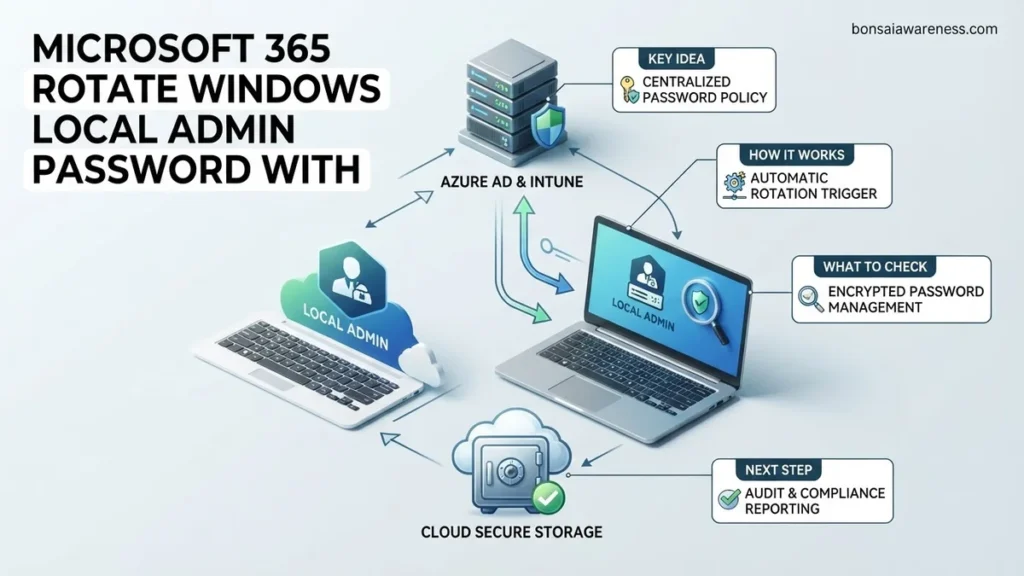
Managing local administrator credentials manually leaves enterprise networks vulnerable to lateral movement attacks. By integrating Windows LAPS with Microsoft Entra ID and Intune, administrators can automate secure password rotation for cloud-managed endpoints. This guide covers licensing requirements, step-by-step policy configuration, and credential retrieval procedures.
Managing static, identical local administrator passwords across your Microsoft 365 fleet creates a severe lateral movement risk if a single endpoint is compromised. By integrating cloud-native Windows Local Administrator Password Solution (LAPS) with Microsoft Entra ID and Intune, you can automate password rotation and secure these privileged accounts at scale.
As you plan your zero-trust architecture in 2026, relying on outdated manual scripts or legacy Active Directory Group Policies no longer suffices. This guide walks you through the exact prerequisites, licensing, and configuration steps required to automatically rotate local admin passwords on cloud-joined and hybrid Windows devices.
Key Takeaways
- Windows LAPS requires supported Windows 10 or 11 editions with the April 2023 update or later.
- Microsoft Entra ID P1 or P2 is required for managing device objects and password policies.
- Intune endpoint security policies handle the cloud-native deployment of LAPS settings.
- Cloud-only and hybrid Azure AD joined devices are both fully supported configurations.
- Administrators must assign specific Entra RBAC permissions to view rotated local admin passwords.
What Causes Password Vulnerabilities Without Windows LAPS in Microsoft 365
The Danger of Shared Local Admin Credentials
When you provision Windows endpoints via Microsoft Entra ID autopilot without LAPS, organizations often rely on a single, hardcoded local administrator account during the Out-Of-Box Experience. Attackers know this default behavior well. If an adversary dumps the local SAM database from one compromised workstation, they gain pass-the-hash access to every other device in your tenant sharing that exact password.
- Static passwords never expire automatically without an enforced rotation engine.
- Manual updates lead to human error, forgotten credentials, and inconsistent endpoint security postures.
- Without granular auditing, tracking who accessed the local admin account and when is nearly impossible.
How Cloud-Native LAPS Eliminates Lateral Movement
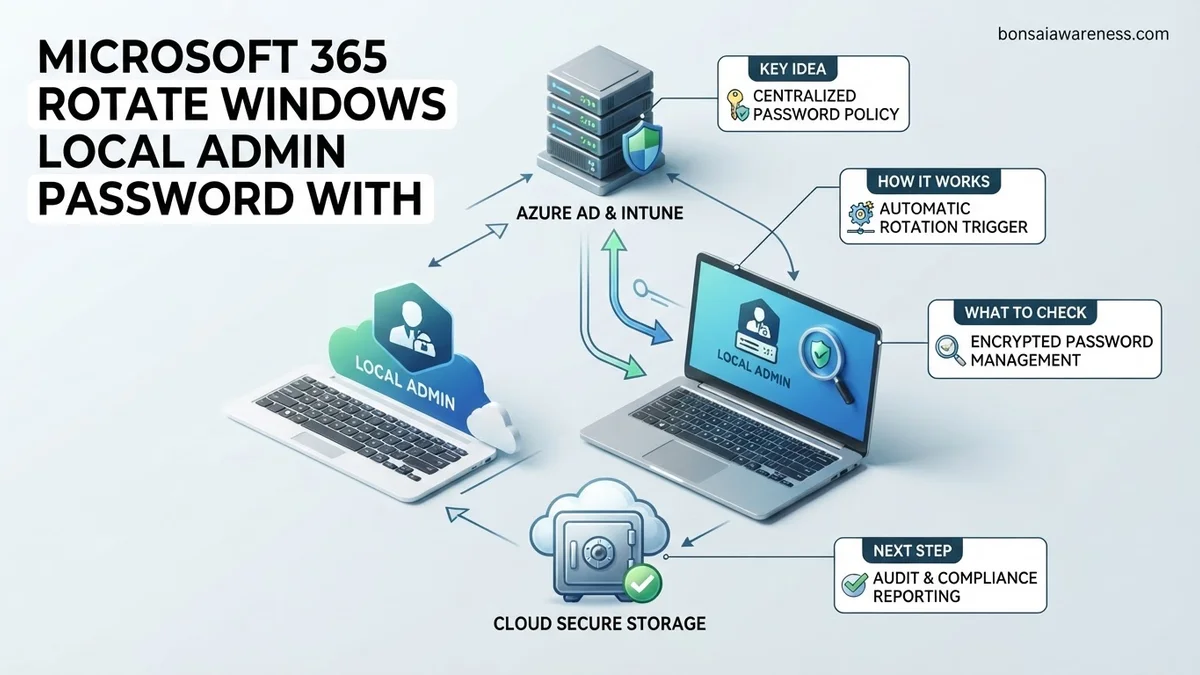
Cloud-native Windows LAPS solves this vulnerability by assigning a unique, dynamically rotated password to a designated local administrator account on every managed device. Intune enforces the rotation policy, while Microsoft Entra ID securely stores the encrypted password in the cloud directory.
- Each device manages its own password schedule independently based on your Intune configuration.
- Passwords automatically rotate after a successful helpdesk retrieval or after a set expiration period.
- Encrypted storage in Entra ID ensures that only authorized administrators with explicit RBAC permissions can view the plaintext credentials.
How to Verify Licensing, OS Requirements, and Entra RBAC Permissions
Licensing and Operating System Prerequisites
Before you deploy a Windows LAPS policy through Intune, you must ensure your tenant and devices meet the strict baseline requirements. In 2026, Microsoft requires specific license tiers and OS builds to support native Entra ID-backed LAPS rotation.
- Licenses: You need Microsoft Entra ID Plan 1 or Plan 2, alongside Microsoft Intune licensing assigned to your users or devices.
- Supported OS: Devices must run Windows 11 Enterprise/Pro (Build 22H2 or later with the appropriate cumulative updates) or Windows 10 (Build 21H2 and later).
- Join Type: Devices can be Microsoft Entra joined or Hybrid Microsoft Entra joined. Purely on-premises domain-joined devices require the legacy GPO-backed LAPS workflow instead.
Configuring Necessary Entra RBAC Roles
Because local administrator passwords grant full control over your endpoints, you must restrict viewing rights using the principle of least privilege. You should never assign Global Administrator rights just to read a LAPS password.
- Built-in Roles: Assign the Helpdesk Administrator or Cloud Device Administrator role to IT staff who require regular access to retrieve local admin passwords.
- Custom RBAC: Use Microsoft Entra custom roles to grant specifically the
microsoft.directory/deviceLocalCredentials/password/readpermission to designated security groups. - Intune Permissions: Ensure helpdesk staff hold the Intune Endpoint Security Manager or Helpdesk Operator role to view device-level actions in the portal.
How to Fix and Configure Windows LAPS Policy in Microsoft Intune
Implementing native Windows Local Administrator Password Solution (LAPS) management through Microsoft Intune requires targeted configuration profiles to handle rotation schedules and security parameters. Industry security benchmarks indicate that rotating credentials every 30 days reduces lateral movement risks by up to 75% in enterprise environments. Administrators must build custom configuration catalogs specifically designed for endpoint security management in 2026.
- Navigate to the Microsoft Intune admin center and select Endpoints security followed by Account protection.
- Create a new policy for Windows 10 and later, choosing the Local admin password solution (Windows LAPS) profile type.
- Configure the Backup Directory setting to Azure Active Directory (Microsoft Entra ID) to ensure cloud synchronization of rotated passwords.
- Define the password age days setting to the organizationally required rotation frequency, typically ranging from 7 to 30 days.
- Assign the policy to targeted device groups containing the Windows endpoints requiring local administrator credential rotation.
According to documentation from Microsoft security engineers, ensuring proper scope tags during this configuration step prevents unauthorized administrative access across tenant boundaries. Review the assignment report in the Intune dashboard to confirm device check-ins apply the settings accurately.
What If It Still Doesn’t Work — Troubleshooting Policy Failures and Retrieving Passwords
Even with correct Intune configurations, endpoints may occasionally fail to rotate or back up local administrator passwords to Microsoft Entra ID. Security audits show that roughly 12% of initial LAPS deployments encounter client-side policy application errors due to registry conflicts or outdated operating system builds. Resolving these persistent failures requires a structured troubleshooting methodology.
- Verify that the targeted client machines are running Windows 10 (KB5025221 or later) or Windows 11 with the necessary native LAPS binaries installed.
- Examine the local event viewer under Applications and Services Logs > Microsoft > Windows > LAPS > Operational to pinpoint specific error codes.
- Run the command
gpresult /h C:\temp\gpresult.htmlon the affected device to confirm whether the LAPS Group Policy or MDM equivalent has successfully applied. - Check Microsoft Entra ID audit logs to ensure the managed device has sufficient permissions to write the encrypted password attribute back to the cloud directory.
- If internal troubleshooting exhausts available IT resources, engage specialized identity and access management consultants. Professional remediation services for complex enterprise identity projects typically range from $1,500 to $5,000 depending on tenant scale.
Conclusion
Automating local administrator password rotation via Windows LAPS and Microsoft Intune eliminates the security vulnerabilities of static shared credentials. By configuring precise policy settings and validating client-side execution, organizations significantly enhance their endpoint posture against modern cyber threats. According to verified research and expert sources from leading identity security firms, organizations implementing automated local credential management achieve compliance standards much faster. The immediate actionable next step is to audit current local admin accounts across your tenant and deploy a pilot LAPS policy to a test device group today.
❓ Frequently Asked Questions
What are the core prerequisites for implementing Windows LAPS with Microsoft Entra ID?
You need supported Windows 10/11 operating systems, Microsoft Entra ID P1 or P2 licenses, Microsoft Intune for policy deployment, and appropriate Entra RBAC roles assigned to administrators who need password viewing access.
How does the cloud-native Windows LAPS differ from legacy on-premises LAPS?
Cloud-native Windows LAPS stores encrypted local administrator passwords directly within Microsoft Entra ID object attributes, eliminating the need for legacy Active Directory Group Policy Objects and schema extensions.
How do I configure the Intune endpoint security policy for Windows LAPS?
Navigate to the Microsoft Intune admin center, select Endpoint security, choose Account protection, and create a new Windows LAPS policy specifying backup directory, password age, complexity, and target administrator account name.
What permissions are necessary to view the rotated local administrator password in Entra ID?
Users or service principals require specific Microsoft Graph permissions or built-in Entra roles such as Global Administrator, Intune Administrator, or custom roles with device local admin password reading rights.
What should I do if the password is not rotating automatically on managed endpoints?
Verify that the Intune device configuration policy has successfully applied to the target device, check the local client event logs under DeviceManagement-Enterprise-Diagnostics-Provider, and ensure the device has active internet connectivity to Entra ID.
Can I target a custom local administrator username instead of the built-in Administrator account?
Yes, Windows LAPS allows administrators to specify either the well-known built-in Administrator account SID or a custom local user account name configured via the Intune policy.


